

Overview
The Connections page is the central place to add and manage external systems in Genesis. Connections power data access, source control, document systems, cloud services, and integration workflows used across apps, missions, datasets, and agent conversations.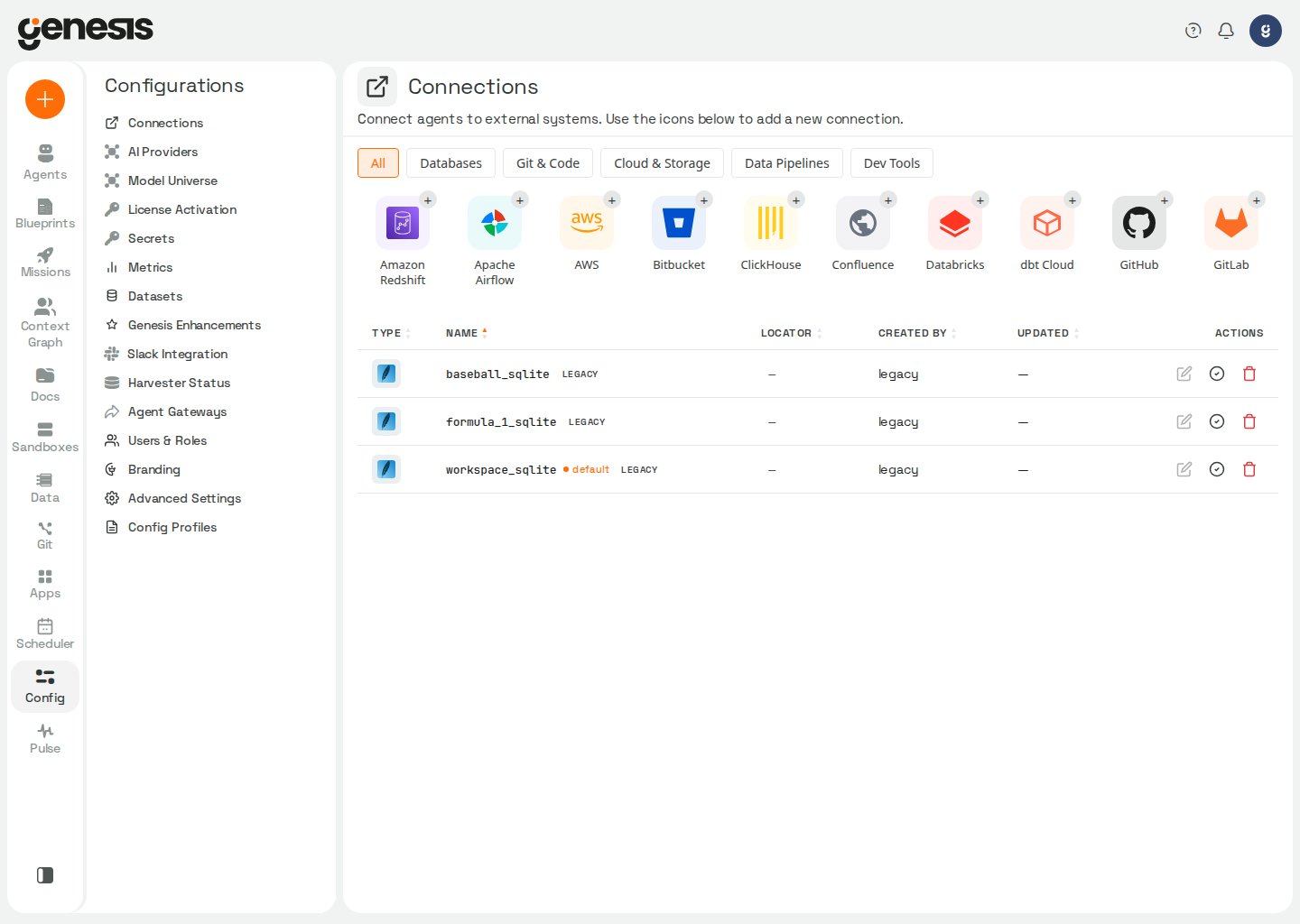
Main connection workflow
- Open Config -> Connections.
- Click + New Connection in the page header (including the first-run empty state when you have no connections yet).
- In the New connection modal, optionally filter by category or search, then select the provider you want.
- Enter credentials or complete the relevant OAuth flow.
- Choose Connection scope and default options (see Personal vs shared connections and Default connection layers).
- Test the connection (for User OAuth, testing happens after you authorize — see below).
- Save it for reuse.
service_account auth and shared
scope. The form selects that auth method when available and ignores the request
if it is marked unavailable. The effective scope still follows the current
user’s permissions: users without manage_all_connections create personal
connections.
If the system is inside a private network that Genesis cannot reach (for example, Genesis
runs in Snowflake and the database is on-prem), answer How does Genesis reach this
system? with Through a Genesis Outpost. See Genesis Outposts.
When you edit a saved connection and change its connection details, Genesis tests
the new details before saving them. The update is refused if the target system
cannot be reached, and the existing connection and stored credentials remain in
place. If you choose Use existing for a credential conflict, Genesis tests the
credential that is already stored rather than the value entered in the form.
If a save needs to create or replace more than one stored credential and one write
fails, Genesis attempts to undo the other writes from that save so the connection
is not partially updated. Earlier replaced credentials are restored and newly
created credentials are deleted when possible. If another request changed a
credential after this save wrote it, Genesis leaves that newer value in place and
reports that the undo was incomplete; the connection is not saved.
When Test Connection fails, Genesis uses the HTTP status held by the
connection tester when one is available. A held 401 means the presented
credential was rejected, so Genesis appends when the connection’s stored
credential was last written, when that timestamp is available. If the response
says that the credential is missing or unconfigured, Genesis does not treat the
401 as a rejection of a stored credential. A held 403
means access was refused without treating the stored credential as invalid, so
Genesis does not date it. Other held statuses are not interpreted as 401 or
403 based on text from the response, although credential-specific wording can
still identify cases such as a revoked OAuth grant. If no status was returned,
Genesis falls back to the error text.
External secret references such as outpost_<outpost>/<secret>#<field>,
aws_*, gcp_*, and AWS ARNs are pointers, not credential values stored in
Genesis. Genesis reads those values from the external store and normally caches
them for up to GENESIS_EXTERNAL_SECRET_CACHE_TTL_SECONDS seconds (default
300; set it to 0 to disable caching). If a connection test rejects a value
after its store has rotated, Genesis drops that reference from this process’s
cache, so retrying reads the current value immediately; other workers can keep
their own cached value until its TTL expires. If the retry is also rejected,
correct the value in the external store. There is no credential value to
re-enter in Genesis.
If the write time cannot be read, the result says so instead. If you rotated the
credential after the reported time, apply the current value to the saved
connection and retry; rotating it only in the issuing system does not update
Genesis’s stored copy. Connections that authenticate with an ambient identity
or an inline locator value show that no stored credential is available to
rotate.
Guided post-save setup
After you save a connection, Genesis can open a setup guide near the top of the page and scroll you to it automatically so the remaining steps stay in view. The guide turns post-save work into explicit steps such as:- confirming the save,
- running egress preflight and approving external access in Snowflake / SPCS when the connector type requires it,
- completing the provider OAuth grant when required,
- testing the saved connection.
salesforce_oauth_main)
and selects the full suggestion when you focus the name field so typing replaces
it rather than appending — appending would change the callback URL and can cause
redirect_uri_mismatch at grant time.
On the Connect OAuth step — and in the OAuth recovery guide opened from
?open_oauth=<type>.<name> — Genesis shows the exact callback URL again with
Copy redirect URI, plus provider-specific guidance on where to register it
when the authorization popup reports redirect_uri_mismatch. Genesis omits the
URL when it cannot derive a character-exact value (for example when the Genesis
base URL is not configured).
In Snowflake Native App / SPCS deployments, user-created Snowflake
connections egress through their configured public or PrivateLink account host
and show the usual Approve External Access and Assign to Genesis
steps in the post-save guide — for every saved auth type (Programmatic Access
Token, User OAuth, Key Pair, and username/password).
The step state updates in place as external access and OAuth status change, and
you can close the guide once the connection is ready. When OAuth authorization
succeeds but Genesis detects a configuration issue that may block the next tool
call (for example an Atlassian site URL mismatch on Confluence User OAuth),
Genesis still marks the grant complete and surfaces an English diagnostic
warning on the OAuth card, in a warning toast on the Connections page, or in
the post-save guide — follow that message before testing or using the
connection in chat.
For user-triggered external-access actions, Genesis performs a live assignment
recheck instead of waiting for the passive status cache to expire. In practice,
the guide should advance within a few seconds after you approve access in
Snowflake / SPCS or click Assign to Genesis.
After Assign to Genesis, Genesis verifies the binding on the live
GENESISAPP_SERVICE_SERVICE service rather than trusting
CORE.UPGRADE_SERVICES() alone. If the UI reports that the reference was
recorded but is not attached to the running service, the Snowflake upgrade step
returned success without applying the binding (for example when the service had
no prior external-access list). Retry assignment or inspect
GENESISAPP_SERVICE_SERVICE in Snowsight before continuing.
Each external access integration is tracked independently by its Snowflake
reference name (for example genesis_external_access for general outbound
access and tailscale_external_access for embedded Tailscale). Assigning or
approving one integration does not remove bindings for other references, even
when they share the same integration type in Snowflake.
If you click Check Again before the approval is visible, the guide tells you
to confirm the Snowflake approval and retry. If the approval is visible but the
connection is still not ready, Genesis surfaces the first reported preflight
failure reason so you can see which endpoint or readiness check is still
blocked.
Launchpad handoff
If you start a connector from Launchpad, Genesis opens the new-connection modal with the selected connector type already set. Closing that modal returns you to Launchpad and restores the in-progress journey so you can continue the guided setup. The Launchpad Setup checklist and the connect banners on Data Explorer and Git Browser open Config → Connections with?from=launchpad so
closing the connection modal returns you to Launchpad the same way. Checklist
Set up → links use that return leg without pre-selecting a connector type;
journey connector pickers can still deep-link with new_type and open_new=true.
Guided journeys such as Plan a data migration and Onboard client files
map your answers into structured blueprint inputs (and journey_context when the
recipe uses it) when Genesis starts the recommended mission. Connection pickers
show saved connections with connector branding; when no match exists, Genesis
offers a link to add one and resume the journey.
Migration pipeline discovery uses Context Graph lineage for the selected source
database. Chat migration can also start from a pipeline-service connection; see
Migrate data and pipelines
for how those sources route to their service tools or loaded warehouse. Saving a
database connection alone does not register it as a lineage source; add it in
Digital Twin and Context Graph
when you want the migration planner to discover its producers. The planner can
still propose a data-only plan when lineage is unavailable.
From the migration destination card, Clone opens the new-connection form
prefilled with the source connection’s non-secret fields and additional hosts.
It keeps the source authentication mode when that mode is available and
preserves its route when it uses an outpost. Credentials are never copied; enter
them again in the new connection form before saving.
Connection mode chooser
When a connector supports more than one authentication type, Genesis shows a Connection mode chooser before the rest of the form. Genesis pre-selects the first available mode when the modal opens (including User OAuth when it is listed first). Switch modes at any time before entering credentials, testing the connection, or saving it. Single-mode connectors still open directly to their fields. When Genesis runs as a Databricks App, modes that require the host’s own cloud identity remain visible but disabled, with a reason and an alternative. This applies to BigQuery Application Default Credentials (Runtime Identity), AWS and MWAA IAM Role (IRSA / Pod Identity), MWAA Snowflake Workload Identity (keyless), and Snowflake Restricted Caller’s Rights. The App cannot use those identities because it does not run on Google Cloud, in an EKS pod, or in Snowflake Container Services, and it has no Snowflake metadata connector for workload identity. Use the corresponding service-account key, access-key or bootstrap-key Assume Role, or Snowflake key-pair/OAuth mode instead, as shown on the disabled mode’s message. In a Databricks App, AWS and MWAA Assume Role also requires bootstrap AWS credentials: ifaccess_key_id is omitted, Genesis marks the mode unavailable
because the STS call would otherwise use the App host’s credential chain. Add
both access_key_id and secret_access_key to use this mode. These restrictions
apply to saving or testing a connection and to using a previously saved one.
The App’s connection chooser also disables local Iceberg mode; see
Databricks authentication modes.
See Connect to Databricks — Choose an authentication mode
for Databricks authentication modes, including the signed-in-user SQL mode
available inside a Databricks App and the App’s restriction on PAT-backed
connections. See the connection API reference
for update validation details.
For User OAuth, the create/edit modal does not show a Test Connection
button — Genesis shows a hint that the connection can be tested after the OAuth
login process completes. Save the connection, complete Authorize in the
post-save guide, then use Test Connection there (or on the saved row after
OAuth is connected).
When you re-test a saved Databricks Service Principal (OAuth M2M) connection,
the edit form may leave client_secret empty because the stored value is masked.
Testing the named saved connection fills that secret from the stored connection;
you do not need to paste it again. The host, http_path, and client_id still
must be present because Genesis does not fill those locator fields during the test.
foundry_prove_app uses this connection mode when reading a Workshop app deployed
as a Databricks App; see the proof guide
for the app access requirement.
Connection credentials are not revealed when a saved connection is read back.
Secret locator fields are returned as redacted placeholders, and credentials
embedded in connection strings or other locator text are masked while the
non-secret connection details remain visible. Secret references remain visible
as names. To replace a credential, enter its new value in the edit form; to test
the saved credential without re-entering it, use Test Connection on the
saved connection. The Connections API
documents the corresponding response behavior.
Palantir Foundry connections
The Palantir Foundry connector is available under Data Pipelines. It currently supports Personal Access Token authentication. Enter the Foundry tenant root without a trailing path and a token created in Foundry under Account Settings → Tokens:
For complete migration plans, ensure this token can list tenant ontologies and
read each listed ontology. See the
Palantir Foundry migration tools guide
for how missing access appears in the plan.
When
base_url is a valid HTTPS tenant URL, the token field shows Open
Tokens in your Foundry tenant, which opens that tenant’s token settings page.
The OAuth2 Client Credentials mode is visible in the connection chooser but
is disabled with Coming soon — contact Genesis to enable. The server also
rejects create and test requests that name auth_type: "oauth2"; the disabled
card is discoverability, not the enforcement boundary.
For the Test Connection result and what its SQL-route status means, see
Foundry connection test guidance.
For usage guidance, see the Palantir Foundry integration guide.
Databricks Prover storage
Databricks connection modes expose the optional non-secretprover_managed_location_root field. Set it to a connection-owned storage root
when Genesis should create throwaway Prover catalogs beneath that location.
Leave it blank when the connection does not provide managed storage. Prover
profiles may still supply an explicit managed_location override for a
mission; Genesis does not auto-discover arbitrary external locations.
In RBAC-enabled deployments, PAT-class saved modes (
pat, api_token, and
api_key) are available only to roles with the matching
access_pat_connections_<category> permission for that connector’s
category: databases, git, cloud, pipelines, or tools. When a role
lacks the permission for a category, the Connections UI hides those auth
modes for connectors in that category and blocks PAT-based create, update,
and test calls for them. OAuth-based modes continue to work when the
connector supports them, while token-only connectors in that category remain
unavailable until an admin enables the matching permission.AWS connection modes
AWS connections support these saved modes:
Genesis tests all AWS modes with an STS
get_caller_identity lookup. If
region (for access_key or irsa) or default_region (for assume_role)
is blank, Genesis falls back to us-east-1 during test and runtime operations.
Choose Assume Role when Genesis should call AWS APIs through a target IAM
role rather than the pod’s own identity. On EKS with IRSA or Pod Identity,
leave Bootstrap Access Key ID and Bootstrap Secret Access Key blank —
Genesis uses the pod credential chain to call sts:AssumeRole. Provide both
bootstrap key fields only when you need a static IAM user or access key to
bootstrap the assume-role call (for example outside Kubernetes or in a
cross-account pattern that cannot use the pod role directly). Set
Role Session Name to a value that includes your Genesis instance name (for
example genesis-<instance>) so CloudTrail can identify which deployment used
the role. When bootstrap keys are omitted, Role Session Name is required;
when bootstrap keys are supplied, Genesis defaults the session name to
genesis-assume-role if the field is left blank.
Grant the bootstrap identity (the pod IAM role on EKS, or the saved bootstrap
keys elsewhere) sts:AssumeRole on the target role, and add a trust policy on
the target role that allows that bootstrap principal. If the trust policy or
permission is missing, Test Connection and runtime calls return an access
denied error that names the target role ARN and asks you to verify both sides of
the trust chain. A successful Test Connection for Assume Role also
shows the Assumed role ARN returned by STS (for example
arn:aws:sts::123456789012:assumed-role/my-target-role/genesis-prod).
Choose IAM Role (IRSA / Pod Identity) when Genesis should use the pod’s
attached workload identity directly — no cross-account or downstream role
chain. Genesis uses the pod or host credential chain instead of saved keys.
When you create or edit an AWS connection with IAM Role (IRSA / Pod
Identity), Genesis resolves the pod’s IAM identity in the background and
shows an IAM Role Identity panel with the full caller ARN (for example
arn:aws:iam::123456789012:role/genesis-bedrock-role). Grant that IAM role
access to the S3 buckets, Secrets Manager secrets, and other AWS resources the
connection needs. Test Connection uses the same STS lookup and refreshes
the displayed ARN when the test succeeds.
When databricks_action runs stage_from_s3 and you omit params.aws_credential_name / params.aws_connection, Genesis resolves the caller’s scoped default AWS connection (My default, then Role default). If that default resolves but its secrets fail to load, Genesis returns an error instead of silently using ambient host credentials. When no scoped AWS default applies, Genesis may fall back to ambient boto3 credentials and logs a warning — set a user or role default, or pass an explicit AWS connection name, for predictable S3 access.
What customers should know
Connection categories
Customers will typically see connectors grouped into categories such as:- databases,
- Git and code,
- cloud and storage,
- data pipelines,
Dev Toolssuch as Jira, ServiceNow, Salesforce, HubSpot, Linear, Cursor, Confluence, Jenkins, JAMS, and SAP S/4HANA.- BI platforms such as Microsoft Power BI (registry category
bi; saved rows appear under All until the Connections UI adds a dedicated BI tab).
On the main Connections page, category tabs above the saved-connections
list (All, Databases, Git and code, Cloud and storage, Data
Pipelines, and Dev Tools) filter only those rows. Genesis defaults to
All when the URL has no
category parameter or the value is not one of
all, databases, git, cloud, pipelines, or tools. Selecting a tab
updates the URL (for example ?category=pipelines); Genesis does not restore
a previously selected category from browser storage.In the New connection modal, connector tiles use the same category labels
as separate pills. Those pills filter only the provider catalog inside the
modal and do not change the main-page category tabs.Databases also includes providers and saved connections whose registry
marks them as data sources, even when their home category is different. For
example, Palantir Foundry remains under Data Pipelines and also appears
under Databases because it is a place data lives.Deep links and guided flows can pass category in the query string to open
the page with that saved-connection filter active. Connections whose provider
type is not in the registry (legacy rows) appear only when
that filter is All, because their category is unknown.Finding connectors and saved connections
The Connections page centers on your saved connections. Use the category tabs, page-header search, Group by provider, and + New Connection to find rows and add new ones:- Category tabs above the saved-connections list narrow rows by provider
registry category. The default selection is All. Choosing another tab
sets
categoryin the page URL (valid values:all,databases,git,cloud,pipelines,tools). When a list criterion is active, Genesis sends the search, category, owner, scope, auth, sort, and direction criteria to the server and applies the response after visibility checks. The page updates immediately with local matches while the request is in flight, then replaces them with the authoritative server result. - Search providers and connections in the page header filters the
saved-connections list. The placeholder reads
Search providers and connections.... Genesis matches the connection name, type, and the provider display label, so typingsnowcan surface Snowflake connections even when the connection name does not include “snow”. Search is debounced by 250 milliseconds before the server request is sent. - Filters and sorting are available from the sliders button beside the
page-header search. Filter saved connections by Connection owner,
Scope (
Shared,Personal, orUnknown), and Effective auth type. The owner picker includes System, Legacy, and Unknown buckets when applicable; system-owned rows include rows created bysystem_default_user. Sort the filtered rows by Name, Connection owner, Provider / type, Scope, or Updated time, in Ascending or Descending order. Search, category, filter, and sort selections are kept in the page URL, so a filtered view can be shared or revisited with browser navigation. - Results status shows Updating results… while an active criterion is being sent to the server. The list exposes the server-reported visible total and matching count when the response is current. If the request fails, the page keeps showing local matches and offers Retry.
- Each saved row has one status, chosen by priority: Outpost down, Needs setup, Check write identity for a shared Jira connection, Working · [age], or Not checked yet. An Outpost problem takes priority over the other statuses; for Snowflake Native App / SPCS connectors that need external access, Needs setup opens the guide to approve it, and the Jira warning explains how to unblock writes. Working means a query succeeded through the connection since this server started; Not checked yet means none has, not that the connection failed. This observation is kept in server memory and resets on restart. Use Test to check a connection now; it is unavailable while required external access is pending.
- Row details and actions keep the provider and connection name, locator, creator/update details, and applicable properties (such as defaults, Personal, Per-user OAuth, Legacy, Hidden, and Outpost route) together. Use the ⋯ menu for row actions such as Edit, setting your default, OAuth setup, external-access checks, and Delete; Test stays directly on the row.
- Delete removes the saved connection, its owned credentials, and its users’ personal sign-ins. Credentials the connection only references are not owned by it and are kept. An owned credential is also kept if another saved connection references it, or if Genesis cannot check the remaining connections.
- Group by provider sits next to the page-header search (persisted in your browser). When enabled, Genesis clusters rows under provider headings.
- + New Connection opens the New connection modal with the provider
catalog. That modal has its own search (
Search providers...) and category pills; those controls filter only the catalog inside the modal. - Additional hosts can identify the same saved connection when a provider serves more than one hostname. Enter hostnames only (no scheme, path, query, fragment, or credentials); Genesis normalizes and deduplicates them and accepts at most four per connection. The host must be allowed for the connection’s provider type.
- Export and Import (admins with
manage_all_connectionsonly) open modals to move saved connections — including their secrets — between Genesis instances as an encrypted.genesis-bundlefile. See Export and import connection bundles.
canonical_connection_id
(<type>.<name>) to match that connection with the identifier returned by
describe_asset; see Context Tools.
Saved connections render as detail-rich rows, not a sortable table. Use the
sliders button to choose the sort field and direction; the default is connection
name in ascending order. When rows tie on the selected field, Genesis uses the
connection name and then provider type as tie-breakers.
When Genesis can resolve creator identity, each row can show provenance
metadata:
- Created by — the owner of the connection (
created_by, sourced fromowner_user_id, or fromowner_emailwhen ownership is deferred after a bundle import). For personal connections, only this user can edit the connection. Users withmanage_all_connectionscan reassign the owner when editing; otherwise the owner identity is preserved when credentials or other settings change. - Updated — the date of the most recent save (
updated_at).
owner_user_id tracking may fall back to the
last-known updater for the creator label.
When you have no connections yet, Genesis shows a first-run empty state with
+ New Connection to open the provider catalog. When filters exclude every
row but you already have connections, the empty state offers the same button to
reopen the catalog.
Desktop CLI profile import
In Genesis Desktop, the first-run Connections page can also find profiles already configured in the local Snowflake and Databricks CLIs. Review the detected profiles and choose which to add; profiles that resolve to the same Databricks workspace are shown as alternatives, with only one preselected. The list reads local CLI configuration and does not import credentials until you choose a profile. Adding one creates a new connection; an existing connection is not replaced. If importing a profile requires reading a file in a macOS-protected folder, macOS may ask you to grant Genesis access when you choose it. Whengh has no github.com account, Genesis Desktop also checks Git’s configured
credential helper for a GitHub sign-in. Importing that candidate copies its token
into Genesis secrets and requires your consent. If the helper check finds no sign-in,
Genesis checks whether Git can authenticate to GitHub over SSH. An SSH-only result
is shown as detected but cannot be imported because it does not provide an API token;
use gh auth login or add a personal access token on the Connections page instead.
If you choose not to add a candidate, Genesis remembers that choice and lists the
candidate unticked on later detections.
The import result explains what was added and any remaining step. Snowflake PAT
and passphrase-protected key imports can require consent or the key passphrase.
Databricks sign-in profiles are added as browser sign-in connections; sign in to
finish. A refused Snowflake key-pair connection reports that the private key must
match the public key registered to the Snowflake user. For Databricks SQL Warehouse
selection and missing-warehouse guidance, see
Databricks connection setup.
If the New connection modal search or category excludes every provider tile,
Genesis displays No providers match this search. If the main-page search or
a category URL filter excludes every saved row, Genesis displays No
connections match these filters.
Personal vs shared connections
In the New connection or Edit connection modal, Genesis shows a Connection scope section after you choose a connection mode and enter credentials. Users withoutmanage_all_connections always create personal connections. Genesis displays a short callout: This connection will be personal. To make it your default, keep Make this my default connection selected.
Users with manage_all_connections choose between:
Visibility and credential access by scope:
- Personal (
scope="personal"): Genesis shows the connection only to its owner (owner_user_id). Other users do not see it in Config → Connections, connection APIs, or discovery surfaces. Credential resolution also requires the acting user to be that owner; attempts by anyone else fail with an access error. - Shared (
scope="shared"): When Roles with Access lists one or more RBAC roles, Genesis shows the connection only to users who hold one of those roles (or to callers withmanage_all_connections). When Roles with Access is empty, any user withview_connectionscan see shared connections. If Genesis cannot load access grants for a shared connection, it hides that connection (fail closed).
owner_id with the connection owner (owner_user_id), not the acting user who saved or imported the connection — so an administrator who imports another user’s personal connection does not retain secret ownership. When ownership is deferred (for example after a bundle import where the owner has not logged in yet), Genesis keeps the secret with the importing administrator until deferred ownership resolves, then reassigns secret ownership to the resolved owner without changing secret values. For shared connections, credential secrets stay owned by the acting user who saved the connection (typically an administrator). Other users resolve those secrets through Roles with Access and RBAC role grants — Genesis never reassigns shared-connection secrets to an individual user.
Changing scope or owner (admin only). Users with manage_all_connections can change Connection scope when creating or editing a connection. When scope is Personal connection, Genesis shows an Owner field (user id, for example [email protected]). Only that owner can edit a personal connection. When an admin changes scope to personal without specifying an owner, Genesis assigns the acting admin as owner. When an admin reassigns a personal connection’s owner, Genesis also reassigns the underlying credential secrets to the new owner without changing secret values. Callers without manage_all_connections cannot change scope or owner on update — the API returns 403 with manage_all_connections permission required to change connection scope or owner.
When scope is Shared connection, Genesis shows a warning callout: shared connections may be used by other users or bots — use them only for service-account or intentionally shared credentials.
For PAT-class authentication (for example pat, api_token, access_token, personal_access_token, bearer_token, or secret fields named pat, api_token, access_token, personal_access_token, or bearer_token), saving as Shared connection requires an extra confirmation: I understand this token may be used by other users or bots. Genesis blocks save until you check that box. For personal tokens, the safer path is Personal connection plus Make this my default connection. User OAuth connections are not treated as PAT-backed for this check.
New connections default to Personal connection with Make this my default connection selected. Genesis no longer creates implicit shared/system defaults — not on first save, not when only one connection of a type exists, and not through legacy is_default metadata.
Personal credentials on shared connections
Administrators can let each user attach their own provider identity to a Shared connection. In the connection editor, set Personal credentials to one of these policies:
For the complete administrator and user workflow, see Use personal credentials with a shared connection.
The policy control is available to users with
manage_all_connections when the
selected authentication mode declares principal fields. The Connections
list shows a key action for users who can bind credentials. Open it to enter the
principal fields shown for that provider, or to replace or unbind your existing
binding. Secret values are never displayed after saving. Administrators can
review visible bindings and revoke an individual user’s binding from the
connection editor.
Personal credentials are per-user bindings to a shared connection; they do not
change the connection’s shared scope, Roles with Access, or the shared
credential. Background operations explicitly use the service credential. To
make a shared Linear connection eligible for Action Review reconciliation, keep
Personal credentials set to Disabled and do not enable double-key
access; see the Action Review response contract
for the API behavior. For the API contract and response fields, see Personal
credential endpoints.
Successful binds, rebinds, and explicit revokes are recorded in the admin audit
log so administrators can trace the acting user, target user, connection, and
credential kind. See RBAC Practical Guide → Admin audit log.
MCP server connections
To connect Genesis to a remote HTTP MCP server, open Config -> Connections, choose + New Connection -> MCP Server, and enter a lowercase name plus the server URL. A saved MCP connection immediately discovers the server’s tools and registers them for agents, whether it is created in the UI or by an agent;connections_action reports the discovery result on MCP CREATE and UPDATE.
Deleting a saved MCP connection removes its registered tools. Genesis replays
saved registrations after a restart.
The runtime registrations are stored under the full config path
mcp_servers, whose type is dict and default is {}. The setting is managed
by the Connections UI and the MCP admin tools rather than edited manually.
New MCP server connections default to Personal — only the connection owner
can see and call the server’s tools. Choose Shared when every user’s agent
should use the server through this connection. Genesis warns that all actions
through a shared MCP connection are attributed to the connection creator,
regardless of which Genesis user initiated them.
The Advanced settings section supports these authentication modes:
With Auto, Genesis contacts the MCP server while creating or updating the
connection. OAuth metadata resolves to OAuth interactive sign in; a successful
anonymous probe resolves to Open — no credentials. If discovery cannot reach the
server or the server requires credentials without publishing OAuth metadata, the
write is refused and the connection is not saved or changed. The same preparation
also applies when an agent creates or updates an MCP connection.
The advanced settings also apply to every MCP authentication mode:
If you already have a Claude Code
.mcp.json entry, paste it into the text area
at the top of the New MCP Server Connection form and select Read MCP
config. Genesis accepts a complete mcpServers object, a single named entry,
or a bare server object. It reads one server at a time, maps a bearer
Authorization header to the Bearer token field, and copies other headers,
the URL, transport, and supported OAuth fields into the form. A server using
stdio, more than one server, or ${VAR} environment references is refused
rather than saved with values Genesis cannot resolve. Review any warnings before
selecting Add Connection.
For example, this entry fills the connection name, URL, SSE transport, and
custom header:
404 when an
out-of-scope caller attempts to invoke one. See MCP admin tools
for the agent-facing runtime administration tools.
Additional hosts for connection matching
Use Additional hosts in a connection’s create or edit form when the same provider connection is reachable through vanity or internal hostnames. These values are host authorities only, such aspromotions.example.com; Genesis
rejects schemes, paths, query strings, fragments, credentials, invalid ports,
and hosts that are not allowed for the selected provider type. A connection can
declare up to four additional hosts. When a user pastes a provider URL in chat,
Genesis can match one of these declared hosts to the saved connection instead
of treating the URL as an unrelated web-search request.
Reach private hosts through an Outpost
When a connection’s host is reachable only from a private customer network, choose Through a Genesis Outpost under How does Genesis reach this system?, or let a domain pattern on the Outpost route it. Outposts are managed in Config → Outposts and routing is off by default. See Genesis Outposts for what an Outpost is, Install an Outpost for setup, Connect a system through an Outpost for routing, secret references and route tests, and Outpost routing settings for the configuration keys.Roles with Access
A shared connection that wraps a secret can grant Roles with Access — the RBAC roles whose members are allowed to see the connection and resolve its secrets. In the connection modal, Roles with Access appears only when Connection scope is Shared connection. Open a connection in Config → Connections → [connection] → Edit and add roles under that section. When at least one role is listed, Genesis filters the connection out of list and detail APIs for users who do not hold one of those roles (admins withmanage_all_connections still see everything). An empty Roles with Access list keeps the connection visible to everyone with view_connections.
This binding matters for unattended execution. A scheduled Genesis Flow runs as a system scheduler user, not as the connection’s owner. If no role the scheduler user holds is bound to the connection, the scheduled run cannot resolve the secret — even though a manual run by the owner succeeds. Bind a role the scheduler user has (commonly user) so the scheduled flow can use the connection.
Agents can manage this without UI work: connections_action accepts scope and a roles_with_access list on CREATE and UPDATE (changing scope requires manage_all_connections), and GET returns the current bindings. Pass these fields as top-level parameters — there is no nested updates object, and unknown parameters on mutating actions return an error. See Scheduled flows that use Connections.
Default connection layers
Genesis tracks defaults for the same connection type at two layers:- My default (
is_user_default): a per-user default for the signed-in user. Set it in the modal with Make this my default connection, or toggle it later from the list. Only your user default changes; other users and bots keep their own default resolution. - Role default: a shared default pinned to one role. Set or clear role defaults from a shared saved connection row (requires
manage_all_connections).
github.production) or set a user or role default first.
Databricks App metadata connections
When Genesis runs in a Databricks App using SQLAlchemy metadata (for example, Lakebase/PostgreSQL), code paths that require the default database connection do not fall back to a local SQLite metadata connector. Databricks App local storage can be reset, so writes to an unseeded SQLite file could be lost. If a tool reports that no default database connection exists, pass the id of a configured database connection withconnection_id. For Snowflake SQL helpers, see Snowflake
connection requirements.
At startup, Genesis also seeds the built-in Adam agent and the spec-author
seat into SQLAlchemy metadata when their rows are missing, so they are available
for chat on a fresh Lakebase/PostgreSQL metadata database. An existing Adam
row is left unchanged. The spec-author row’s display name is reconciled on
startup, and its instructions are refreshed when the pinned constitution loads.
Agent-facing connector tools can report this unresolved state as selection_required, no_connections, or ambiguous_defaults rather than claiming that setup is invalid. The response can include safe candidate connection ids and warnings so the agent can ask the user to choose one; ambiguous_defaults also includes the conflicting connection ids. See connections_action for the response fields and retry parameter.
When a scoped default does resolve for the caller but its secrets cannot be loaded (for example RBAC denies access, a secret is missing, or token minting fails), Genesis surfaces that failure instead of silently falling back to environment variables, legacy configuration stores, or ambient cloud credentials. Tools only use those fallbacks when no scoped default applies — for example GITHUB_TOKEN when no GitHub default is set, legacy EXT_SERVICE_CONFIG for image_analysis when no Connections default exists, or ambient boto3 credentials for databricks_action stage_from_s3 when no AWS default is set.
When multiple role defaults for the same connection type apply to the current user and point at different connections, Genesis cannot choose one automatically. Connector tools that omit an explicit connection — including git_action credential checks, confluence_connector, linear_connector, jenkins_tools, jams_tool, power_bi_connector, openmetadata_connector, dbt_cloud_* tools, image_analysis (via image_tools), Azure DevOps tools, sharepoint, onedrive, teams (microsoft_teams), sandbox_action (AWS K8s auth, Railway token injection, and Jenkins image builds), and AWS-backed databricks_action actions such as stage_from_s3 — return an error such as Multiple role defaults for linear connection (engineering=linear.team-a, data=linear.team-b). Set a user default or pass an explicit connection. Set a My default for that type, clear the conflicting role defaults, or pass an explicit connection id on the tool call.
google_drive is an exception: when role defaults for google_workspace are ambiguous, Genesis treats the scoped default as unset and can fall back to legacy service-account configuration instead of returning an error. The Sandbox launch wizard applies the same degrade-to-unset rule for AWS connection preselection — an ambiguous scoped default shows no pre-selected connection rather than blocking the listing.
In the Connections list, rows can show My default and Role default badges when those layers apply. Effective default is separate: a row can be the resolved default for your session when it matches your personal default or a role default you hold.
In the connection modal, Make this my default connection is available to every user.
You can still use the star control on any visible connection row to toggle My default for that connection type without reopening the modal. Users with manage_all_connections can also open a shared saved connection and set or clear Role defaults for roles that already have access to that connection. Personal connections and legacy connections cannot be used as role defaults.
Protected built-in connections
Genesis protects certain built-in connections from deletion. The systemSnowflake connection and bundled demo database connections cannot be removed from the connection registry. Only user-created connections can be deleted.
When you run Test Connection on the protected snowflake.Snowflake entry, Genesis validates the current runtime SNOWFLAKE_* configuration and, in Snowflake Native App / SPCS deployments, the mounted /snowflake/session/token file instead of looking for a saved APP_CONFIG record.
Administrators with manage_all_connections can hide the virtual system snowflake.Snowflake connection (the legacy-sourced row named Snowflake, owner System) from agent discovery and default dashboard lists without deleting it. Use the eye icon on that row to hide or show it. Enable Show hidden (admin-only checkbox at the end of the category tabs) to reveal hidden connections dimmed with a Hidden badge so you can restore visibility. This control persists in AppConfig at connections.hide_system_snowflake and is separate from the CUST_DB_CONNECTIONS.HIDDEN column used for bundled demo connections. When hidden, the connection is omitted from agent-facing discovery (_list_database_connections, Connections lists, and Data Explorer) and agent data tools that target it return a connection_disabled error; internal metadata, harvest, and thread-storage operations that use the Snowflake connector directly are unaffected.
When operators start Genesis with LOAD_LAB_SOURCE_DATA_DB=true, this
protected built-in set also includes the workshop source
sqlite.lab_source_data. That bundled SQLite connection exposes the shared
RAW_CUSTOMERS, RAW_ORDERS, RAW_PRODUCTS, and RAW_INTERACTIONS lab
tables used by the legacy_data_lake_workshop blueprint and should be treated
as read-only.
Bundled demo database connections are seeded at startup when enabled and cannot
be removed from the registry. Administrators and roles with manage_all_connections
can remove them from discovery in one step with Delete all demo data in
Advanced Settings. That action hides every
bundled demo connection, tombstones each ID so Genesis does not re-seed it on
restart, and evicts its Twin graph and semantic-search entries.
Hidden demos stay out of the default Connections view and other discovery
surfaces, including the Data Explorer connection browser and Cortex Code
Snowflake auto-selection when Genesis is picking from saved connections. Demo
connections have no per-row hide control — use Delete all demo data only.
The Show hidden checkbox and per-row eye icon apply only to the dedicated
System Snowflake hide flag described above, not to demo connections.
Bundled SQLite demo metadata refreshes on startup; see Connecting To SQLite
for the Formula 1 description correction and the rule that operator-edited text
is preserved.
Environment-based connection seeding
Operators can register arbitrary saved connections at startup from environment variables — without using Config → Connections or the API. Genesis readsGENESIS_SEED_CONNECTIONS on every boot and creates any declared connection
that does not already exist (type.name). This works for any connector type in
the connection registry (for example postgres, databricks, snowflake,
sqlite, github) and is idempotent: an existing connection is left unchanged.
Seeding uses the modern connections API (APP_CONFIG plus Genesis Secrets).
Genesis defers creation until AppConfig has initialized; early adapter passes
during metadata bootstrap skip seeding quietly, and a later pass on the same
startup performs the create. A malformed seed spec is logged and skipped — it
does not block server boot.
Environment variables
The
LOCATOR JSON uses the same field names as the connection modal for the
chosen auth_type (for example host, port, database, username,
password for PostgreSQL password mode, or host, http_path, pat, and
optional catalog and prover_managed_location_root for Databricks pat
mode). Secret fields may be given inline
in the env value;
create_connection converts them into managed Genesis Secrets — nothing is
stored in cleartext in APP_CONFIG.
When the env file is loaded with source (bash), wrap LOCATOR in
single quotes so the JSON double quotes are preserved.
Example — Postgres source and Databricks target
Seed connection 'postgres.spike_source' created from environment (scope=shared).
If postgres.spike_source already exists, Genesis logs that the connection
was skipped.
This mechanism is separate from legacy Databricks bootstrap env vars
(DATABRICKS_DB_ENABLED, DATABRICKS_DB_PAT, and related fields), which
still run through their dedicated path when enabled. Prefer
GENESIS_SEED_CONNECTIONS for new Helm values, local dev stacks, and any
engine supported in Config → Connections.
Export and import connection bundles
Administrators withmanage_all_connections can export selected saved
connections to an encrypted bundle and import them on another Genesis instance
— for example, a non-production to production cutover — without rebuilding each
connection manually.
Export
- Open Config → Connections and click Export in the page header.
- Select the connections to include (or Select All).
- Enter a passphrase (minimum 16 characters). Share this passphrase securely with the importing administrator — Genesis does not store it.
- Click Export. Genesis downloads
connections.genesis-bundle.
secret_* references and plain credentials are resolved at export time and
re-encrypted into the bundle. External references stored directly on secret
fields (for example aws_*, gcp_*, and vault_*) are included in the
bundle payload as references and resolved on the target instance at runtime.
Each connection entry includes an owner_email when Genesis can resolve the
owner’s email address (for example from owner_user_id on the source
instance). Bundles expire 24 hours after export; re-export from the source
instance if the file is older.
If any selected connection cannot be exported (for example a secret field fails
to resolve), Genesis aborts the export and returns an error listing the failed
type.name ids — no partial bundle is downloaded.
Import
- On the target instance, open Config → Connections and click Import.
- Upload the
.genesis-bundlefile and enter the export passphrase. - Click Preview. Genesis shows new connections, conflicts with existing
type.nameids, and warnings (for example unknown connection types or OAuth connections that will need re-authorization). - For each conflict, choose Skip (default) or Overwrite.
- Click Import. Genesis reports how many connections were created, updated, or skipped.
OAuth connections import with their client configuration, but per-user
OAuth grants do not transfer — users must complete Authorize again on the
target instance. For bundle entries without a non-empty
auth_mode, Genesis
infers the mode from the locator: auth_type: "user_oauth" becomes
user_oauth, and any other locator becomes service_token. Personal
connections import with their exported owner
when that user’s email matches an account on the target. When the owner has
not logged in yet, Genesis stores the exported owner_email and keeps
owner_user_id unset — ownership resolves automatically on the owner’s
first login (or the next time the connection is read after they exist on the
instance). Import preview and apply responses warn that ownership will
resolve on first login instead of reassigning the connection to the importing
administrator. Credential secrets for imported personal connections follow
the same owner rules — they are owned by the connection owner, not the
importing administrator, including when ownership is deferred via
owner_email; Genesis reassigns secret ownership when deferred ownership
resolves on the owner’s first login. Shared connection secrets stay with
the importing administrator and are governed by Roles with Access as on a
locally created connection. Overwriting an existing personal connection follows the same
owner-preservation rules. Connection types not registered on the target
instance are skipped with a warning. Bundle files larger than 10 MiB are
rejected. For API details, see
Connection bundle endpoints.In Snowflake Native App / SPCS deployments, Genesis keeps the built-in system
Snowflake connection separate from user-created outbound Snowflake connections. Genesis disables the Snowflake Python connector’s automatic reads from /snowflake/session/spcs_token for those user-created outbound connections so Programmatic Access Token and username/password modes can authenticate to external Snowflake accounts without inheriting the app’s internal SPCS token. The system connection still passes the SPCS token explicitly when Genesis needs it, including Digital Twin scans. When the mounted /snowflake/session/token file is present, that built-in SPCS path can authenticate without SNOWFLAKE_USER because the OAuth token already carries the Snowflake identity. Genesis also omits SNOWFLAKE_ROLE on that built-in SPCS path because the session role comes from the token, and it omits SNOWFLAKE_WAREHOUSE unless GENESIS_SPCS_WAREHOUSE_FIX=TRUE is set before startup.Cortex Code cannot use that built-in system Snowflake connection in Snowflake Native App / SPCS deployments because the Cortex Code CLI does not support SPCS session-token authentication. For Cortex Code, use a user-created Snowflake connection backed by Programmatic Access Token, username/password, or Key Pair credentials. If you leave snowflake_connection unset, Cortex Code can auto-select a compatible saved Snowflake connection when one is available. When a Cortex Code run fails, _cortex_code includes CLI stderr in the returned error field when available so agents can diagnose auth or connection problems without enabling diagnostic. If the task is really AWS/EKS, Helm, kubectl, AWS CLI, or boto3/AWS SDK work, Genesis can return sandbox guidance instead; in that case prefer sandbox_action with backend="eks" or backend="k8s" plus a saved target_env or explicit credential_name and backend_options.Access intent (database connections)
When you create or edit a database connection in the connection modal, Genesis shows an Access intent selector with these stored values:
Genesis does not offer this field for non-database connectors (Git, Jira, cloud, and similar). Those systems are governed by OAuth or PAT scopes, not this label.
read_only is enforced for SQL Genesis runs: write-class statements are refused on the connection. This enforcement covers query tools, governed writes, Flows, and the Prover. MongoDB connections, the native Snowflake connection, and the Snowflake SQL API tools are not covered. read_modify remains an awareness label for agents and the Agent Center Data Access badge; database roles, connection RBAC, and require_double_key still decide access beyond this guard. Agents and connections_action can read and set access_intent on CREATE and UPDATE; omit access_intent on UPDATE to keep the existing value.
Connection access intent is separate from caller and execution-path restrictions. SQL run from agent-written runtime code is read-only; writes must use the governed SQL tool, which asks a person to approve them. Ad-hoc query-result endpoints apply caller-specific write restrictions; see Ad-hoc query execution endpoints.
Agent context and access controls
Saved connections are reusable, but Genesis still evaluates them in the context of the acting agent and user. Connection scope, Roles with Access, connection profiles assigned on an agent’s Data Access tab, secret access, double-key requirements, and user OAuth grants can change whether a connection is visible, allowed, requires re-authorization, or is blocked for that workflow. Personal connections (scope="personal") resolve credentials only for their owner.
Legacy CUST_DB_CONNECTIONS rows are not editable through the agent-facing connection tools. An update that targets a legacy row is refused, and the internal storage="legacy" routing option cannot be supplied through the tool surface. Use a new-style connection with Roles with Access for agent-managed access; omit the deprecated allowlist fields or pass only ['*'] when creating one.
In SQLAlchemy metadata mode, Genesis does not use the legacy connection store.
Add and manage database connections on the Connections page or through the
Connections API instead of the legacy _add_database_connection path.
The deployment-wide security.force_double_key_on_connections setting can raise every connection to double-key behavior, regardless of its stored require_double_key value. It is independent of security.tool_auth_mode; see Security Controls — strict settings for defaults, configuration methods, and the agent-only behavior at each connection boundary.
In demo mode (
demo.enabled), Genesis restricts new database connections to
local SQLite under bot_storage, repo-embedded paths, or in-memory databases
unless demo.allow_external_databases is true. Trusted internal demos can
enable that flag in
Advanced Settings.Database SQL safety
Saved database connections reuse the same SQL safety guardrails across chat and tool calls. For_query_database, _compare_query_results, _run_sqlite_cli_commands,
sqlite_export_tool, foundry_query, and Databricks SQL actions
(run_sql_statement, run_sql_batch, and execute_command_in_context),
executed: false means the statement did not reach the engine and the refusal
opens with Not run:. executed: true means it reached the engine; inspect
success and any error separately, since later work such as saving an export
can still fail. If executed is absent, treat the outcome as failed, uncertain,
or pending rather than assuming the statement did not run. For Databricks batch
calls, check each statement’s result. A successful bulk_download job start
omits executed because its source query runs later; check the job status.
See _query_database,
_run_sqlite_cli_commands,
and Databricks SQL safety.
SQL safety classification follows the selected engine’s rules for comments,
quoted identifiers, and string literals. Text inside a comment or quoted string
is not treated as executable SQL, while an ambiguous comment or string boundary
is classified as UNKNOWN so the safety gate can require confirmation instead
of treating a hidden write as READ.
For MongoDB connections, Genesis skips SQL classification only when the saved
connection type is mongo or mongodb. The stored connection type is
authoritative: a SQL connection whose identifier happens to include mongo or
mongodb remains subject to the SQL safety gate, and an unresolved connection
type does not bypass it.
On read-only query routes, MongoDB read shortcuts are recognized as reads:
SHOW COLLECTIONS (or list_collections),
SELECT COUNT(*) FROM <collection> [WHERE field = value], and
SELECT <*|column,...> FROM <collection> [WHERE field = value] [LIMIT n].
These two SQL-lite forms support a single collection and equality predicates
joined with AND; prefixing a JSON command with json does not change its
classification. Aggregations with a top-level $out or $merge remain writes.
- Table-level destructive SQL such as
DROP TABLE,DELETE,TRUNCATE, orCREATE OR REPLACE TABLEcan returnrequires_confirmation: true. Review the returnedclassificationandsql, then rerun only withconfirm = trueafter explicit approval. - When the SQL parser cannot read a statement, the refusal keeps
requires_confirmation: trueand returnserror_code: sql_syntax_errorplusparse_errors, an array of cleaned, one-line parser messages. Correct the SQL and retry. If the statement is valid for the selected engine but unsupported by the classifier’s parser, retry withconfirm = trueonly after reviewing the statement; the response message identifies the parser or dialect involved. - On Databricks,
COMMENT ONfor catalogs, databases, schemas, tables, views, volumes, and columns is classified as aWRITEmetadata update, including forms the SQL parser does not parse. It does not require confirmation solely because the parser cannot read it. Column comments target their table. See Unity Catalog comment guidance for the supported write workflows. - When the database engine itself refuses a statement, the query tool returns
error_code: sql_rejected. Use the database error details in the response to correct the statement or its engine-specific syntax before retrying. EXPLAINis classified according to the statement it wraps. AnEXPLAINof a modifying statement keeps that statement’s safety tier and can therefore returnrequires_confirmation: true. For dataset connections, SQLite allows plainEXPLAINorEXPLAIN QUERY PLANonly when they wrap aSELECTorWITHquery; SQLite does not supportEXPLAIN ANALYZE.- On Databricks connections,
DESCRIBE/DESCmetadata reads are classified asREADand do not require destructive-operation confirmation when they use one of the supported forms:DESCRIBE [TABLE] EXTENDED|FORMATTED <name> AS JSON,DESCRIBE HISTORY <name> [LIMIT n], orDESCRIBE DETAIL <name>. - On SQL Server connections, Genesis parses T-SQL syntax such as bracket-quoted
identifiers and
SELECT TOP ninstead of treating valid read queries asUNKNOWN.SELECT ... INTOis classified asWRITEand reports the target table rather than the source tables. - On SQLite connections, read-only introspection PRAGMAs are classified as
READand do not require destructive-operation confirmation. The allowlisted PRAGMAs arecollation_list,compile_options,data_version,database_list,foreign_key_check,foreign_key_list,freelist_count,function_list,index_info,index_list,index_xinfo,integrity_check,module_list,page_count,pragma_list,quick_check,table_info,table_list, andtable_xinfo. Do not use an assignment form such asPRAGMA journal_mode = WAL; assignment forms and non-allowlisted PRAGMAs remain confirmation-gated. - Namespace-level
CATASTROPHICSQL such asDROP DATABASE,DROP SCHEMA,DROP NAMESPACE,DROP CATALOG, orCREATE OR REPLACE DATABASE/SCHEMA/CATALOGcannot be authorized byconfirm. These calls requireuser_overrideto exactly match the returnedstatement_type, such asDROP SCHEMA. For the limited local-Iceberg drop exception and its exact SQL syntax, see Data Connector Tools —_query_database. - Saved Flows cannot run those
CATASTROPHICnamespace operations because they execute unattended and cannot provide an interactiveuser_override. - On Snowflake agent-facing connections, Genesis blocks
USE DATABASE,USE SCHEMA, andUSE <name>database shorthand because pooled Snowflake sessions are shared across agents and threads. These calls returnsuccess: falsewithtype: session_context_mutation_blockedandblocked_command: Snowflake database/schema context mutation. Use fully qualified object names instead (for exampledatabase.schema.table). Genesis also rejects unresolvedEXECUTE IMMEDIATEstatements and Snowflake scripting blocks that can hide database or schema context changes, because their session effects cannot be verified safely on shared connections.USE ROLE,USE SECONDARY, andUSE WAREHOUSEare handled by separate safeguards.
Source discovery by database type
_discover_source_objects checks the connection’s database type before running
an action. If that action is not implemented for the detected engine, the tool
returns success: false with the connection_id, db_type, the supported
database types for that action, and an engine-specific alternative instead of
returning a partial or empty success response.
The supported actions are:
For actions other than
get_row_count, SQLite, including the bundled
baseball_sqlite, formula_1_sqlite, and workspace_sqlite connections, is
not supported by _discover_source_objects. Use _query_database to query
sqlite_master or use PRAGMA table_info instead. For an unsupported
PostgreSQL action, use pg_dump, or reconstruct the result from
information_schema / pg_get_viewdef via _query_database.
Disposable estate benchmark mode
For benchmark runs that use a disposable, per-task database clone, operators can set the process environment variableGENESIS_SAFETY_DISPOSABLE_ESTATE_MODE=true before startup. This is an
environment-only opt-in; it is not an App Config field and cannot be changed
through Advanced Settings, an API, a thread, or an agent. The value is enabled
only for true, 1, yes, or on (case-insensitive, with surrounding
whitespace ignored); when the variable is unset or uses any other value, the
mode is off.
When enabled, table-level destructive SQL is auto-confirmed and the data-agent
prompts describe the estate as a throwaway clone, so rebuilds and
CREATE OR REPLACE operations do not wait for confirmation or sign-off.
Namespace-level operations remain gated: dropping or replacing a whole
DATABASE, SCHEMA, or CATALOG still requires an instruction naming that
exact operation. Use this mode only when the entire reachable estate is
disposable and isolated from production or shared systems.
Operators can enable an additional SQL intent-match guard globally with
GENESIS__SAFETY__SQL_INTENT_GUARD__ENABLED=true. The global default is
false. A per-bot boolean override named
safety_sql_intent_guard_enabled takes precedence for that bot when it is
present.When enabled, Genesis also checks high-risk SQL classified as
DESTRUCTIVE, UNKNOWN, CATASTROPHIC, or PRIVILEGE_CHANGE against the
user’s latest request. If the SQL does not clearly match, the tool can
return requires_confirmation: true with severity: intent_mismatch. The
correct recovery is a fresh user reply that explicitly names the exact
operation and target, followed by any still-required confirm or
user_override value.Query result storage and recall
Successful_query_database calls in a chat thread are stored for stored-result
paging, query-result:// links, and find_past_queries(...) recall, including
successful zero-row results. Genesis registers the SQL before returning when
export_to_git_repo=true,
so git-exported queries remain recallable. Git-export responses include
query_id when storage succeeded, or null when storage failed or was skipped;
export success is independent of storage. See
Data Connector Tools — _query_database
for export parameters. Use _get_query_result(query_id=...) to read the stored
rows without running the SQL again; it also accepts the complete
query-result://<id> link. See Data Connector Tools
for the result fields and stored-row limit.
Guided blueprint recommendations
Connections visible to the current user can also inform the guided Create Mission blueprint recommendation flow. Genesis passes a lightweight, RBAC-filtered summary of those visible connection types and sample names as environment hints when ranking blueprints, but it still prioritizes the goal described in the request.AWS bucket discovery for thread archival
AWS connections can also be reused by the thread-archive settings in Advanced Settings. Whenarchive.threads.connection_type is aws, Genesis loads the AWS connections visible to the current admin into the archive.threads.connection_name selector.
After a connection is selected, Genesis can list the S3 buckets visible to that connection and use them as suggestions for archive.threads.bucket. The bucket list is a convenience lookup only, so admins can still type a bucket name manually when the target bucket is not returned or the connection is not allowed to enumerate buckets.
OAuth-based connectors
Several connectors (BigQuery, Databricks, Snowflake, GitHub, GitLab, Jira, Confluence, ServiceNow, Salesforce, SharePoint, Microsoft Teams, Google Workspace, Linear) support a User OAuth mode where each user authorizes Genesis to act on their behalf in the third-party service. For a single connection, the recommended flow is to enter the OAuth application’s Client ID and Client Secret directly on the connection form when you choose User OAuth as the connection mode, register the redirect URI Genesis displays back in the third-party service, save the connection, and click Authorize. You do not need to visit Advanced Settings. If you expect many connections of the same type to share one OAuth application — for example, every analyst on the team will create their own GitHub or Snowflake OAuth connection — an administrator can register that shared OAuth application once in OAuth Providers. After that, new connections can leave the OAuth client fields blank and inherit the shared values. Per-connection values, when set, always override the shared default for that connection. Genesis launches these authorization flows in a popup from the Connections UI and closes the popup automatically after the callback completes. In Snowflake Native App / SPCS deployments and other environments that isolate the popup from the main Genesis window, Genesis falls back automatically so the OAuth flow can still finish without extra configuration. For OAuth providers that must call Genesis, the callback URL must be externally reachable. In a Databricks App, use the App’s own URL as the Genesis address; the OAuth setup guide does not ask for an ngrok tunnel. Other non-SPCS deployments can use ngrok when Genesis has no public URL, while Snowflake SPCS uses its ingress/public host. When a saved User OAuth connection still needs authorization, Genesis can deep-link you to Config -> Connections with?open_oauth=<type>.<name>
(optionally &reauth=1) from chat action cards or connection errors. That URL
opens the post-save OAuth guide so you can complete Connect OAuth or
reconnect your user grant. Snowflake Restricted Caller’s Rights connections
are excluded — Genesis opens the connection editor instead (see
Restricted Caller’s Rights).
Linear connections also support a direct API Key mode when shared or
service-style access is a better fit than per-user OAuth.
For the full client-vs-admin breakdown, when each option is appropriate, and
step-by-step setup for the shared default, see
OAuth Providers.
GitHub connections
GitHub appears in Config -> Connections under Git and code. Genesis currently supports three saved modes:
Use
git_author_mode when your GitHub organization or audit workflow requires
a known commit author on Genesis-created commits. genesis_bot keeps the
default Genesis bot identity. authenticated_git_user resolves the author
from the saved GitHub PAT or User OAuth grant. custom uses the values you
enter in git_author_name and git_author_email.
When you choose custom, Genesis shows git_author_name and
git_author_email, and both fields become required. Genesis uses the
resolved author for local Git commits. For GitHub App connections, use
custom when you need a fixed verified author identity.
enterprise_url is for GitHub Enterprise Server hosts only. Leave it
blank when connecting to public github.com — Genesis uses the standard
api.github.com REST API for connection tests, repository listing, and pull
request operations. On deployments using the public GitHub API, Genesis
refuses to save a connection if this field contains a github.com address,
including an organization or repository page; the address does not select an
organization. Genesis also refuses a value that is not a valid address. For
a self-hosted Enterprise Server instance, enter the server address (for
example https://github.mycompany.com); Genesis appends /api/v3 when it is
not already present. If the deployment is configured with a non-public GitHub
API base, this check does not refuse a github.com address.enterprise_url checks as Save, so it returns a failure instead of testing a
URL that Save would refuse.
Remote Git workflows (git_action, Git Browser clone, and connector tools)
resolve GitHub defaults for the signed-in user: My default, then Role
default. Legacy implicit defaults and deprecated is_default metadata no
longer participate in automatic selection — set a scoped default or pass an
explicit connection id (for example github.production).
For Genesis Desktop’s macOS launch and Git availability, see
Genesis Desktop for macOS.
Permissions for reading CI results
Creating the connection is not enough to let an agent read a pull request’s CI results. The credential behind the connection must also carry read access to check runs and commit statuses. If either permission is missing,git_action get_pull_request_info preserves the successfully read peer feed,
sets the failed source and ci_summary to null, and returns an explanatory
check_runs_error or commit_statuses_error with the pull request metadata.
For a GitHub App connection, the installation needs these repository
permissions:
To grant them: open Settings -> Developer settings -> GitHub Apps for the
account that owns the App, choose the App, and under Permissions &
events -> Repository permissions set Checks, Commit statuses and
Actions to Read-only. Save, then approve the new permissions on each
installation — GitHub does not apply added permissions until an organization
owner accepts them under Settings -> GitHub Apps -> Configure. No new
credential, connection, or PAT is involved: Genesis mints an unscoped
installation token that carries whatever the installation grants, so the
existing connection reaches the new endpoints as soon as the grant is approved.
Genesis logs the permission set GitHub returns each time it mints an
installation token, so you can confirm the grant landed rather than inferring it
from a failure.
For a Personal Access Token or User OAuth connection, a classic token
needs the
repo scope, and a fine-grained token needs Checks: read and
Commit statuses: read on the repositories in question.
Tool groups are granted per bot. An agent sees
ci_pipeline_tools — the
workflow-run listing, following and log tools — only when
ci_pipeline_tools is present in that bot’s available_tools. Adding the App
permission does not add the tools; add the group to the bot in
Config -> Bots as well. Per-PR check runs and commit statuses come from
git_action get_pull_request_info in the git_and_file_tools group, which is
a separate grant.GitLab connections
GitLab appears in Config -> Connections under Git and code. Genesis currently supports two saved modes:
Use
git_author_mode when your GitLab instance enforces push rules that
require a known verified commit author. genesis_bot keeps the default Genesis
bot identity. authenticated_git_user resolves the author from the saved
GitLab PAT or User OAuth grant. custom uses the values you enter in
git_author_name and git_author_email.
When you choose custom, Genesis shows git_author_name and
git_author_email, and both fields become required. Genesis uses the
resolved author for local Git commits and for the managed GitLab Commits API
fallback path that replays a rejected push as a squashed commit.
Remote Git workflows resolve GitLab defaults the same way as GitHub: My
default, then Role default, with no legacy implicit fallback. Pass an
explicit connection id when no scoped default applies.
Saved GitLab connections also back connection-managed GitLab API calls across
Genesis. Use
git_action for common repository and merge-request
workflows, and use connection_api_action for long-tail
GitLab REST endpoints under /api/v4/.... Genesis blocks generic web/API
calls that try to send GitLab PATs, bearer tokens, or provider auth headers
directly to /api/v4/...; if the Connection is missing or expired, reopen it
from Config -> Connections and complete the configure or reauthorize flow.Bitbucket connections
Bitbucket appears in Config -> Connections under Git and code. Genesis currently supports two saved modes:
In
api_token mode, workspace is an optional default workspace slug. In
http_token mode, workspace is an optional default project key.
Use git_author_mode when Bitbucket commit policies require a known commit
author on Genesis-created commits. genesis_bot keeps the default Genesis bot
identity. authenticated_git_user resolves the author from the saved
Bitbucket credentials when Genesis can resolve both name and email. custom
uses the values you enter in git_author_name and git_author_email.
When you choose custom, Genesis shows git_author_name and
git_author_email, and both fields become required. For Bitbucket Cloud,
useremail is still required on the saved connection because Genesis can
reuse it when the Bitbucket API omits email on the user profile.
Microsoft Teams connections
Microsoft Teams appears in Config -> Connections under Cloud and storage. Genesis currently supports these saved modes:
Use User OAuth for
teams_tools actions that send channel or chat
messages, list Teams or channels, list chats, or look up users. Those actions
run as the connected Microsoft user, not as a bot.
For 1:1 chat sends, SEND_CHAT_MESSAGE can target a recipient email or UPN.
Genesis creates or reuses the 1:1 chat automatically before posting.
default_team_id and default_channel_id are optional routine destinations
used by SEND_CHANNEL_MESSAGE when the tool call omits explicit IDs. Leave
them blank when you want every send to name its target explicitly.
When you run Test Connection, Genesis calls Microsoft Graph GET /me for
user_oauth connections or GET /organization for
client_credentials connections.
App-only
client_credentials connections are valid for credential testing
and future admin scenarios, but v1 Teams messaging, listing, and lookup
actions require delegated User OAuth.Azure DevOps connections
Azure DevOps appears in Config -> Connections under Git and code. Genesis currently supports one saved mode for Azure DevOps:
When you have Genesis admin access or
manage_all_connections, the Azure DevOps connection modal shows two tabs:
Deep-link into the modal with
azure_devops_tab=automation. Seed the
saved-connections filter with ?search=azure_devops.
Leave endpoint blank for Azure DevOps Services. If you set endpoint for
Azure DevOps Server or Data Center, it must use https://.
If you leave project blank, Azure DevOps repo, Boards, Pipelines, and Wiki
calls that require a project must pass one explicitly. This also applies to
Classic Release definition and release calls.
When you run Test Connection, Genesis calls the Azure DevOps projects API
for the configured organization and confirms that the PAT can read that org.
Use a PAT with Work Items (Read/Write), Code (Read/Write/Manage), Build
(Read/Execute), Release (Read/Write/Execute), Identity (Read), Project &
Team (Read), Wiki (Read) plus Wiki (Read & Write) for wiki page authoring,
and Advanced Security (alerts read). Generate
tokens at dev.azure.com/{org}/_usersSettings/tokens.
Azure DevOps PAT connections are PAT-class for the
git category. Roles
need access_pat_connections_git to create, update, or test this mode.If your deployment uses outbound allowlists or external access controls,
allow
dev.azure.com, ssh.dev.azure.com, vssps.dev.azure.com,
vsrm.dev.azure.com, almsearch.dev.azure.com (wiki full-text search on
Azure DevOps Services), and advsec.dev.azure.com (Advanced Security alerts
on Azure DevOps Services). Custom Azure DevOps Server or Data Center
deployments
also need outbound access to the configured endpoint.Azure connections
Azure appears in Config -> Connections under Cloud & Storage. It holds the service principal Genesis uses to run Azure sandboxes: agent code running in Azure Container Instances in your own subscription.
Grant the service principal Contributor on the resource group sandboxes run in, or a custom
role with only the container-group permissions Genesis uses.
location is the Azure region, such as
eastus2 or East US 2; when it is blank, sandboxes run in eastus. Agents find the connection through
My default, then Role default, or by name as credential_name in sandbox
backend_options.
Test Connection gets an Azure Resource Manager token and reads the resource group. It does not
check container permissions; the sandbox tool’s check_backend_connection does.
Genesis must reach login.microsoftonline.com (443), management.azure.com (443), and
*.<location>.atlas.cloudapp.azure.com on port 19390, the Container Instances command
endpoint for the connection’s region (for example *.eastus2.atlas.cloudapp.azure.com:19390). On
Snowflake Native App / SPCS, the connection declares these three destinations, derived from its
location, for its external-access integration.
For the full Azure and Genesis setup, network access and verification, see
Set Up Azure Sandboxes.
Azure Data Factory connections
Azure Data Factory appears in Config -> Connections under Data Pipelines. Genesis supports one saved mode:
Create an app registration in Microsoft Entra and grant its service principal at
least the Reader role on the subscription or on the data factory. Genesis
uses the service principal for Azure Resource Manager management-plane calls.
The connection requires
tenant_id, client_id, client_secret, and
subscription_id before it can be tested or used by an agent.
Set both resource_group and factory_name to make Test Connection verify
one specific factory and to enable factory-relative API paths. If either optional
field is blank, Test Connection lists the data factories visible in the
subscription. A factory-relative path also requires both fields; otherwise use
the full ARM path supplied to connection_api_action.
When you run Test Connection, Genesis acquires an Azure Resource Manager
token and either reads the configured factory or lists factories in the saved
subscription. Allow outbound access to login.microsoftonline.com and
management.azure.com when your deployment uses outbound allowlists or external
access controls.
Snowflake connections
Snowflake appears in Config -> Connections under Databases. Genesis currently supports three saved credential modes, plus a fourth credential-free mode that appears only in Snowflake Native App / SPCS deployments:Optional
database and schema set session context for SQL, Snowpark, and
stage-backed tools. If the configured database is missing or the connection
role lacks USAGE on it, stage creation returns
error_code: CONNECTION_DATABASE_UNAVAILABLE naming the configured values. On
SQLite-metadata Genesis deployments (SNOWFLAKE_METADATA=FALSE), Snowpark
requires an explicit saved Snowflake connection — default resolution cannot
use the metadata store and returns STAGE_REQUIRES_SNOWFLAKE_CONNECTION._query_database.
For Key Pair connections, paste the PEM private key into private_key. If
you generated the key with encryption (for example, openssl pkcs8 without
-nocrypt), also enter the decryption passphrase in private_key_passphrase.
Genesis applies that passphrase when testing the connection, when agents open
Snowflake SQL sessions through the saved connection, and when Genesis configures
the Cortex Code CLI for _cortex_code runs (using SNOWFLAKE_JWT authentication).
See Connecting To Snowflake for key generation and public-key registration steps.
See Snowflake attribution.
Snowflake account inputs
For Snowflake connections, theaccount field accepts a bare account
identifier, a full account host, or a full https://... account URL.
Genesis normalizes that value automatically when testing and using the
connection.
Every Snowflake mode except Restricted Caller’s Rights needs a usable
account value. When Genesis verifies a connection on save or update, it rejects
a blank or unrecognized account before attempting to connect. Browser sign-in
also stops before opening a browser when the saved connection has no account;
edit the connection and provide its account identifier or Snowsight URL first.
Restricted Caller’s Rights can omit the account because the caller’s token
identifies the account.
Bare account identifiers resolve to <account>.snowflakecomputing.com for the
default Snowflake OAuth host and outbound-access generation. Full public hosts
and URLs keep their existing suffixes, including snowflakecomputing.cn,
snowflakecomputing.app, and snowflake.app.
If you set explicit Snowflake OAuth Authorization URL or Token URL
values, Genesis uses those hosts instead of deriving one from account.
During Snowflake User OAuth, when Genesis can tell that the request came
from either a public Snowflake host or a *.privatelink.* host, it rewrites
recognized snowflakecomputing.com / snowflakecomputing.cn account hosts to
the matching public or PrivateLink form automatically. If the request origin is
local or otherwise unknown, or the configured URL uses another host family,
Genesis leaves the URL unchanged.
In Snowflake Native App / SPCS deployments, Genesis applies an additional
server-side step for Snowflake User OAuth: the Token URL (not the
browser Authorization URL) is retargeted to the SPCS-injected
SNOWFLAKE_HOST environment variable so token exchange and refresh stay on
Snowflake’s internal network. This retargeting applies only when the connection
targets the same Snowflake account Genesis runs in. When the connection’s
account clearly identifies a different account, Genesis keeps Token URL
pointed at that account’s host and performs token exchange and refresh through
approved SPCS egress to that host.
Connect inside Snowflake (SPCS same-account)
For a Snowflake Native App / SPCS deployment with no internet egress, a saved Programmatic Access Token or Key Pair connection can log in to the same Snowflake account Genesis runs in over the SPCS-internalSNOWFLAKE_HOST. In
Config -> Connections, select Connect inside Snowflake while creating or
editing that connection. The option appears only for Snowflake PAT and Key Pair
connections in SPCS; it is not available for User OAuth or Restricted Caller’s
Rights. When enabled, the saved connection uses its own credential for
background jobs, scans, and Flows without external access. It cannot be used to
route to a different Snowflake account.
This feature requires both the Genesis config setting
connectors.snowflake_spcs_internal_credentials_enabled to be true (default:
false) and the Native App’s custom-credentials opt-in. If the setting is off,
Genesis refuses to save a flagged connection and a flagged connection refuses
to connect. The setting is read at call time; see Snowflake connection routing
settings.
When you check the option, the form shows copyable one-time setup SQL. Run it as
ACCOUNTADMIN in the account where Genesis is installed. It enables custom
credentials for the app, creates the GENESIS_SERVICE service user and
compute-pool-only network policy, grants caller access to the selected database,
and creates the service user’s PAT. Repeat the caller-access grants for each
database Genesis must read. Use the resulting service user’s PAT or key pair in
the connection form. Enabling custom credentials restarts the Genesis service;
allow about 3–4 minutes. See Snowflake Native App installation and
configuration
for the app-level opt-in and disable procedure.
Restricted Caller’s Rights (SPCS same-account)
In Snowflake Native App / SPCS deployments, the Snowflake connection modal offers Restricted Caller’s Rights as a dedicated connection mode (auth_type: restricted_callers_rights). Choose this mode instead of PAT, User
OAuth, or Key Pair when you want each chat user’s queries to run under their
own Snowflake privileges over the same-account SPCS-internal path. RCR
connections store no account, username, or credentials — identity comes
from the SPCS-injected caller token at runtime. Selecting the mode persists
privatelink_same_account_rcr: true on the locator automatically.
Because RCR carries no stored secrets, you can create or edit an RCR connection
even when Genesis encryption for connection secrets is not yet configured. Other
Snowflake auth modes still require encryption before you can save credentials.
When the encryption card reports Temporarily Unavailable (for example during
a Snowflake outage), Genesis does not block those saves — only a confirmed
Not Configured (missing) state does. For encryption status visibility and
state details, see Secrets.
When Restricted Caller’s Rights is selected, Genesis shows an inline setup
wizard. Complete these one-time steps in the Genesis Snowflake account:
- Run the generated SQL as
ACCOUNTADMIN. The block includes:GRANT CALLER FULL MANAGEMENT ON ACCOUNT TO APPLICATION GENESIS_DATA_AGENTS(requiresMANAGE CALLER GRANTSorACCOUNTADMIN)CREATE OR REPLACE NETWORK RULE GENESIS_DATA_AGENTS_RCR_INGRESSfor compute poolGENESIS_DATA_AGENTS_POOL(required when a network policy restricts account access)- A placeholder
ALTER NETWORK POLICYto add that rule to your enforced policy (skip step 3 when no network policy is in force; useSHOW NETWORK POLICIES;to find the policy name)
- Approve the request in Snowsight under the application’s Security tab → Restricted caller’s rights.
- Run Test Connection on the saved connection. Inside SPCS with a signed-in user and the caller grant in place, the test confirms same-account routing. Outside SPCS, Test Connection returns an advisory that validation happens once Genesis is running in SPCS with a signed-in user.
Sf-Context-Current-User-Token Snowflake
injects on authenticated HTTP requests. Browsers cannot attach that header on
the WebSocket upgrade, so Genesis also records the freshest per-user caller token
from authenticated HTTP traffic (keyed by user id) and substitutes it before
opening each RCR connection when the connect-time snapshot is empty or stale.
Warehouse context follows the caller, not the Genesis service user. Genesis does
not apply SNOWFLAKE_WAREHOUSE or SNOWFLAKE_WAREHOUSE_OVERRIDE when opening
an RCR connection. If the connection saves an optional warehouse routing hint,
Genesis tries that warehouse first; otherwise it activates the signed-in user’s
Snowflake DEFAULT_WAREHOUSE. After connect, Genesis verifies
CURRENT_WAREHOUSE() — some accounts return an RCR session with no active
warehouse even when connect-time warehouse is ignored — and runs USE WAREHOUSE
with the saved hint or caller default when needed. Ensure each chat user has a
usable DEFAULT_WAREHOUSE, or set the connection’s optional warehouse to a
warehouse they can use.
If the routing gate cannot run — Genesis is not in SPCS, no caller token is
available for the signed-in user, or the connection targets a different
Snowflake account — query execution fails with a clear message that RCR has no
stored credentials to fall back to. It is not an OAuth connection.
If you arrive via an OAuth recovery deep link (?open_oauth=snowflake.<name>,
optionally &reauth=1), Genesis recognizes the connection as RCR when
auth_type is restricted_callers_rights or when
privatelink_same_account_rcr is set on the locator (including legacy
connections created before RCR became a first-class auth type). Genesis opens
the Edit connection modal with the RCR setup wizard and Test Connection
control instead of the User OAuth guide.
If the caller token is expired or about to expire and no refreshed token arrives
from the user’s browser, Genesis refuses the RCR connection instead of sending
the stale token to Snowflake. The response has
error_code: CALLER_SESSION_EXPIRED and an action labeled Sign in to Genesis
again.
Reload Genesis from Snowsight to sign in again, then retry the query; do not
retry the failed query automatically. This applies only to the caller’s-rights
session — it does not refresh the user’s Snowflake session on the server.
For other RCR connection failures, including Snowflake 250001 (“could not
connect”), check server logs for CALLER_RIGHTS and 🔐 RCR_GATE messages.
Persistent failures usually mean the user session is no longer delivering a
valid Sf-Context-Current-User-Token (for example the Native App service spec
does not have executeAsCaller enabled) or the compute-pool network rule is
missing from the account network policy.
If queries fail because no warehouse is selected, confirm the signed-in user has
DEFAULT_WAREHOUSE set in Snowflake or add an optional warehouse routing hint
on the RCR connection that the user can access.
Jira connections
Jira appears in Config -> Connections under Dev Tools. Open + New Connection, select Jira, or edit an existing Jira connection to manage credentials and shared automation settings in one modal. When Jira automation rollout is enabled and you have Genesis admin access ormanage_all_connections, the modal shows three tabs:
Legacy
/config/jira URLs redirect to Config -> Connections with the
Jira modal open (category=tools, new_type=jira). Append ?tab=automation
or ?tab=worker (rewritten to jira_tab=automation or jira_tab=worker).
To open the modal on a specific tab from Config -> Connections directly,
use jira_tab=automation or jira_tab=worker. Seed the saved-connections
filter with ?search=jira (matches connection type as well as name).
Genesis currently supports three saved connection modes:
Jira API-token and Server/DC PAT modes are PAT-class for the
tools category.
Roles need access_pat_connections_tools to create, update, or test those
modes.
For shared Jira PAT or API-token connections used by bots, Genesis blocks
write actions (CREATE_ISSUE, CREATE_CHILD_ISSUE, UPDATE_ISSUE,
ADD_COMMENT, CREATE_LINK, ADD_ATTACHMENT, TRANSITION_ISSUE, and any
POST/PUT/PATCH/DELETE sent through connection_api_action) unless the connection’s Write identity (locator
field identity_type) is service_account or team_owned, or Genesis uses
the dedicated Jira service-worker token configured under
Jira Automation. The field defaults to human,
which keeps bot writes blocked. Set it in the Connections page edit form
(Write identity -> Service account or Team-owned token) or with
connections_action UPDATE. UPDATE replaces the stored locator, so resend the
full locator: auth_type, host, email, token_scope_mode and
identity_type for Cloud API-token connections, or auth_type, host and
identity_type for Server/DC PAT connections (api_token or pat may be
omitted to keep the stored secret reference). See Setup Jira API Parameters
for the values and for the older marker fields that existing rows may still
carry. User OAuth connections act as the requesting user; personal PAT
connections allow writes only for the connection owner.
On the Connections list, every shared Jira connection that uses PAT or
API-token credentials without a service-account or team-owned Write identity
(legacy jira.shared rows included) shows a Check write identity warning
badge. Hover the badge for guidance: edit the connection and set Write
identity, or, for a legacy jira.shared row that cannot be edited, create a
new shared Jira connection with a Write identity or migrate to a dedicated
Genesis Jira service account.
Legacy jira.shared rows created from older EXT_SERVICE_CONFIG settings
appear when the saved-connection filter is All or Dev Tools (even
when Show legacy connections is off). They follow the same shared write
identity rules as other unmarked shared PAT connections.
Confluence connections
Confluence appears in Config -> Connections under Dev Tools. Genesis supports four saved connection modes:
API-token Cloud and Server/DC PAT modes are PAT-class for the
tools category.
Roles need access_pat_connections_tools to create, update, or test those
modes. User OAuth (Cloud) remains available without that permission.
For User OAuth (Cloud), register an Atlassian OAuth 2.0 (3LO) app in the
Atlassian Developer Console,
add the redirect URI Genesis displays, and grant the scopes Genesis lists on
the connection (including v2 page/space scopes required by the Cloud API
gateway). Genesis suggests the connection name confluence_oauth_main. The
Confluence URL (host) must match the Atlassian site the user grants —
Genesis surfaces a diagnostic warning when authorization succeeds but site
resolution fails instead of silently using a different accessible site. See
Confluence for setup, scope migration, and Context
Graph notes.
User OAuth Confluence connections act as the requesting user in
confluence_connector; the caller must be present in the active thread
context.
ServiceNow connections
ServiceNow appears in Config -> Connections under Dev Tools. Open + New Connection, select ServiceNow, or edit an existing ServiceNow connection to manage credentials and shared automation settings in one modal. When you have Genesis admin access ormanage_all_connections, the modal shows three tabs:
Deep-link into the modal with
servicenow_tab=automation or
servicenow_tab=worker. Seed the saved-connections filter with
?search=servicenow.
Genesis supports four saved connection modes:
The
basic and bearer_token modes are PAT-class for the tools category.
Roles need access_pat_connections_tools to create, update, or test those
modes. client_credentials and user_oauth remain available without that
permission.
Use a shared integration-user or OAuth client-credentials connection for
scheduled ServiceNow automation. See Setup ServiceNow API Parameters
for OAuth endpoint setup in ServiceNow and recommended roles for the integration user.
Linear connections
Linear appears in Config -> Connections under Dev Tools. Open + New Connection, select Linear, or edit an existing Linear connection to manage credentials and shared automation settings in one modal. When you have Genesis admin access ormanage_all_connections, the modal shows two tabs:
Deep-link into the modal with
linear_tab=automation. Seed the
saved-connections filter with ?search=linear.
The Automation tab lists only shared connections. Personal connections
appear as unsupported because the poller runs as a system principal, not as the
connection owner. Use a shared api_key connection for automation; reserve
user_oauth for interactive agent work. See Linear for
auth-mode details.
Salesforce connections
Salesforce appears in Config -> Connections under Dev Tools. Open + New Connection, select Salesforce, or edit an existing Salesforce connection to manage CRM credentials and optional merge settings. Genesis supports four saved connection modes:
Every mode can optionally set
merge_enabled and merge_survivorship_policy to
opt in to approval-gated duplicate merges for Lead, Contact, and Account.
Merge is off by default. See Salesforce — Approval-gated merge.
On Snowflake Native App / SPCS deployments, Salesforce egress is driven by
login_host and instance_url. When the post-save guide prompts you to approve
external access, Genesis registers discovered endpoints before opening Snowsight so
the consent list includes hosts such as a discovered instance URL that differs from
the login host.
Saved-connection rows show the instance host when instance_url is set; otherwise
they show login_host.
See Salesforce for External Client App setup, survivorship
policy JSON, and the merge approval workflow.
HubSpot connections
HubSpot appears in Config -> Connections under Dev Tools. Open + New Connection, select HubSpot, or edit an existing HubSpot connection to manage CRM credentials and optional merge settings. Genesis supports one saved connection mode:
The post-save setup guide lists the OAuth scopes your HubSpot token must grant
and provides Copy required scopes on the Test Connection step. Merge is
off by default. See HubSpot — Approval-gated merge.
On Snowflake Native App / SPCS deployments, HubSpot egress targets
api.hubapi.com.
See HubSpot for Service Key setup, required scopes,
merge review-field JSON, and the merge approval workflow.
Cursor connections
Cursor appears in Config -> Connections under Dev Tools. Genesis supports one saved mode:
Save the connection with Shared scope. The enhancement coding-agent cloud
adapter requires a shared-scope Cursor connection so Genesis can resolve the
API key for launcher calls.
When you run Test Connection, Genesis calls
GET /v1/models on the
configured API base URL and reports whether Cursor Cloud credentials are valid.
See Cursor for launcher settings
(genesis_enhancements.cursor_agent.*) and cloud-adapter setup.
Claude Code connections
Claude Code appears in Config -> Connections under Dev Tools. Genesis supports two authentication profiles:
Use a LiteLLM virtual key for production: it carries the per-flow budget and
authoritative spend record. Subscription OAuth is a development convenience.
The connection test checks the same route used by the coding backend: a minimal
/v1/messages request for LiteLLM, or GET /v1/models for subscription OAuth.
The Claude Code backend uses this connection for the model credential. Set a
separate GitHub connection in
genesis_enhancements.coding_agent.claude_code.git_connection_name for the
GitHub App identity that pushes branches and opens pull requests. See
Cursor and Claude Code coding backends
for the complete backend configuration.
JAMS connections
JAMS appears in Config -> Connections under Dev Tools. Genesis currently supports two saved modes for JAMS:
Choose Username & Password when Genesis authenticates directly to the JAMS
REST API using the JAMS login endpoint. Choose HTTP Basic (IIS/Windows) when
IIS or Windows authentication sits in front of the JAMS server and gates access
to the REST API — Genesis sends HTTP Basic credentials on each request instead
of exchanging a JAMS API token.
Use the full JAMS server URL for
base_url, including the /JAMS path
segment when your environment exposes the API there, for example
https://jams-server.example.com/JAMS.
When you run Test Connection, Genesis authenticates to the JAMS server and
lists folders. A successful test confirms the connection and reports how many
folders were found. If Username & Password fails and Genesis detects an
IIS/Windows authentication challenge (WWW-Authenticate with Negotiate,
NTLM, or Basic), the failure message suggests switching to HTTP Basic
(IIS/Windows).
Save the connection with a name such as production so agents can reference it
as jams.production, or set it as your default or a role default for jams so
jams_tools can use it automatically when connection_id is omitted.
IBM DataStage 11.7 connections
IBM DataStage 11.7 appears in Config -> Connections under Tools. Choose the Read-only via SSH to Windows Classic client mode. Genesis connects to the Windows host over SSH and invokes the DataStage 11.7 Classic client; it does not run, import, compile, promote, or modify DataStage jobs.
Use Test Connection after saving to verify the SSH connection and list the
projects visible to the configured DataStage account. For tool usage and DSX
export behavior, see DataStage Tools.
SAP S/4HANA connections
SAP S/4HANA appears in Config -> Connections under Dev Tools. Genesis currently supports one saved mode for SAP:
Enter the root HTTPS URL of your SAP system for
base_url — for example
https://your-system.s4hana.cloud.sap. Genesis appends OData Gateway service
paths such as /sap/opu/odata/... automatically; do not include those path
segments in base_url. Genesis requires HTTPS; Basic authentication over
cleartext HTTP is not permitted.
sap_client is the three-digit SAP client number (placeholder 100). Set it
for some on-premise systems; leave it blank for most S/4HANA Cloud deployments.
When set, Genesis sends it as the sap-client query parameter on OData
requests.
When you run Test Connection, Genesis probes the SAP Gateway OData
catalogs for both OData v2 and v4:
- v2 catalog:
/sap/opu/odata/IWFND/CATALOGSERVICE;v=2/ - v4 catalog: Genesis tries known v4 catalog paths and uses the first that responds successfully (404 on v4 is normal on older systems).
200 with a
sap-authenticated: true response header (or when that header is absent on an
otherwise successful 200). Genesis probes both catalogs even when v2 returns
401 or 403, because a user may have v4 access without v2 access. On
success, the result message includes a per-catalog breakdown (for example
v2 catalog: OK (200) and v4 catalog: not exposed (404)).
Save the connection with a name such as production so you can reference it
as sap.production.
After the connection is healthy, register it as a Context Graph lineage source
from Digital Twin and Context Graph
with Add source. Genesis walks the SAP Gateway OData v2 and v4 catalogs,
fetches each service’s $metadata, and indexes EDMX entity types as searchable
graph nodes (qualified names like sap://<namespace>/<service>/<entity>).
Navigation properties become lineage edges between entities. Per-service fetch
failures are recorded without aborting the rest of the scan.
On Snowflake Native App / SPCS deployments, approve external access for your
SAP
base_url host when Genesis prompts for it. Genesis derives the egress
endpoint from base_url for this connector type.Google Search (Serper) connections
Google Search (Serper) appears in Config → Connections under Dev Tools. Genesis currently supports one saved mode:
On Snowflake / SPCS deployments, approve external access for
google.serper.dev and scrape.serper.dev when Genesis prompts for it.
When you run Test Connection, Genesis calls the Serper search API with a
minimal query and reports Serper API key is valid on success.
Save the connection and set it as your default or a role default for
google_search so search_web uses it automatically for the serper provider
(or when provider='auto' and serper is the configured default). Keys can also be set via
search_web(action='set_serper_key', api_key=...) or the SERPER_API_KEY
environment variable.
Tavily AI Search connections
Tavily AI Search appears in Config → Connections under Dev Tools. Genesis currently supports one saved mode:
On Snowflake / SPCS deployments, approve external access for
api.tavily.com
when Genesis prompts for it.
When you run Test Connection, Genesis calls https://api.tavily.com/search
with bearer-token authentication and reports Tavily API key is valid on
success.
Save the connection and set it as your default or a role default for tavily
so search_web can resolve it for the tavily provider. Keys can also be set via
search_web(action='set_tavily_key', api_key=...) or the TAVILY_API_KEY
environment variable.
Adding a Tavily connection does not by itself change search_web behavior
when provider='auto' — the operator-configured default
(tools.web_access.default_search_provider, default serper) still applies
unless changed. See Web Access Tools
for provider selection and Tavily-only parameters such as search_depth and
include_raw_content.
Test Connection sends one real, paid search request to the selected provider.
See Cost accounting for how successful tests are recorded.
Image Analysis (OpenAI) connections
Image Analysis (OpenAI) appears in Config → Connections under Dev Tools. Genesis currently supports one saved mode:
On Snowflake / SPCS deployments, approve external access for
api.openai.com
and *.blob.core.windows.net when Genesis prompts for it.
When you run Test Connection, Genesis validates the saved OpenAI API key.
Save the connection and set it as your default or a role default for
image_analysis so image_analysis (in Image Tools)
uses it automatically. Genesis resolves the caller’s scoped default (My
default, then Role default) using the active conversation’s user and bot.
If that default resolves but secret access fails, Genesis surfaces the error
instead of silently falling back to legacy EXT_SERVICE_CONFIG values.
Microsoft Power BI connections
Microsoft Power BI appears in Config -> Connections when you add a new connection from the provider catalog. Existing client-secret connections remain supported, and certificate authentication is available for certificate-managed service principals:
For an Ally/Venafi credential, map the values as follows:
- the Entra tenant and application IDs map to Tenant ID and Client ID;
- the SHA-1 thumbprint of the registered leaf certificate maps to Certificate SHA-1 Thumbprint;
- the Venafi PKCS#12 export maps to PKCS#12 Certificate Bundle; and
- the export password maps to PFX Passphrase.
x5t certificate
identifier; the client assertion is signed with RS256.
In Microsoft Entra ID, open the app registration and upload the corresponding
public certificate under Certificates & secrets -> Certificates. Do not
upload the PFX or private key to Entra. Complete your organization’s AARF/access
request and Power BI service-principal enablement before testing. In the Power BI
admin portal, enable Allow service principals to use Power BI APIs for the
security group containing the app. For tenant-wide discovery, also enable
Allow service principals to use read-only admin APIs; otherwise add the
service principal to each workspace it must scan.
For Power BI lineage scans to include dataset tables, columns, measures, and
expressions, a Fabric administrator must also enable Enhance admin APIs
responses with detailed metadata and Enhance admin APIs responses with DAX
and mashup expressions for the app’s security group. The mashup expressions
let scans link datasets to Snowflake tables named by supported Power Query
sources; see What the graph shows
for the supported lineage and its limits. Genesis uses Microsoft’s Scanner API
when tenant-wide admin access is available; without the enhanced metadata
settings, standard workspace artifacts can still be listed, but the additional
schema and expression metadata is unavailable. See Microsoft’s
metadata scanning setup guide.
Genesis requests the Power BI .default scope at
https://analysis.windows.net/powerbi/api/.default. Both supported modes use a
service principal, so do not add delegated or application Power BI permissions
such as Tenant.Read.All, Dataset.Read.All, Dataset.ReadWrite.All,
Report.Read.All, or Dashboard.Read.All. Microsoft states that these
permissions are unused for service principals, and admin-consent-required Power
BI permissions prevent read-only admin API access. Tenant-wide authorization
comes from the read-only admin API tenant setting and its security group;
workspace fallback comes from the service principal’s workspace role. Genesis
does not use delegated user tokens.
Run Test Connection before saving. For certificate mode, a successful result
also reports the server-derived certificate expiry. Saved rows show
Certificate expires YYYY-MM-DD or Certificate expired YYYY-MM-DD. Safe
validation errors identify invalid base64, an incorrect passphrase, a key or
thumbprint mismatch, a not-yet-valid certificate, or an expired certificate
without returning credential material.
Stage the new bundle in Secondary PKCS#12 Certificate Bundle with its separate
passphrase and thumbprint while Active Certificate remains Primary. Keep
both public certificates registered in Entra. Select Secondary, run Test
Connection, then save to switch authentication without changing the connection
name or its roles. You can switch back during the overlap. At the next renewal,
replace the inactive primary slot and switch back to it. Each upload requires its
PFX and passphrase together; leaving both blank preserves that saved slot.
If certificate storage or connection persistence fails after a save has started,
Genesis re-reads each affected secret and restores the previous value only while
the secret still contains the exact write made by that request. The restore is
conditional inside the storage statement, so if another request has changed the
secret—even to the same value—Genesis leaves that newer write in place instead of
overwriting it with the older certificate credential.
Both slots remain stored until replaced or until switching to client-secret mode.
There is no automatic fallback to the inactive certificate or to a client secret.
Expiry Warning (days) is adjustable from 1–365 days and defaults to 30.
Connections shows both expiry dates and the active slot; Test Connection warns
when the selected certificate approaches expiry. These are in-product warnings,
not scheduled notifications. The expiry comes from the bundle, not a fixed lifetime.
Test Connection checks token acquisition. Workspace access still requires the
Power BI tenant setting, allowed security-group membership, and a workspace role;
operational 401/403 errors explain these settings. A generated self-signed bundle
can validate local handling. Ally must verify its registered certificate, network
and workspace authorization internally on an approved build.
On Kubernetes/Helm deployments whose identity or Power BI endpoints are
intercepted by a private CA, configure the chart’s existing customCACerts
support. The chart installs the merged trust bundle and sets
REQUESTS_CA_BUNDLE and SSL_CERT_FILE for the runtime; certificate
authentication does not replace transport-CA configuration. Snowflake/SPCS
deployments must also approve external access to login.microsoftonline.com and
api.powerbi.com.
This connector uses the Power BI REST API. It does not add XMLA capability.
XMLA workflows require the appropriate Power BI Premium capacity and XMLA
endpoint configuration and must be implemented separately.
Save the connection with a name such as production so agents can reference it
as power_bi.production, or set it as a user or role default for power_bi.
Certificate support was validated with generated non-production bundles and the
local client flow; it does not claim a live Ally credential test.
Airflow connections
Airflow appears in Config -> Connections under Data Pipelines. Genesis currently supports one saved mode for Airflow:
Set a user or role default for one Airflow connection if you want
airflow_tools
and agent workflows to use it automatically when connection_id is omitted.
Tools that expose connection_id can also target a saved named connection
explicitly with airflow.<name> or the bare connection name.
airflow_config(action="GET") and airflow_config(action="TEST") read the
requester-aware scoped default Airflow, Astronomer or Amazon MWAA connection (see below).
Genesis no longer
falls back to legacy shared Airflow entries, local
~/.genesis/airflow_config.json, or AIRFLOW_* environment variables for
Airflow tools.
If an Airflow connection exists but is incomplete, the toolkit surfaces a
specific missing-fields error for host, username, or password instead of
silently falling back to older config sources.
Fivetran connections
Fivetran appears in Config -> Connections under Data Pipelines. Genesis supports API credentials for the Fivetran account and uses them for thefivetran_connector agent tool. Prefer a scoped system key so Genesis can
operate only on the groups it needs.
Create credentials in Fivetran under Account Settings. For a system key,
use Account Settings > General > System Keys and grant CONNECTOR MANAGE
only on the groups Genesis should operate, DESTINATION READ, and NONE
everywhere else. A user API key inherits the permissions of its owner.
allowed_group_ids is an additional Genesis-side mutation boundary. Enter
comma-separated Fivetran group IDs to restrict changes; leave it blank only when
the credential itself is already scoped. An empty list allows mutations anywhere
the key can reach. Read-only inventory and diagnostic actions remain available,
while mutations outside the declared groups are refused.
When you run Test Connection, Genesis lists the groups visible to the saved
credential and reports the number found. Save the connection with a name such as
production so agents can reference it as fivetran.production, or set it as a
user or role default so the tool uses it when connection is omitted.
Fivetran omits secret fields when a connection is read back. Use the guarded
UPDATE_DESTINATION action for warehouse credentials; verification details are
on the toolkit page.
Astronomer connections
Astronomer appears in Config -> Connections under Data Pipelines. Genesis currently supports one saved mode for Astronomer:
For
host, click Open Airflow in the Astronomer Cloud UI and copy the URL
from the browser address bar. Example format:
https://<deployment-id>.<org>.astronomer.run/<slug>.
On Snowflake / SPCS deployments, Genesis may require external access approval
for *.astronomer.run and your deployment host.
airflow_tools uses Astronomer connections with bearer-token authentication
instead of username/password. Set a user or role default on one Astronomer
connection, or pass connection_id with the astronomer.<name> prefix when
both an Airflow and an Astronomer scoped default exist for the caller.
If both an Airflow and an Astronomer scoped default exist for the caller,
airflow_tools returns an error until you specify which connection to use with
connection_id (for example airflow.production or astronomer.production).
When you run Test Connection, Genesis probes the Astronomer deployment API
with the saved token. For Airflow 3.x deployments it checks /api/v2/version;
for Airflow 2.x it checks /api/v1/health.
Amazon MWAA connections
Amazon MWAA (Managed Workflows for Apache Airflow) appears in Config -> Connections under Data Pipelines. Genesis never connects to the environment’s webserver. Each Airflow REST call goes through the MWAAInvokeRestApi API, signed with IAM credentials, and MWAA relays it to the
webserver over AWS’s internal network. An environment with a private
webserver therefore works without any network path from Genesis into its VPC,
including from a Snowflake Native App.
The first three credential modes behave as they do for
AWS connections: on EKS, leave the bootstrap keys blank
and Genesis uses the pod’s identity. A Snowflake Native App has no AWS identity
of its own, so there use Snowflake Workload Identity (keyless), described
below, and no AWS access key is stored. Assume Role with bootstrap keys, or
Access Key, also works there.
Grant the IAM identity Genesis uses this policy. Use the Airflow role
Viewer for read-only monitoring, or User if agents should also trigger and
pause DAGs:
airflow:CreateWebLoginToken alongside airflow:InvokeRestApi
for environments with a private webserver. The CloudWatch Logs statement is what
lets agents read task logs (see below).
On Snowflake / SPCS deployments, approve the external access Genesis requests
for the connection. It names three hosts in the environment’s region, shown
here for us-east-2:
env.airflow.us-east-2.amazonaws.com: the MWAA API that relays Airflow callslogs.us-east-2.amazonaws.com: CloudWatch Logs, for task logssts.us-east-2.amazonaws.com: STS, for Assume Role and Snowflake Workload Identity modes
*.amazonaws.com would not admit any of them.
When you run Test Connection, Genesis reads the environment’s Airflow
version and lists its DAGs, then reports the environment, region, Airflow major
version and the number of DAGs visible to the role.
airflow_tools use MWAA connections like any other Airflow connection. Pass
connection_id with the mwaa.<name> prefix, or set a user or role default.
If the caller has scoped defaults on more than one of the Airflow, Astronomer
and Amazon MWAA types, the tools return an error until you pass
connection_id.
The InvokeRestApi API reference limits request paths to 64 characters, and
any path that names a DAG run exceeds it. MWAA does not enforce the limit
today, but Genesis stays within it where Airflow allows:
- Task instances are read through Airflow’s batch endpoint, which takes the run id in the request body. Filtering by run requires Airflow 2.7 or later. On an older environment, reading a run’s task instances stops with a message to upgrade: Amazon MWAA ended support for Airflow versions before 2.7 on December 30, 2025.
- Task logs are read from the CloudWatch Logs group
airflow-<environment-name>-Task, where MWAA writes them when task logging is enabled on the environment. airflow_get_failed_tasksis a single query for failed task instances that started within the lookback window, and returns at most 100.- On Airflow 2 environments, Airflow serves DAG source only through a longer path, which MWAA may refuse. In that case, see Airflow Tools for the unavailable-result and local-fallback behavior; the DAG file remains in the environment’s S3 DAGs folder.
Keyless sign-in with Snowflake workload identity
On Snowflake, Genesis can sign in to AWS without a stored key. Snowflake issues Genesis a 15-minute OpenID Connect token for a secret in your account, and AWS STS exchanges it for temporary credentials of your IAM role (AssumeRoleWithWebIdentity). The role trusts only that secret.
-
In Snowflake, create the secret and grant the Genesis application access to
it. Use a role that can create secrets and grant to the application, such as
ACCOUNTADMIN, and the name you gave the Genesis application when installing it (GENESIS_DATA_AGENTSby default):Recordworkload_identity_federation_issuerandworkload_identity_federation_subjectfrom theDESC SECREToutput. -
In AWS IAM, add an OpenID Connect identity provider whose provider URL is the
issuer URL and whose audience is
sts.amazonaws.com. -
Create the role Genesis assumes, with the permission policy above and this
trust policy.
<issuer-host-path>is the issuer URL withouthttps://: -
In Genesis, create the MWAA connection with Snowflake Workload Identity
(keyless), the role ARN and the secret’s fully qualified name
(
SECURITY_DB.IDENTITY.GENESIS_MWAAabove), then approve its external access.
USAGE on the secret, or dropping the
secret, stops Genesis from getting new AWS credentials; any it already holds
expire within an hour.
Talend configuration
Talend Open Studio integration uses APP_CONFIG, not a saved connection on this page. Configuretalend.project_path, talend.jobs_dir, and optional
talend.runner_url in Config -> Advanced Settings (or via environment
variables). Genesis agents then use talend_tools to parse .item job metadata
and run built standalone job artifacts.
See Talend setup and Talend Tools.
dbt Cloud connections
dbt Cloud appears in Config -> Connections under Data Pipelines. Genesis currently supports two saved modes for dbt Cloud:
Service Token is an account-level token created under Account Settings → Service Tokens — best for shared or production use. Genesis sends it with
Token authorization.
Personal Access Token is a user-scoped PAT created under Account Settings → API Tokens → Personal Tokens. Genesis sends it with Bearer authorization and acts on your behalf. Personal PAT connections are PAT-class for the pipelines category; roles need access_pat_connections_pipelines to create, update, or test this mode.
When you save a Personal Access Token connection as Shared connection, the same PAT-class shared-token confirmation applies as for other personal-access-token modes.
Set a user or role default on the connection (typically the shared
dbt_cloud.shared locator) so dbt Cloud Tools
can list projects, monitor runs, and analyze failures without per-call tokens.
Genesis resolves the caller’s scoped default (My default, then Role
default). For dbt Cloud tools only, when no default applies, Genesis uses the
sole dbt Cloud connection the caller and bot can access. If more than one is
accessible, set a default or choose a connection explicitly. An incomplete
explicit or sole accessible connection fails closed; only an incomplete
default may fall back to legacy dbt Cloud configuration. If no dbt Cloud
connection is accessible, Genesis can use legacy dbt Cloud configuration.
Secrets saved through this UI are owned by the connection’s owner_user_id.
Admins with manage_all_connections can reassign that owner; otherwise it is
preserved across updates. When an agent calls
dbt_cloud_list, dbt_cloud_get,
dbt_cloud_monitor, dbt_cloud_analyze_run, or dbt_cloud_context, Genesis
resolves those secrets using the calling user and bot from the active
conversation. If the acting user cannot decrypt the stored secrets (not owner,
not admin, and no RBAC grant), tool calls fail with an access error instead of
silently using legacy configuration. On a read-only dbt_cloud_context call,
that failure is returned as success: false, content: {}, and error with
the reason — check success before reading content.
When dbt_cloud_context patches svc_token or github_token with a secret
reference, Genesis resolves it for runtime API use before making dbt Cloud calls.
The returned content never echoes decrypted tokens: resolved values appear as
<configured>, while stored secret references are returned unchanged.
When you run Test Connection, Genesis validates the saved account ID, access
URL, and token (service_token or personal_access_token, depending on the
selected mode) against the dbt Cloud API. If authentication fails with HTTP
401, Genesis includes a hint to confirm the connection mode matches the token
kind — service tokens use auth_type='service_token'; personal access tokens
use auth_type='personal_access_token'.
Presenter demo fields. Both dbt Cloud auth modes also expose
optional presenter-demo fields on the connection form. Genesis uses them for
the Proactive pipeline recovery
presenter vignette when features.presenter_controls_enabled is true. Leave them blank on
instances where it is false.
When the presenter routes prepare the proactive dbt Cloud vignette, Genesis
provisions each presenter’s isolated schema through
presenter_demo_provisioning_connection_id and keeps verification on the
separate read-only presenter_demo_prover_connection_id. Pointing
provisioning at a read-only Snowflake connection fails schema creation during
prepare.
BigQuery connections
BigQuery appears in Config -> Connections under Databases. Genesis currently supports three saved modes for BigQuery:
For Service Account Key (JSON), paste the full service-account JSON key.
Genesis reads the Google Cloud project id from the key — you do not enter
Project ID separately. For User OAuth (Google Sign-In), each user
signs in with Google and queries BigQuery with their own permissions; enter
Project ID on the connection and complete the Google sign-in flow after
save.
For Application Default Credentials (Runtime Identity), enter the Google
Cloud Project ID and optionally a default dataset or location. The Google
Cloud identity configured for the Genesis runtime supplies credentials, so no
key or per-user sign-in is stored on the connection. All application-default
connections in the same runtime share that identity. Creating, updating, or
testing this mode requires
manage_all_connections; the mode is hidden from
non-admin connection forms and agent type discovery.
Genesis builds the SQLAlchemy URL as bigquery://<project_id> or
bigquery://<project_id>/<dataset> when dataset is set. Credentials are
never embedded in the connection string: service-account JSON is passed as
credentials_info, and user OAuth uses a pre-authorized bigquery.Client via
the user_supplied_client flag.
location sets the BigQuery query location/region (for example US, EU, or
us-central1). dataset is an optional default dataset for unqualified table
names.
For application-default connections, the runtime discovers credentials through
the Google Cloud client; project_id remains required.
When you run Test Connection, Genesis issues SELECT 1 against the
configured project and reports success with the project ID and auth mode
(service account, user OAuth, or application default credentials). For User OAuth, complete Google
sign-in before testing; if OAuth is not connected for your user, Genesis
reports that you must open Config -> Connections and complete sign-in.
On Snowflake Native App / SPCS deployments, approve external access for
bigquery.googleapis.com, bigquerystorage.googleapis.com,
oauth2.googleapis.com, and www.googleapis.com when Genesis prompts for it.
BigQuery connections support estate characterization, whole-estate structural
compare (characterize_estate + run_system_diff), and frozen-contract
diffing (diff_frozen_contracts). When characterizing or freezing an estate
member, pass the Google Cloud project id as database (catalog) and name
datasets as schemas. Non-PostgreSQL engines (including BigQuery) require
attested_by (and attestation_window when attestation applies) on
characterize_and_freeze_estate.
See Connecting to BigQuery
for setup steps, harvest workflows, and troubleshooting.
Databricks Lakebase connections
databricks_lakebase connections support a Databricks App identity (no
password) mode in Config → Connections. It is available only when Genesis
runs as a Databricks App, and only administrators with
manage_all_connections can create, update, or test it. Non-admins do not see
the mode; Genesis also refuses attempts to use or change a saved connection
with this identity.
Use the Lakebase endpoint hostname and the matching endpoint path. Genesis
checks that the host belongs to that endpoint before sending a credential, and
only sends it to that host. The App service principal’s client id is the
PostgreSQL username; create its PostgreSQL role and grant it access to the
selected database. The App identity must not point at the Lakebase endpoint or
database that Genesis itself uses. Genesis stores no password: it obtains a
fresh, endpoint-specific credential for each new physical database connection.
TLS certificate and host verification are always enabled.
This is a shared runtime identity, not per-user delegation. Anyone permitted
to use the connection, including through an agent, queries with all grants held
by the App principal. Limit access with the connection’s scope and role grants,
and grant the principal only what those users may read. These connections cannot
be opened directly by Twin scanners or passed into a Python sandbox; use
server-side SQL queries instead. See Databricks App identity connections
for setup context.
Databricks App lakehouse connections
Inside a Databricks App, Genesis seeds the default Iceberg connectioniceberg.genesis_iceberg with auth type databricks_app_identity. It has no
connection fields: Genesis gets the workspace host, catalog, and App service
principal identity from the running App, and stores no credential or location.
The mode appears as Genesis lakehouse on Unity Catalog (Databricks App identity)
when creating an Iceberg connection. It is seeded only when the App has a state
volume bound; without one, no App lakehouse is available. The connection is
available only inside a Databricks App. Only users with manage_all_connections
can create, update, or test this auth type; Genesis refuses its use outside the App.
The connection is confined to the schema <app-state-schema>_lakehouse in the
catalog containing the App’s bound state volume. The App service principal needs
USE_SCHEMA, CREATE_TABLE, SELECT, MODIFY, and EXTERNAL_USE_SCHEMA on
that schema; the volume binding supplies USE_CATALOG. The connection can read
and write tables in that schema only. Use a Databricks connection for other Unity
Catalog data, which runs as the signed-in user. See Databricks App deployment guidance
for provisioning and Flow output behavior.
SQL Server connections
SQL Server appears in Config -> Connections under Databases. Genesis currently supports one saved mode for SQL Server:
If you leave
database blank, Genesis can still test and save the connection.
Genesis uses the server’s default database for the connection check, which is
usually master.
For Digital Twin lineage scans, leaving database blank lets Genesis discover
all accessible databases from that SQL Server connection so you can choose
which ones to include from Select databases. If you enter a specific
database, Twin limits database selection and scanning to that database.
Inside a Databricks App, Genesis and Twin use pymssql with the FreeTDS
implementation bundled in its wheel; they do not require a host-installed ODBC
driver. TLS is required by default (Encrypt=yes), and the server certificate
chain and host name are verified against the App’s bundled CA certificates. The
App accepts Encrypt and TrustServerCertificate values yes or no, and
ApplicationIntent values ReadOnly or ReadWrite (default ReadWrite).
Unsupported ODBC options or values are refused rather than silently ignored.
TrustServerCertificate=yes permits TLS without certificate verification, and
Encrypt=no requests TLS when offered. Use a DNS name or IPv4 address for the
server; IPv6 literals are not supported in this App path. Genesis SQLAlchemy
connections outside a Databricks App continue to use the configured ODBC driver.
PostgreSQL connections
PostgreSQL appears in Config -> Connections under Databases. The connection registry type ispostgres (Genesis builds SQLAlchemy URLs with the
postgresql:// scheme).
Genesis uses the same resolved SSL Mode for Test and runtime queries. For a
remote server, an empty value resolves to
require; if the server does not
support TLS, the connection test fails and explains the mismatch. SSL Mode is a
select field with Require (default: encrypted) (empty value), Verify CA
(verify-ca), Verify full (encrypted + host name check) (verify-full),
Prefer (encrypt if possible) (prefer), and Disable (unencrypted)
(disable). A value already saved that is not among these choices remains
visible in the field.
Twin’s PostgreSQL lineage scanner also uses the connection’s SSL Mode and sets
it explicitly for libpq, so the process-level PGSSLMODE does not override the
connection setting. Remote connections with an empty SSL Mode use require;
localhost and 127.0.0.1 use disable.
For an unsaved form test against a server that refuses TLS, Genesis offers
Connect without encryption as an explicit retry; it changes SSL Mode to
disable only when you click. Data and the password will then travel
unencrypted to the server. For a saved connection, edit SSL Mode to disable
and test it again. Enable TLS on the server, or use disable or prefer only
when an unencrypted connection is acceptable. Connections to localhost and
127.0.0.1 always use disable.
The database field in the locator is the default database Genesis uses when
no override is supplied. Callers can target a different database on the same
server by passing database_name on _query_database (see Data Connector
Tools), or by naming a different
database on an Estate member that shares the same connection_ref. Genesis
maintains a separate SQLAlchemy engine per (connection, database) pair so
concurrent queries against different overrides never share a pool slot. When an
override is present, Genesis pins the resolved connection string to that
database regardless of which database the saved connection references.
See Connecting To PostgreSQL
for setup steps, sample data, and harvest workflows.
SQLite managed storage
SQLite opens in managed storage mode by default in Config -> Connections. Enter a Database Name such asmy_database instead of a full file path,
and Genesis stores it under bot_storage/sqlite/my_database.db.
The Database Name field accepts lowercase letters, numbers, underscores,
and hyphens. If you need to connect an existing SQLite file elsewhere, select
Use custom file path and enter the full path instead.
When durable SQLite is enabled, its internal database files cannot be registered
as SQLite connections. See Connecting To SQLite
for the protected files and durability behavior.
For SQLite CREATE TABLE type and timestamp-default rewrite behavior, see
Connecting To SQLite.
Single-statement SQLite write durability and transaction-boundary behavior are
documented there as well, along with concurrent-read behavior when a write is
blocked by another process. That page also documents the rollback boundary for
bulk writes that fail partway.
For file-backed SQLite, later operations read a database file rebuilt at the same path; see
SQLite file replacement.
When agents load CSV, TSV, JSON, or JSONL from a Git repository into a SQLite
connection with
_load_to_sqlite, Genesis decodes the source file using
encoding (default utf-8) and automatically falls back to cp1252 then
latin-1 for legacy Windows exports. Imported text is normalized to UTF-8
before it reaches SQLite. The tool response includes source_encoding when a
text file was decoded. See
Connecting To SQLite — Loading git-backed files
for format support, row limits, truncation reporting, and examples.DuckDB connections
DuckDB appears in Config → Connections under Databases. The connection registry type isduckdb.
Genesis requires the
.duckdb extension and validates that the parent
directory exists and is writable.
DuckDB extensions are downloaded on first use unless they are already
installed. If an extension download fails, check network access to
extensions.duckdb.org or pre-install the extension into
DUCKDB_EXTENSION_DIRECTORY. Databricks Apps that cannot use runtime internet
access can ship and restore a split extension bundle; see Ship DuckDB
extensions without runtime internet access.
Genesis caps memory per DuckDB connection at 2.0 GB by default. Adjust
connectors.duckdb_memory_limit_gb in Advanced Settings
or set it to 0 to use DuckDB’s default.
File-backed DuckDB holds a single-writer OS file lock for as long as any
connection to the file stays open. Genesis therefore uses a per-query
connection pool (
NullPool) for file paths so agent queries release the lock
when the query finishes. In-memory DuckDB (duckdb:// or
duckdb:///:memory:) keeps a single shared connection (StaticPool) because
each new connection would be an empty database. The same rule applies when
agents and dbt_action target the same .duckdb file — Genesis releases
SQLAlchemy and in-process dbt locks after each query or compile, but a
dbt run subprocess still needs the file unheld for the duration of that run.
See DBT Action Tools for DuckDB
subprocess routing.Databricks request identification
For saved Databricks SQL Warehouse connections, Genesis sends the Databricks connectoruser_agent_entry on Databricks SQL API calls in the format
Genesis_DataAgents/<current Genesis version>.
This applies to connection testing and runtime queries so Databricks admins can
identify Genesis-originated traffic in Databricks-side monitoring without
adding an extra connection field.
For query-time Databricks authorization failures, including how Genesis
distinguishes refused credentials from missing grants, see
Connect to Databricks.
Estate characterization scans against a saved Databricks connection reuse
one SQL warehouse session for the scan’s read-only SELECT queries. Genesis
opens that session before the first query with a bounded, fail-fast connect;
if establishment fails (for example a cold warehouse that does not resume),
the scan degrades to one connect per query instead of wedging. See
Connect to Databricks — Estate characterization scans
for reconnect behavior, Snowflake contrast, and operator tuning knobs.
Harvesting and discovery
For database-style connections, Genesis may expose harvest or metadata-discovery controls so connected data can appear in exploration and search workflows.Discovery views are driven by harvested metadata from connected sources.
Genesis does not preload the Snowflake sample schemas
BASEBALL and
FORMULA_1 by default; operators can opt back in by setting
INCLUDE_METADATA_SAMPLES=true before startup.Digital Twin lineage scans
Digital Twin / Context Graph scans are configured separately from connection creation and metadata harvesting. Saving a supported connection makes it available in the Twin configuration modal, but Genesis does not register it as a lineage source automatically. Twin Config currently supports GitHub, GitLab, Snowflake, Databricks, SQL Server, Oracle, Iceberg, Microsoft Power BI, SAP S/4HANA, Confluence, and Google Workspace connections. The exception is the built-in default Iceberg connectioniceberg.genesis_iceberg, which Genesis auto-registers in deployments where Digital Twin is enabled unless that default source has been explicitly removed.
To include other connections in Twin scans, open Digital Twin and Context Graph, add the connection from Connections to Lineage Sources, then manage any exclude patterns or schedule settings there. GitHub and GitLab connections use Select repos. Database-style connections use Select databases. Oracle, Microsoft Power BI, Iceberg, SAP S/4HANA, Confluence, and Google Workspace connections use Add source. For SQL Server, leaving the connection database field blank lets Twin discover all accessible databases on that server so you can choose the ones to include. Scheduled and manual Twin scans only use sources listed in Lineage Sources. After you add a new source manually, Genesis can prompt you to enqueue a lineage scan immediately. If Pulse -> Jobs has Twin harvest (master) turned off, the save still succeeds but Genesis does not enqueue or auto-trigger Twin scans until the switch is turned back on.
For Confluence, Test Connection reports a capabilities audit (list_spaces, read_content, read_hierarchy, and context_graph_ready) so you can confirm View permissions before registering the connection as a lineage source. See Confluence for details.
The built-in system Snowflake connection is available for Digital Twin lineage scanning whenever SNOWFLAKE_METADATA=TRUE (including Snowflake Native App / SPCS deployments where this is the default). You can also explicitly enable it with ENABLE_SCAN_SNOWFLAKE_METADATA_CONNECTION=TRUE. In Snowflake Native App / SPCS deployments, this built-in scanner path can use the mounted OAuth session token at /snowflake/session/token, so SNOWFLAKE_USER is optional for that path.
Automatic Twin source registration and cleanup use internal self-calls to
/api/tool_call for lineage_tools_lineage_action. If
GENESIS_INTERNAL_PORT is unset, Genesis falls back to
FASTAPI_HTTP_PORT, then FLASK_HTTP_PORT, then 8080. Genesis retries
transient startup races automatically before surfacing an error: HTTP
Connection refused when the API is not yet listening, and HTTP 404 when
the lineage_tools MCP group has not finished registering during
start_mcp_tools(). Both paths use exponential backoff (up to three
attempts).Snowflake metadata cache storage
WhenSNOWFLAKE_METADATA=TRUE, Genesis stores the rebuildable SQLite metadata cache file genesis_cache.db on local temp storage instead of under STORAGE_PATH.
Genesis seeds the built-in Prover Spec Registrar (spec-author), Prover Adjudicator
(Adjudicator), and Prover Consult (Consult) into the Snowflake metadata
BOT_SERVICING table during startup. These rows are not seeded into the rebuildable
SQLite cache. Each seat is seeded independently; if one fails, Genesis marks startup
degraded and continues attempting the other seats. For Consult’s role and access, see
Prover Consult Agent.
That same local cache can also hold rebuildable query-result sidecar tables
such as QUERY_RESULTS and QUERY_ANCHORS, which Genesis uses for
stored-result paging and find_past_queries(...) recall on the legacy
SQLite-backed metadata path.
At startup, Genesis checks the SQLite QUERY_RESULTS schema and adds only
columns that are missing. If an addition fails, Genesis logs the affected
column, continues attempting the other missing columns, and retries the
migration at a later startup; query-result writes that need a missing column
fail until it is added.
On Snowflake Native App / SPCS deployments, agent-review anchor loading keeps
anchor rows in this local cache while reading thread-to-query attribution from
the legacy QUERY_EXECUTION_ACTIVITY backend. This split supports anchor
loading when the activity and anchor tables live in different databases; the
same storage split supports the connection activity API’s statement and
credential attribution reads. No additional configuration is required. See
the connection activity endpoint
for the request parameters and response fields.
This avoids SQLite/WAL issues on Snowflake Native App / SPCS and other stage-backed mounts, while durable invalidation markers such as genesis_cache_invalid continue to live under STORAGE_PATH.
Before the cache connector opens genesis_cache.db, Genesis runs a separate
fail-open pre-engine recovery pass. The cache is rebuildable — rows resync
from Snowflake — so a corrupt file with no valid backup is quarantined under
forensics/ and Genesis creates a fresh empty file on connect. Genesis then
initializes the minimal cache schema (BOT_SERVICING without seeding Eve,
QUERY_RESULTS, and QUERY_ANCHORS) as an explicit startup step.
Snowflake query timeouts
Snowflake connections use Snowflake’s native query timeout handling during query execution. If a Snowflake statement exceeds the configured timeout, Genesis surfaces a timeout error after Snowflake cancels the statement. Databricks SQL Warehouse query timeout behavior is documented with the_query_database tool.
Snowflake session recovery
When a saved Snowflake connection hits Snowflake expired-session error390114, Genesis retries the operation once after rebuilding the SQL session from the latest saved connection details. This applies both to the pre-query connection check and to the query execution path, so many stale-session failures recover automatically without user action.
Connections that sign in with external browser SSO (a saved connection string
carrying authenticator=externalbrowser) use the same rebuild, signed in with the
SSO sign-in the Snowflake client cached on the host (its ID token), so a lost session
recovers without anyone present. Genesis never opens a browser from the server, and
never waits for one: when there is no cached sign-in, or Snowflake has expired it (by
default after about four hours, and only when the account allows ID-token caching with
ALLOW_ID_TOKEN), the query returns error_code: "reconnect_required" naming the
connection. Sign in again with external-browser SSO on the host running Genesis, as the
operating-system user that runs it — for example with the Snowflake CLI or any Snowflake
client using authenticator=externalbrowser — then run the request again. On a hosted
deployment, where nobody signs in on the host, use key-pair or OAuth authentication
instead.
Snowflake SQL craft guidance for agents
When agents call_query_database on Snowflake connections (snowflake,
snowflake.*), Genesis attaches craft guidance in the tool result rather than
in the tool docstring so the tips are paid once per Snowflake-touching thread.
- First query per thread: the response includes
snowflake_sql_guide— generic Snowflake SQL tips covering identifier casing, discovering column names withDESCRIBE TABLE,COUNT(col)vsCOUNT(*), join fan-out and silent INNER JOIN row loss (NULL keys, whitespace, or casing mismatches),IS DISTINCT FROMfor NULL-safe comparisons,DIV0NULL,QUALIFYfor window filters,ILIKEfor case-insensitive matching, aggregate sanity-checks against known magnitudes, and surfacing explicit assumptions when a metric’s definition is under-specified (scale, grain, boundaries, or NULL handling). - Failed queries: when Snowflake returns a recognized error substring
(
invalid identifier,ambiguous column,division by zero, ordoes not exist), the response also includessnowflake_error_hintwith a targeted recovery hint. Unrecognized errors omit the hint field.
_query_database.
This guidance applies only to agent-facing _query_database calls; internal
metadata, harvest, and thread-storage callers are unaffected.
Query comparison safeguards
Genesis routes cross-connection validation to the right instrument. Quick decision: for an unaided whole-estate request, callplan_estate_comparison from
data_connector_tools; it activates the prover_tools workflow, checks for an
existing proof with find_proofs, and otherwise registers and characterizes both
estates before prove. For direct workflow execution, keyless spot check →
_compare_query_results; whole-estate structural compare → characterize plus
prove; behavioral migration → validate_migration; keyed grade vs an authored
YAML contract → verify_against_contract.
Syntax validation (_validate_sql). In data_connector_tools, _validate_sql parses SQL for a given dialect without executing it against a live connection. Required parameters: sql_text (SQL to validate) and dialect (sqlglot dialect name for the system the SQL will run on, such as snowflake, databricks, postgres, oracle, mysql, tsql, bigquery, duckdb, or sqlite). Returns success (whether the tool ran), valid (whether every statement was read and checked), dialect (normalized dialect used), statement_count, errors (parse failures or unread-statement explanations, if any), unvalidated_statements (the unread statements with their kind, keyword, line, column, near, and error fields, or null), and normalized_sql (first 1000 characters of transpiled SQL). valid: false can mean either a parse error or that the dialect parser declined to read a statement; the latter is not a claim that the SQL is wrong, only that this tool did not certify it. Use this during migration planning to catch structural syntax errors before execution; syntax validation does not certify semantic type fidelity. Databricks DDL conversion accepts exactly one CREATE TABLE statement per call and refuses anything it cannot parse or any other statement kind without converting it. A parse refusal returns success: false, parse_position (line, column, and near) counted in parsed_ddl after vendor storage clauses are stripped; pass source_dialect when the input is from another system. A non-table statement returns statement_kind, and multi-statement input returns statement_count; split the input and convert each CREATE TABLE separately. Conversion also refuses a draft that no longer declares the source table or columns, returning databricks_ddl_draft, missing_columns, and table_name_missing; repair the source construct or dialect rather than applying a partial draft. If USING DELTA cannot be placed before AS in a query-backed table definition, the conversion returns the draft without that clause and records the reason in warnings. For the decimal precision/scale checks applied by migration scoring and Databricks DDL generation, see Database migration blueprints. _validate_databricks_sql is a deprecated alias — prefer _validate_sql with dialect='databricks'.
Quick spot checks (_compare_query_results). In data_connector_tools, _compare_query_results runs the same (or different) query on source and target connections and compares row counts, aggregate values, and sample rows — or a capped row-by-row match mode for GROUP BY / view equivalence sampling. Use it for keyless one-off checks, GROUP BY / view equivalence sampling, or a fast row-count sanity pass — not for whole-estate structural compares or persisted keyed verification. Comparison sub-queries stay bounded: 2-minute timeout per sub-query, returned rows capped at 10,000, an unbounded trailing ORDER BY stripped from wrapped or sample checks, and in full mode sample comparison skipped when the source exceeds 100,000 rows. An ORDER BY followed by its own LIMIT, OFFSET, or FETCH FIRST|NEXT bound is kept so the comparison preserves the caller’s sorted subset.
In sample, match, and aggregate checks, NULL only matches NULL; it never matches 0 or an empty string. Numeric values compare by value across result types (for example, 1, 1.0, and DECIMAL 1.00); match and aggregate checks allow a numeric difference up to 0.01, while sample checks require an exact numeric match. Sample and match results report pairing: "sorted_position" when no keys are supplied, meaning rows are sorted by all values and paired by position. One differing value can shift every later pair, so a listed difference — including a key value — may exist on both sides; the pairing_note warns about this when rows differ. Pass keys to sort by those columns first and pair rows by key; the result reports pairing: "sorted_by_keys" and differences on the columns that differ.
Difference lists are bounded: sample checks list at most 10 differing rows and match checks at most 20. rows_differing gives the total differing rows within the rows examined by that check, while differences_shown reports how many of those rows are listed (for example, showing 20 of 37 differing rows). Use the total rather than the list length when reporting the comparison result.
When either connection is a registered non-database estate transport, the comparison
runs each sub-query through that transport instead of treating the connection as an
unknown DatabaseConnector connection. This enables quick spot checks for transports
such as palantir_foundry and keeps the transport-side result in the same comparison
verdict. Each sub-query still resolves the connection and credentials; on an OAuth
transport, that can include one token-minting HTTP request before the statement runs.
The full mode can issue up to nine sub-queries, and each one is bounded by the
2-minute timeout described above.
The comparison cannot report an overall PASS when any check records a difference,
including a row-count mismatch caused by comparing only a truncated subset. Treat
truncated: true or an incomplete comparison as a failed spot check and rerun with
broader limits before drawing a conclusion.
Result column names. Query results preserve every column, including when a database returns duplicate or empty column names. The first occurrence keeps its name; later duplicates receive positional suffixes such as count_2 and count_3. Empty or missing names become column_<position>, using the 1-based result position. The same names are applied to the corresponding column metadata, so result grids and comparison checks do not silently drop a value when names repeat.
Keyed spot check. _compare_query_results also accepts optional keys (array of column names). When provided, Genesis runs the system diff verifier inline and attaches checks.keyed with a tri-state verdict (PASS / FAIL / INDETERMINATE) alongside the row-count, aggregate, and sample checks. Only a keyed PASS leaves the overall comparison clean — FAIL and INDETERMINATE both fail it. This is still a one-shot spot check: it does not persist a re-checkable verdict, quarantine in-flight rows with a watermark, or checksum every row the way verify_against_contract does. Verifier errors surface as checks.keyed.verdict == "INDETERMINATE" with an error reason; they are never silently skipped. If the keyed verifier reports a rows_compared value that is impossible for the independently observed table size, Genesis treats it as an instrument malfunction and returns checks.keyed.verdict == "INDETERMINATE" with checks.keyed.instrument_malfunction: true; the reported value remains available in checks.keyed.rows_compared. If the system diff verifier module is not loaded in the process, or the call runs on the server’s asyncio event loop, the keyed check is skipped with checks.keyed.skipped: true and a reason string.
Whole-estate structural compare (prover_tools). When the question is “does A equal B” or “what changed between source and target” across characterized estates — no authored contract needed — use prove with the two returned snapshot_id values. It returns per-verdict counts (licensed, unlicensed, indeterminate), a sample of unlicensed differences, and a persisted diff_hash. A successful finished comparison also returns human_review_url pinned to the exact diff; replay metadata follows the resolved snapshot ownership rules described for plan_estate_comparison. When reporting the result, surface the link as Full review: <link>.
For renamed schemas or objects, use the one-off mapping or durable-licensing
choices documented in plan_estate_comparison.
Finished grade_spec_conformance and get_run(prover_run_id=...) responses use the
same human_review_url and replay_target fields, pinned to the exact diff;
see plan_estate_comparison for the
replay-availability rules.
Keyed contract verification (system_diff_tools). When you have or will author a YAML Contract with alignable row keys (an id or primary-key column), use verify_against_contract: submit the Contract YAML and receive a persisted run_id; poll get_verification_run until finished_at is set. The verifier checksums every row, localizes exact mismatched keys, can quarantine in-flight rows (watermark), and never reports a truncated run as a pass. Open deviations are triaged with list_open_deviations and aged with recheck_deviations. The verifier supports postgres, databricks, and snowflake dialect adapters. Column names in the contract are matched case-insensitively across source and target profiles; SQL is emitted with each side’s native identifier casing (required for pairs such as Postgres → Snowflake). An integer-key checksum contract against a Snowflake NUMBER(38,0) key runs correctly (scale-0 fixed-point is treated as an integer key), and checksum/tuple comparisons normalize driver return types so a clean table does not false-FAIL across connectors. Databricks native SELECT results attach column_metadata from the cursor schema even when the query returns zero rows (for example the system_diff profiling probe SELECT * FROM (<query>) LIMIT 0), so checksum contracts without an explicit columns: block still profile and compare every non-key column instead of false-passing on key membership alone. In Contract column rules, tolerance accepts `{abs: N, rel: N}` or a bare number (shorthand for `{abs: N}`). recheck_deviations and finished get_verification_run responses include exact newly_passed_count / still_open_count (or recheck_*_count on poll) alongside bounded key-list samples (first 200 keys); use the count fields when the lists are truncated. Open-deviation aging at run completion is progress toward system_diff.reconcile.resolve_after consecutive passing rechecks (default 3) before a deviation is retired as timing-noise — one passing recheck alone is not resolution.
Behavioral migration validation (source_contract_tools). To validate that migrated ETL/transform behavior matches the source with designed stimuli — not just row counts at rest — use validate_migration with source_profile_id and target_profile_id from registered execution profiles. Poll get_characterization_run(run_id) for stage progress; on finish, call get_migration_findings(run_id) for localized divergences.
Operator configuration. Tune verifier limits under system_diff.* in Config (for example system_diff.query_timeout_minutes, system_diff.query_budget, system_diff.concurrency_limit, system_diff.max_mismatched_keys, system_diff.reconcile.resolve_after). Migration validator blueprints drive their own contract-scoped recurring recheck jobs via scheduler_action while a validation is in flight; those jobs are separate from system_diff.reconcile.enabled, which defaults to off.
For very large tables, start with row-count or aggregate validation, or narrow the query with a WHERE clause before running sample or keyed comparisons.
Related pages
- Connecting to BigQuery
- OAuth Providers
- Microsoft Teams
- Azure DevOps
- Azure DevOps Automation (Assignment Intake)
- Airflow Tools
- Talend setup
- Talend Tools
- Setup Jira API Parameters
- Jira Automation (Auto-Pickup)
- Setup ServiceNow API Parameters
- ServiceNow Automation (Auto-Pickup)
- Linear
- Linear Automation (Auto-Pickup)
- Salesforce
- HubSpot
- Cursor
- Confluence
- OpenMetadata
- Additional Tool Groups: jams_tools
- IBM DataStage 11.7
- DataStage Tools
- Additional Tool Groups: power_bi_tools
- Data Explorer