

Overview
The Matillion connector integrates Genesis with Matillion Data Productivity Cloud (DPC), enabling agents to upload, execute, and monitor data pipelines from natural-language conversations. With this connector you can:- Publish transformation and orchestration pipelines to Matillion projects (single file or multi-file bundle).
- Execute pipelines from the currently published bundle and monitor job status until completion.
- Review run history and find failed or cancelled executions across projects.
- List published pipelines and uploaded artifacts in a project (draft pipelines remain in git / Designer only).
- Manage projects and environments in your Matillion account.
- Automate end-to-end ETL/ELT workflows — run a pipeline, grant Snowflake permissions on the output tables, and make the data immediately available to Genesis agents.
Prerequisites
Before setting up the connector, gather the following from your Matillion account:
You need the
pipeline-execution OAuth scope, which is requested automatically by the
connector.
Setup
There are two ways to configure the Matillion connector: the Matillion Integration page (quickest for a single connection) and the Connections page (supports multiple named connections with RBAC).Option A — Matillion Integration page
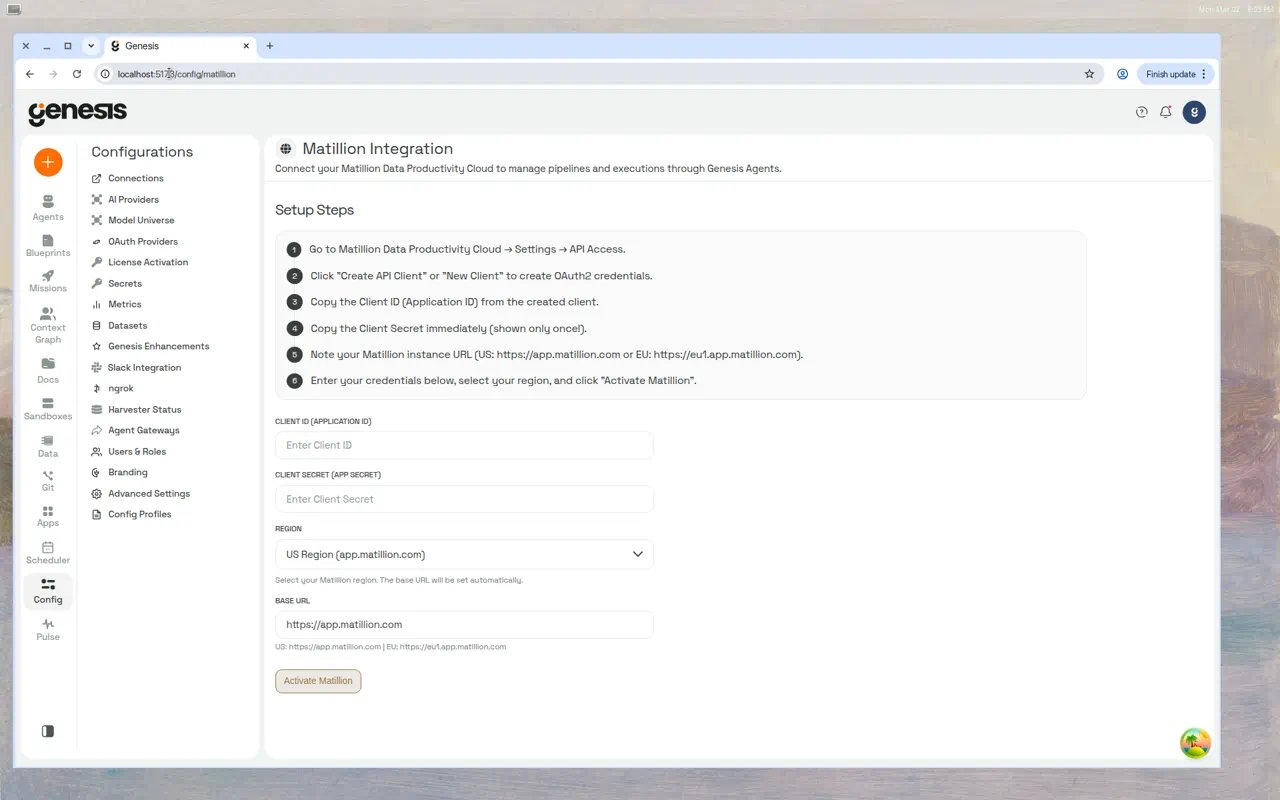
- Click Config in the left sidebar, then select Matillion Integration.
-
Follow the setup flow:
- Go to Matillion DPC -> Settings -> API Access.
- Click Create API Client or New Client to generate OAuth2 credentials.
- Copy the Client ID (Application ID).
- Copy the Client Secret immediately — it is shown only once.
- Note your Matillion instance URL (US or EU).
- Enter credentials below, select your region, and click Activate Matillion.
-
Fill in the form:
- Client ID (Application ID) — your Matillion API client ID.
- Client Secret (App Secret) — your secret. Once saved, the field displays as
masked (
••••••••) with a configured-state indicator and a Change button. - Region — select US Region (app.matillion.com) or EU Region (eu1.app.matillion.com) from the dropdown. The Base URL updates automatically.
- Base URL — auto-filled from your region selection.
Option B — Connections page
The Connections page supports multiple named Matillion connections with role-based access control. Use this when you need separate connections for different environments (for example production vs. staging).- Navigate to Config -> Connections and filter to Data Pipelines.
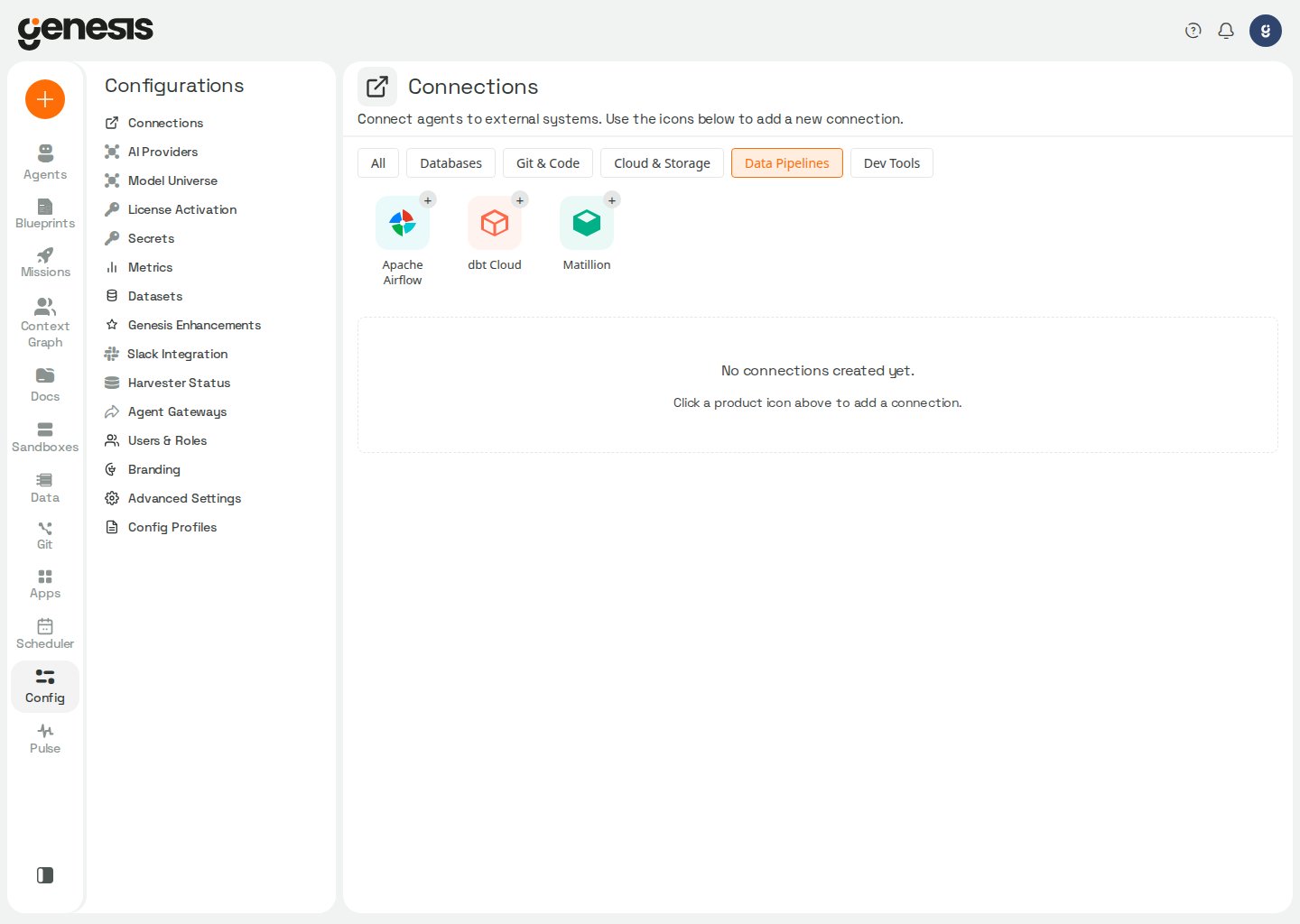
- Click the + button on the Matillion icon.
-
Fill in the connection form:
- Connection Name — for example
productionorstaging. Agents reference this asmatillion.production. - Roles with Access — control which roles and agents can use this connection.
- Base URL — your Matillion instance URL.
- Client ID — your API client ID.
- Client Secret — your secret.
- Set as default connection — when checked, agents use this connection automatically when no specific connection is named.
- Connection Name — for example
- Click Test Connection to verify credentials, then Create Connection.
Option C — Via agent conversation
You can also configure credentials by telling an agent:“Set up my Matillion connection with client ID abc123 and secret xyz789 for the US region.”The Config UI is recommended for initial setup since it validates inputs and stores secrets securely.
Connection selection for agents
When an agent callsmatillion_connector without naming a connection, Genesis
resolves one in this order:
- The effective default
matillionconnection for the current user (My default, then Role default). - If no default is set and exactly one Matillion connection is accessible, that connection is used automatically.
- If multiple connections exist without a default, the agent must pass
connectionexplicitly (for exampleconnection="matillion.production").
LIST_CONNECTIONS to discover configured connections (connection_id, base_url,
is_default) before other actions when unsure which connection to use, or after a
connection-not-found error. See
matillion_tools for
tool parameters and response fields.
Snowflake SPCS deployments
When Genesis runs as a Snowflake Native App (SPCS), the connector needs outbound network access to reach the Matillion API. Two additional buttons appear on the Matillion Integration page after activation:
Both steps must be completed before the connector can authenticate from within SPCS.
Authentication
The connector uses OAuth2 Client Credentials to authenticate with Matillion:
Tokens are cached and automatically refreshed before they expire. You do not need to
manage tokens manually.
Region detection
The connector maps your Base URL to the correct regional API endpoint:Run history and monitoring
Agents withmatillion_tools can audit recent pipeline runs and inspect what is
published in a project without an execution_id.
Check run history (LIST_EXECUTIONS)
Use LIST_EXECUTIONS when asked to check Matillion run history, find failed runs,
or audit errors — for example “check Matillion for errors” or “any failed runs
lately?”. No execution_id is required.
Optional parameters:
The response includes
executions (most recent first), count, status_counts, and
failed_count. failed_count aggregates FAILED, ERROR, and CANCELLED statuses;
failed_count == 0 means no errors were found in the returned window. Each execution
row includes fields such as pipelineName, status, startedAt, finishedAt,
trigger, user, projectId, and environmentName. Drill into one run with
GET_JOB_STATUS using project_id and execution_id from the row.
Example prompts:
“Check the Matillion run history for errors in the last day.”
“List failed Matillion pipeline runs for project abc-123.”
List pipelines in a project (LIST_PIPELINES)
Use LIST_PIPELINES with project_id to inspect what is published (runnable)
and what appears in artifact upload history. Optional environment_name defaults
to default. Set runnable_only=true when you only need the answer to “what can I
run right now?” — upload history is omitted.
The response separates views:
Each row is tagged with
source set to published or artifact.
Example prompts:
“What Matillion pipelines are published in project abc-123?”
“What can I run in Matillion project abc-123 right now?” (agent uses runnable_only=true)
For tool parameters and response fields, see
matillion_tools.
Publishing pipelines (UPLOAD_ARTIFACT)
Each UPLOAD_ARTIFACT call replaces the environment’s entire published bundle.
Any pipeline not included in the call becomes unrunnable via the API until you
re-publish it together with the rest of the bundle.
Publish modes
Provideproject_id plus one of these input patterns:
Optional parameters:
version_name (auto-generated when omitted), branch_name
(recommended for Designer visibility), environment_name (default default).
On success the response includes published_files and, when applicable,
evicted_pipelines — a non-empty list is a warning that previously runnable
pipelines were dropped from the bundle.
Upload failures return the upstream HTTP status_code, error, and details.
Transient 5xx responses are retried automatically before an error is returned.
Example prompts:
“Publish all silver pipelines from the pharma_matillion repo to Matillion project abc-123.”
“Upload gold/summary.tran.yaml to Matillion and tell me if anything was evicted.”
Running pipelines (RUN_PIPELINE)
RUN_PIPELINE resolves pipelines from the currently published bundle, not from
the project’s git link. A pipeline merged in git is not runnable via the API until
its bundle is published with UPLOAD_ARTIFACT.
If execution fails with a 404 or “pipeline not found”:
- Call
LIST_PIPELINESwithrunnable_only=true(or check rows wheresourceispublished) to confirm the pipeline is in the published bundle. - A prior single-file publish may have evicted it — re-publish all required
pipelines together with
yaml_file_paths. - If the pipeline is published, check
branch_name_run(selects among published branches only),environment_name, and agent permissions.
branch_name_run only when you need a specific published branch; leave it unset
for the default published bundle.
Pipeline types
Matillion pipelines are YAML files that define data processing workflows. There are two types, each with different syntax and capabilities.Transformation pipelines (.tran.yaml)
Transformation pipelines perform data ETL operations inside Snowflake. They use a
component graph where data flows from sources through transformations to targets via
the sources keyword.
Common components: