

Overview
The Jenkins Integration page provides the customer-facing setup flow for connecting Jenkins to Genesis.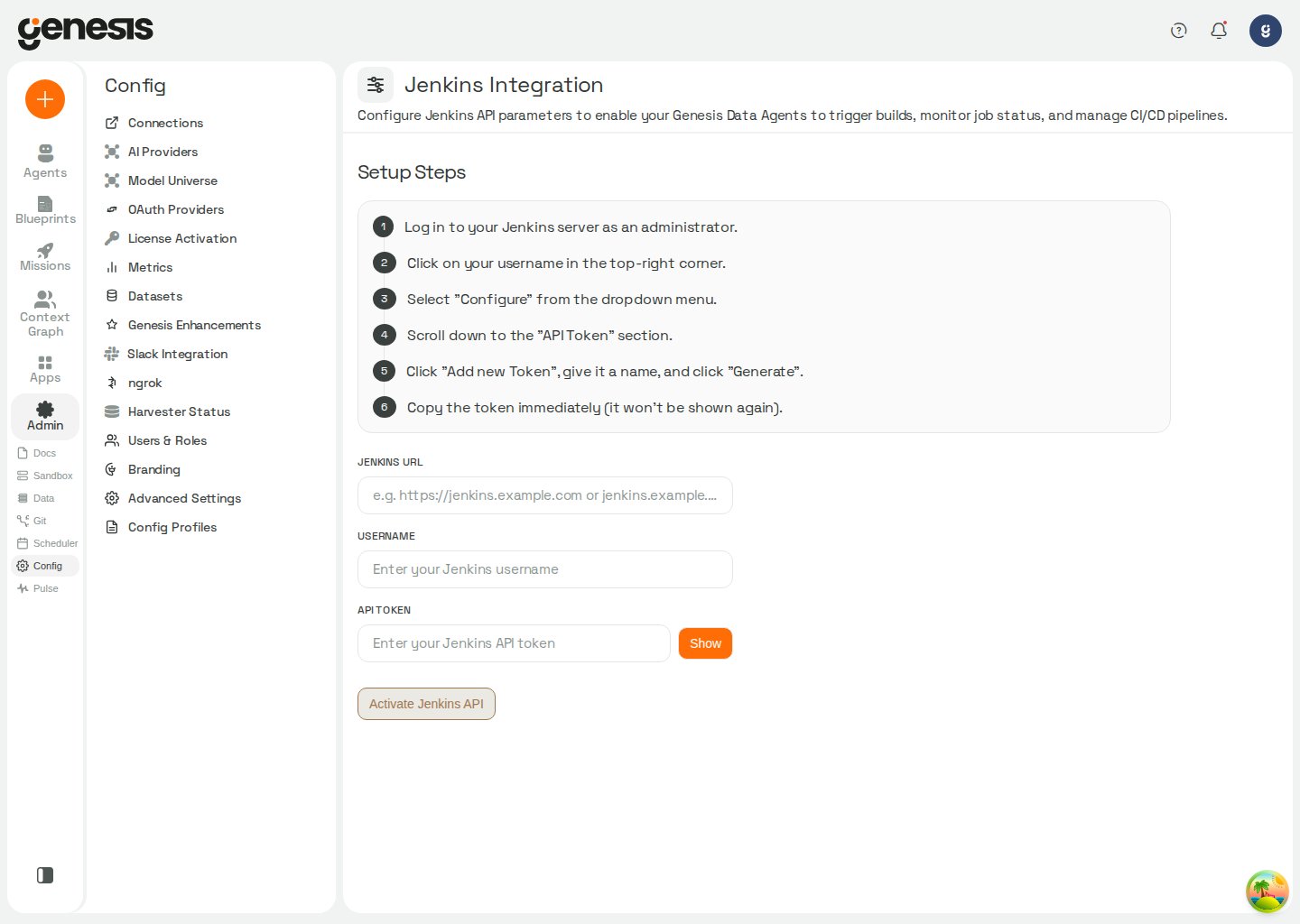
Setup workflow
- Open Config -> Jenkins.
- Follow the guided setup steps shown in the page.
- Enter the Jenkins URL, username, and API token.
- Activate the Jenkins API integration.
In Snowflake / SPCS deployments, Jenkins setup can show
Approve External Access and Assign to Genesis after you save
credentials. Genesis rechecks the assignment immediately after the
user-triggered action so the page can advance as soon as the external access
integration is ready.
Jenkins currently uses token-based saved credentials only. Roles without
access_pat_connections_tools cannot create, update, or test Jenkins connections
until an admin enables that permission.What it enables
After setup, Genesis Data Agents can support customer workflows such as reviewing jobs, triggering builds, checking build status, and following build logs. Jenkins tools saved in Config -> Connections resolve the effective defaultjenkins connection for the current user when connection is omitted (My default, then Role default). Sandbox image builds through sandbox_action follow the same scoped-default resolution. When no scoped default applies, both can use the install-wide jenkins.shared connection. The Jenkins tools can then fall back to configured external-service settings and operator-set JENKINS_URL, JENKINS_USERNAME, and JENKINS_API_TOKEN environment variables; sandbox image builds fall back to those environment variables. See Default connection layers.
The Jenkins tool’s SET action stores credentials in the jenkins.shared connection, not in a plaintext local file or environment variables. Older ~/.genesis/jenkins_config.json files are migrated to that connection when Jenkins configuration is loaded and removed after successful migration (or when they contain no usable credentials). If a shared connection already exists, it is kept; a differing legacy token is not substituted automatically.