

Overview
Document Indexes let you organize uploaded documents into searchable collections that Genesis Data Agents can use for search and answer-generation workflows.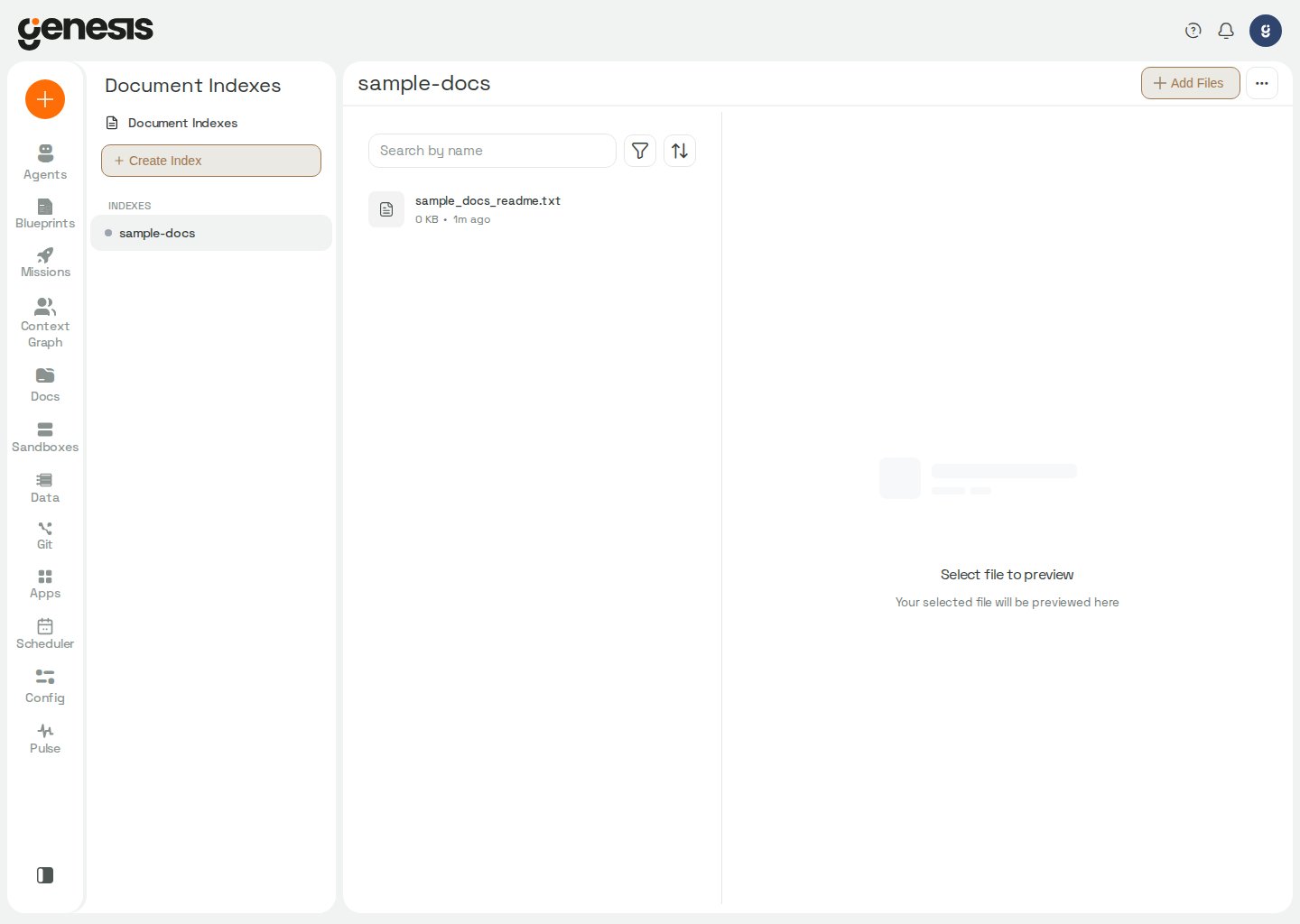
Use Document Indexes for uploaded manuals, specifications, policies, and
other files you want Genesis to search. For scanned data assets such as
tables, dashboards, notebooks, repositories, and other Context Graph nodes,
use the Context Graph and chat
@ references instead. For Genesis product
documentation itself, use search_genesis_docs(...) and read_genesis_doc(...);
you do not manage that built-in source from this page. For documents in
knowledge bases assigned to an agent, use search_knowledge_bases(...) and
read_knowledge_base_doc(...) — not the Genesis-doc tools. Document indexes
are the underlying
searchable collections. If you want an agent to use one or more indexes as
assigned knowledge, first create a knowledge base that bundles those index
names, then assign that knowledge base to the agent. Those knowledge-base
bundles are managed outside this page through
Knowledge Base Admin Tools
and Bot Management Tools, not
from the Document Indexes UI itself.What you can do
- create and rename document indexes,
- sort knowledge bases in the sidebar by name or creation date,
- upload files into an index,
- browse indexed files and navigation,
- preview indexed content,
- run search and question-answering workflows against the collection,
- review which knowledge bases and currently assigned agents would be affected before deleting an index,
- start index deletion in the background while Genesis finishes cleanup safely.
Typical workflow
- Configure an embedding provider on Config → AI Providers → Embeddings when this is a fresh install or document indexing reports that embeddings are not set up.
- Create an index for a team, project, or topic.
- Upload the documents you want Genesis to use.
- Review file listings and navigation.
- Search the collection or ask a question grounded in the indexed content.
Sorting knowledge bases
On Config → Documents, use the Sort control above the knowledge-base list to order indexes by Name A→Z (default), Name Z→A, Newest first, or Oldest first. Reset sort returns to the default. Genesis stores your choice per signed-in user in browserlocalStorage so it survives
reloads. Date sorts use each index’s created_at timestamp; indexes without a
timestamp sort after those that have one.
Embedding provider required
Document indexing needs an active embedding provider and model. Genesis does not fall back to an OpenAI embedding model you did not configure. Config → Documents shows a “no embedding configured” banner instead of an empty index list only when the backend reports that no embedding identity is configured — not while the index list is still loading or unavailable. New Index, Upload, and file-ingest controls stay disabled while indexes are loading or when embeddings are not configured (or runtime indexing is paused). When indexes already exist on disk but no embedding pointer is set, open Config → AI Providers → Embeddings and use the Recover document corpora card to adopt a recorded provider/model identity, or connect a new embedding provider manually. See Setup AI Model — Recovering stranded document corpora. When the configured embedding model changes, or an index contains documents with mixed embedding dimensions, Genesis detects the mismatch at startup and automatically re-embeds the affected documents. Until the repair completes, semantic search uses only documents with the query’s embedding dimension and returns a warning that identifies the excluded documents. Keep the embedding provider configured while Genesis heals the index; unsuccessful re-embeddings remain pending so Genesis can retry them at the next startup.Document index mutations also refresh chat-side capability discovery. After
you create, rename, or finish deleting an index, agents can discover the
updated index name through
manage_context(action="SEARCH_CONTEXT", search_scope="document_indexes")
without restarting Genesis.Deleting an index
Before Genesis removes an index, the delete flow can show whether any knowledge bases reference that index and which currently assigned agents would be affected. After you confirm, Genesis completes the delete in the background. During that cleanup window, conflicting operations on the same index can be temporarily unavailable until deletion finishes.Git-backed document indexes
Document indexes can be fed from a managed Git repository when the source registersdocuments in scan_types_enabled and sets documents_root (and
optionally documents_target_index). Genesis syncs markdown from the repo into
searchable indexes and tracks pending edits through the same managed-source
workspace pattern used for Skills, Flows, and Apps.
On the Document Indexes page:
- Sync from Git (branch icon beside Knowledge bases) opens the
managed-sources panel to register repositories, preview folder adoption, sync
markdown, and export local indexes back to Git. Requires
manage_repos. Hidden whenVITE_ENABLE_REMOTE_ARTIFACT_REGISTRY=false. - Git-backed indexes show a badge with the managed
source_id. Click it to open Config → Managed Sources filtered to that source. - Pending pills (amber) show staged markdown proposals waiting for review;
click to open the workspace review modal. In review pills (blue) link to
the open pull request or merge request on the provider (GitHub and Bitbucket
use
#123; GitLab uses!123). - Uploading into a git-backed index accepts
.mdfiles only. Genesis stages proposals through the managed workspace instead of writing directly to the index. - Deleting a file from a git-backed index removes it from the searchable collection locally. Restoring the canonical copy requires sync from Git or an approved managed PR/MR.
documents_root). Each index tracks its own pending changes
and open PR/MR independently.
Agents can stage KB edits with propose_kb_edit(...) and open review with
open_kb_pull_request(...) in
Document Index Tools. REST
operators use /api/managed-sources — see
API Reference — managed sources.
Related pages
- Git Browser
- Context Tools
- Multi-Instance Skill, Flow & App Sync — shared managed-repo pattern (Skills, Flows, Apps, and document feeds)