

Overview
The Users and Roles page is the main RBAC administration workspace in Genesis. It focuses on user management, role design, and agent access. Use the companion Workspace Policies page for workspace-wide tool controls, onboarding behavior, and default thread visibility.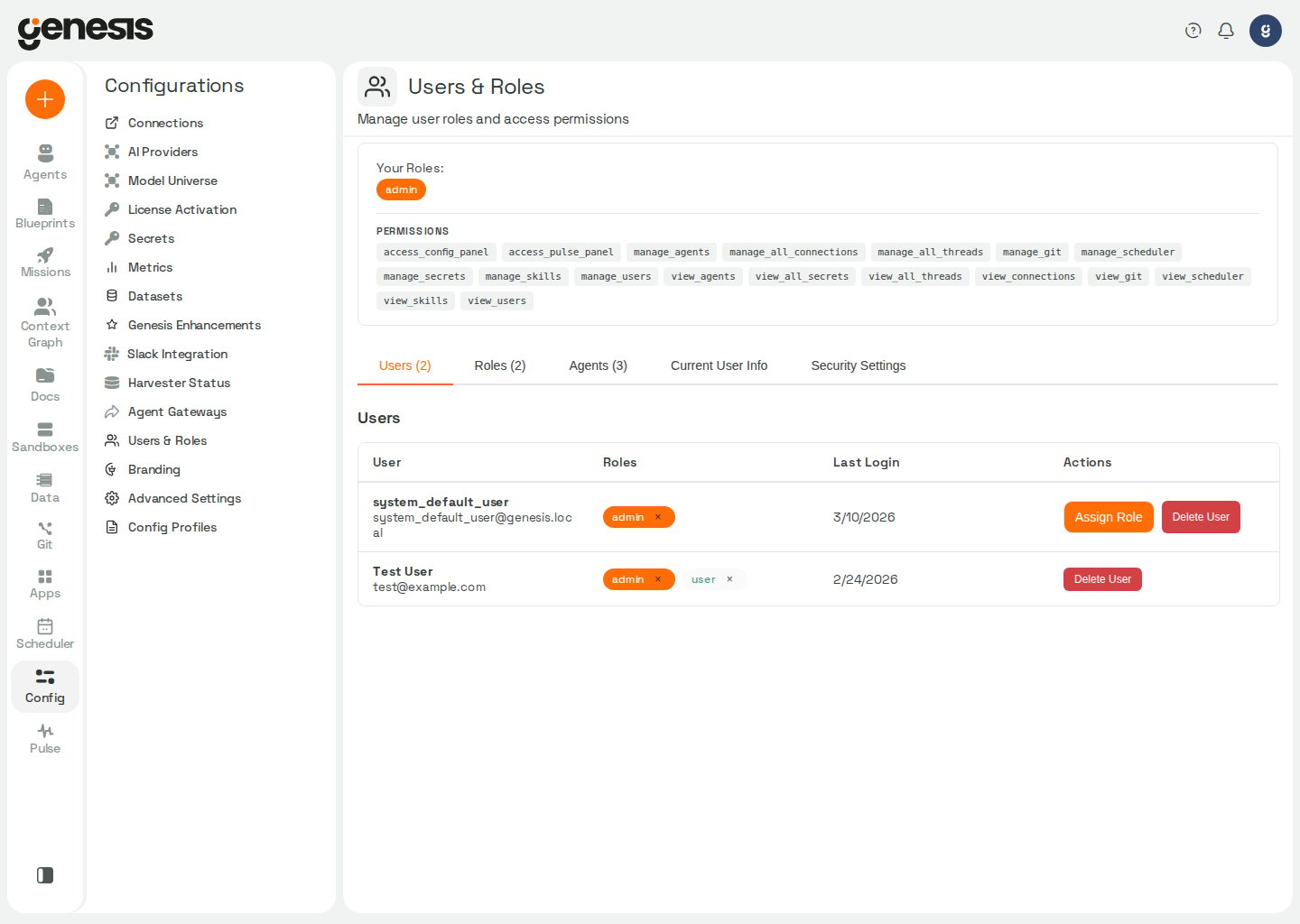
Main tabs
The separate Workspace Policies page handles
workspace-wide tool permissions, onboarding settings, and default thread
visibility.
The access-denied screen for Config → Users lists the administrators a user
can contact for elevated access. It lists people only: the built-in System User
and service identities are left out. Genesis has no self-service admin-key
claim option. When no administrator can sign in, see
RBAC Practical Guide — Establishing or recovering an administrator.
Users tab row actions
On the Users tab, each row ends with an actions menu (⋮). Open it to use per-user administration actions. If no actions apply to a row, the cell shows —.Typical admin workflows
- assign a role to a user,
- create a custom role,
- grant agent access to a role,
- set default roles for new users,
- resolve unmet access requests,
- reset onboarding for a user,
- preview the app as another role set before changing assignments.
manage_agents,
Genesis refuses the change — for example deactivating that agent, revoking its
carrying role, removing manage_agents from the role, or deleting the role.
Grant manage_agents to another active agent first, then repeat the change.
See RBAC Practical Guide → Agents.
Access Preview (admins)
Access Preview lets an admin browse Genesis with the permissions of one or more non-admin roles without assigning those roles to their account or mutating Casbin state. Your signed-in identity remains the audit actor for actions you take while preview is active. Open Config → Users & Roles → Access Preview, or from the Users tab open a row’s actions menu (⋮) and choose Preview Access to load that user’s roles into the preview selection (admin is always excluded). The preview tab
provides:
- Search roles or users — filter roles by name or description, or find users by display name, email, or user ID.
- Roles — toggle individual roles into the preview selection.
- Matching users — pick a user to copy that user’s assigned roles into the
selection (up to eight matches when searching; users with only the built-in
adminrole are omitted). - Start Preview, Clear Selection, and Exit Preview — start applies preview roles to subsequent UI and API requests; exit restores your normal admin view.
admin role; it is excluded from selection and from user-based
preview loads.
SCIM-managed users
If your deployment provisions users through inbound SCIM, the Users tab labels those rows asManaged by SCIM. When a provisioned record is inactive,
Genesis shows Managed by SCIM (inactive).
For SCIM-managed users, the Users tab does not offer manual role add or
revoke controls. Update the user’s IdP group membership and the SCIM
group-to-role mapping instead of editing the Genesis role badges directly.
Role editor workflow
From the Roles tab, select + Create Role or open an existing role to use the tabbed role editor. The editor includes Basic Info, Permissions, Agent Access, Apps, Secret Access, and Tool Access. On the Permissions tab, each permission shows a plain-language description under its name. When Genesis has longer scope notes — what is included or excluded, or which sibling permission covers the rest — a ? icon appears next to the description; hover or keyboard-focus it to read the tooltip. The same text is available fromGET /api/rbac/permissions as description
(short line) and extended_description (tooltip, when present). Permissions
without a server-side description fall back to readable text derived from the
permission name instead of showing “No description”.
Use Agent Access to choose which workspace agents the role can interact
with as part of the same create or edit flow. The list includes assignable
agents for the workspace and omits internal system agents.
Connection profiles are ordinary custom roles that grant one or more saved
connections (via each connection’s Roles with Access bindings). They are
reusable across agents: assign a profile role to an agent from Agents →
[agent] → Data Access, or manage the role’s connection grants here in the
Roles tab. Built-in roles such as user and admin cannot be used as
profile roles. An agent may hold multiple profile roles; its connection access
is the union. Removing every profile leaves the agent inheriting each
connection type’s default. See Agents Center and Skills — Data Access.
Use Apps to review and assign dashboard and Genesis App access as part of
the same role flow. When tagged microapps are present, the editor shows those
tags on each app row and adds Bulk apply by app tag, which lets you choose
one tag plus one access level (view, refresh, edit, or manage) and
apply that grant to every matching tagged app before you save the role.
The Permissions tab lists manage_repos (Manage unified Git-backed
sources for skills, flows, apps, blueprints, agent definitions, role
definitions, and document indexes (Knowledge Base feeds)). Grant it to
operators who should use
Config → Managed Sources or Document Indexes → Sync from Git to register
one remote repository with multiple scan_types_enabled values (for example
skills and document feeds from the same repo_id) instead of creating separate
per-library sources. The page requires access_config_panel as well. Holders
of manage_repos can also call the legacy /api/skills/repositories,
/api/flows/repositories, /api/apps/repositories, and /api/blueprints/repositories
routes; deleting a multi-type source must use
DELETE /api/managed-sources/{source_id}. Removing an enabled scan type from an
existing source is not supported — delete the source and recreate it with the
desired scan_types_enabled. A source that includes roles also requires
manage_users to create or update it, or to apply its role preview. Role
definitions live under roles/<role_name>/role.yaml (or role.yml): Git can
define a role’s permissions and resource access, but cannot assign users to
roles or define built-in roles.
On first boot after upgrade, Genesis grants
manage_repos to the built-in admin role and to custom roles that already
have all of manage_skills, manage_flows, manage_apps, and manage_git
(one-time backfill).
When a managed source includes agents in scan_types_enabled, Genesis also
requires manage_agents for create, update, delete, sync, artifact listing,
per-agent enablement, and applying Git-backed agent definitions to the instance.
Grant both permissions to operators who should register agent manifests from Git
through Config → Managed Sources or ask Eve to publish a local agent through
agent_management after reviewing its portable export preview.
Sync discovers agent.yaml / agent.yml files under agents_root; the first
sync previews create/update/disable actions, and a follow-up sync with
apply_agent_changes applies the reviewed plan.
The Permissions tab also includes a dedicated PAT connections group
with five category-scoped permissions:
access_pat_connections_databases(Databases)access_pat_connections_git(Git & Code)access_pat_connections_cloud(Cloud & Storage)access_pat_connections_pipelines(Data Pipelines)access_pat_connections_tools(Dev Tools)
pat, api_token, or api_key for
connectors in each category. When you create a new role, Genesis seeds those
defaults from rbac.default_pat_capability_for_new_roles.databases,
.git, .cloud, .pipelines, and .tools in
Advanced Settings.
The Roles tab also includes Default Roles for New Users. Use it to
choose which roles are automatically assigned when new users sign up or log in
for the first time. The list includes the built-in admin role: when its box
is checked, every new user becomes an administrator. Uncheck it and select
Save Changes to keep new users off admin. Saving keeps every role you
did not uncheck, including admin.
When the admin UI has not saved a default-role list yet, Genesis falls back to
rbac.default_roles in genesis-config.yaml (see
Advanced Settings → RBAC defaults),
then to the built-in DEFAULT_NEW_USER_ROLES constant, whose default is
["admin", "user"] — so on an unconfigured deployment every new user is an
administrator, and the admin box starts checked. To keep new users off
admin, uncheck it and save, or set rbac.default_roles explicitly (for
example ["user"], or [] to assign no roles); an explicit value always wins
over the built-in default.
A saved list that cannot be read is not treated as “not saved”. If reading it
fails when a user is created, Genesis assigns that user no roles instead of
falling back to the defaults above, so a deployment that saved a non-admin list
never hands out admin during a database outage. The role-less user gets the
default roles from the startup backfill after the next restart, or from an
administrator.
Genesis keeps the configuration aligned with the current role list. If an older
saved default-role list still references a role that no longer exists, Genesis
ignores that stale entry. If you want to delete a role that is currently
configured as a default for new users, first remove it from
Roles → Default Roles for New Users.
Workspace policies
Use the separate Workspace Policies page for system-wide defaults and overrides that sit above or alongside normal role-based access:
When either Tool Permissions control is blocked, the affected tools stay
unavailable even if a role would otherwise allow them.
Combining user and agent role decisions
A tool call in a chat is checked against the user’s role and against the agent’s role. By default Genesis allows the call when either role grants the tool, so a user whose role does not include a tool can still reach it through an agent whose role does. Two settings in thesecurity configuration section change that:
The two are independent: one governs tools, the other connections, and neither
overrides the other. Set them as environment variables (
SECURITY_TOOL_AUTH_MODE,
SECURITY_FORCE_DOUBLE_KEY_ON_CONNECTIONS) or in Config → Advanced Settings. A run with
no user context is authorized against the agent’s role alone in either mode. See
Security Controls → Layer 2
for the full model.
require_double_key on an individual connection governs access to that
connection — both principals must pass secret-level access checks, both to
resolve its credentials and for it to be visible at all. It does not affect tool
authorization. A request carrying only an agent and no
user is treated differently by the connection boundaries — see What double key
means when only one principal is
present.
Admin audit log
Every successful mutation on this page (user and role lifecycle, role assignment matrices, bot-role mappings, and default roles for new users) writes a row to theADMIN_AUDIT_LOG metadata table. Rows include the acting admin’s
user ID and email, the target resource, a JSON details payload, and
source=api. Advanced-config edits from other setup pages use the same table
with target_type=advanced_config; see Advanced Settings.
SQLite metadata audit rows follow the isolated-write behavior described in
SQLite audit writes.
Browse recorded events without direct metadata-table access from Config →
Admin Audit Log (filters, row detail, and CSV export) or
GET /api/admin/audit-log. For action names, column definitions, example SQL,
and how chat-based rbac_action writes differ (source=bot), see
RBAC Practical Guide → Admin audit log.