

Overview
Genesis supports Confluence as a customer-facing documentation and knowledge integration. After setup, customers can use Genesis Data Agents to search spaces, read page content, and work with attachments and documentation workflows.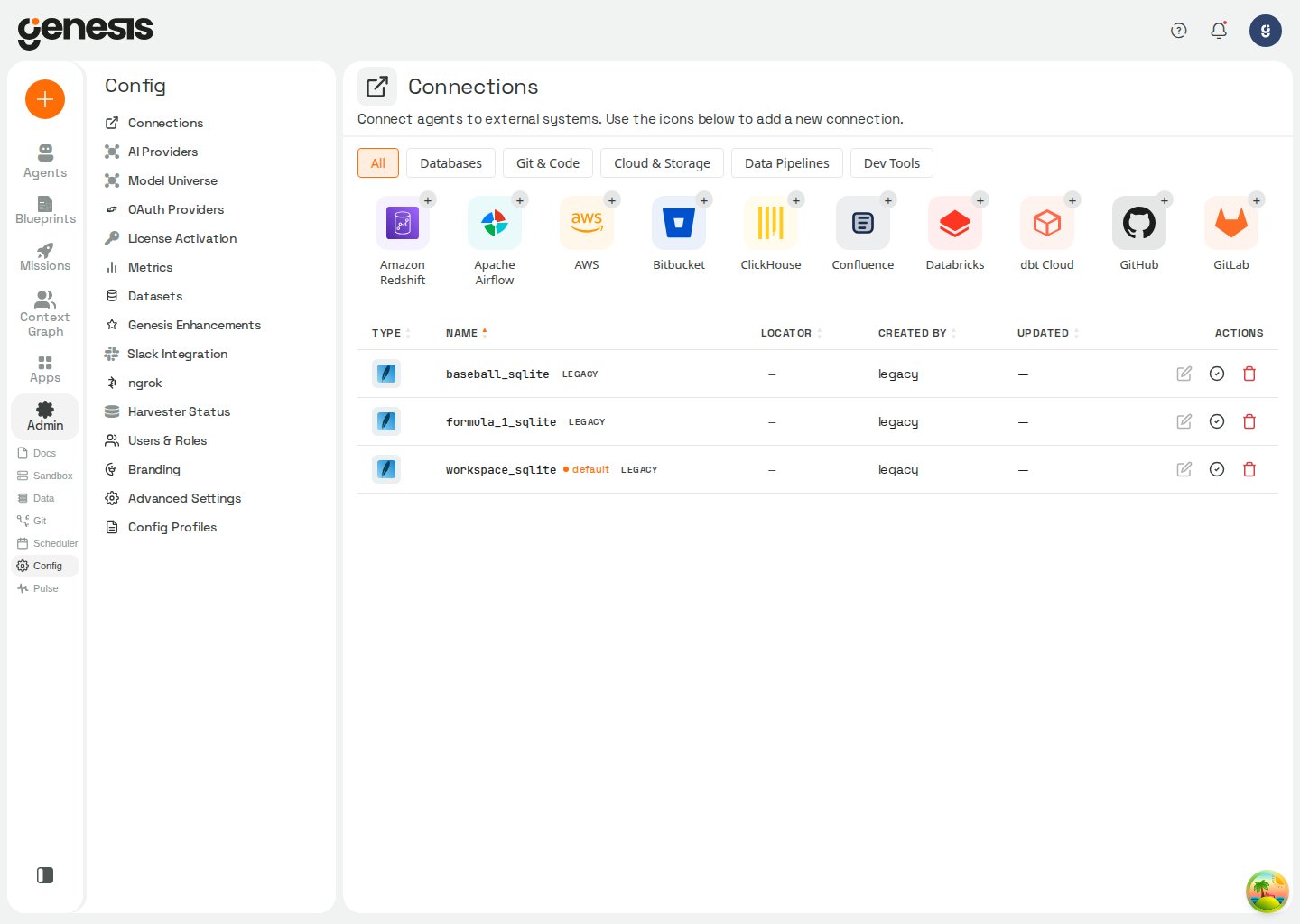
Setup path
- Open Config -> Connections.
- Go to the connector category where Confluence appears (Dev Tools).
- Select the Confluence tile.
- Choose a connection mode and enter the required fields (for example API Token (Cloud) with
host,email, andapi_token, or User OAuth (Cloud) withhostand OAuth client credentials). - Choose Connection scope, set Make this my default connection when appropriate, and save.
- For User OAuth, complete Connect OAuth in the post-save guide, then test the connection from the saved row or guide.
- For other modes, test the connection from the saved row or post-save guide.
Connection modes
api_token (Cloud)
API-token Cloud connections are PAT-class for the
tools category. Roles need access_pat_connections_tools to create, update, or test them.
user_oauth (Cloud)
Use User OAuth (Cloud) when agents should call Confluence as the requesting user in chat. Genesis routes these connections through Atlassian’s OAuth gateway (api.atlassian.com) and resolves a per-site cloudId after authorization.
1
Create an Atlassian OAuth 2.0 (3LO) app
In the Atlassian Developer Console, create a new OAuth 2.0 (3LO) app. Add Confluence API as a permission and grant the scopes listed in Genesis’s Scopes field (see below). Under Authorization, add the redirect URI Genesis shows on the connection card to the app’s Callback URLs (up to 30 URLs per app, so one Atlassian app can serve several Genesis connections).
2
Save the Genesis connection
Open Config -> Connections, select Confluence, choose User OAuth (Cloud), enter Confluence URL (
host, required), optional Email, OAuth Client ID, and OAuth Client Secret, then save. Genesis pre-fills authorization and token URLs (https://auth.atlassian.com/authorize and https://auth.atlassian.com/oauth/token), suggests the connection name confluence_oauth_main, and accepts comma- or space-separated scopes. Register the exact redirect URI Genesis displays for the name you save — do not rename the connection afterward; the connection name is part of the redirect URI.3
Authorize and test
Complete Connect OAuth in the post-save guide (or from chat OAuth cards). Then run Test Connection. If authorization succeeds but Genesis cannot match your Confluence URL to an accessible Atlassian site, Genesis still records the grant and shows a diagnostic warning on the OAuth card, in the Connections toast, or in the post-save guide — update
host or re-authorize with access to the correct site before using confluence_connector.
Default scopes:
read:confluence-space.summary, read:confluence-content.all, read:confluence-user, search:confluence, write:confluence-space, offline_access, read:page:confluence, write:page:confluence, delete:page:confluence, read:space:confluence, read:attachment:confluence, read:content.metadata:confluence, read:hierarchical-content:confluence
User OAuth Confluence connections are not PAT-class — roles do not need
access_pat_connections_tools to save or test them. In Snowflake Native App / SPCS deployments, approve egress to api.atlassian.com and auth.atlassian.com (plus your configured host) before testing.pat (Server/DC)
PAT Server/DC connections are PAT-class for the
tools category.
Test Connection and Context Graph readiness
Test Connection verifies basic connectivity and audits whether the saved credentials have the permissions needed for Context Graph scanning. On success, the result includes acapabilities object with these probes:
The overall test
success is true when basic connectivity works, even if Context Graph permissions are incomplete — the connection can still power confluence_connector agent tools. When a probe fails, context_graph_notes explains what to fix (for example View Page permission for content reads, or View permission on parent pages for hierarchy reads).
Context Graph scanning
Confluence connections can be registered as Context Graph lineage sources from Digital Twin and Context Graph. Saving a Confluence connection does not add it to the graph automatically — use Add source in the Twin configuration modal. Scheduled scans run headless (typically 2:00 AM) and require a long-lived credential. User OAuth Confluence connections appear in the Twin picker but Add source stays disabled; recreate the connection with API Token (Cloud) or Personal Access Token (Server/DC) to enable scanning. When registered, Twin crawls accessible Confluence spaces (all spaces by default), reads page content, generates grouped wiki summaries, and indexes documents for semantic search. Scanned content surfaces in the Context Graph viewer, Team Wiki pane, and@ mention search alongside other indexed assets.
Connection defaults for agents
Whenconfluence_connector omits connection, Genesis resolves the effective default confluence connection for the current user and bot (My default, then Role default). See Default connection layers.
- Pass
connection(for exampleconfluence.sharedorshared) to target a specific saved connection. - When no scoped default applies, Genesis may fall back to explicit tool parameters (
base_url,username,password,pat) or environment configuration instead of scanning other saved Confluence connections. - When a scoped default resolves but secrets cannot be loaded, Genesis returns an error instead of trying another connection or alternate credentials.
confluence_connector returns Success: false with a Suggestion that explains the failure is a connection access/permission issue, not invalid credentials. Ask the connection owner to run the request in-thread, or have an admin with manage_all_connections share the connection.
User OAuth connections act as the requesting user. The caller must be present in the active thread context, and each user must complete Authorize (or reconnect via ?open_oauth=confluence.<name>) before Genesis can use their grant.
What it helps with
- searching documentation,
- reading or referencing pages,
- supporting documentation-based research workflows.