

Installation Steps
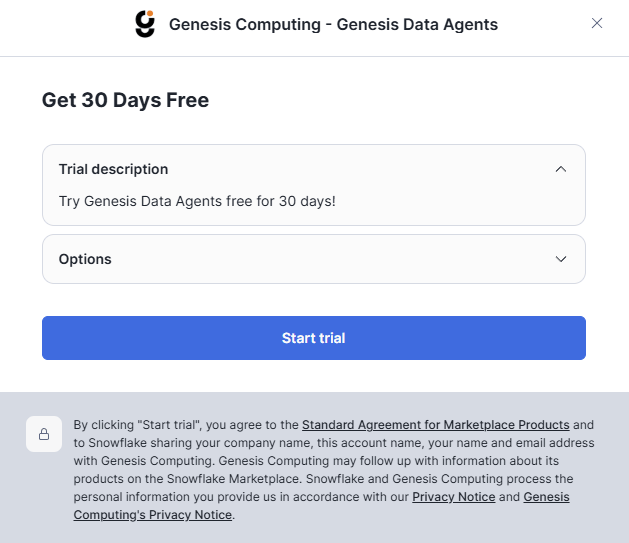
Snowflake Marketplace: In the Snowflake Marketplace, browse to the Genesis Data Agents App. Click the “Try Now” button to begin the installation of the Genesis Data Agents App in your Snowflake account.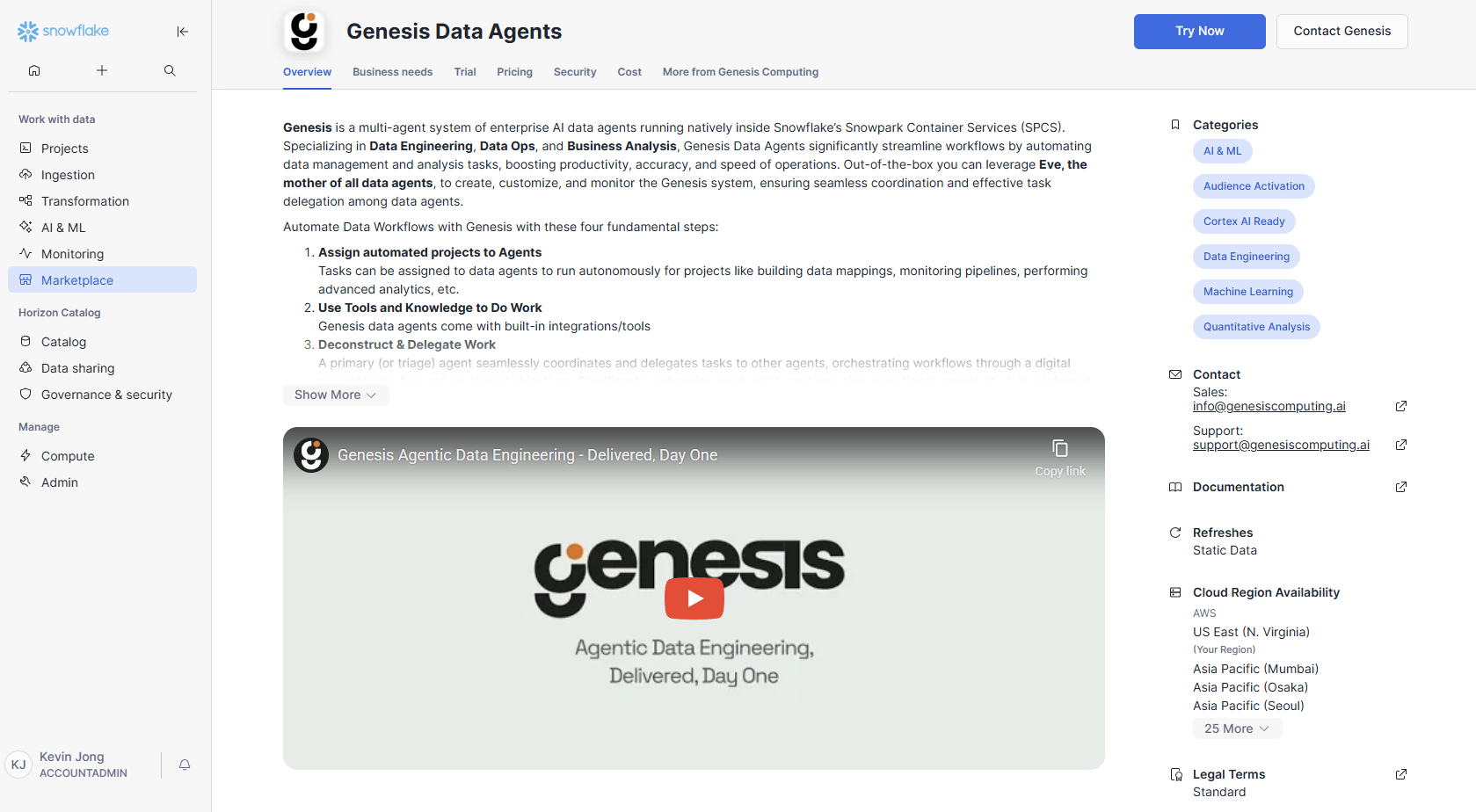
Configuration
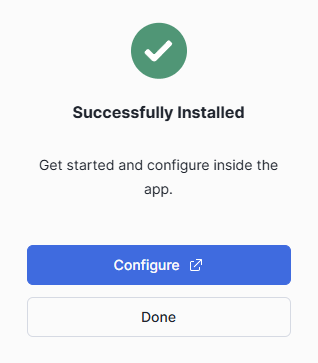
Now that you have completed the installation, the next part is the service configuration.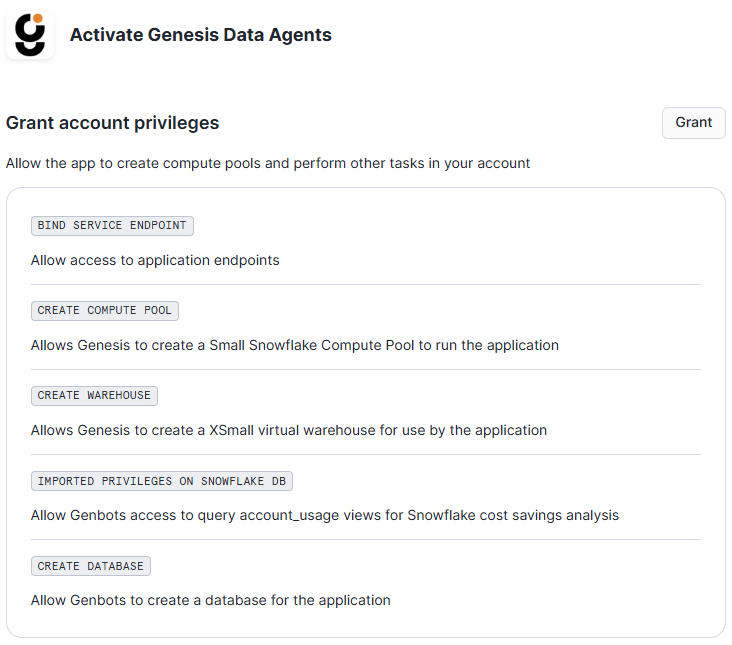
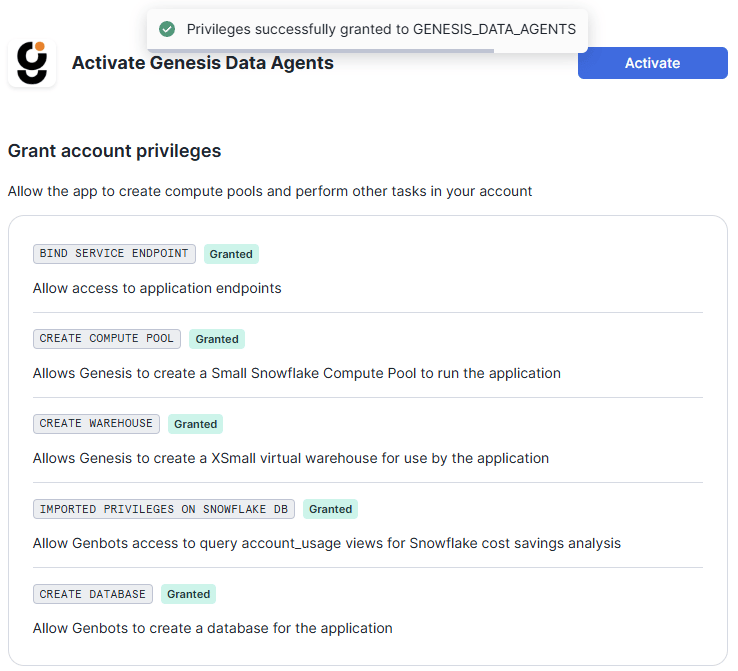
AUTO_RESUME=TRUE, and the Genesis services will be started.
To select a different service warehouse, follow Custom warehouse setup.
Activation starts the Genesis services but does not wait for them to report
ready. On a cold install, Snowflake must provision the pool node, pull the
image, and start the app; this can take about 15 minutes, so activation may
return while the service is still starting. Genesis reports a startup failure
if a service container already reports
FAILED. During later service start
and restart operations, Genesis waits up to 15 minutes for service containers
to report ready.outposttunnel
endpoint on port 28088 for customer-run Outposts
to dial out to Genesis. Genesis serves it itself, with its own Outpost tunnel
worker inside the Genesis container; the app ships no other image. Only the
APP_OUTPOST_TUNNEL application role reaches the endpoint, and an Outpost’s
Snowflake service user holds nothing else. When outpost.tunnel_endpoint_url
is unset, the generated Outpost install instructions look up this endpoint in
Snowflake. If the lookup cannot see it or the Outpost must use another address,
set outpost.tunnel_endpoint_url as described in Outpost routing
settings. An app older than
1.19.97 has no such endpoint, and its Outposts page shows them as unavailable.
In SPCS, the worker listens on 127.0.0.1 and the pod’s own addresses rather than
every address, leaving Outpost-assigned 127.77.x.y route addresses available on
port 28088.
The app also provisions a debuggenesis endpoint: a support shell (Shell in a
Box) that Genesis support can use, with your approval, to diagnose a problem
inside the Genesis container. It is locked by default and stays locked until one
of your Genesis admins unlocks it, as described in Support shell
access. Only the APP_ADMIN application role reaches the
endpoint; APP_PUBLIC does not. Earlier versions granted the endpoint to every
Genesis user and kept the shell’s password in the app’s BOT_STORAGE stage;
after upgrading, the app deletes that password file every time it starts.
To check progress while activation is still starting the service, run this in
a Snowflake worksheet (replace the placeholder with the application database
name):
READY. Genesis refreshes
its startup details every 15 seconds once its metadata connection is available.
See the install status procedure reference
for the result fields and stage behavior.
To keep a Native App instance stopped until you explicitly start it, run
CORE.HIBERNATE_INSTANCE in a Snowflake worksheet:
<application_database> with the installed app’s database and
<instance_schema> with the schema containing its services (commonly APP1).
The procedure disables auto-resume and suspends the services, then disables
auto-resume and suspends their compute pool. Its result includes service and
container details plus each service’s compute pool, pool state, and
POOL_AUTO_RESUME value. Unlike CORE.STOP_APP_INSTANCE, which only suspends
the services and can be undone by a request, hibernation keeps the instance
stopped until CORE.START_APP_INSTANCE is called. To start it again, use the
instance schema, pool name, and warehouse configured for this deployment:
<app>.APP1.GENESIS_MCP and grants the
application’s APP_PUBLIC role usage on it. A Cortex Agent in the consumer
account can reference this name under mcp_servers to use Genesis. The server
is retained across re-activation, restarts, and app upgrades. If custom MCP
servers are unsupported, activation and upgrades still complete without
registering the endpoint.
In Snowflake Native App / SPCS mode, Genesis sets
SF_SPCS_TOKEN_PATH to /dev/null/no_spcs_token during startup. This disables the Snowflake Python connector’s automatic reads from /snowflake/session/spcs_token for general outbound login requests, while the built-in system Snowflake connection still passes the SPCS token explicitly when Genesis needs it. User-created outbound Snowflake connections can therefore use their own saved credentials, including Programmatic Access Token and username/password modes, without inheriting the app’s internal SPCS token.Genesis Data Agents Application Set-Up
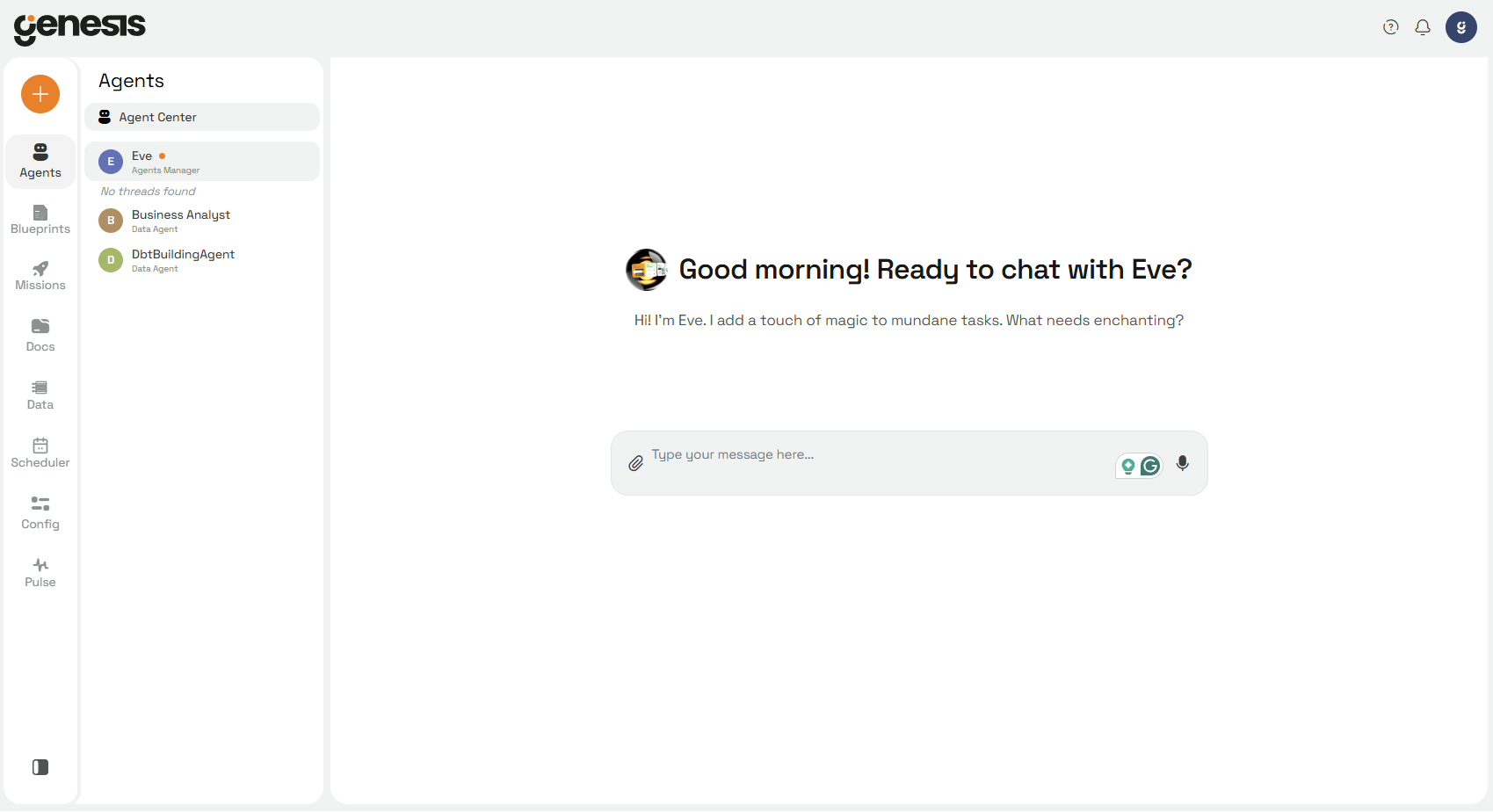
After the Genesis service has finished starting, click “Launch app” to configure your Genesis Data Agents application.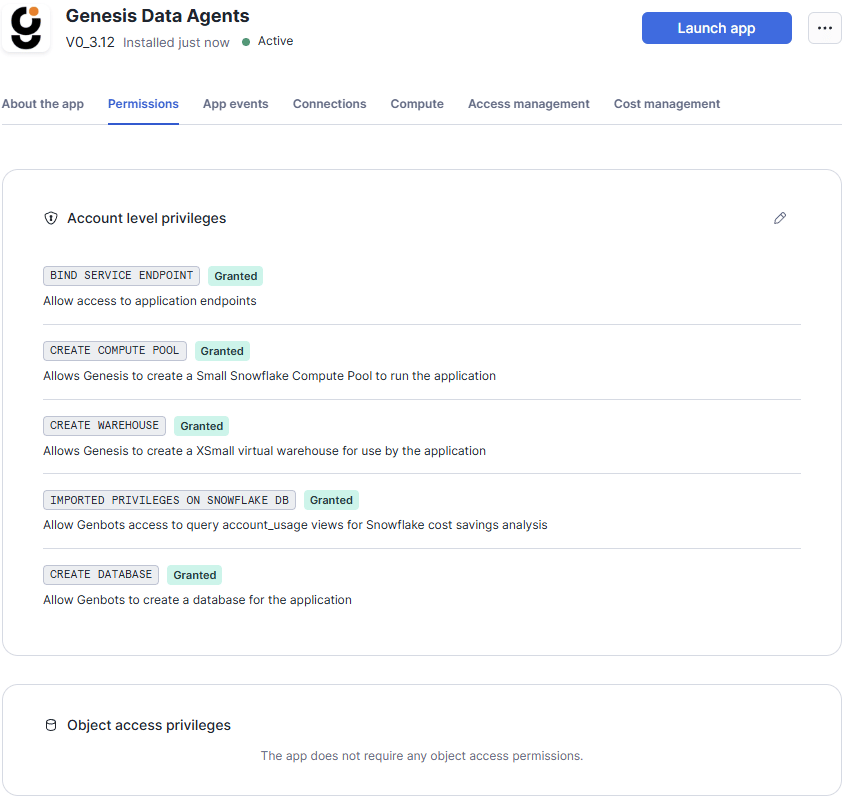

Support shell access
The support shell is for Genesis support, and only with your approval. Its login is locked at every start, and nobody can use it until one of your admins unlocks it:-
Grant the
APP_ADMINapplication role to the Snowflake role your Genesis admins use (never to everyone), so they can reach thedebuggenesisendpoint: -
When Genesis support asks for access, a Genesis admin, signed in to Genesis,
requests a challenge with
POST /api/admin/support-shell/challengeand sends the returnedchallengetext to Genesis support. It is valid for 15 minutes and can be used once. - Genesis support signs the challenge and returns a short JSON body.
-
The admin sends that body to
POST /api/admin/support-shell/unlock. The response contains the shell’s user name and a one-time password, shown once and stored nowhere. The admin gives it to Genesis support over a private channel. -
The shell locks itself again after 24 hours (set
unlock_hours, 1 to 168, in the unlock body to change this), whenever the Genesis server restarts, or when the admin callsPOST /api/admin/support-shell/lock.GET /api/admin/support-shellshows whether it is unlocked and until when.
Customer credentials for same-account connections
For Snowflake PAT and Key Pair connections that log in inside the installed account, an administrator must opt the Native App install in to custom credentials once:APP_PUBLIC
application role. To remove the opt-in and restart without custom credentials,
run:
(Optional) Additional Privileges, PrivateLink, and Cortex Cross-Region Inference
Granting the Genesis Data Agents app access to Snowflake objects.
You grant Genesis Data Agents access to Snowflake objects when Genesis needs to READ or WORK WITH data that exists outside its own application database.Grant the privilege on the object to the application.E.g.
GRANT USAGE ON DATABASE MYDB TO APPLICATION GENESIS_DATA_AGENTS;GRANT USAGE ON SCHEMA MYDB.SOURCE TO APPLICATION GENESIS_DATA_AGENTS;GRANT SELECT ON ALL TABLES IN SCHEMA MYDB.SOURCE TO APPLICATION GENESIS_DATA_AGENTS;PrivateLink
In the case that you are using Snowflake and PrivateLink, and have not yet set up PrivateLink to work with Snowpark Container Services, please refer to and follow the steps in this document here.After configuring that private connectivity, see Connections — PrivateLink
for how to select it on outbound connections.
Cortex Cross-Region Inference
Enable Cortex Cross-Region Inference (Recommended)Required for: Access to the latest models via Snowflake CortexWhy: The newest, most capable models may not be available in your Snowflake region yetHow: In order to use the best models via Cortex (as recommended by Genesis), Snowflake users must enable Cortex Cross-Region Inference here.Impact: Allows Genesis to use the best available models regardless of your region
Embedded Tailscale (Private LLM Gateways)
Optional embedded Tailscale userspace networking lets SPCS instances join your tailnet and reach private LLM gateways (for example Tailscale Aperture) over WireGuard without kernel privileges. Existing deployments are unchanged until you enable tsnet access. In Genesis, open Config → Secrets → Tailscale, use the Embedded Tailscale card (click Set up embedded Tailscale), then follow the in-product steps: run the generated
CREATE SECRET SQL with your own tskey-auth-... key as ACCOUNTADMIN, bind Tailscale Auth Key Secret and Tailscale Control Plane External Access in the Snowflake Configurations tab, click Enable Tailscale, then suspend/resume the service so the container reads the key at boot.At startup, the boot-config read uses the service’s active warehouse, including its configured QUERY_WAREHOUSE. If SNOWFLAKE_WAREHOUSE is set, Genesis activates that warehouse instead; GENESIS_XSMALL is used only when no warehouse is active. This allows the Tailscale configuration to be read on the warehouse selected for the service without requiring GENESIS_XSMALL to be available.When your Tailscale auth material is an OAuth-client auth key or OAuth client secret used directly as --auth-key (instead of a standard pre-tagged reusable key), Tailscale requires --advertise-tags at connect time. On Native App (SPCS), set the tag in Genesis under Config → Secrets → Tailscale → expand Tailscale ACL tags (stored in APP1.TSNET_ADVERTISE_TAGS and read at container boot together with the auth key via CORE.GET_TSNET_BOOT_CONFIG() in one Snowflake round-trip). Suspend/resume the service after saving so launch.sh re-runs.For Helm, EKS, or other non-SPCS container deployments, you can set the tag with an environment variable instead. When both are present, the env var wins.After enabling tsnet, suspend and resume the Genesis service so
launch.sh re-runs, then confirm /api/health reports "status": "healthy" with a tsnet object where "online": true. If embedded Tailscale was previously configured but cannot connect at boot (missing auth key, unassociated references, or an expired key), Genesis still returns HTTP 200 with "status": "degraded" and a degraded_reason so the UI stays reachable while you recover — see Embedded Tailscale troubleshooting.Log sharing with Genesis
Genesis uses the shared logs to support your install: to see why a service did not start, to find errors, and to fix problems without asking you to export logs. Snowflake calls this event sharing, and the app declares it as a required event definition. Snowsight shows it in the Events and logs section of the listing before you select Get. A SQL install must accept it withAUTHORIZE_TELEMETRY_EVENT_SHARING = TRUE:
SNOWFLAKE.TELEMETRY.EVENTS by
default. Check with SHOW PARAMETERS LIKE 'EVENT_TABLE' IN ACCOUNT;.
Installs from before this requirement. Upgrading does not turn sharing on:
Snowflake never enables a newly required definition during an upgrade. If you
shared logs before, you still do. To check, run:
EVENT_SHARING_ENABLED is TRUE when logs are shared. When it is FALSE,
EVENT_SHARING_SQL gives the statement that turns sharing on, which a role with
the MANAGE EVENT SHARING privilege (ACCOUNTADMIN has it) runs:
SPCS platform metrics
The Genesis service enables Snowflake platform monitoring by default in Native App / SPCS deployments. The service spec collects thesystem,
system_limits, status, network, and storage metric groups, providing
platform-level service signals independently of application log output. No
additional Genesis configuration is required.
Wedge diagnostics in exported logs
When the Genesis Python process hangs (“wedges”), in-process diagnostics such asSYS_PRESSURE and LOOP_IDENTITY stop at the same instant because they are
emitted from inside that process. Starting with images that include GEN-2402,
every SPCS container also runs an out-of-process wedge sentinel
(container/wedge_sentinel.py, started from container/launch.sh) that keeps
writing WEDGE_SENTINEL lines to container stdout on a fixed interval (default
60 s). Snowflake exports stdout and stderr to your account’s event table via the
service spec’s logExporters configuration, so these lines are available to
account administrators without interactive access to the container.
Filter for lines containing WEDGE_SENTINEL in the event table or via
SYSTEM$GET_SERVICE_LOGS for the Genesis service. Each line is a compact
key=value snapshot of Genesis process state, optional embedded Tailscale
activity, block-volume probe results, cgroup throttling counters, and node-level
pressure — while the sentinel’s own seq field should keep advancing even when
Genesis is wedged.
For the full field reference, environment variables (GENESIS_WEDGE_SENTINEL_*),
and interpretation guide, see Out-of-process wedge diagnostics
in the container distribution guide (the sentinel ships in all Genesis container
images, not only SPCS).
Genesis Data Agents default to Cortex, utilizing only the models capable of agentic workflows, but we are model agnostic, so you can also choose to use other models here
Congratulations! We’ve reached the end of Installation & Configuration.
Proceed forth to Grant Data Access to your Genesis Data Agents.