

Overview
Genesis runs natively on Databricks without requiring external infrastructure. The deployment uses three Databricks-native components:Architecture Diagram
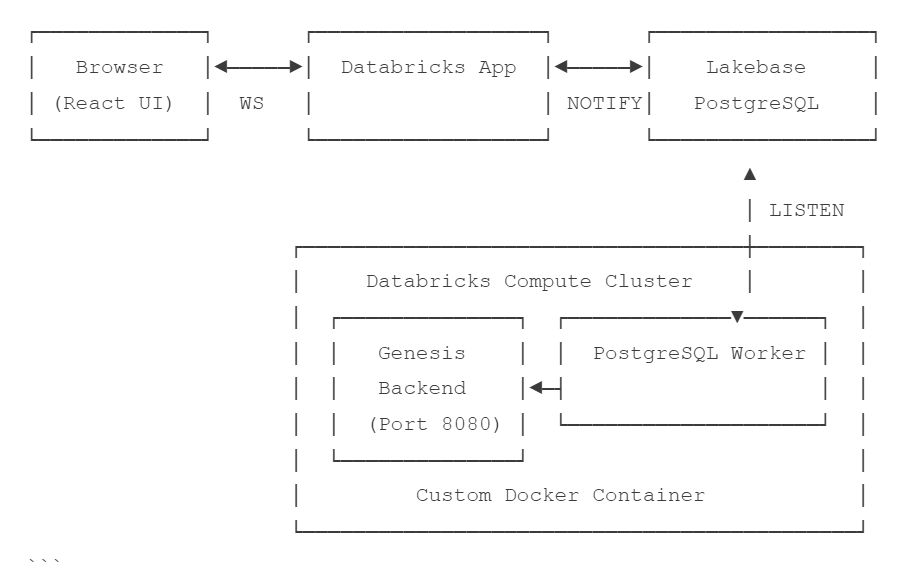
- Browser connects to Databricks App via WebSocket
- Databricks App sends notifications to Lakebase PostgreSQL
- PostgreSQL Worker (in compute cluster) listens for database notifications
- Worker forwards messages to Genesis Backend for processing
Prerequisites
Before you begin, ensure you have:- Databricks Workspace with access to Databricks Apps, Compute clusters with custom container support, and Lakebase PostgreSQL.
- Databricks CLI installed and configured.
- Docker for building the Genesis container image.
- LLM Access via Databricks Model Serving endpoints or OpenAI.
Step 1: Set Up Lakebase PostgreSQL
Lakebase is Databricks’ managed PostgreSQL service that provides real-time messaging between components. The App’s bound Lakebase database is reserved for Genesis’s own metadata and durable state; it cannot be registered as a data connection. To connect to a separate Lakebase endpoint as the App identity, see Connections — Databricks Lakebase connections.1.1 Create a Lakebase PostgreSQL Instance
1
Navigate to Lakebase
In your Databricks workspace, go to Catalog → External Locations → Lakebase.
2
Create Instance
Click Create Lakebase Instance and configure:
- Name:
genesis-db - Size: Small (sufficient for most deployments)
3
Note Connection Details
Record the connection information:
- Host:
instance-xxxxx.database.cloud.databricks.com - Port:
5432 - Default database:
postgres
1.2 Create the Genesis Database and Schema
Connect to your Lakebase instance and run the provided SQL scripts:The schema script creates:
- Message queue tables (
app_requests,app_responses) - WebSocket connection tracking (
websocket_connections,websocket_messages) - Real-time NOTIFY/LISTEN triggers for instant message delivery
- Indexes for optimal performance
Step 2: Build and Push the Genesis Container
The Genesis backend runs in a custom Docker container on Databricks Compute.2.1 Build the Docker Image
From the Genesis repository root: The Databricks image now builds with Python 3.12.2.2 Push to Container Registry
Push the image to a registry accessible by Databricks (Docker Hub, Azure ACR, AWS ECR, or Databricks Container Registry):Step 3: Create the Databricks Compute Cluster
3.1 Create Cluster with Custom Container
1
Navigate to Compute
In your Databricks workspace, go to Compute and click Create Cluster.
2
Configure Cluster Settings
3.2 Set Environment Variables
In the cluster’s Advanced Options → Spark → Environment Variables, add:- PostgreSQL Connection
- LLM Provider
3.3 Configure Init Script
The init script starts both the Genesis backend server and the PostgreSQL worker on cluster startup.1
Upload Init Script
bash databricks workspace import \ genesis_bots/apps/genesis_server/deployments/databricks/cluster/databricks_init.sh \ /Workspace/Users/your-email/databricks_init.sh 2
Add to Cluster Configuration
In Advanced Options → Init Scripts, add the path:
/Workspace/Users/your-email/databricks_init.sh3.4 Start the Cluster
Click Create Cluster and wait for it to start. The init script will automatically launch Genesis.Step 4: Deploy the Databricks App
The Databricks App serves the frontend UI and proxies requests to the backend. In the checked-inapp/app.yaml configuration, POSTGRES_DB defaults to
databricks_postgres. Set POSTGRES_ENDPOINT_NAME to use a fresh Lakebase OAuth
credential for each database connection; when it is unset, the app uses
POSTGRES_PASSWORD if provided. The live deployment script currently generates
a separate App configuration with a static database password, as noted above.
4.1 Deploy the App
From the Genesis repository root, run the provided deployment script:4.2 Get the App URL
The app will be available at a URL like:
https://genesis-app-xxxxx.cloud.databricksapps.comStep 5: Verify the Deployment
5.1 Check Component Status
Databricks App
Databricks App
bash databricks apps get genesis-app databricks apps logs genesis-app Compute Cluster
Compute Cluster
In a Databricks notebook attached to the cluster:
bash %sh ps aux | grep -E "genesis|postgres_worker" Genesis Health
Genesis Health
bash curl [https://genesis-app-xxxxx.cloud.databricksapps.com/api/health](https://genesis-app-xxxxx.cloud.databricksapps.com/api/health) 5.2 Check Database Connectivity
Run in SQL editor connected to Lakebase:5.3 Access the UI
Open your browser and navigate to your Genesis app URL. You should see the Genesis dashboard.Configure the LLM provider
The cluster init script seeds the Databricks provider before the backend starts:ACTIVE_LLM_PROVIDER=databricks and DATABRICKS_ENABLED=true are set; the
enabled switch is for legacy-image compatibility (see AWS deployment notes). The init script also sets
DATABRICKS_MODEL_NAME, DATABRICKS_FAST_MODEL_NAME, DATABRICKS_PREMIER_MODEL, and
DATABRICKS_EMBEDDING_MODEL are empty by default — when all are unset, Genesis falls
back to the Databricks catalog default for each role (databricks-claude-opus-5-5 for
chat and premier, databricks-claude-haiku-4-5 for the fast model,
databricks-gte-large-en for embeddings). Setting DATABRICKS_MODEL_NAME (or
--model-name) also sets the fast and premier models to that value unless
DATABRICKS_FAST_MODEL_NAME / DATABRICKS_PREMIER_MODEL are set explicitly.
DATABRICKS_HARVESTER_MODEL defaults to OPENAI_HARVESTER_MODEL.
A value already saved in AppConfig or supplied by a mounted genesis-config.yaml
remains authoritative over these init-script defaults. Configure or change the
provider against the running deployment from Config -> AI Providers or
through the config API. Keep
credentials in a request-body file — process arguments are visible to every process
on the host and land in shell history.
200
with success: false (for example when the provider already exists — repeat that
call as a PUT).
auth_mode: "oauth" replaces api_key with oauth_connection_name, naming an
existing Databricks connection whose per-user OAuth grant is used at runtime.
For the full endpoint reference and the other providers, see
Configuring a provider through the config API.
Some schema fields carry a
default_env_var binding that seeds them from the
cluster environment while nothing is stored, so an image can come up pre-seeded.
That is bootstrap only — it is not the way to configure a provider, and anything
saved through the UI or the config API outranks it.Next Steps
After successful deployment:Add Data Connections
Connect Genesis to your Databricks data sources (Unity Catalog, Delta tables)
Create Agents
Start building AI agents for your data workflows
Set Up Authentication
Configure SSO or other authentication methods if needed
Updating Genesis
To update your Genesis deployment:1
Build New Container Image
Build a new container image with the latest code.
2
Push to Registry
Push the updated image to your container registry.
3
Restart Compute Cluster
Restart the compute cluster to pull the new image.
4
Redeploy App (if needed)
If frontend changes are included:
bash databricks apps deploy genesis-app --source-code-path "$WORKSPACE_PATH" Genesis as a Databricks App
The repository also builds the full Genesis product — backend, React UI, agents, scheduler and Twin — as a single Databricks App, with no cluster and no container image. Local disk in an App is a cache: the App’sapp.yaml stores metadata, threads,
the SQLite-backed stores and Genesis-owned git repositories in a bound Lakebase
database and Unity Catalog volume, so they survive stop/start, redeploy and upgrade.
It signs users in with Databricks SSO (forwarded-token verification) and calls models
as the App’s service principal. The bundle requests the Databricks user-authorization
scope sql so a Databricks connection in Signed-in Databricks user mode runs agent
SQL as the chat user; Unity Catalog grants, row filters, and masks then apply. Users
must consent again the next time they visit after this scope is added. Apps created
outside this bundle need sql added to their user-authorization scopes manually. See
Databricks connections
for connection setup and limitations. Binding the optional sql-warehouse resource
also seeds the genesis_databricks connection for Unity Catalog. It runs Data page
metadata reads and agent SQL as each verified signed-in user; each user needs CAN_USE
on the warehouse. Marketplace installs may omit this binding; the Asset Bundle requires
the sql_warehouse_id variable.
The App package sets LOAD_BASEBALL_DB=false and LOAD_FORMULA1_DB=false: these bundled
SQLite samples are not available in an App because their connections are not registered,
so they do not appear in the Context Graph. On startup, Twin removes previously loaded
sample entries from its graph and search index. The Data page shows the Genesis lakehouse
and, when a SQL warehouse is bound, Unity Catalog.
The admin-only durability report checks which declared
durable state was restored, including durable trees and git repositories.
Databricks does not automatically restart the App after its server process exits.
The start_genesis.py launcher supervises the server and starts it again 5 seconds
after a nonzero exit or signal termination. If the server crashes three times within
10 minutes, the launcher exits with the last status and the App becomes CRASHED
instead of restarting indefinitely. Stopping the App is passed to the server, and
the launcher starts nothing after the stop. The launcher also runs the state-snapshot
exporter and starts the server again after its snapshot handoff. A launcher or
container crash is not covered; monitor app_status.state for CRASHED and redeploy
the active source with databricks apps deploy <app-name> to recover it.
At each launcher start, it logs a volume mount: diagnostic about whether the
configured GENESIS_GIT_DURABILITY_VOLUME is visible under /Volumes and writable.
This check is read-only; Genesis accesses the volume through the Files API.
Inbound SCIM and SCIM-based sign-in restrictions are unavailable in the App;
Databricks SSO and the App’s CAN_USE permission control sign-in. See the
SCIM admin API behavior.
First administrator
While the App has no human administrator, the first verified person to sign in becomes an administrator. If the App’s service principal can read the App’s permissions and those permissions name a person, only the App’s creator or a person grantedCAN_MANAGE directly on the App can take the role. Otherwise,
the first person to sign in can take it; this is the usual case because the
App’s own identity is not on its permission list. Workspace administrators can
open every App regardless of its CAN_USE list, so sign in before granting
CAN_USE to others. Other users receive the App’s default user role. If all
human administrator roles are later removed, the next eligible person to sign
in after an App restart becomes administrator. The grant is recorded in the
audit log as role.granted with source databricks_app_first_admin.
To grant later administrators by workspace group, an administrator can configure
auth.group_role_mapping in Settings → Advanced. Databricks App group membership
is read from the workspace’s SCIM response at sign-in; see
Group-to-role mapping.
Automated test identities
Databricks service principals cannot normally sign in as Genesis users. For automated tests on a Databricks App, a Genesis administrator can opt in by listing workspace service-principal application IDs inauth.databricks_app_test_service_principals (empty by default; see
Advanced Settings).
The forwarded OAuth token must resolve through the workspace’s SCIM Me endpoint
to the listed service principal. Each accepted identity has the stable subject
databricks-sp:<application id> and a non-routable
<application id>@uat.genesis.invalid email, and receives only the default roles
for new users. It never takes the App’s first-administrator seat and receives no
role through group mapping. Unlisted service principals, personal access tokens,
and the App’s own identity remain refused regardless of the list. Leave the list
empty on customer installs; this setting has no effect outside a Databricks App.
The App does not use Genesis’s default local Iceberg lakehouse. Its catalog
database and Parquet files would be stored on local disk and lost when the App
restarts. Genesis therefore disables the local Iceberg authentication mode
and refuses local Iceberg catalogs or warehouses. Instead, Genesis seeds
iceberg.genesis_iceberg with auth type databricks_app_identity: it accesses
Unity Catalog’s Iceberg REST catalog as the App’s service principal, in the
<catalog>.<app-name>_lakehouse schema beside the state volume. This connection
stores no credentials or location, and is confined to that schema. A Flow output
that omits its connection uses this lakehouse; if it also omits namespace, it
writes to the App’s lakehouse schema. Only administrators can create additional
connections of this type, and only inside the App. The App principal needs
USE_SCHEMA, CREATE_TABLE, SELECT, MODIFY, and EXTERNAL_USE_SCHEMA on
the lakehouse schema; its volume binding supplies USE_CATALOG. Use a regular
Databricks connection for other Unity Catalog data; it runs as the signed-in user.
The App package also sets GENESIS__SECURITY__CODE_ISOLATION=confine and
GENESIS__SECURITY__ALLOW_UNCONFINED_CODING_AGENTS=false. Agent-run code is confined
with Landlock, seccomp, and namespaces; code execution is refused if the kernel cannot
enforce confinement. The packaged App cannot be built with code isolation overridden:
build_package.py refuses an app.yaml unless it sets
GENESIS__SECURITY__CODE_ISOLATION=confine. Coding-agent CLIs and local dbt execution
are refused in the App. The package sets DISABLE_NGROK to TRUE so a public
tunnel cannot bypass the Apps proxy sign-in. See the tool guides for the App’s
Talend,
SQLite,
sandbox, and
Git restrictions.
Azure Container Instances sandboxes also need the Azure connection’s declared
external-access destinations for the ARM API and the exec WebSocket; see
Azure connections.
See Databricks Action Tools
for the per-user execute_python session behavior.
The stdio MCP child processes also receive reduced environments in the App. The
system stats, field mapping, and dbt building servers receive an allowlist rather
than the server environment; other MCP children inherit runtime settings with
recognized credential variables removed, except for credentials their own
configuration declares or that the child needs. The scheduler retains its Lakebase
authentication credential when durable SQLite uses Lakebase, and Twin retains the
LLM and embedding provider credentials it reads. The Databricks provider gives
Twin a minted token, not the App’s client secret. These children are not an
isolation boundary: they run as the server’s user and can read the server process
environment. This filtering limits accidental exposure, including through the
system stats tool; it does not prevent a same-user process from accessing secrets.
See AI Providers — Digital Twin reload behavior
for provider configuration context.
The Marketplace image includes Node and npm but not npx, so a custom stdio MCP server
configured with an npx ... command will not start. npm exec is available as an
alternative.
The App does not support email delivery or managed artifacts: an agent’s send_email
returns an error, and manage_artifact returns an error in the App’s SQLAlchemy metadata
mode. The image also lacks Java, the SQLite CLI, and ODBC drivers. Local Talend jobs and
the SQLite CLI are unavailable; SQL Server connections use pymssql instead of ODBC.
For Talend, use a remote Talend runner.
OCR
In a Databricks App, Tesseract is unavailable and theai_parse_document
method requires the configured volume and a Databricks service-principal
connection. See OCR volume configuration
for the setting, permissions, and upload behavior.
Public URL and OAuth callbacks
The Apps proxy sends requests to Genesis on localhost and supplies forwarded host headers from the caller, so Genesis does not use request headers to construct public links or OAuth callbacks in a Databricks App.GENESIS_PUBLIC_BASE_URL and
SERVICE_BASE_URL default to unset; set one in app.yaml env to pin the App’s
HTTPS URL. Otherwise, Genesis uses DATABRICKS_APP_URL when the runtime provides it,
then the url from the App’s own record (GET /api/2.0/apps/<name>). Genesis reads
that record with the App’s identity at startup and retries every minute until it is
available; this lookup is automatic and requires no setting. It works on every cloud
and does not require a grant to read the App record. If those sources do not provide
a URL, on AWS commercial workspaces (*.cloud.databricks.com) and GCP workspaces
(*.gcp.databricks.com), Genesis can derive
https://<app name>-<workspace ID>.aws.databricksapps.com or
https://<app name>-<workspace ID>.gcp.databricksapps.com, respectively. Databricks
documents the part before databricksapps.com as the region, so if the derived URL
differs from the URL on the App’s page, set GENESIS_PUBLIC_BASE_URL to the page’s
URL. OAuth providers accept callbacks only for registered redirect URIs; use the
callback shown on the App’s page when registering them. Configured URLs must use
HTTPS; a bare host is treated as HTTPS, and an http:// value is ignored.
NGROK_BASE_URL and FRONTEND_BASE_URL are not used in an App.
Some flows have a higher-priority URL override:
- Connection OAuth: the provider’s Genesis Base URL (
guide_base_url) takes precedence over the shared URL settings above. Register the displayed connection callback with that provider. - MCP OAuth discovery:
GENESIS_MCP_PUBLIC_URL,GENESIS_PUBLIC_URL, thenGENESIS_EXTERNAL_URL(all unset by default) take precedence over the shared settings above.
*.cloud.databricks.us) Apps do not have a derived URL; Genesis
uses the App record’s URL once it has been read, so no cloud requires app.yaml to be
edited just to set the public URL. Until that record is available, the public URL is
unknown and the server logs a warning naming GENESIS_PUBLIC_BASE_URL. In an App,
/api/config/ui-endpoint returns an empty string so the browser always calls the API
on the origin that served the UI. If no public URL can be resolved, OAuth sign-in,
Slack installation, and the CLI-install link are refused with HTTP 503 rather than
using localhost. The Slack manifest URL is checked before
creating the Slack app. MCP OAuth metadata and
WWW-Authenticate discovery challenges also return 503 when no MCP-specific,
shared, or App URL is available; other MCP requests, including preflights, continue
to work. See Hosted MCP for Claude Code
for configuring MCP OAuth.
Register the applicable callback URLs with the identity provider:
App telemetry
The App package runs Genesis underopentelemetry-instrument. The Asset Bundle points App
telemetry at <catalog>.<app_name>_telemetry, a separate Unity Catalog schema for the App’s
logs, metrics, and traces. It contains the tables otel_logs, otel_metrics, and
otel_spans. preinstall creates this schema. For a Marketplace install, turn on telemetry
in the App’s settings and select those three tables in that schema; the Marketplace
postinstall action reports whether the destinations match. Databricks applies telemetry
destination changes at the App’s next deploy. With telemetry enabled, Genesis emits
genesis.setup.duration for each startup step and
genesis.feature.usage for each built-in tool group; the setup histogram is not sampled.
Traces are sampled at 25%. Databricks also copies App stdout and stderr into otel_logs
(including APP and BUILD log sources); the OpenTelemetry SDK does not export log
records. With telemetry enabled, these exported logs remain available beyond the Logs tab’s
short buffer and survive App restarts. Grant access to otel_logs on the same basis as
access to the App’s logs.
The package sets these telemetry environment variables:
Genesis App spans use an attribute allowlist: route template, method, status, ports,
scheme, setup step, outcome, feature, error type, exception type, code frames, RPC
method, and MCP method name. Other span, event, and link attributes are exported as
[redacted]. Span names are rebuilt from safe values; client spans identify only a
dependency class (databricks, anthropic, openai, mcp, or other). Built-in
Genesis tool groups have feature names; MCP servers and custom tools use tool:custom.
Failed setup steps record the exception type and code frames with error status, not the
exception message.
If Databricks App telemetry is off, Databricks does not provide an OTLP endpoint and the
launcher restarts Genesis without OpenTelemetry instrumentation. The App continues to
run without exporting telemetry.
The package builder refuses an app.yaml that opts
out of any durable store with a *_ALLOW_EPHEMERAL variable. The sections below
describe each store; the package README
(genesis_bots/apps/genesis_server/deployments/databricks/full_app/README.md) lists
the App resources, permissions and the deploy bundle.
Durable SQLite stores
Databricks Apps can erase their local disk when the host is replaced. To keep selected Genesis state across restarts, enable durable SQLite with a bound Lakebase PostgreSQL app resource. Genesis restores the remote copies before it serves requests, ships committed database writes to Lakebase before acknowledging them, and checks for due whole-database checkpoints every minute. This mode supports one App instance; it does not makegenesis.db metadata or arbitrary
files durable.
On a Databricks App, startup fails if durability is off and
GENESIS_SQLITE_DURABILITY_ALLOW_EPHEMERAL is not true.
The standalone harvester mode is refused in a Databricks App. If
HARVESTER_MODE=standalone, harvesting stays off until the variable is set to
in_process or removed; Apps default to in-process harvesting.
With Postgres thread storage, large tool-call arguments archived during
conversation compaction are also kept in the message’s Lakebase thread-storage
archive entry, as metadata rather than prompt content, and are excluded from
thread search. GET_COMPRESSED_PARAM_ARCHIVE can recover these arguments after a
restart. Genesis keeps up to 512 KiB per call and 8 MiB per conversation;
arguments over either limit remain only in the local archive file, which a
restart can wipe, and their stub includes a durability_warning. Arguments
archived before this behavior was available also exist only in the archive file.
Archived arguments within the limits remain in thread storage after compaction,
so compaction does not reduce the thread’s stored size or in-memory footprint by
those arguments. Large tool results are unaffected because their full text
remains in the message.
The durable databases are flows.db, blueprint_runs.db, debriefs.db, and
datasets.db under the Genesis storage root. Whole-file stores also include
agent skills, blueprint registries and document feeds, bot settings and defaults,
flow bindings, the sender-signing secret, knowledge-base and managed-artifact
registries, the skills repository, and the GenesisApp registry at
{STORAGE_PATH}/runtime/microapps/registry.json. Registry saves upload to
Lakebase before completing, and Genesis restores the registry before serving
requests, so the GenesisApp list survives host replacement. The App package
pins GENESIS__APPS__AUTOSTART_AFTER_RESTART=true for
apps.autostart_after_restart; set it to "false" in app.yaml to leave
apps stopped after a Genesis restart. See
Genesis Apps for restart
eligibility and failed-start behavior. Genesis-owned files
outside these stores remain local. Durable whole-file stores also include user
avatars (avatars/), uploaded configuration profiles (config_profiles/), and
branding logos (branding/). Each supported file write is uploaded before it
completes, and deletions are recorded remotely, so these assets remain available
after a host replacement. Bind a Lakebase postgres resource so its PG* connection settings
are available, and configure GENESIS_LAKEBASE_AUTH and
GENESIS_LAKEBASE_ENDPOINT as described in Durable git repositories.
The App package sets GENESIS_SQLITE_DURABILITY=postgres with the Lakebase binding.
Durable whole files over 256 KiB
WithGENESIS_SQLITE_DURABILITY=postgres, GENESIS_GIT_DURABILITY=databricks, and the bound
volume described in Durable git repositories, supported durable
whole files larger than 256 KiB keep their AES-256-GCM-encrypted bytes in
<volume>/genesis/durable_files/; their Lakebase rows record the location, size, and digest.
This applies to scheduled jobs, registries, settings, avatars and logos, GenesisApp state
archives, and blueprint outputs. Smaller files and files written before this behavior was
available remain in Lakebase. Uploading a large file before acknowledging the write adds about
0.3–0.6 seconds. If the volume is unreachable or the master key (GENESIS_MASTER_KEY) is
missing, the write is refused and leaves the previous file unchanged. Files larger than 2 GiB
are refused with 413.
Rewrites and deletions remove the replaced volume copy. A failed removal, or an upload left
behind by a later failed write, remains in the volume; there is no cleanup sweep for these
leftovers. At startup Genesis checks each copy against the size and digest in its Lakebase row.
A missing or damaged copy stops startup, except a damaged GenesisApp state archive: that app
starts without its state, an error is logged, and a state export identifies the archive. A copy
written under a different master key remains unreachable until that key is bound as the
previous key; see Rotate the master key.
Do not roll back to a Genesis version older than this behavior while these files exist. The
older version treats the volume-backed rows as damaged: restored scheduled jobs, registries,
settings, avatars, or logos can stop its startup, while a GenesisApp state archive or blueprint
output restored on first use can leave the app without its state or the output unreadable. The
next GenesisApp snapshot then replaces the archive, so rolling forward restores that empty
state. Take a state export before upgrading and restore it after any rollback. Do not rebind
GENESIS_GIT_DURABILITY_VOLUME while these files exist; the copies will appear missing.
Blueprint release modes, saved-version metadata, promotion history, and
production assignments are stored in
{STORAGE_PATH}/runtime/blueprints/versioning.sqlite3 and survive host
replacement with GENESIS_SQLITE_DURABILITY=postgres. The saved-version files
also need the Apps repository covered by Durable git
repositories; with git durability enabled, Genesis
rebuilds a missing version directory synchronously from its recorded commit on
the first operation that needs its files, after the Apps repository restore
completes. If the SQLite copy is available but the version files were lost and
the Apps repository is not durable, Genesis reports the missing files instead
of serving an empty snapshot.
When GENESIS_SQLITE_DURABILITY=postgres (default off; the Databricks App
package sets it to postgres), the Cost & Usage history used by the Costs page,
bot stats, and spend reports is also kept in durable SQLite at
datasets/genesis_cost_usage_cube_v1/live/cost_usage_cube_v2.sqlite. It is
restored as a whole file at startup, so boot time grows with the cube size. A
background writer sends batches to Lakebase; while Lakebase is unavailable it
holds and retries its batch. Facts still queued when the App stops can be lost
(normally the queue is under 2 seconds of facts); once 20,000 facts are queued,
new facts are refused and counted.
Mission replay data used by Live Overview and mission durations is also kept
in mission_replay.db and restored as a whole database at startup. It grows
with mission history and has no age-based retention; in a sample of 97 local
missions, replay data averaged about 0.3 MB per mission (0.2 MB median, 0.4 MB
at the 90th percentile, and 6.9 MB for the largest mission). The main server
process records replay events through a background writer. Events reach the
browser only after their Lakebase batch commits, normally within a quarter of
a second; queued events can be lost if the App stops before they are committed.
When Lakebase refuses writes, the writer holds and retries its batch. Its queue
holds up to 10,000 records; additional events are dropped and counted, with a
log on the first drop and every 1,000th drop. Deleting a mission also deletes
its replay through the writer. If the App stops before that deletion is stored,
the replay rows remain and are restored at startup, although the app does not
show them because mission listings come from the metadata database.
At startup, before serving requests, Genesis imports legacy NDJSON replay files
from disk or a state import, one Lakebase commit per mission, for up to 60
seconds. Files not imported within that period are read from disk until that
mission’s next replay write imports them; unreadable files are logged.
Usage metrics in metrics.db are also durable with this setting. By default,
the metrics database is placed under the storage root instead of beside
SQLITE_DB_PATH, restored as a whole file at startup, and committed writes are
shipped to Lakebase. Counters and bridge-upload state survive restarts, but
metrics not yet exported can be lost. Metrics have no retention, so startup
restore time grows with the database. An explicit metrics.destination is used
as configured and is durable only when it points to the durable metrics.db.
When a kept disk is upgraded, the first durable start copies the older default
metrics.db beside SQLITE_DB_PATH if no local or Lakebase copy already exists;
a deployment that wiped the disk cannot recover that older database. If the copy
fails, the old file is left in place, metrics are not recorded, and no empty
durable database is started; Genesis retries the copy at the next open and
startup.
With this setting, scheduled job definitions and scheduler run history are
stored in Lakebase and survive App restarts. The history includes run status and
output, as well as job creation, changes, pauses, resumes, and removals. After
startup, the scheduler schedules jobs and answers tools while restoring the
history database; history reads and clears return HTTP 503 until restoration
finishes. Older history files and files included in a state import are merged
into the durable history once, including when the same file is imported again.
App state exports include the history database. An import without that database
leaves the existing Lakebase history intact and merges any history files carried
by the import.
History is not cleared automatically, and run output is retained, so restoration
takes longer as the history grows. Events are queued in the scheduler process
and written shortly after they occur; queued events can be lost if the process
stops before writing them. Events can also be lost while Lakebase is unavailable
or while a restarted scheduler waits for its predecessor to exit. Those losses
are logged; jobs continue to run, but scheduler status reports no run counts
while history storage is unavailable.
Each materialized dataset snapshot is uploaded whole after it is built, before
it becomes active. When a host replacement removes a local snapshot, Genesis
restores it on its first read, so the first query waits for the download rather
than delaying startup. See Datasets for cache behavior
and Advanced Settings
for the size limit.
The admin state export restores all active dataset snapshots before building
its archive. The post-exit/CLI state snapshot exporter cannot restore snapshots
that exist only in Lakebase: it warns which active snapshots are omitted and
leaves their remote copies intact. On forced state import, only active dataset
snapshots are made durable; older imported snapshots remain local and are lost
on the next restart.
GenesisApp runtime state is also snapshotted, per app, to the bound UC volume
(genesis/app_state, one encrypted file per state file), with each app’s newest
snapshot named by one Lakebase catalog row. Snapshots run when an app stops,
during orderly server shutdown, and every five minutes while apps run; only the
files that changed are uploaded. At app start, Genesis restores that app’s state
before launching it, but never over a state directory an earlier start marked as
decided; an unmarked one (a wiped disk, or a restore cut off before it finished)
is restored over. If the restore keeps failing, the app still starts, without its
state: its status shows the error, nothing it writes is saved, and the first start
after every runtime of the app (main and versions) has stopped tries the restore
again. What it wrote meanwhile is not lost: it is moved to
runtime/microapps/app_state_unrestored/<app_id>/ under the storage root, outside
the app’s workspace, and the app’s status and log name the folder. That folder is
kept until the app is deleted, and does not count towards the app’s state limit.
In a local install without app confinement, app processes that survive a backend
restart are not tracked by the restarted backend, so stop running apps before
restarting it; a Databricks App’s processes never survive a restart.
State changed since the last snapshot can be lost if the App exits or its host
is replaced before another snapshot completes. An app’s state is limited to
256 MiB in total; larger state is not saved and the previous snapshot remains.
App state snapshots need the GENESIS_SQLITE_DURABILITY=postgres setting above
and the bound volume, and require no additional configuration. State that an
earlier version kept as one archive per app is restored at the app’s first start,
and the archive stays until the app is deleted, so a rollback to that version
restores the app’s state as it was at the upgrade. Without the volume, an
earlier version’s archive is still restored, but nothing new is saved.
Saved GenesisApp versions and file-level change history use the durable
runtime/microapps/versioning.sqlite3 and
runtime/microapps/change_history.sqlite3 databases. This preserves version
metadata, Production assignments, and change records with
GENESIS_SQLITE_DURABILITY=postgres. To preserve saved-version files and
change-history snapshots, the apps repository must also be covered by
Durable git repositories. When a host replacement
removes a saved version directory, Genesis rebuilds it synchronously from its
recorded Git commit the first time an operation needs those files.
The rebuilt version keeps regular files up to 100 MiB total. It omits .env and
.env.* files at any depth, installed dependencies and caches (including
node_modules, virtual environments, __pycache__, and tool caches), and empty
directories. Re-enter omitted secrets and reinstall Python requirements when
the version starts. If kept files exceed 100 MiB, saving the version is refused
with the largest files listed; move large data out of the app folder or remove
it before saving again.
For local GenesisApps whose change history is stored in Git, the working copy
is also rebuilt from its latest file-level checkpoint after a restart. The
rebuild happens on first use that needs the files, including start, file list,
read or write, export, comparison, saving a version or checkpoint, and
checkpoint restore or undo. Runtime entries such as .microapp_state,
.microapp_venv, and __pycache__ are carried over. Only regular files from
the checkpoint return: edits made afterward, symlinks, and files ignored by
the app or apps repository are not recovered. If the workspace already has an
app file, it is not replaced; an app emptied later in the same process is not
restored again. If the apps repository is still being restored, the first
file-dependent request returns 503 and can be retried. Snapshot-backed remote
and managed-WIP apps are not covered.
Durable git repositories
A Databricks App refuses to start when git durability is off unlessGENESIS_GIT_DURABILITY_ALLOW_EPHEMERAL=true says losing repositories is intended.
The App package enables durability with a Unity Catalog volume and Lakebase:
Volume-backed content blobs are encrypted and named by a content ID keyed to the
master key, store, and folder. Identical files share a blob only within the same
folder of the same store under the same key, so a volume reader cannot determine
that separate stores or folders contain the same file. Re-sealing a blob after
key rotation keeps its existing ID. When a blob already exists, a write trusts it
without reading or replacing it; if a principal with
WRITE VOLUME corrupts the
blob, later writes of that content leave it in place and reads remain refused
until the corrupt blob is deleted.
Pending Action Review proposals keep staged attachments as sealed files, using
the same storage format described in Durable chat uploads.
They are written before a proposal can use them and fetched on Apply only after
the requester’s scope is checked; the bytes must match the digest recorded at
proposal time, and a proposal whose copy cannot be written is refused.
Attachments kept before sealed files are moved from
genesis/action_review_attachment_snapshots/ into sealed files in the
background, at most 8 per minute. Each legacy blob must be encrypted and match
the size and digest recorded at proposal time before it is sealed; the sealed
record is checked against the bytes before the old blob is deleted. Blobs that
cannot be moved are logged and left in the folder, and blobs no record names are
not restored. Until moved, an attachment restores from its legacy encrypted
blob; a plaintext object is logged, left in place, and never moved or served.
If the volume cannot return an attachment at Apply, nothing is sent and the
proposal ends as not applied; propose it again. Attachments are deleted when the
proposal ends, with cleanup retried by the Action Review sweep if a delete
fails. Releasing an attachment deletes its sealed copy so it is not restored
after a restart, and deletes its legacy blob only when it has one. The catch-all
sweep does not take their folder.
New bundles for Genesis-owned repositories are sealed with chunked AES-256-GCM
before they are written to the volume. The git hooks receive only the public
key derived from the bound genesis-master-key at server start, so they can
seal bundles but cannot open them; only the server opens them during restore.
Git durability refuses to start if the master key is missing or is the
published development key. A bundle copied to another repository, renamed,
truncated, changed or sealed to another key is refused during restore, which
leaves the repository record live and its path reserved for a retry rather
than archiving the repository. Sealing does not prove who created a bundle: a
principal able to read the hooks’ settings can seal one that the server will
accept.
Bundles from before this behavior remain plaintext under their existing
.bundle names. The background sweep starts 30 seconds after startup and
every 5 minutes thereafter, compacting up to 8 repositories with plaintext
bundles per run into sealed bundles. It deletes the plaintext bundles an hour
later. Archived repository incarnations retain their plaintext bundles. A
Genesis version that predates sealed bundles cannot restore a repository
whose saved chain names one, and refuses a new repository at that path. Do not
roll back past a version that has run with git durability enabled. A bundle
sealed with a different master key remains unrestorable until that key is
bound as the previous key; see Rotate the master key.
GENESIS_GIT_DURABILITY accepts off, local, or databricks; another value
stops the server at boot. In databricks mode, Genesis-owned repositories under
GIT_PATH/repos store new Git objects as bundles in the volume and refs in
Lakebase. Commits and ref creates or updates made through Git or GitPython
commit hooks are recorded before Git acknowledges them; ref deletions are
recorded immediately afterward. Operations that bypass those hooks, including
git branch -m, GitPython create_head, and sandboxed Git with a separate
HOME, are picked up by a sweep every 5 minutes. Uncommitted work (edited,
staged, untracked and deleted files, as git status sees them) is not kept while
the catch-all sweep is disabled. The Databricks full App enables it by default
with GENESIS_DURABLE_BY_DEFAULT=true; enable it with GENESIS_DURABLE_BY_DEFAULT
on other deployments. When enabled, work is kept on each sweep walk and
put back after the repository is restored. Changes since the previous walk can
be lost on restart; walks use storage_sweep.walk_interval_s (default 120
seconds). A local file edited meanwhile wins over the kept copy. An edited
tracked file keeps its checkout’s mode (an executable script stays executable);
a new untracked file comes back without its executable bit. Gitignored files are
not kept. Each durable commit adds about 0.35 seconds of hook time plus a
0.25–0.6 second volume upload.
Use one App instance (compute_max_instances: 1) and a stable GIT_PATH. Boot
restoration runs for up to 2 minutes; a sweep starts 30 seconds after the
server is up and retries outstanding restores every 5 minutes. If a repository
cannot be restored because the volume or remote is unavailable, writes that
would create a new repository at that path are refused until restoration. A
repository or plain files created there in the meantime are moved aside before
the recorded repository is restored. Deleted repositories are detected by a
row scan every 30 minutes, so a deletion less than about 30 minutes before host
loss can be restored. Archived incarnations are purged after 30 days.
For a clone of a customer remote, the volume preserves only local work. At
restore, Genesis fetches the remote’s default branch and fetched tags using the
connection used to clone it (genesis.<remote>.connection). A remote that
permanently refuses the fetch, for example because it is unauthenticated or
missing, is archived as unrestorable so a new clone can replace it.
Rotate the master key
The App can read stored secrets, encrypted volume files, and git bundles sealed with either the current master key or one previous key. It always writes new data with the current key. Keep a copy of the currentmaster-key in a secure password vault. Losing it makes every
secret Genesis stores unreadable, and nothing can recover them.
Rotate in this order so the old key remains available for reads:
- In the App’s Databricks secret scope, copy the existing
master-keyvalue tomaster-key-previous, then replacemaster-keywith the new key. - Bind that secret to the App as
genesis-master-key-previouswithREADpermission. The binding suppliesGENESIS_MASTER_KEY_PREVIOUS; leave it unbound when no rotation is in progress. - Redeploy or restart the App. The keys are cached for the life of the process, so the binding and key changes take effect after a restart.
updated_at and never overwriting a value written in the
meantime. With GENESIS_GIT_DURABILITY=databricks (off by default outside the Databricks App
package) and GENESIS_GIT_DURABILITY_VOLUME configured as described under Durable git
repositories, the durable-git sweep (every 5 minutes) re-seals
git bundles: it reads each bundle chain’s header once with a ranged read and remembers the
result, then compacts a repository holding bundles sealed with the previous key into one base
bundle sealed with the new key. The sweep allows 8 such compactions, sharing its budget and
backoff with replacement of plaintext bundles; replaced bundles are deleted after an hour.
The admin-only durability report tracks re-sealing progress.
Archived incarnations are counted but never re-sealed, and become unreadable when the previous
key is unbound. Durable trees (the Twin, each GenesisApp’s state, and each document index) are
re-sealed by natural turnover, never rewritten in place. Each manifest member records the
fingerprint of the key used to seal its blob; a unit’s next snapshot pass treats a member under
another key (or one recording no fingerprint, as for members written before this release while
a previous key is bound) as changed and commits a new generation under the current key. This
includes idle units: the Twin’s interval pass (every 5 minutes) and the first document-index
export after the restart pass over every unit. A GenesisApp’s state is passed over only while
the app runs, so a stopped app continues to need the previous key until it runs again. A unit
over its quota commits nothing and keeps its previous generation; a pass whose copy is declined
also commits nothing and is retried at the next interval. After the new generation commits, the
old blobs are no longer needed, but each commit retains the previous generation’s blobs, which
are deleted only by the unit’s following commit (the next change). The admin-only durability
report includes a durable_trees count. Durable files in
<volume>/genesis/durable_files/—write-through whole files over 256 KiB, sealed files such as
chat uploads and attachments, and swept files—are also re-sealed by each one-minute durable-SQLite
maintenance tick when the volume is configured as above and a previous key is bound. The tick
runs when GENESIS_SQLITE_DURABILITY=postgres (default off; the Databricks App package sets it
to postgres). It reads the next 50 catalog rows that name a volume blob, reads each blob’s header
once with a ranged read, and copies blobs sealed with the previous key to new blobs sealed with the
current key, up to 256 MiB per tick (one larger file still moves alone). Only the row’s blob
reference changes, and only while it still names the old blob; if the row changed meanwhile, the
copy is deleted. The old blob is then deleted under its owner’s lock. The report’s
under_previous_key.volume_files count reflects what the last complete cycle left.
Legacy chat uploads in genesis/uploads/ and legacy attachment snapshots are not re-sealed in
place. The same one-minute background maintenance tick first moves them into sealed files, which
are sealed with the current key; attachments are short-lived. Archived git incarnations are
counted but never re-sealed. Unbinding or replacing the previous key makes any remaining files,
git bundles, or tree members still sealed with it unreadable. Keep the previous key bound until
the legacy stores hold nothing you need and every applicable under_previous_key count is 0.
State snapshot key-compatibility and restore requirements,
including snapshots taken while secrets are being re-sealed, are covered in State Snapshots
and Migration.
Durable document indexes
WhenGENESIS_GIT_DURABILITY=databricks (off by default) and the bound volume
is configured by GENESIS_GIT_DURABILITY_VOLUME above, Genesis saves changed
indexes as one encrypted export per index under
<volume>/genesis/document_indexes/indexes/. The newest export is named by a
Lakebase catalog row, so restore returns one complete export or none. Anyone
with READ VOLUME can read the full document text, so grant volume access as
you would access to the indexed documents. This also requires durable SQLite
(GENESIS_SQLITE_DURABILITY=postgres; its default is off, but the Databricks
App package sets it to postgres). With durable SQLite off, new exports are
not kept and an error is logged; snapshots made by an earlier version are
still restored.
Genesis exports changed indexes every 2 minutes. Changes since the last export
can be lost on any App stop, including a clean stop; there is no export at
shutdown. The interval is longer while a document sync runs. Exports
wait during syncs, including restore or re-embedding after an embedding-model
change. Index exports are restored in the background after startup when the
LLM provider is ready. Until an index is restored, search reports that it is
being restored, and changes to it are refused. Creating or renaming an index
is also refused until startup restoration finishes. If the export used the
same embedding model, restore makes no embedding calls; otherwise it embeds
once per chunk, and the next export saves those new embeddings. Failed restores
are retried after 10 minutes, with the interval doubling up to 6 hours.
A compressed export larger than 2 GiB is not saved and the previous export is
retained. Deleting an index removes its catalog row before deleting the index;
renaming first commits the index’s current contents under its new name. A
deletion that starts during export waits for that export and is refused with
“retry” after 30 seconds. A deletion during restore stops it at the next chunk
batch, or at the next chunk if restore is re-embedding for another model; it is
refused with “retry” if the download takes longer than 30 seconds. Failed
cleanup of an older-version snapshot is retried by the next export pass, but
does not prevent the deletion. The support-docs index is rebuilt from the
shipped documentation and is not included.
Legacy plaintext snapshots are removed after upgrade only for indexes with a
catalog row. An earlier-version snapshot, plaintext or encrypted, is not read
once its index has a catalog row, and a plaintext snapshot beside a sealed
export is never read. If an index has no catalog row and its first export is
over 2 GiB compressed, the export is not committed and its plaintext snapshots
remain available for legacy restore. Deleting or renaming an index also removes
its earlier-version snapshots; if the volume refuses cleanup, the next export
pass retries it.
Do not roll back past a version that has run with document-index durability
enabled. That version cannot see the catalog rows: indexes return as of their
newest encrypted pre-upgrade export, without later changes, while indexes that
had only plaintext snapshots or were created since are missing. A deleted or
renamed index stays deleted once its earlier-version snapshots are removed. If
cleanup was refused and rollback happens before a later export pass removes
those snapshots, the old name can return; this version ignores those snapshots
under the catalog tombstone. On roll-forward, indexes with catalog rows return
as of the last export, losing changes made by the older version; indexes
deleted while rolled back return. Take a state export before rolling back.
Export and restore need temporary local disk for the uncompressed export (which
can exceed 2 GiB), its compressed copy (up to 2 GiB), and the encrypted copy at
the same time.
Durable chat uploads
WithGENESIS_GIT_DURABILITY=databricks and the bound volume configured by
GENESIS_GIT_DURABILITY_VOLUME above, new uploads recorded by Genesis are sealed: a Lakebase
catalog row records each upload’s size, SHA-256 digest and encoding. Upload bytes up to 256 KiB
are stored inline; larger files are stored as encrypted blobs in
<volume>/genesis/durable_files/. The App principal needs WRITE VOLUME for larger files; a
failed volume write refuses the upload with 503. Replacing an encrypted blob with plaintext
under its recorded name does not serve that plaintext. Uploads kept before this behavior are
moved from <volume>/genesis/uploads/ into sealed files in the background, at most 8 per
minute. Each legacy blob is read only if encrypted, sealed, checked against the bytes in its
sealed record, and then deleted. Blobs that cannot be moved are logged and left in the folder,
and blobs no record names are not restored. Until moved, an upload restores from its legacy
encrypted blob; a plaintext object is logged, left in place, and never moved or served. This
also covers selected generated files in their own conversation folder: images from
image_generation, provider responses saved by connection_api_action, get_web_content
downloads and static-page saves, and dashboard or GenesisApp screenshots. These are recorded
like chat uploads and attached to the conversation. A generated file that cannot be kept or
attached because the volume write or conversation attachment failed remains on the current
server only and its tool result carries durability_warning. A file outside an eligible
conversation folder is not recorded and has no warning.
Screenshot capture is kept only for an existing conversation the caller may access; captures
that time out before finishing or are replaced by a retry are not kept. A screenshot without
a known user is readable after restart once the conversation’s bot has loaded. Other files
written directly into uploads/ and uploads moved to another path are not durable.
After a host restart, supported reads restore a missing local copy on demand, so the first such
read waits for the volume download. These include file download and view, the uploads repository
browser, file(action="read", repo_id="uploads"), PDF/PPT parsing, Databricks upload_file,
sandbox repository transfers, SQL loaded through a dataset’s sql_path, Launchpad pre-start
files, and message attachments. An attachment wiped before a turn is restored while the prompt
is built, so a wiped image is absent from that first turn’s image input but remains listed and
readable. Access is checked before download. Other file actions (including search, listings,
batch reads, and archives) see only files currently on disk. upload_file and sandbox transfers
from uploads are limited to the current conversation.
Deleting an upload through the API or file tools, moving it, cleaning up an orphan, or deleting
its conversation tombstones its sealed copy so it is not restored again, and deletes any legacy
genesis/uploads copy. Deleting a conversation also removes its owner’s own uploads that were
linked from a new-chat folder; it keeps another conversation’s file attached to a message.
Uploads never sent in a conversation remain stored, as do copies whose deletion failed; failed
deletions are logged, and legacy genesis/uploads leftovers are not swept automatically.
The App accepts uploads up to files.max_upload_bytes (integer, default 104857600 bytes / 100
MiB), configurable in the App’s Genesis configuration. This cap applies only when uploads are
durable in a Unity Catalog volume; other deployments do not apply it, though their server or
ingress may limit request size. For larger data, place it in a Unity Catalog volume and give the
agent its path.
Durable Twin data
The Marketplace App snapshots the Twin’s data togenesis/twin in its bound Unity Catalog
volume. It keeps the graph and registered sources, corrections, schemes, wiki, scan cursors,
usage ledger, vector index, and scan history. Undo copies are not included, so an undo does
not survive a restart. The App package enables this using the same GENESIS_GIT_DURABILITY,
GENESIS_GIT_DURABILITY_VOLUME, and Lakebase binding described in
Durable git repositories; the App principal needs WRITE VOLUME.
Twin snapshots also require durable SQLite (GENESIS_SQLITE_DURABILITY=postgres; its default
is off, but the Databricks App package sets it to postgres). If durable SQLite is off, no
Twin snapshot is kept and an error is logged.
Each snapshot is an encrypted tree generation in the volume, committed by one Lakebase catalog
row that names the newest complete snapshot. Restore returns that whole snapshot or none. Files
from legacy plaintext snapshots are encrypted when first uploaded by this version; those older
copies are not deleted and remain readable to anyone with READ VOLUME. Once the catalog row
has been written, Genesis no longer reads legacy-format snapshots.
Snapshots run every 5 minutes, within 30 seconds after a user’s change through the Twin’s
tools, and at orderly shutdown. The shutdown snapshot runs after GenesisApp snapshots and
must finish within the remaining shutdown window, ending no later than 10 seconds after
SIGTERM. Only changed files are uploaded. At startup, Genesis restores the newest snapshot
before the Twin starts when its graph is missing. A crash or expired shutdown window can lose
changes since the last snapshot. If a user change is still running at the shutdown deadline,
the final snapshot is skipped to avoid publishing an incomplete copy; the previous snapshot
remains intact, and changes since its last periodic pass can be lost (up to 5 minutes of scan
results, plus up to 30 seconds of user changes and the running change).
If the volume cannot be read after three startup attempts, the Twin starts empty in degraded
state and snapshots stop for that process, preserving the good remote copy. Changes through
the Twin’s tools return a durability_warning explaining they will not be kept. At the next
start, Genesis retries restoration over the intervening local writes; if the disk was kept,
those writes are moved to twin.unrestored-<time> on local disk, retaining the newest three.
Only one App instance may write this volume at a time; each of multiple instances would replace
the other’s snapshot with its own.
Do not roll back to a version that predates encrypted Twin snapshots: it cannot read the new
catalog or snapshots and restores only its older copy. If that version writes Twin data, a later
roll-forward with the disk intact commits those changes, but a roll-forward after the disk is
wiped restores the catalog snapshot and loses them. Take a state export before rolling forward
again. The first snapshot after upgrading from the legacy format uploads the kept files once and
creates the catalog row.
Ship DuckDB extensions without runtime internet access
If the App runs Genesis code that uses DuckDB extensions and its workspace cannot reachextensions.duckdb.org, package the extensions with the App source
and restore them before Genesis starts. Run the fetch command in an
environment with internet access and the same DuckDB release as the App:
fetch uses the installed DuckDB version, targets linux_amd64,
and downloads iceberg, avro, httpfs, and aws. Each compressed extension
is split into parts smaller than Databricks Apps’ 10 MB per-file limit. The App
package builder does this with --duckdb-extensions, and its launcher restores them at
start and sets DUCKDB_EXTENSION_DIRECTORY; Marketplace builds leave the bundle out.
Without egress to extensions.duckdb.org, DuckDB extension downloads fail on first use.
To restore a bundle yourself, set
DUCKDB_EXTENSION_DIRECTORY to a writable directory and run restore before launching
Genesis:
nss_wrapper library by default; use --no-outpost-name-resolver to
omit it. When /etc/hosts is read-only, the launcher installs and preloads that resolver so host names
routed through Outposts resolve to their tunnel listeners; if setup fails, Genesis starts
but those names do not resolve, and the App log explains why. See
How the Outpost signs in.
When GenesisApp restarts, the App launcher reaps exited orphaned setup and namespace-init
processes, allowing Genesis’s own Outpost connections to reconnect without restarting the
Databricks App.
Build the App package from the repository root (needs Node 24 and yarn for the UI). The
builder writes a new output directory: a few root files, a Python 3.12 lock, and the source
archive — tracked runtime source, the UI source and the UI built from it unminified with
source maps — excluding deployment tooling, secrets and untracked local files. The UI’s
own source maps retain mappings and source paths but omit embedded source text to reduce
their size; third-party chunk maps are removed. It checks
that the backend imports from the packaged tree, and makes no Databricks API calls. Add
--duckdb-extensions to bundle the extensions above. The package carries a Databricks
Asset Bundle (databricks.yml) for deploying it; see
genesis_bots/apps/genesis_server/deployments/databricks/full_app/README.md.
Chromium-dependent features
The full-App runtime can provision Playwright’s Chromium headless shell and its Ubuntu libraries without root orapt-get install. The App launcher does this before
starting the backend when GENESIS_DATABRICKS_CHROMIUM=true (off by default: it
downloads at startup, which a Marketplace App must not do). It runs:
PLAYWRIGHT_BROWSERS_PATH and
GENESIS_CHROMIUM_SYSROOT, letting Chromium-dependent features, including PDF
export, screenshots, and web browsing, find the browser and libraries. Provisioning
downloads Chromium (about 110 MB on first install) and extracts its required
Ubuntu packages into the private runtime directory using apt-get download and
dpkg -x; the App needs network egress to the Playwright CDN and Ubuntu archive.
The command has a 300-second total deadline by default. A matching existing
sysroot skips package extraction, but the provision command still runs at each
startup to check/install Chromium. If provisioning fails, it exits with status 1
and leaves no environment file to source, so browser features are unavailable.
Configure the App’s identity and resources as described in the package README:
user authorization enabled in the workspace (Genesis verifies each forwarded user
token; the default scope iam.current-user:read is enough), a genesis-master-key
secret resource, postgres and volume resources, and chat and embedding serving
endpoint resources with CAN_QUERY. app.yaml sets
GENESIS__PROVIDERS__DATABRICKS__CONNECTION__AUTH_MODE=app_identity and reads every
workspace-specific value from those resources; calls never fall back to personal
tokens. See the
Databricks App identity and provider configuration.
The package carries a Databricks Asset Bundle (databricks.yml) that requires Databricks CLI
1.19 or later; older versions refuse to deploy the bundle. Choose a catalog you own and can
create schemas in. List available catalogs with databricks catalogs list; Marketplace-
provisioned workspaces often have workspace rather than main. Create the master key once,
then deploy and start the App:
databricks-claude-sonnet-4-6. To use another endpoint served
by the workspace, add --var chat_endpoint=<endpoint> to the deploy and run commands; list
endpoints with databricks serving-endpoints list. For App URL requests to /api/healthcheck
or admin reports, use a Databricks OAuth token: personal access tokens receive HTTP 401.
Configure an OAuth CLI profile with databricks auth login --profile <name> and obtain its
token with databricks auth token -p <profile>.
The dev target uploads the package from your machine. staging and prod instead deploy
a release tag from the private genesis-computing-ai/genesis-databricks-app Git repository;
provide --var git_url=<repository> and --var git_tag=<release-tag> when deploying those
targets. Release candidates use tags such as v1.7.3-rc.1, and GA releases use tags such as
v1.7.3, matching the versions of the container and Snowflake releases. The release
workflows publish and deploy these tags to the Genesis alpha and GA lab Apps. RC publishing
requires deploy_alpha_databricks on Release: Create RC or Release: Create New; RCs
created by cherry-pick are not published. skip_databricks skips both RC and GA publishing
and deployment. Publishing requires DATABRICKS_APP_RELEASE_TOKEN; deploying also requires
DATABRICKS_HOST, DATABRICKS_CLIENT_ID, and DATABRICKS_CLIENT_SECRET for an OAuth M2M
service principal, not a personal access token. Missing credentials cause the corresponding
publish or deploy step to be skipped with a notice. After a dev release, cleanup retains the
five newest unused vX.Y.Z-dev.N tags, preserves tags used by an App or active deployment,
and removes unused legacy databricks-app-*-main.* tags. RC and GA tags are not pruned.
Marketplace customers update their own Apps by selecting the new listing version and
redeploying from its release tag; provider-side publishing of listing updates from CI is
not yet established. Do not roll back past a version that has run with git durability
enabled; older versions cannot restore repositories with sealed bundles. See
Durable git repositories for the migration and key details.
Each bundle target has a separate App name and its own Lakebase
project, Unity Catalog volume and schema, so environments do not share state. Create the
secret scope named for that App and its master-key before its first deployment.
bundle destroy -t dev deletes the dev App and its Lakebase project, volume and schema,
permanently removing its data; staging and prod protect their data resources from bundle
destruction.
Right after the App first starts, sign in before granting anyone else CAN_USE;
see First administrator. The MEDIUM App size is billed
at 0.5 DBU per hour while running; stop the App when it is not in use
(databricks apps stop <app-name>).
MEDIUM remains the Marketplace default. A disposable App probe measured its container
limit at 8 GiB of memory and 2 vCPUs; Genesis’s own memory use could not be measured in
the App, so confirm capacity against your workload before changing the App size.
In the 2026-10-02 Marketplace rehearsal, a redeploy became healthy 56–57 seconds after
the Genesis process started (82–92 seconds end to end); a stop/start took 218 seconds
end to end, including 103 seconds for compute provisioning. These are observed timings,
not service-level guarantees.
During a redeploy or stop/start, Databricks shows its “App Not Available” page until
the new process listens (about 50 seconds on a redeploy in a 2026-10-06 measurement).
Genesis then shows its “Loading Genesis” overlay with live progress until ready (about
12 seconds after a redeploy). Clients that open a WebSocket before Genesis is ready
should retry; see the unified WebSocket handshake behavior.
Marketplace install and removal
For a customer install from the Databricks Marketplace, use thegenesis_lifecycle.py
admin notebook included at the package root instead of preparing resources with the
development bundle commands above. Import it into the workspace and run it as a workspace
admin. Select an action in the action widget (preinstall, postinstall, or uninstall)
and provide the matching app_name and catalog.
Before installing the listing, run preinstall. Lakebase Postgres must be enabled in the
workspace first. A workspace admin can enable this preview from the workspace avatar →
Previews → Lakebase Postgres. If it is off, preinstall stops without creating
resources. Allow a few minutes for the preview to take effect, then run preinstall again.
It creates the Unity Catalog schema
<catalog>.<app_name> and its genesis volume, the Genesis lakehouse schema
<catalog>.<app_name>_lakehouse, the telemetry schema described in App telemetry,
the Lakebase Autoscaling project <app_name>, and secret scope <app_name> with a generated
master-key. It records a random install id
on these resources and prints the five required App resource bindings to select when
installing: postgres, volume, genesis-master-key, chat-endpoint, and
embedding-endpoint. During a key rotation, also bind
genesis-master-key-previous as described in Rotate the master key.
When endpoint listing succeeds and a match exists, preinstall suggests the highest-version
endpoint matching databricks-claude-sonnet-<version> whose state is READY for
chat-endpoint; model availability varies by workspace. If preinstall generates the master
key, it prints a reminder to keep a secure backup as described in Rotate the master
key.
You may also bind sql-warehouse to a warehouse users can use;
the Asset Bundle requires a warehouse id through sql_warehouse_id.
This action is idempotent and never replaces an existing master key. It refuses to adopt
same-named resources without this install’s ownership marker; choose a different
app_name if a resource belongs to another install. Lakebase project creation finishes
in the background and can take up to a minute.
After installing and configuring the App, run postinstall to verify its resource
bindings and permissions, single-instance setting, and user-authorization scopes, then
grant the App service principal the lakehouse permissions on
<catalog>.<app_name>_lakehouse. Run this after the App exists, so its service principal
can be identified. It reports the App state, URL, and lakehouse schema, and whether the
telemetry destinations are configured as described in App telemetry.
Open the App and sign in before granting anyone else CAN_USE; see
First administrator.
To remove only the App, run uninstall and enter its exact name in confirm; leave
delete_data empty. To delete its data as well, enter delete <app_name> data in
delete_data. Before deleting anything, the notebook verifies the App is bound to this
install’s master key, the marked resources belong to this install, and the schema and
Lakebase project contain no additional objects it cannot safely remove. The lakehouse
schema may contain tables Genesis wrote there, but no other object types. Schema and
Lakebase listings follow every REST API page; schema checks include volumes, tables,
functions and registered models. To detect objects the workspace admin cannot otherwise
see, the admin must have BROWSE on the catalog. A refusal leaves the App and data in
place. Data removal deletes the Lakebase project, volume, schema, lakehouse schema and
its tables, telemetry schema and its tables, and secret scope (including the master key);
only the Lakebase project is soft-deleted and recoverable within its recovery window.
Because the secret scope and key are deleted, a recovered project cannot decrypt Genesis
secrets stored in it.