

How it works
An administrator creates one Shared connection and grants a Genesis role access to it. Each user who needs to work under their own provider identity binds a personal credential to that same connection. Users select the same logical connection, but supported user-attributed operations use the current user’s bound credential. One user’s secret is not exposed to other users or included in the chat message. Set Personal credentials to Required when interactive users must never fall back to the connection’s shared/service credential. With Optional, a user who has not bound a credential can still use that service credential. Background operations, including flows, datasets, harvesting, and scans, use the service credential regardless of who started them.Before you begin
- An administrator needs permission to create and manage shared connections.
- The connection needs a service credential for connection testing and background operations.
- Each user needs their own provider credential and access through a Genesis role assigned to the connection.
User OAuth has a separate authorization flow; it does not use the Personal credentials selector described here.
1. Create the shared connection
As an administrator:- Open Config -> Connections and click + New Connection.
- Select the provider and a supported Authentication Type.
- Enter one Connection Name for the team. Fill in settings shared by all users, such as the organization, endpoint, or account, and provide the connection’s service credential.
- Under Who can use this connection?, select Shared — my team.
- Under Genesis Roles with Access, add a role containing the users and agents that need this connection. If needed, create a custom role, add its members, and then assign it to the connection.
-
Under Personal credentials, select Required.
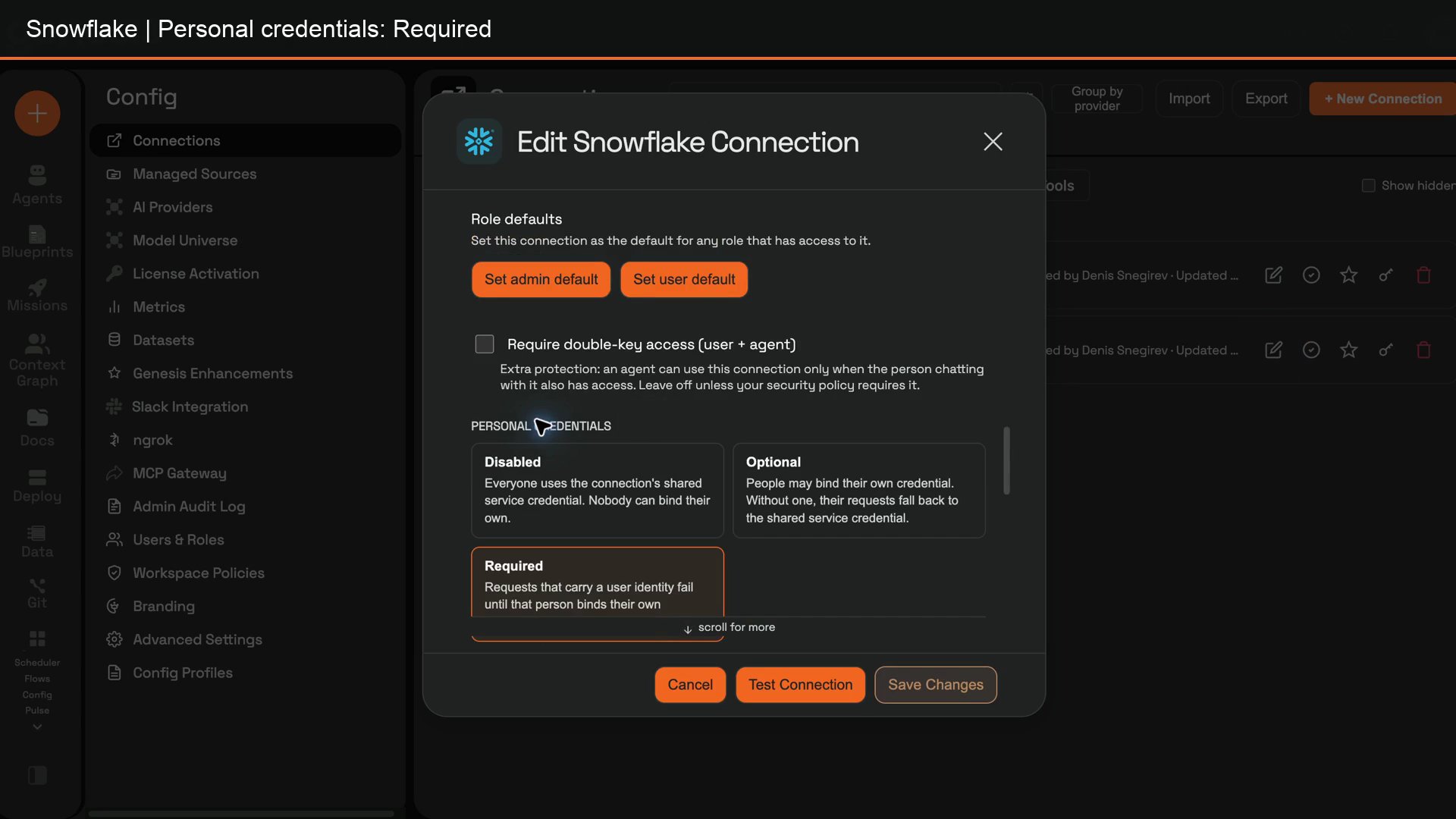
- If Genesis asks you to confirm I understand this token may be used by other users or bots, select the checkbox. This warning refers to the connection’s service credential; Required still requires each interactive user to bind their own credential.
- Save the connection. If the deployment uses Snowflake Native App / SPCS and the provider requires external access, complete the egress preflight and approve the external access integration before Test Connection.
My credentials for <type>.<name>.
2. Bind your own credential
Each user completes these steps while signed in to their own Genesis account:- Open Config -> Connections and find the shared connection.
-
Click the key action on its row.
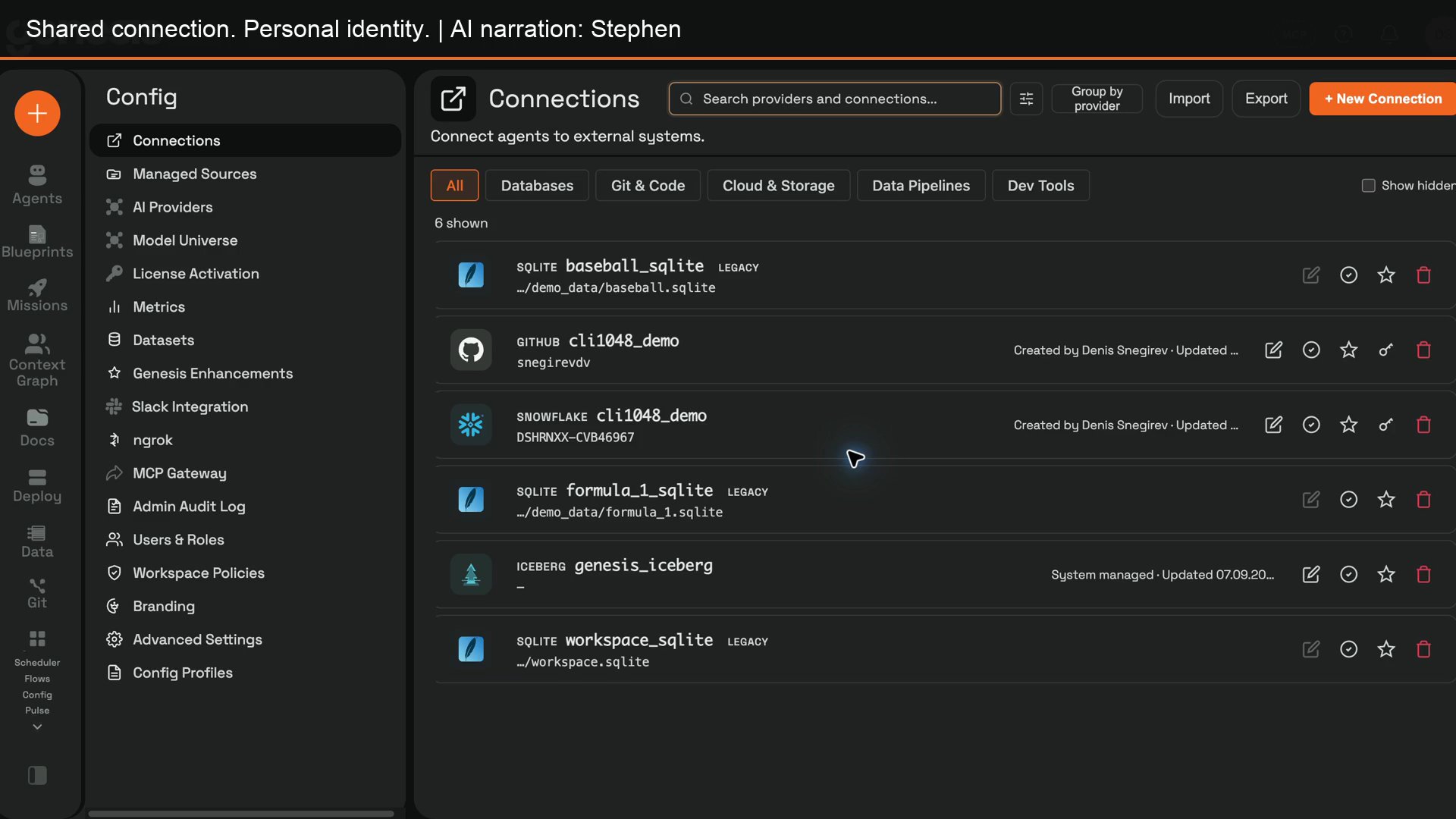
- In My credentials, enter the fields shown for the provider and authentication type. Click Bind.
- Confirm that Genesis reports Credentials bound. The dialog shows the binding status, principal identifier, and binding time, but does not show the saved secret again.
Bind when Chat asks
Users can also wait until the first request that needs the connection. With Required, Chat pauses that request and opens My credentials. Enter the credential and click Bind; Genesis then resumes the original request once, without requiring the user to send the message again.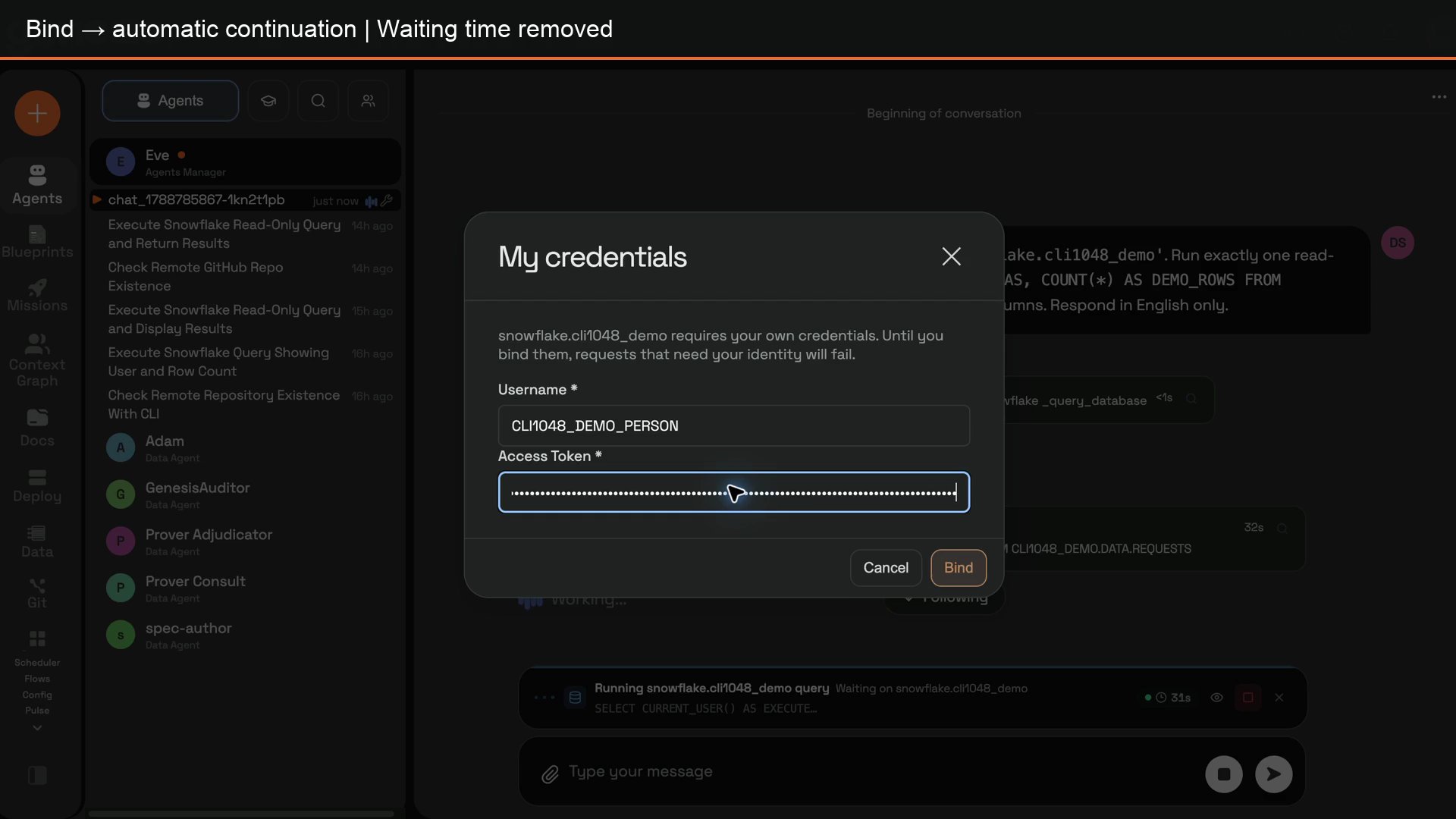
Verify the provider identity
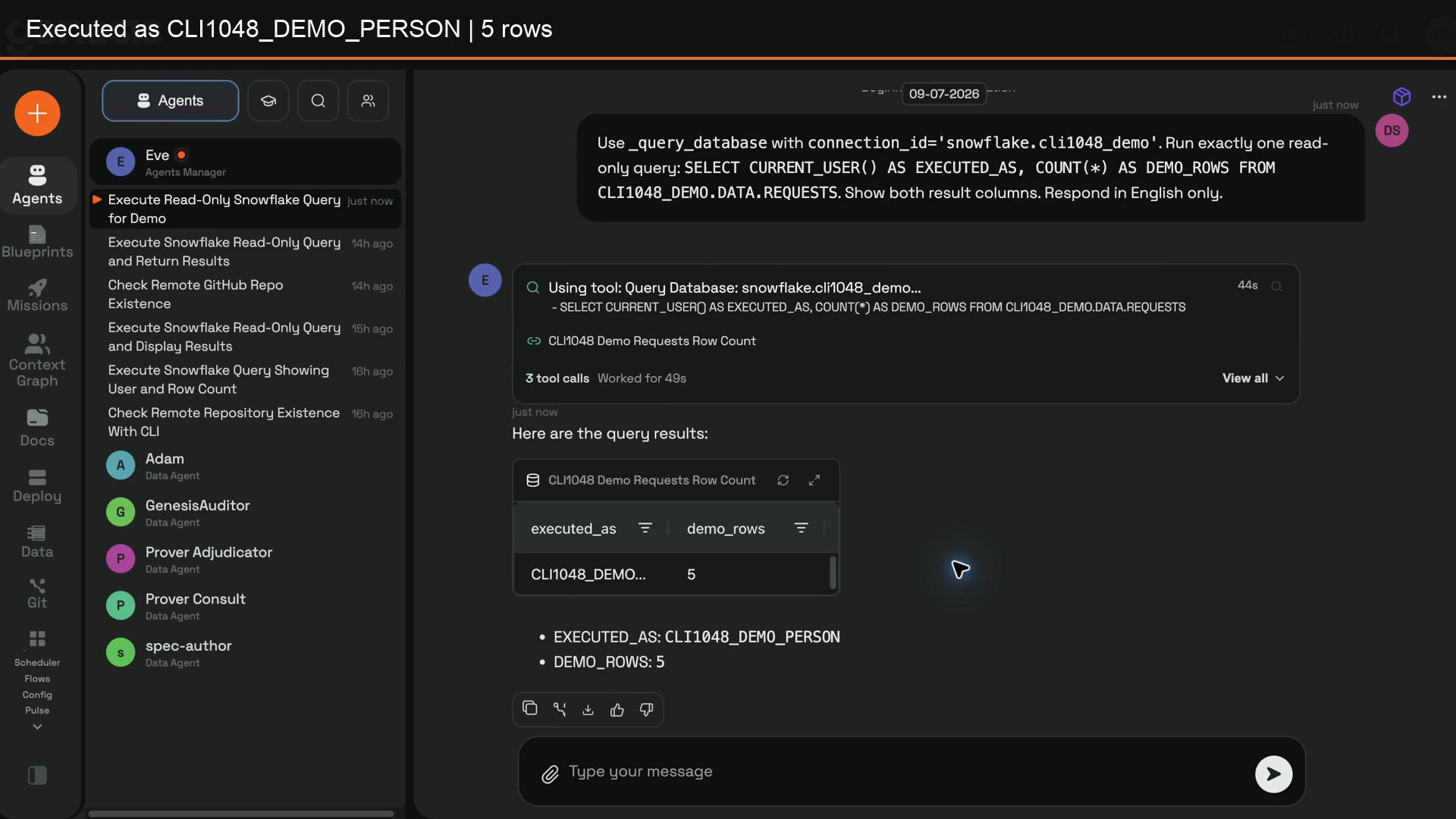
To check the setup, have two users bind different credentials to the same shared connection. Each should run a read-only request that exposes their provider identity or permissions. For Snowflake, for example, queryCURRENT_USER() through the connection. The first result should identify the first user, and the second result should identify the second user—not the connection’s service account.
Manage bindings and troubleshoot
- A user can Rebind or Unbind their own credential. An administrator can review binding metadata and Revoke a user’s binding, but cannot view the stored secret.
- If the key action is missing, check that the connection is Shared, its personal-credential policy is not Disabled, its authentication type supports personal credentials, and the user has the required Genesis role and authentication-type permission.
- If a user-attributed operation still runs as the service account, check whether the policy is Optional instead of Required, and confirm that the user has bound a credential.
- If Test Connection is blocked in SPCS, finish the connection’s egress preflight and external-access approval first.