

Overview
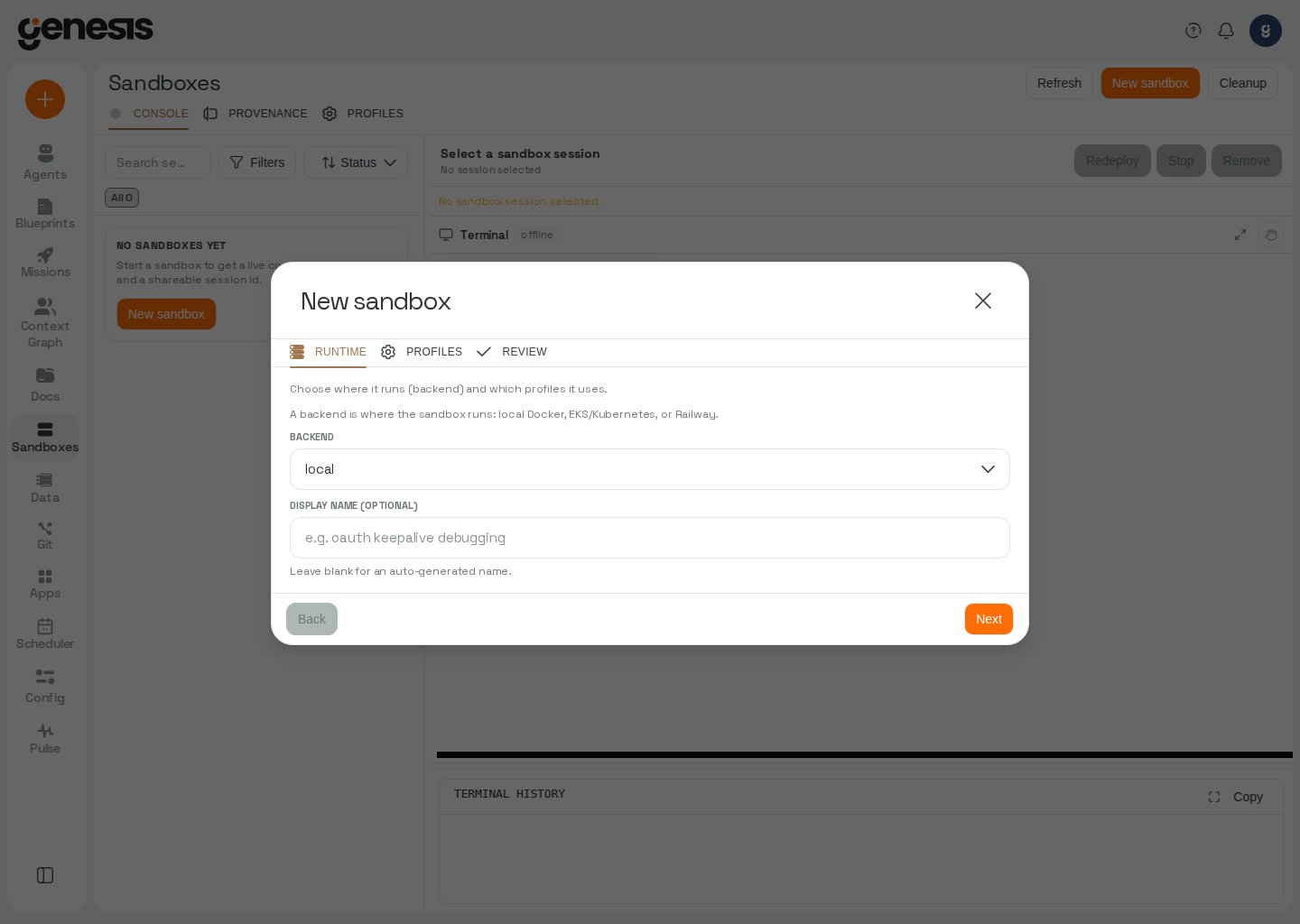
Sandbox Sessions is the managed execution workspace for remote and hosted sandbox environments. It combines session inventory, filtering, runtime details, provenance, and a guided launch wizard so users can start and operate isolated execution environments from Genesis. Deploy opens on Overview by default. Without an explicitview parameter, a link that includes session_id opens Sandboxes instead so the session can be selected.
In auth-enabled deployments, Genesis shows the Deployments / Sandbox
Sessions workspace only when your role has at least one of
view_deployments, view_sandboxes, or manage_sandboxes.Direct CLI terminal
Direct CLI terminal access is a separate workspace from managed Sandbox Sessions. When an administrator enables it and grants your roleuse_cli_terminal, you can attach a
real terminal to your own persistent Claude Code workspace from a laptop client or a
compatible GUI terminal. Docker workspaces are containers on the local daemon. With the
Kubernetes runtime, Genesis runs one workspace Pod per user and keeps the two persistent
volumes when the Pod is reaped, so your saved conversations and files are available when
the workspace starts again. Configure the runtime and Kubernetes storage in Advanced
Settings; the GKE platform resources
are documented in Deploying the Genesis Sandbox Runner on GKE.
Administrators configure this feature in Advanced Settings.
The terminal connection protocol and query parameters are documented in the CLI
terminal WebSocket reference.
If the workspace running an attached terminal is restarted or removed, Genesis tells the
client why the terminal ended and closes the connection instead of leaving the terminal
frozen. The CLI displays the reason and exits; reconnect to start a new terminal session.
Attach from a laptop with genesis login
The laptop client installs as a single command, genesis. Install it from the deployment
you are going to attach to:
curl. You do not need Python,
a virtualenv, pip or pipx: the script installs uv when
the machine does not already have it, and uv is a single self-contained binary that
downloads its own managed CPython. It then installs the client — a small standalone
package (standard library plus websockets) that does not pull in the Genesis
server — and prints the genesis terminal command already pointed at that server. Running
the same one-liner again upgrades an installed client in place.
Installing from the server is also what pairs the versions: the client is not published on
PyPI, and the copy a deployment hands out is the one built alongside it, so what you
install matches the server you installed it from. That pairing is fixed at install time —
upgrading the deployment later does not touch a client already on your laptop. The
terminal protocol negotiates capabilities, so an older client keeps working; re-run the
one-liner when you want the newer one. The Pulse → CLI Workspaces page shows the same
command with your own server’s address already filled in.
If you would rather not pipe a script into your shell,
https://genesis.example.com/api/cli-terminal/client reports the current client version
and the wheel’s download URL, which you can pass straight to uv tool install or
pipx install. Both that endpoint and the installer are readable without a token — a
laptop has no credential until after the client is installed.
Developers working in a Genesis source checkout can install from the tree instead:
~/.config/genesis/) and remembers the server as your default:
genesis terminal is effectively a single command: a
still-valid cached token attaches immediately with no browser; an expired one is refreshed
silently — renewed under the same OAuth client that minted it, which the cache records — and
then attaches, also with no browser; and only when no usable token remains (you have never
logged in, or the cached token cannot be refreshed) does it open the browser to sign in
first, then attach:
--session name to get a second agent side by side in the
same workspace:
--token (or set $GENESIS_TOKEN) to override the cached one, and on a deployment
with authentication off neither login nor a token is required. The server is chosen from
--server, then $GENESIS_SERVER, then the server your last login remembered, then the
localhost default. To remove the cached token for a server, log out:
python3 scripts/genesis_cli_terminal.py login --server … and
python3 scripts/genesis_cli_terminal.py --server ….
Administrators: the browser login uses a loopback OAuth flow, so the deployment’s
OAuth application must allow
http://localhost:8765/callback as a redirect URI (change
the port with --port). You may register a dedicated public/native OAuth client for the
CLI and point Genesis at it with auth.cli_client_id (env GENESIS_CLI_CLIENT_ID); when
unset, the CLI reuses the browser client (auth.client_id).The CLI reads the IdP coordinates from the server (a narrow /api/config/cli-login
bootstrap) and the authorize/token endpoints from the issuer’s OIDC discovery document
(/.well-known/openid-configuration). For an Auth0 issuer only, if discovery cannot
be read the CLI falls back to Auth0’s conventional /authorize and /oauth/token paths;
for any other OIDC provider the discovery document is required, and the login reports a
clear error rather than guessing endpoints.Layout
In OAuth- or OIDC-protected deployments, Genesis opens the live
console/terminal through your current signed-in session. If auth is still
initializing, the console waits and reconnects once the session is ready
instead of attempting an unauthenticated terminal connection.
On Windows servers, local Docker and Railway terminal limitations are listed in
the sandbox terminal API reference.
Backends and runtime choices
Depending on your deployment, the launch wizard can expose different runtime backends such as local execution, Kubernetes-style environments, or hosted runtimes such as Railway and Azure Container Instances. In a Databricks App, local Docker is unavailable and the wizard omits that backend; remote Kubernetes and hosted backends remain available. The new-sandbox wizard defaults to EKS in a Databricks App. In a Databricks App, the local Docker backend is not available. Select a remote backend instead; see the sandbox tool reference.For AWS infrastructure analysis, EKS/Kubernetes, Helm,
kubectl, AWS CLI,
or boto3/AWS SDK work, prefer launching a sandbox instead of relying on the
Genesis application container. For EKS/K8s starts, a saved target_env is
usually the safest choice because it can carry the cluster auth settings that
would otherwise need to come from explicit backend_options plus
credential_name.Saved profiles in flows and launches
Sandbox-backed flows and sandbox starts can reference savedtarget_env and security_profile names instead of repeating every backend option on each run. Genesis resolves those saved profiles before the session is grouped or created, then merges the effective backend configuration in this order:
target_envdefaultssecurity_profiledefaults- explicit runtime options from the current launch or flow step
credential_name, namespace, or other backend-specific options.
AWS and Kubernetes auth
For EKS/K8s sandbox backends, Genesis can inject AWS credentials from the caller’s scoped default AWS connection (My default, then Role default) whencredential_name is omitted from backend_options. Set a user or role default for predictable cluster auth instead of relying on ambient host credentials. When multiple role defaults conflict, Genesis returns an error — set a My default, clear conflicting role defaults, or pass an explicit credential_name. In the Sandbox launch wizard, the AWS connection picker pre-selects your scoped default when one resolves unambiguously; ambiguous role defaults show no pre-selected connection.
Railway-backed sessions
For Railway backends, Genesis can resolve auth from the caller’s scoped default Railway connection (My default, then Role default), an explicitcredential_name in backend_options, or from RAILWAY_TOKEN or RAILWAY_API_TOKEN when those are provided outside Genesis and no scoped default applies. Genesis verifies that the selected auth mode works on the live SSH path and keeps that verified mode for terminal reconnects, which reduces cases where a Railway sandbox starts successfully but later terminal access fails.
Azure Container Instances sessions
Theazure_aci backend runs each sandbox as a container group in Azure Container Instances, in a
resource group in your own Azure subscription, through a saved Genesis Azure connection
(My default, then Role default, or an explicit credential_name). Stopping a session
deletes its container group; idle sessions are stopped by the sandbox monitor, and the container
exits on its own at the session’s maximum lifetime. See
Azure Sandboxes for how it works,
Set Up Azure Sandboxes for Azure and network setup,
Use Azure Sandboxes for prompts and options, and
Azure Sandbox Troubleshooting for error messages.
Azure sessions also support the live terminal in Sandbox Sessions; see the
sandbox terminal API reference for
connection behavior.
Lifecycle actions
Customers can rename, redeploy, stop, remove, or clean up sandbox sessions from the page.Related pages
- Flows — flow run graphs on Deployments → Flows use the same step inspect modal as the Flows workspace.
- Advanced Settings
- Coding Agent Controls