

Overview
SharePoint setup in Genesis is typically a two-step process: configure the provider-level OAuth trust first, then create the SharePoint connection used by customers and agents.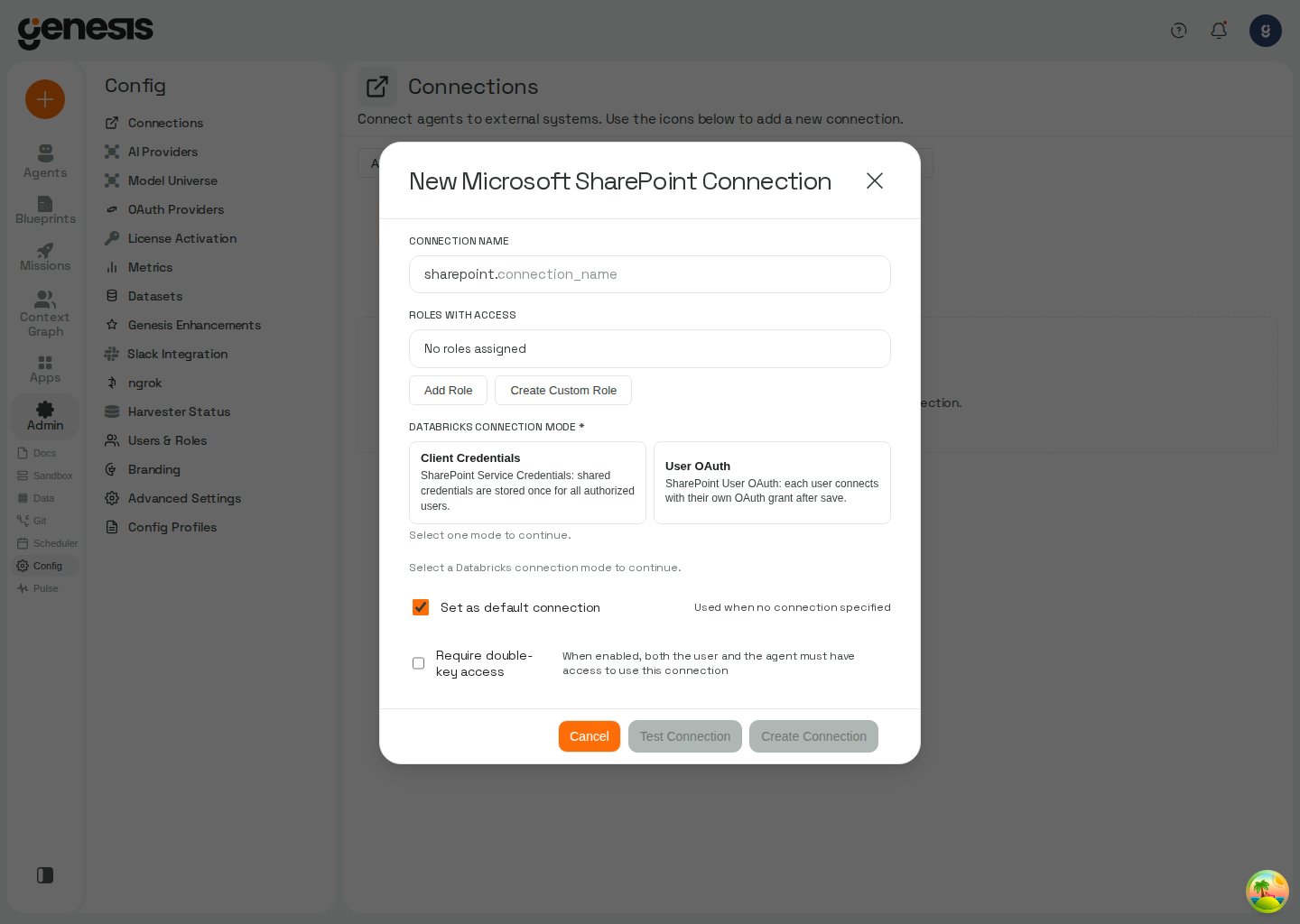
Setup workflow
- Open Config -> OAuth Providers and choose SharePoint.
- Configure the OAuth provider settings shown in the page.
- Return to Config -> Connections and create the SharePoint connection.
- Test the connection and save it.
What it enables
After setup, Genesis can support customer-facing SharePoint retrieval workflows such as browsing or downloading files and inspecting metadata.Agent tool usage
Agents browse SharePoint through thesharepoint tool in sharepoint_tools. When connection_name is omitted, Genesis resolves the effective default sharepoint connection for the current user (My default, then Role default). See Default connection layers.
A typical workflow:
TEST_CONNECTION— verify the saved connectionLIST_DRIVES— discover document libraries on the siteLIST— browse files and folders within a library
LIST, pass either:
folder_path(or aliaspath) — a path relative to the document library root, such asLPsorFund level/SCALEitem_id— a folder id from a priorLISTorGET_METADATAcall; this takes precedence overfolder_path
LIST returns the library root. Successful LIST responses echo the selector Genesis honored (item_id or folder_path) so callers can tell which folder was listed.
For full parameter reference and examples, see sharepoint_tools in Additional Tool Groups.