

Overview
The Agents workspace combines agent discovery, agent creation and editing, per-agent configuration, and the shared skills catalog. This is the main place to manage how each Genesis Data Agent behaves.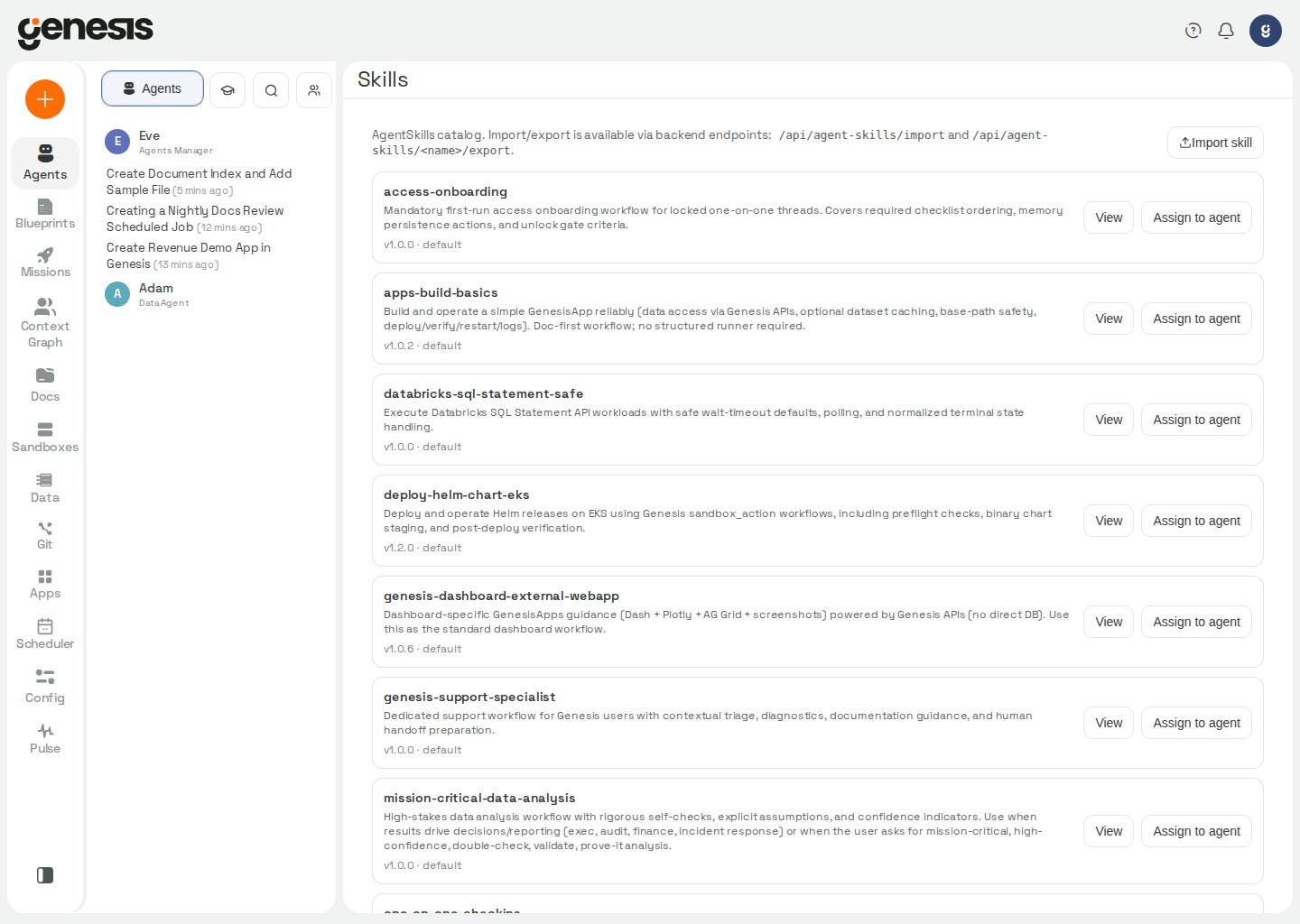
What users can do here
Genesis-managed system agents appear in their own collapsible System agents
group in the agents list and grid. This includes the customer-facing
GenesisAuditor, which users can
inspect for their organization’s structure. The Agent Center displays a notice,
omits its edit, delete, and copy actions, and keeps its definition controls
read-only. The group starts collapsed; its open or closed state is remembered per
user in that browser. In the chat sidebar, built-in agents are labeled
System Agent to distinguish them from other agent roles. For how its audit
reads Git-backed skill documents, see the GenesisAuditor tool reference.
Deactivated agents are hidden from the active-agent list and grid. Users with
manage_agents see a collapsed Deactivated Agents section when there are
deactivated agents to recover or the list could not be loaded. Its count is
shown while collapsed; expand it to see deactivated agents in the same list or
grid layout as other groups. Each row offers Reactivate and a detail toggle
that shows where threads were transferred, or loads up to 100 retained threads
when expanded. The section’s open or closed state is remembered per user in
that browser, and retention summaries load when the section is opened.
Depending on deployment startup settings, an agent can appear in the Agents
workspace before its runtime has been started. Starting a chat with that
agent creates the runtime automatically, so the first response can take a
little longer than later turns.
Agent Center tabs
The Agent Center is organized around customer-facing workflows:- Overview for the operating report, recent work narrative, reach, attention, instructions, and available capabilities.
- Missions for active work tied to the agent.
- Threads for conversations and follow-up work.
- Skills for default thread-start, allowlisted, or denied skill behavior.
- Knowledge for the knowledge bases and indexed-document context assigned to that agent.
- Tools for the tool groups that agent can use, including default thread-start groups and allowlist or denylist policy.
- Access for role-based agent access assignment where your role can manage users.
- Data Access for per-agent connection profiles — which saved connections an agent can reach, declared read/modify awareness for database connections, and profile-role assignment. Requires
manage_users. - LLM for provider, chat tier, and context soft-limit overrides where your role can manage agents.
- Teams for per-bot Microsoft Teams (Bot Framework) credentials — App ID,
client secret, tenant ID, app type, activation toggle, and downloadable Teams
app package. Saving credentials triggers an asynchronous runtime refresh so
the bot’s Teams adapter picks up changes without a full Genesis restart.
Requires
manage_agents. On Snowpark Container Services, complete Config → Microsoft Teams external-access approval before bots can validate inbound messages or send replies; see Activate Genesis Data Agents On Teams. Operators can disable all Bot Framework Teams traffic server-wide withteams.enabled— inbound messages and proactive sends are refused immediately when that switch is off (see Activate Eve in Teams (Bot Framework)).
Genesis hides management tabs that the signed-in user cannot access. The
Knowledge tab requires
manage_agents or manage_document_indexes. The
Access and Data Access tabs require manage_users. The LLM and
Teams tabs require manage_agents. If you open a saved link to one of
those tabs without the required permission, Genesis returns you to
Overview.Each agent row in the chat sidebar exposes a ⋮ menu with the same tab
routes (plus New chat and Search threads). Genesis applies the same
permission gates described above so the menu never offers a tab the signed-in
user cannot open. See
Chat and Threads — Chat sidebar panel navigation.
Agent-management controls in the list, grid, and header also require
manage_agents or create_agents, depending on the action. In list view,
Genesis shows Create Agent in the header for users with either permission.
In grid view, Genesis shows an Add Agent tile for those users. A user with
only create_agents can manage the agents they create or import; Copy
Agent, Edit Agent, Delete Agent, and the enabled or disabled toggle
remain available only for agents where the user has management rights. If a
modal is opened without the required right, Genesis shows a
permission-denied state instead of the editor and save action.In the LLM tab, an agent can inherit both its provider and its chat tier. When the tier is left on inherit, Genesis resolves it from the effective provider’s Inherited Chat Tier in AI Providers. New or legacy chats keep using that provider-level tier until the agent or thread sets an explicit override.
On Genesis Desktop, Genesis AI is the only provider that can be selected for
an agent; choosing another provider opens the Genesis Enterprise modal. The
inherited-provider option remains available.
The same panel can also set a default Context Soft Limit for the agent. Choose Inherited, one of the preset limits (
70,000, 120,000, 140,000, or 170,000 tokens), or a custom value of at least 50,000 tokens. Runtime still clamps that override to stricter environment or legacy ceilings when they are configured.
Presets above the default-tier model’s resolved hard context limit are not offered; use a custom value when you need a different limit and the acknowledgement control applies.
A value above the hard context limit of the bot’s default-tier model is clamped unless you select the acknowledgement control shown after the first clamped save. Save again with that control selected to honor the value above the hard limit; acknowledged values are capped at 2,000,000 tokens. The comparison uses the model selected by the bot’s default provider and tier, and changing either one retires the previous acknowledgement and rechecks the stored soft limit.RBAC role assignments (Access tab)
On Agents → [agent] → Access, assign or revoke RBAC roles for that agent. Assigned roles lists current grants; Available roles lists roles you can add, each with Assign or Revoke. This tab requiresmanage_users.
When Genesis rejects a role change — for example because the role name is
invalid or removing the grant would leave no active agent holding
manage_agents — the error toast shows the server’s message instead of a
generic failure notice.
The Overview tab now opens with a live operating report for the selected agent. Genesis combines status, recent work, mission and conversation footprint, app and sandbox activity, capability usage, profile snapshots, and the full instruction set in one view. When the signed-in user does not have permission to view all agent threads, conversation and audience metrics stay scoped to the threads visible to that viewer.
In list and grid views, Genesis uses each agent’s short Description as the
row or card subtitle. The Overview hero uses the same description,
shortened for display. Genesis does not derive these summaries from
bot_instructions; if the description is blank, the UI shows No description set.
Managing skills and capabilities
Genesis separates three related concepts:- Agent skills are reusable skill packages you can import and assign.
- Runtime skills are the skills an agent can actively use once assigned.
- Capability controls define what tool groups and defaults are enabled for an agent.
AVAILABLE_TOOLS values from older
deployments are migrated once into durable agent tool defaults at thread-service
worker boot only when no explicit modern tool policy is already configured; the
Tools tab is the ongoing control surface, and Genesis preserves existing
dashboard tool policy (including restrictive empty allowlists) during that
one-time pass. When an agent is in allowlist or denylist mode, Genesis
filters the available tool-group list to the groups that policy permits and
rejects blocked additions instead of silently dropping them.
Genesis evaluates tool policy against the loadable tool-group universe
(capability catalog plus groups registered in the live runtime tool registry),
so MCP-backed groups that appear after MCP startup remain permitted under
all mode and in default assignments once registered. Saved access policy and
default thread-start groups persist across server restarts, upgrades, and
capability-registry reconciles; Genesis stores them against the loadable
universe rather than the searchable catalog index, so a temporarily stale index
does not strip configured allowlists or denylists.
The thread goal tools are an exception to these controls: they are carried by the
always-available context_tools group; see
their tool reference.
Catalog search on Tools and Skills tabs
On an agent’s Tools and Skills tabs, the search box filters the capability catalog Genesis already loaded for that agent. Matching is case-insensitive and checks each entry’s name, description, and tags—the same fields shown on the cards. Clear the search box to browse the full catalog sorted by name. Importing a skill only registers it in the shared catalog. To make a bot use it, open that bot’s Skills tab and add the package under Default skills (thread start). Runtime skill resolution uses a package’sSKILL.md frontmatter name and
compatibility aliases as well as its directory name; organization health audits
use the same identities when checking agent skill pins.
Use Import Skill in the Skills catalog header to upload a .zip package or standalone .md file. ZIP archives must include a primary skill markdown file. When multiple .md files are present, Genesis asks you to choose which file supplies the frontmatter.
The shared Skills catalog includes a Sort control beside the search
box. Choose Name A→Z (default) or Name Z→A; Reset sort returns to
the default. Genesis remembers your choice per signed-in user in browser
localStorage. Skill packages do not expose creation timestamps in the catalog,
so date-based sort options are not available here.
ZIP housekeeping files. When Genesis inspects an uploaded skill ZIP, it
ignores editor and OS artifacts instead of rejecting the whole package.
Skipped paths include directories
.history, .git, __MACOSX, and
.ipynb_checkpoints; files named .DS_Store or Thumbs.db; and Vim
swap/backup files whose names end in .swp, .swo, or ~. Only the
remaining package content is imported.agent_skills repository during startup so they continue to appear in one catalog and use the same edit flow.
Those migrated packages still keep their original owner-based lifecycle rules.
The bot that created a self-added package can update or remove it later, and a
removal clears that bot’s explicit assignment by default so the skill drops out
of assigned-skill lists.
Default tool groups (thread start) are capped separately from the broader
allowlist: by default Genesis auto-loads at most 12 tool groups into each
new thread. The number of tool functions those groups contain is not capped —
a default set of a few large groups can exceed 50 functions. Keep larger
inventories in the access policy and activate them only when needed.Default thread-start skills
Skills placed in Default skills (thread start) inject their primarySKILL.md content into each new thread for that agent automatically.
In the agent’s Skills tab, turn on Never compress beside a default
skill to keep its full injected text through thread compression and automatic
overflow recovery. Its tokens are included on every turn, so use the setting
only for skills whose complete instructions must remain available. The control
is available only for default skills; removing a skill from Default skills
(thread start) also clears its never-compress flag. The per-agent maximum is
configured by context_management_improvements.max_never_compress_skills_per_agent
(default 3); see Advanced Settings.
In a Databricks App, skill shell steps are refused because they would run
unconfined with the App user’s environment and credentials. On Snowflake, EKS
and self-hosted Docker they run as the restricted cortex_sandbox user, without
the server’s credentials, in a working directory deleted after each execution.
See Skill Runtime Tools for the
execution restrictions and how supplied shell-step placeholders are quoted.
Genesis also seeds selected built-in skills for every bot by default, including app-flow-llm-usage (when to chain LLM output vs use enrichment-only side channels in Genesis Apps and Flow Python steps), apps-build-basics (Genesis Apps build workflow, including user-gated save/publish — agents preview versioned working drafts but do not call CREATE_VERSION or PROMOTE_VERSION until you explicitly ask, and first-use browser-tools setup on Genesis Desktop), and context-graph-custom-scanner (how Eve can register and publish metadata from an external system, build deterministic Python scanners, run full or incremental cycles, and troubleshoot failures). See Genesis Apps for the Apps Library and App History workflow, Browser Tools for the Desktop download flow, and Custom scanners for scanner workflow. Disable a skill for a specific agent from the Skills tab when you do not want that guidance injected at thread start.
The built-in spec-author agent — listed as Prover Spec Registrar, beside Prover
Adjudicator and Prover Consult — is seeded with the spec-author-constitution
skill and its authoring tool defaults. The default lean policy uses agent ID
spec-author. See the Prover’s spec-author guidance
for how the interpretation policy selects the seat and how its identity determines threads,
tool grants and sealed-spec provenance. The skill is the source of truth for
the agent’s constitution; see Spec-author identity and constitution
for the pinned files, full-read requirement, parallel-read behavior, and fail-closed
behavior when the skill is inactive or its contents do not match the product pin.
The registrar may return a draft without sealing when a check cannot produce a
gradeable verdict or conflicts with the declared mapping; see finalize_spec refusal guidance.
When a clause cannot yet be proved, the seat can instead record it as open in a partial seal;
see the Prover’s spec-author guidance
for partial-seal, repair and owner-question behavior, including which migration questions are
held back rather than sent to the owner.
For the source-side-only R7 boundary and target-side check behavior, see Spec-author
identity and constitution.
For derived builds, constitution v9.27 requires target-side structural items for ordered
outputs, column coverage, source lineage, and linked checks, and refuses column items the
grade attributes no check to; see the Prover spec-author guidance.
The v9.34 target-design column refusal is documented with the other
finalize_spec refusal details.
For target-placement requirements and refusals during spec authoring, see the
author_spec tool contract.
For migration verification, a one-line lift-and-shift ticket is a valid specification brief;
see the Prover’s spec-author guidance
for what belongs in the ticket and what the system diff already measures. When a ticket
describes a Data Vault ghost row, the registrar’s mapping response identifies hubs with no
declared ghost_keys; see the register_target_model contract
for how to resolve it. For historized images, the same mapping contract asks the migration
planner to identify the upstream history relation before the Prover grades it. The Prover
mapping reference
also covers layered Medallion migrations.
For migration verification skills, the Prover guidance explains how to report each build,
review a failing authored check, and give approvers record-backed evidence; see reporting a
completed run. Before
registering estates, check whether an existing estate already covers the intended scope in
the estate registration guidance.
For rewritten-view behavior proofs, prove-data-work uses migration_prover_tools alongside
prover_tools; see the Prover overview for the workflow.
If the migration has already been landed and compared, the agent can still author and seal
the written requirements and grade them against the live estates; see the grade tool
guidance.
Genesis persists that injected skill context in the thread history and counts the skill as already read for that thread. If compression later removes the full skill text from the active context, the summary records which skill was loaded without paraphrasing its instructions. The agent’s active-skill hints mark it as compressed and direct the agent to read the skill again before relying on its details. Default skills are identified as defaults in those hints. See Context Tools for the skill-reading workflow.
The skill package viewer in Agents also exposes the bundled metadata that goes with that
thread-start context, including the parsed frontmatter, published version, and any supplementary
files that ship with the skill package. Large bundled text files are paged in the viewer, so
SKILL.md and other text-like package files can be read incrementally instead of as one full
payload. The prove-data-work skill uses supplementary files for its detailed procedures; see
the Prover overview for how to load
them.
Some skills exist only in the runtime catalog (a description and metadata without an on-disk AgentSkills package). Agents can still read those in chat: read_assigned_skill_file on the primary SKILL.md serves the catalog description instead of returning a package-not-found error. Operators with manage_skills can remove a mistaken registry entry entirely with DELETE /api/skills/{skill_name} (all versions and assignments). That hard delete differs from POST /api/skills/catalog/{skill_name}/versions/{version}/deprecate, which retires one version but leaves the catalog row, and from DELETE /api/agent-skills/{skill_name}, which removes an imported package and its files from the shared agent_skills repository.
When a registered skill package changes or is removed, Genesis refreshes the
library and package viewer on the next load. Registering, syncing, or removing
a managed skill source (or importing or deleting a catalog package) also marks
the capability registry for background reconcile, so the per-agent capability
catalog, skill allowlist/denylist policy, and agent tools such as
manage_context(action="SEARCH_CONTEXT", search_scope="skills") pick up new or
removed packages within seconds. Active threads are not notified synchronously.
Updates to SKILL.md, source registration metadata, or Genesis bindings do not
require a Genesis restart.
When an agent batches skill registration or sync with an immediate
set_bot_context_defaults call in the same turn (for example registering an
uploaded skill and adding it to Default skills (thread start)), Genesis waits
for the in-flight capability-registry reconcile before applying the defaults
patch so policy checks see the freshly registered package instead of rejecting it
as unknown.
For skills synced from a managed Git source (source_type: git), the catalog exposes Edit (opens the managed-artifact workspace modal on a per-user feature branch) and Push to repo (opens an MR/PR on the connected provider — GitHub, GitLab, or Bitbucket; enabled when the workspace has uncommitted or committed-ahead changes). In a Databricks App, Git operations on these agent-writable repositories follow the Git safety policy. Skills that ship with Genesis (source_type: default) stay read-only; re-import one under a new name if you need a customizable copy. Locally imported ZIP skills without a managed source still use the legacy editor route when available.
The Skills catalog header includes a Manage Sources button (branch icon, beside Import Skill) that opens a modal with the managed-sources panel — same interaction model as Flows, Apps, and Blueprint Library — to register repositories, sync, and review source health. Requires manage_skills. The control is hidden when the deployment sets VITE_ENABLE_REMOTE_ARTIFACT_REGISTRY=false.
For a managed skill source using a fixed release, admins with manage_skills
can select Change release from its source row when
features.skill_revision_tracking is enabled (off by default; see Managed
skill revision tracking).
The picker lists tags brought in by the last sync; if no tags are synced yet,
it lists tags from the remote instead, without dates. Choose a repository tag,
then select Review changes to compare the skills and commit history with
the release in effect. If commit history is unavailable, the skill comparison
is still shown with the reason the commits could not be listed. Enter a reason
to continue; Genesis records it in the Admin Audit Log and syncs the source to
the selected release before completing the change. The sync can take a minute,
so keep the dialog open. Existing threads retain the release they started with;
new threads use the selected release. See Admin audit
log for the
audit record details.
Sync duration. Managed-source sync runs as a background job. The dashboard
polls until the job completes (up to 15 minutes) instead of holding one HTTP
request open, so large repositories — especially skills repos with many
packages — do not fail with false gateway timeouts during sync.
include and exclude selectors on a managed skills source narrow which
packages Genesis discovers and enables. Selector matching follows the same glob
rules as other managed repositories (exclude overrides include; comparisons
use artifact_id, artifact_type:artifact_id, path, and
artifact_type:path). On the next sync, skills that no longer match are retired:
Genesis removes the managed registration for packages this source owns (matched
by repository, path, and name). A local skill that merely shares the name is
left registered. The same retirement pattern applies to managed Apps and Flows
on their sources — excluded apps drop out of the Apps library while preserving
checkout files for re-inclusion; excluded flows are disabled and their cron
schedules are removed when this source created them.
SKILL.md frontmatter must be valid YAML. Quote any value that contains a colon, such as description: "Global policy: all X". Genesis can sync a package with this common malformed-description pattern, but it flags the artifact as degraded so the source can be cleaned up.
Creating or editing an agent
Creating an agent requiresmanage_agents or create_agents. Editing an
existing agent requires global manage_agents or management rights on that
agent.
- Open the agents workspace.
- Create a new agent or open an existing one. In list view, use Create Agent in the header. In grid view, use the Add Agent tile.
- Set a clear name, description, and instructions. The
description is optional, limited to
500characters, and powers the list / card subtitle plus the Overview hero text. - Review any optional Shared instructions toggles and disable the Genesis guidance blocks you do not want enabled for that agent.
- Review tools, skills, and defaults before sharing the agent with other users.
create_agents. To let a role maintain other agents without granting global
manage_agents, an administrator assigns per-agent management grants in RBAC;
those grants are independent of chat access.
Agents created here, or through make_baby_bot, are permanent registry agents:
they appear in the agents list and remain until an administrator deactivates
them. Use Process Manager Tools
handoff for a transient sub-agent task instead; it creates a child thread and
does not add a durable agent that must later be removed.
When an agent is created through Eve with context-default settings, Genesis validates
those defaults before saving the agent. Correct an invalid defaults request and
retry the same agent ID; a rejected request does not reserve the ID. See Data
Agent Creation Tools for the
failure response and repair path when a later persistence step fails.
Publishing an agent definition to Git
An operator with bothmanage_agents and manage_repos can ask Eve to make a
local agent reusable across Genesis instances. Tell Eve which managed source to
use (or ask Eve to register one with agent_management(REGISTER_MANAGED_SOURCE)).
Eve first calls agent_management(EXPORT_PREVIEW) and shows the portable
definition; after you approve it, EXPORT_COMMIT writes
agents/<agent_id>/agent.yaml to an isolated per-user branch and opens a
PR/MR. The branch push is governed by Action Review, so a pending or denied
push writes nothing and does not open the PR/MR. agent_management(SYNC_FROM_REPO)
discovers merged changes and returns a commit-pinned preview but never applies
agent lifecycle changes.
The manifest includes behavior and capability defaults only. Slack or Teams
credentials, OAuth and API secrets, database credentials, files, knowledge
bases, role assignments, and instance-specific deployment settings remain
local. Git authentication comes from the managed source’s saved Genesis
Connection, not from a token pasted into chat.
Opening or merging the PR does not activate the definition. After merge, go to
Config → Managed Sources, sync the source, choose whether the agent is
enabled on that Genesis instance, review the commit-pinned change plan, and
apply it. Repeat those local enable-and-apply choices on each target instance.
For later changes, Eve can edit agent.yaml through the managed artifact
workspace by setting artifact_type="agent" and the stable agent_id, then
open another PR with agent_management(PUSH_TO_REPO).
For editable agents, Shared instructions toggles control optional Genesis guidance blocks and persist with the agent for later edits. Genesis only keeps toggle selections for optional blocks that apply to that agent.
Eve and Adam use structured editing by default. In that mode, the free-text field edits only the built-in agent’s Persona, while Genesis shows additional Eve-specific instructions or Shared instructions as individually toggleable blocks. If Eve or Adam is still on a legacy full-prompt customization from an older deployment, use Reset instructions once to restore the default persona and switch that bot back to structured editing. When Eve or Adam is already in structured mode, reset restores only the default persona and keeps the current block-toggle selections.
Copy Agent starts the new agent with the source agent’s instruction text instead of a blank field. For Eve and Adam, Genesis uses the built-in starter text: the default persona plus the built-in dynamic instruction sections in their standard order. Because the copied agent is a new custom agent, Eve- and Adam-specific toggle groups stay on the built-in edit page and the copy flow shows only Shared instructions toggles.
If you ask Eve to create a new agent from chat instead of using the Agents
workspace, include at least one initial RBAC role for that agent in the
request. Use existing role names only — the built-in roles are
user (standard
access; use this for most new agents) and admin (elevated access). Do not
invent names such as agent or basic; Genesis rejects unknown roles before
the agent row is created. Review or create roles in
Users and Roles.Custom agents created in the UI carry a uniqueness suffix on their agent ID
(for example, display name
Cary → agent ID Cary-k7m2x9). Agent IDs
(bot_id) are case-sensitive for thread storage and bot-scoped API routes
(Eve and eve are different agents). When Eve or make_baby_bot creates an
agent with an explicit bot_id, Genesis rejects ids that differ from an
existing agent only by letter case. In the dashboard, chat and Agents Center
URLs always use bot_id — for example /chat/Eve/thread/... or
/agents/list/Cary-k7m2x9 — not the display name shown in lists and headers.
A custom agent merely named Eve is not the built-in Eve agent. RBAC
lookups on Data Access require the exact bot_id from the URL — wrong
ids, display names, or case variants return a not-found error. Open the agent
from the agents list or copy its agent ID from the Overview tab.Deactivate an agent
This workflow requiresmanage_agents.
Opening Delete Agent from the Agent Center header now performs a soft-delete:
Genesis marks the agent DISABLED instead of permanently removing it.
- Keep threads with the deactivated agent keeps the agent out of the main list while preserving its thread history. Those retained threads are visible only from the admin-only Deactivated Agents section and are excluded from normal search and thread-memory surfaces until they are moved to an active agent.
- Move threads to another active agent transfers the deactivated agent’s threads to the selected active agent. Genesis then opens those conversations under the destination agent instead of leaving them attached to the deactivated record.
manage_agents, and refuses to delete built-in Adam or Eve (they are
recreated on restart). The dashboard surfaces the server error message from
these rejections in the delete, reactivate, and enabled/disabled toggle flows.
To restore an agent, expand Deactivated Agents, open its retained record,
and select Reactivate. Genesis rebuilds a usable runtime before reporting
success and returns the agent to the main list. If runtime startup fails, the
agent remains deactivated and the UI shows an actionable error; retry after
correcting the reported model or server configuration problem.
Automation surface
Sharing skills across instances
If your organization runs multiple Genesis instances, skills can be sourced from a shared Git repository (GitLab, GitHub, or Bitbucket) so they propagate to every instance through normal pull-request review. See Multi-Instance Skill, Flow & App Sync for the operator guide.Related pages
- Multi-Instance Skill, Flow & App Sync — share Git-backed skills across instances.
- Users and Roles
- Context Tools
- Skill Runtime Tools