

Overview
Chat and Threads are the main conversation workflow in Genesis. Customers use them to work with agents, attach files, revisit prior work, fork conversations, export packages, and manage access to shared threads. If a message is sent after the chat connection has gone idle or the computer wakes from sleep, Genesis checks whether the server received it and may resend it on a replacement connection. If delivery still cannot be confirmed, the composer shows Not sent with a Retry action; select Retry to send the message again. The message stays with its original thread while delivery is pending. For WebSocket clients, see idempotentsend_message retries.
In Genesis Desktop, automatic updates are enabled by default. A downloaded update
waits to restart while a chat is starting or a message is queued, being sent, or
waiting for Retry. At the next quiet moment, Desktop shows a 10-second restart
notice before installing; choose Cancel to postpone the update.
When the Sandbox terminal panel is open in full-screen view in chat, press Esc to return to the conversation. When focus is in the terminal, Esc is sent to the terminal instead.
When the sandbox terminal reconnects, it does not take keyboard focus away from the chat input.
If the terminal API reports a final error, such as an unreachable sandbox container, the panel
stops automatically reconnecting to that target and displays the error. See the
sandbox terminal API reference for
the error conditions and response fields.
When an agent connects to a sandbox started in another thread, the resulting
terminal session stays in this thread’s Sandbox panel when this thread tracks or
is opening that session. A shared sandbox alone does not add another thread’s
session to the panel.
For Project-aware chat assignment, see Projects.
Working context selectors
New chats show a Working context toolbar unless the chat is a 1:1 lockbox. Use it to choose the repository, a folder inside that repository, and the connections the agent should use for the work. The toolbar is collapsed when a new chat opens; expand it when you need to change the selectors. The connection list is limited to choices available to you and the selected agent; connections inherited from your roles are selected initially. The toolbar does not grant access, and every repository, folder, and connection selection is checked against your current permissions. For an existing thread, open the thread actions menu in the upper-right corner of the conversation and choose Working context. Genesis opens the Working context tab in Thread Details, where you can review or change the same repository, folder, and connection selections. These controls are available before the first message in a new chat and after the backend thread exists for an existing thread; they are not shown for 1:1 lockboxes or embedded threads. In a new chat, open Model and provider settings to open Thread Details; its Working context section contains these same selectors. The selections apply when the new thread starts or to the next turn in an existing thread. You can create a repository when you have themanage_git permission. Creating
a subfolder requires manage_git and repository access through view_git. The
repository field accepts only repositories you can view, and the folder picker
is scoped to the selected repository. If you do not have repository access, the
folder control is disabled and explains that repository access is required; if
no repository is selected, it explains that you must choose one first. Use
Connections to change the connection set; saved connections that are no
longer available are identified so you can remove them.
Selections persist on an existing thread and are applied to subsequent work.
Changing a selection replaces the previous working-context instructions rather
than accumulating stale choices in the conversation. A new chat starts with
the selected agent’s role-scoped defaults; adjust the working context or model
settings before sending the first message if needed. Choose Model and
provider settings from the new-chat toolbar to open Thread Details, where
you can choose frontier, main, or fast and set the provider or soft-limit
override. If you do not choose a model tier, Genesis keeps the selected agent’s
effective default. In an existing thread, choose Model and provider
settings from the Working context tab to open the same model settings.
The same repository, folder, connection, and model controls are available in
the Blueprint Start Mission modal. For the mission-start request fields and
REST endpoints, see Chat thread access endpoints.
Google Chat direct messages
Agents can also receive direct messages from Google Chat. An administrator must configure an accessible shared Google Workspace service-account connection and the agent’s Google Chat HTTP endpoint before users can message the agent. See Google Workspace Setup for the connection fields and Google Cloud setup. Use a 1:1 Google Chat direct message to talk with the agent. Messages in spaces or from users outside the configured Workspace domain are not processed. Send/new to start a separate Genesis DM episode; messages after that command are
correlated to the new episode rather than the previous one.
Depending on deployment startup settings, Genesis can start some agents the
first time you send them a message instead of during server startup. In those
deployments, the first reply for an inactive agent can take a little longer
while Genesis creates the runtime, then the conversation continues normally in
the same thread.
Launchpad
Genesis Launchpad is the default landing page when you open Genesis or click the logo in the header. Launchpad hosts guided journeys — short wizards that can start a mission, open configuration, or route you to other product areas. On a new-chat page other than a 1:1 lockbox, starter shortcuts below the composer provide access to available journeys and the next setup step. When the sidebar thread list is hidden, the shortcuts also show the selected agent’s recent threads; View all opens the sidebar thread list. In demo environments, the Adam new-chat page retains its demo carousel. When a Launchpad journey opens in chat, its tap-to-answer cards appear over the new conversation. The scripted cards come first; the guide can then ask adaptive follow-up questions before handing the answers to the chat agent. The question-and-answer history appears in the transcript as you go. Choose Skip to chat to hand off immediately with the answers collected so far. On guided handoffs that need confirmation, the agent first recaps your choices, proposes a first step, and waits for your go-ahead before doing the work. If you leave a journey mid-flow (for example to add a connection from Config → Connections), Genesis restores your answers and step position when you return. Connection pickers in Launchpad show your saved connections with connector branding; when no matching connection exists, Genesis offers a link to add one and resume the journey. Launchpad hosts standard customer journeys only. Blueprints without a Launchpad journey card are started from the Blueprint Library through the normal Start Mission flow.Setup checklist and guided tour
Whenlaunchpad.checklist_enabled is true (the default), Launchpad shows a
Setup checklist card for new users. Items come from
launchpad.checklist_items in configuration; Genesis derives each item’s
completion from live backend state for the signed-in user (visible connections,
Git configuration, and Eve threads — not self-reported checkboxes).
The default checklist includes:
Operators can add items with
kind: connection:<type> (for example
connection:snowflake) to require a user-created connection of that type.
Malformed or unknown kinds are skipped server-side so a bad config cannot break
the UI. Set launchpad.checklist_enabled to false to hide the checklist and
the related Finish setup header pill entirely.
On desktop layouts (viewport width at least 901px), Genesis can auto-offer a
Take the Tour guided walkthrough on first login when you have no prior
activity. The tour highlights main navigation (Agents, Data, Git, Config), the
setup checklist, and starting a chat with Eve. Completing the tour end-to-end
checks the tour row on the checklist; skipping it suppresses future auto-offers
but leaves the row unchecked until you finish the tour. Narrow layouts hide the
tour but keep the checklist and pill functional.
Genesis remembers your last page within each primary sidebar section (Missions,
Blueprints, Apps, and others) for the browser session. Select a sidebar icon to
return to that remembered nested route. Select the same icon again while you are
already on that route to go back to the section root (for example Mission
Center or the Blueprint library).
Checklist CTAs open the right next step without blocking the rest of Launchpad:
- Set up → on connection items opens Config → Connections with a
Launchpad return leg (
?from=launchpad) so closing the connection modal brings you back to Launchpad. - Chat now → on the Eve item opens a new chat with Eve.
Migrate data and pipelines
The Migrate data and pipelines journey collects the source and target connections that migration planning blueprints need before Genesis recommends a blueprint and starts a mission. For Snowflake and Databricks targets, choose whether to migrate Pipeline and its data or Data only. The data-only choice follows the existing planning flow; the pipeline choice adds a reviewed repository source and Prover comparison of the converted pipeline. You can also start the same planning conversation by asking Eve to migrate a source. When your request doesn’t say which connection the data lives in, or where it should land, or more than one saved connection matches, Eve asks for the unresolved connection on a card, asking for the source first when needed. Each card shows your connections grouped by platform, with search and Somewhere else to ask Eve to help identify and connect a system that is not connected yet; it sends that request into chat instead of opening Connections. The destination card leaves out the chosen source. The source card offers database connections and pipeline-service connections; Foundry appears among the database sources. The destination card offers database connections and leaves out the chosen source. You can choose a connection or type your answer. If the connection is listed but the destination catalog or schema is new, name it in your answer; you do not need a second connection just for that destination. The destination card’s Not one of these? Reuse or clone a connection section lets you choose a listed connection and enter a new container name; its label uses the selected platform’s term. Choose Land it in a new … to continue with that connection and container. If you need a separate connection, choose Clone; see Connections for what the new connection form copies. A later pipelines or plan card does not by itself replace a pending destination choice, so you can still select from that card. Before handing off a pipeline-service source, Eve checks that the person and agent may use it. Foundry uses its own migration workflow, while other services lead to the database warehouse their pipelines load. For a database source, Eve shows a pipelines card based on Context Graph lineage; keep or remove pipelines there, or choose a data-only migration when lineage is unavailable. The destination card also lets you plan only, for a platform you haven’t connected yet. The plan card then summarizes the source objects, destination, rebuild runtime, row keys, and Prover checks. Review the details before selecting Approve and start: a typed confirmation does not approve a plan. Once approved, Eve continues with the server-bound plan rather than asking again for choices it already contains. Answered source, destination, and pipeline cards fold to their decisions, with marks for the selected platforms or pipeline kinds. An approved plan remains a card showing the object count and its route from source to destination; when pipelines are included, it also shows the kept pipelines and what they are rebuilt as. Marks identify the platforms and pipeline kinds. A plan card keeps its details available to open. A card replaced before you answer is marked not answered. Open a pipelines summary to review its details. For a plan the migration blueprint can run, selecting Approve and start (or handing it over from Launchpad) starts a Mission in this chat; a typed confirmation does not. The Mission proceeds through Plan, Build, Prove, and Readout. Plans the blueprint cannot run continue in chat without that Mission. See Database migration blueprints for supported plans and phase records. When you choose Not sure? Continue with Eve in the Launchpad wizard, the migration continues in chat. The checklist remains available in its panel; the chat does not duplicate it as an inline progress card. See Genesis Prover. In unattended migration missions, Eve records a business question with its recommended answer and continues with work that does not depend on it; see Prover reporting guidance. For a migration already under way, ask your agent in a new chat for its status or to continue it; seeproject_list.
If planning resumes a project in a thread, that project also appears in that
thread’s project link when Work is enabled.
- Target platform — Databricks, Snowflake, or Other.
- Source connection — which saved database connection you are migrating
from (
source_connectionsfor the planning blueprint). - Target connection — for Snowflake or Databricks targets, which saved
connection is the migration target (
target_connection).
inputs (source_connections,
target_connection) and sets journey_context.plan_only so Mission Center can
show later runner and validator stages as Skipped on the blueprint chain
strip.
When planning finishes without a target, the mission includes a copy-paste
resume recipe for starting the runner later with the exact input names
migration_repo_id, source_connections, and target_connection — instead
of failing at runner handoff because no target was configured.
When you do select a target connection, planning can chain directly into runner
execution at the end of the mission. Genesis still records connection context
in kickoff notes, but the structured inputs and journey context are the
authoritative source for online vs plan-only behavior.
See Blueprint Library and Missions
for how planning, runner, and validator blueprints chain together.
For Mission Center chain run-state indicators, including awaiting-input and
paused stages, see Blueprint Library and Missions — Mission Center blueprint chain.
Onboard raw tables
From Eve’s Launchpad, choose Onboard data, or ask Eve in chat to onboard raw or bronze tables into a silver table. Eve guides you through the connection, the raw tables to keep, an existing silver target, and a plan to approve. The source tables and target must be reachable through the same database connection. The chat shows each choice as a card; your answers also work when typed. On the plan card, provide the folder containing the mapping guide and data dictionary from a Git repository, or upload the files from your computer. Chat uploads go intouploads/<thread id> in the uploads repository. Review the
plan before selecting Approve and start. The Load option is checked by
default; clear it to start the mapping work without loading the target. Only
the plan card’s approval button starts the blueprint—typing a confirmation
does not. After approval, Eve starts the bronze_to_silver_onboarding Mission
in the same thread. Not sure? Continue with Eve leaves the cards and returns
to the conversation with your choices so far.
For the tool parameters and lookup behavior, see
Onboarding intake tools.
Onboard client files
The Onboard client files journey is a gated Sales Engineering demo. Enablefeatures.show_client_file_onboarding_journey in Config → Advanced Settings
(or set SHOW_CLIENT_FILE_ONBOARDING_JOURNEY=true when the field has not been
set). The Launchpad card is hidden by default.
The wizard collects:
- Where the client files are — choose a saved GitHub connection with read
access to the private
genesis-computing-ai/genesis_demosrepository, or choose Upload files from computer forlocal_filesmode. - Target Databricks connection — a writable Databricks connection
(
target_connection).
client_file_onboarding blueprint in goal mode. Genesis passes both connection
choices as structured blueprint inputs; kickoff copy is presentation-only. The
mission maps, loads, models, and validates the canonical FinData sovereign-wealth
CSV package (four files, 30,528 rows) into mission-scoped Unity Catalog
resources.
For the local_files staging sequence and Mission-start behavior, see Client
file onboarding blueprint.
See Client file onboarding blueprint
for phases, deliverables, and Databricks prerequisites.
Dashboard root-cause demo (Demo 2b)
Thedemo_dashboard_root_cause blueprint bakes a standard Sales Engineering
dashboard root-cause journey: a real Genesis-native dashboard backed by a
versioned Python ETL Flow with a planted anomaly, Twin lineage, and an
operator-safe READY.md handoff. When features.presenter_controls_enabled is true, prepare
its ticket-driven anomaly investigation through the
presenter routes.
When a dashboard link includes the appId and appChat query parameters,
opening it selects that app and pairs the dashboard with the requested
investigation assistant’s standing chat. If that assistant is unavailable, the
dashboard uses the first available microapp chat agent.
For shareable full-screen app links and recipient sign-in behavior, see
Genesis Apps.
- Choose Set up demo dashboard (or Start fresh demo dashboard when one already exists).
- Select the ETL system behind the dashboard (
Genesis Flow,dbt Cloud, orMatillion) and the coding agent (Ginie,Cocoa, orClaude Code). - Choose Prepare Jira ticket after the dashboard Mission is ready. Genesis creates a real Jira issue with a dashboard screenshot, live dashboard link, failed pipeline run details, and the selected coding agent.
- Assign the ticket to a configured Genesis worker (for example
Genesis) so Jira automation opens a Work item and Eve thread.
demo_scope and presenter_session_id fields.
Then include kickoff:
flow_action managed-source actions, then applies the reviewed candidate only
after explicit approval. See
Dashboard root-cause demo blueprint
for the full safety contract and approval fields.
Core thread actions
Customers can perform actions such as:- start a new chat,
- open an existing thread,
- search chats,
- search within the currently open thread,
- pin or unpin a thread,
- rename a thread,
- fork a thread, or fork from a specific message in the transcript,
- generate a debrief of the current thread,
- import or export a thread package,
- file a support request that posts troubleshooting details into the current thread,
- reset a stuck thread they own without deleting its messages,
- change visibility or sharing,
- manage thread access,
- open the agent overview from the thread actions menu,
- show or hide spawned handoff threads from the thread filter menu,
- navigate parent/child delegated threads.
Keep Human Review chats open
When you open a Human Review chat in the embedded review dock, select Open in Thread Viewer to move that conversation into the full thread view. Genesis preserves the dock-owned session while the chat moves, so you can keep multiple review chats open and return to the dock without losing the active conversation.Review agent-generated comparisons in chat
When an agent startsprove or compare, the chat transcript shows a Comparison
running card. The card stays anchored where the comparison first appeared and
updates in place with the newest result when the run finishes or a later
get_run/read_comparison result reports the same comparison, so polling does not
move or stack duplicate cards. When supplied, a comparison’s business title names its
card; the newest comparison may also show a live Prover theater and a green migration
pass score inside that same card. See [Comparison cards in chat]
(/docs/Genesis-Prover/Agents-And-The-API#comparison-cards-in-chat) for the display rules.
A completed card reports the pair, verdict counts, and what changed since the previous
comparison. The verdict uses plain-language labels—explained, unexplained, could not be
measured, and could not be read—without the engine terms in parentheses. The changed
summary describes explanations in plain words and gives counts instead of IDs when it
names rules or behavior proofs. While the live theater is visible, the card avoids
repeating information shown there. See [Comparison cards in chat]
(/docs/Genesis-Prover/Agents-And-The-API#comparison-cards-in-chat) for the exact display
rules and how the card identifies a previous comparison’s conversation.
When recorded withholding changes between comparisons, that line explains the shift
alongside both unexplained counts instead of claiming they decreased or increased; see
the comparison-card guidance
for details.
For the agent response convention, see Prover guidance.
When a comparison includes rewritten views, the agent can also explain which proof applies
to each kind, what to do next, and—for a named proof run—its test-case coverage as claims,
not coverage verified by running the proof. See [the Prover’s rewritten-view guidance]
(/docs/Genesis-Prover/Overview#rewritten-views-and-behavior-proofs).
When designing tests for a rewritten view, the agent can show both views’ stored logic
paths and report which case coverage claims were credited; see logic-path coverage for
stimulus design.
Comparison cards now make their state visible before you read the counts. Without a
spec grade, a green card means the comparison is complete with no unexplained,
indeterminate, errored, or withheld readings; Comparison needs attention marks an
open result that still needs investigation, while a refused comparison keeps its refusal
reason visible. When a specified grade stands for a paired comparison, the card shows the
grade’s verdict and accounting instead of the table-comparison verdict. An unverified
grade’s finding begins The spec grade isn’t verified and adds open matters when
present; for a full-seal verified_with_indeterminate grade with no failed item or
recorded failure, it instead says Not enough evidence — N need a person. Tables not on
the target and not in the spec are listed separately. See
[Comparison cards in chat]
(/docs/Genesis-Prover/Agents-And-The-API#comparison-cards-in-chat) for the grade and
green-state rules, including this amber grade wording, scope-shaped read behavior, and
verified-person approver details.
For partial-seal and partial-grade card wording and their review rules, see the [Prover card guidance]
(/docs/Genesis-Prover/Agents-And-The-API#comparison-cards-in-chat).
When a declared derived target was not built, the comparison Venn names it separately;
see the chat card guidance.
Failed runs and completed runs without a measured verdict remain neutral receipts,
not passes. A needs-attention card adds a plain-language next step when its counts
identify one. Review findings becomes the primary action when unexplained or
indeterminate findings are available to diagnose; withheld readings, errored-only
results, and an uncounted error total keep the findings and detailed-view links
without presenting an empty findings queue as the next step.
An attached grade reports what its specification checks found; it does not turn an
unmapped comparison with zero matched tables into a verified comparison. Such a comparison
remains unapprovable until its mapping/count issue is corrected, even when the grade’s checks pass.
See scope verdicts for the
grade’s scope-specific card state and review treatment.
Use the comparison card guidance
to interpret the starred result in chat, Review findings, or Detailed view.
When the starred assumptions list is open, you can choose Withdraw for this pair and
confirm to withdraw an assumption for that comparison’s estate pair; see the comparison
card guidance for the
resulting behavior.
If the run is refused, the card says Comparison refused — the Prover declined to run
it and shows the reason when available. If it ends without a verdict, the card says
Comparison did not finish. A completed card can link to Review findings and
Detailed view. When the run has a Prover view, the comparison card includes its
preview and an Open Prover action; the green migration pass score also offers
Open in Prover. Genesis does not render a separate Prover card beside the comparison.
When the Prover view is expanded, use its collapse control to return to the conversation;
the control remains available when the thread actions menu is shown.
In the comparison preview or expanded Prover theater, select a flow element to
open its details in a modal over the chat. Close the modal to return to the replay.
For which grade appears when multiple specifications or grades exist, see how the
comparison chapter is selected.
For the grade’s recomputation details, see the Prover overview.
For a declared one-to-one target image, the Prover can report content findings over the
mapped columns as well as row-count findings; see the [declared target mapping guidance]
(/docs/Genesis-Prover/Overview#declared-target-mappings-and-data-vault-shapes).
When an approval card is rendered for the same comparison, its summary
appears inside the approval card instead of creating another comparison card.
If the comparison withheld readings because a Data Vault-shaped target had no declared
model, the summary shows 0 published · N withheld (undeclared target shape) rather than
presenting the zero as a clean result; see Comparison cards in chat.
When a comparison says value readings were withheld because a snapshot is stale, follow
the snapshot-specific re-scan guidance in the Prover comparison guide
rather than treating those readings as permanently incomparable. For an instrument
version mismatch, re-characterize the snapshot ids named by the comparison and compare
again; if no snapshot is named, the measurement version was not recorded and the value
remains unmeasured. For timing-related indeterminate readings, agents check existing
same-side snapshot and change-stamp evidence before offering a re-scan; see the
read_comparison guidance.
Actionable Prover approval and ratification handoffs also use the same at-a-glance
card treatment. A disposition package that you can act on shows Human decision
required and Review evidence and decide, alongside Open in Human Review;
the card is not migration sign-off. If the deployment has no public base URL, the
handoff can still use the Genesis address the conversation came from or this server’s
local dashboard address; use it only where that address is reachable. If no usable
address is available, open the dashboard-relative review path in the Genesis dashboard.
See the tool reference for the
review-link basis values. While a package approval is running, the card shows how many
items have been signed and refreshes its listing every five seconds; while idle, it checks every
minute and re-reads when you return to the dashboard window after at least five seconds
since its last read. This lets approvals started elsewhere appear without a reload. The
card does not offer another decision during a run. If approval stops before all items
are recorded, the card
shows how many were signed, how many were not recorded, and the stop reason. An open
package that remains eligible for your decision can still be reviewed from the card.
When an agent’s bundle adopts a package approval request, the card says
Folded into a bundle request, explains that the request was withdrawn, and links
to Open the bundle request; it does not offer a separate review action for the
adopted request. If the package is already closed with its items decided, the card
shows Decision recorded instead. A proposed rule set that is ready for review
shows Rules await ratification, Review and ratify, and Open in Ratifications.
When the current session cannot act, the card explains why and leaves the worklist
link available without showing a disabled action.
On the Prover comparison row and review page, the sign-off status uses the same
plain-language wording in both places. Approval messages describe the proposed items
as decisions and explain their scope in terms of the comparison or the two systems.
If a partial seal’s object-comparison clause is not proven by the current comparison, the
review page lists it as an open evidence gap; accept it only when it is out of scope. See
Prover spec-author guidance
for the grade and remeasure behavior.
A Prover send-back (target_defect) is applied by the agent without an approval card;
the finding remains open until a fresh comparison verifies the fix. See Prover roles
and approvals
for how send-backs differ from package decisions.
Migration readiness from another conversation
For migration-readiness answers resumed across conversations, see thereadiness tool reference.
Chat sidebar panel navigation
Genesis adds capability menus on each agent and thread row in the chat sidebar so common actions stay one click away without leaving chat.Agent row menu
Each agent section in the chat sidebar exposes a ⋮ menu. Right-click the agent name on desktop for the same menu. From it you can:- New chat — open a new conversation with that agent.
- Search threads — open the existing sidebar search scoped to that agent.
- Agent Center tabs — jump directly to any tab you have permission to open:
Overview, Missions, Threads, Skills, and Tools are open to
everyone; Knowledge requires
manage_agentsormanage_document_indexes; Access and Data Access requiremanage_users; LLM and Teams requiremanage_agents. Genesis hides the same tabs the Agent Center would block on landing.
Thread row capability menu
The thread ⋮ menu adds capability shortcuts in addition to the standard thread actions listed above:- Thread mode — switch the assistant mode for the thread (
plan,agent, orcareful). - Model tier — change the thread’s effective model tier (
frontier,main, orfast). - Debriefs — browse stored debriefs or generate a new one.
- Copy share link — copy the canonical thread URL (
/chat/{bot_id}/thread/{thread_id}) to the clipboard. - Handoff lineage — when the thread has parent or child delegation links, open the lineage dialog.
When you open an empty chat with no prior thread history, Genesis can show a
Launchpad button that opens the same guided journeys available from the
Launchpad landing page. See Launchpad above.
If you send a prompt and immediately open another thread, Genesis keeps the temporary pending message and thinking indicator attached to the thread where you sent it until that send completes. The newly opened thread keeps its own transcript instead of briefly showing placeholders from the other conversation.
When Genesis shows a prompt locally before the saved copy arrives in a new
thread, the transcript treats a matching first saved user message timestamped
at or after the send as that same prompt. This avoids showing it twice when
thread creation is slow; an earlier identical message remains a separate
turn.
If a thread becomes active while the selected agent’s live chat runtime is still finishing registration, such as right after startup or restart, Genesis refreshes that agent session in the background and keeps the same conversation active instead of failing the send path immediately. In most cases, you can keep working in the current thread without opening a replacement chat.
If you open a newly created chat before Genesis has fully materialized the backend thread record, the thread stays selected and its history fills in as storage catches up. Genesis treats that first history load as part of thread creation instead of surfacing a transient missing-thread error. On a brand-new empty chat, Genesis defers attaching the live thread stream until you send the first prompt, so the composer stays ready instead of showing Joining thread stream… indefinitely. If you switch to another thread while Genesis is still joining the stream on the one you left—for example during a brief delayed retry after thread creation—Genesis clears Joining thread stream… on the newly selected thread instead of leaving that banner stuck.
When you open or return to a thread whose transcript pane stays blank even though Genesis has already loaded messages—most often after the browser tab was hidden, occluded, or throttling animations—Genesis detects the stuck state and reveals the conversation automatically within a few seconds. You do not need to refresh the page; scroll position settles on the next frame.
During transcript reconciliation, a row left over from the previous message list no longer blanks the chat. If an individual message fails to render, Genesis keeps the rest of the transcript visible and shows This message couldn’t be displayed. in that row. Genesis retries the row when its message changes.
When an agent finishes processing, Genesis reconciles the complete assistant
response into the conversation automatically. The full reply appears in the
open thread without requiring a thread reload.
Long thread history and navigation
To keep large conversations responsive, Genesis initially loads the newest 200 messages when you open a thread. As you scroll to the top, Genesis loads older messages in additional windows. A Loading earlier messages… indicator appears above the oldest currently loaded message while that history is being fetched; when no older messages remain, Genesis shows Beginning of conversation instead. Genesis keeps the visible conversation anchored while older messages are added, so backfilling history does not move the content you are reading. Within the same browser session, switching away from a thread and returning to it restores the position you left. A thread switch briefly shows Loading thread… until the selected thread’s first message window is rendered. This position memory is session-only and is forgotten after a browser refresh or when you leave the chat page. When you scroll into a long assistant answer, Genesis keeps the user prompt that started that turn pinned along the top edge of the transcript after the prompt itself has scrolled out of view. Select the pinned prompt to return to the original message; the pin disappears when that prompt is visible again. The pin is hidden while print or in-thread find views, during thread loading, or when floating transcript controls are hidden. While an agent is responding, Genesis reuses settled tool results and app artifacts as streamed updates arrive, keeping the transcript and composer responsive while the live response continues to update. Find in thread searches the complete conversation rather than only the currently loaded window. When older history is still available, opening Find in thread loads the remaining history first and shows Loading full history…; match navigation remains unavailable until the full transcript is ready.Fork and edit branch points
Fork a thread or fork from a message
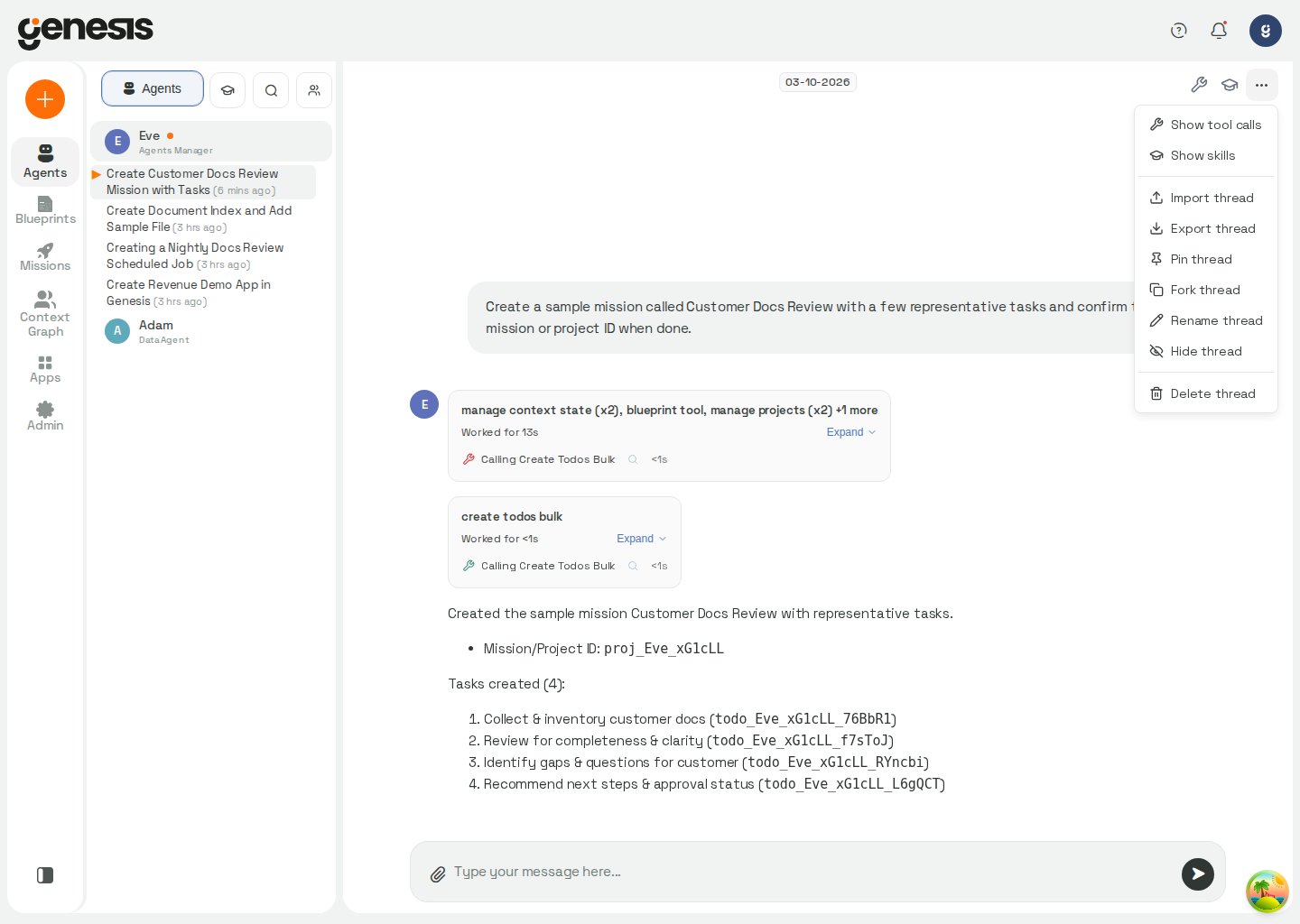
Use the thread actions menu to fork the entire conversation, or fork from a specific point in the transcript. On desktop layouts, hover over any message to reveal per-message controls in the avatar gutter and in a toolbar beneath the bubble. Choose the fork control (in either location) to create a new thread that copies all messages up to and including that message. The fork dialog shows a preview of the branch-point text when Genesis has one. When a thread was created by forking, Genesis shows a Forked from breadcrumb at the top of the chat (alongside handoff navigation when present). Click it to open the source thread; hover to see the message the fork was cut at. A successful fork can also report approximate context size — for example when the new thread carries fewer tokens than the full source conversation. Forked threads preserve the source thread’s last assistant-used model when that model is available, so the new thread’s context limit is resolved against the copied model rather than the agent’s default model.Edit and re-run from a prior message
Genesis supports two edit flows:- Edit the latest user message — available on the most recent user prompt while the thread is idle or during an active response. Genesis stops any in-flight stream, replaces that last user turn, and resubmits without archiving earlier history.
- Edit and re-run from any earlier user message — on desktop, hover a prior user message and choose Edit and re-run (or double-click the bubble when editing is available). Genesis archives that message and every turn after it — later messages are marked discarded, not permanently deleted — then runs the agent on your edited text with trimmed context. Genesis asks you to confirm before applying this change because later messages leave the active transcript.
Answer a choice question
When an agent asks a question with options, choose an option on the card. For a multiple-choice question, select the options you want and choose Continue. When the agent recommends an option, the card marks it with a Recommended badge; on a standalone single-choice card, that option is also highlighted. Select it as usual to agree in one click. Multiple-choice and grouped question cards show the badge without changing how you select answers. When an agent asks several questions with options together, the card groups them: choose an option or options for each question, then choose Send answers. Genesis sends one reply with each question and answer on its own line. You can also type your answer in the composer. A standalone answered card disappears once your reply appears in the thread; until then, it shows the answer. For grouped questions, the card keeps each question beside a recognized answer, but does not repeat free-text answer text already shown in your message. An unanswered question remains available if a run-wake notice appears later in the thread.Composer drafts
Genesis saves unsent composer text in your browser so a partially written prompt survives refresh, navigation away from chat, or switching threads before you send. The Chat workspace uses the page surface behind the conversation, with a raised composer and a subtly distinct background for your message bubbles. This treatment is shared by new chats and existing threads; the composer lift is applied in light mode, while dark mode uses the same surface colors without that shadow. The composer follows the message text column rather than the full message row. On narrow screens, it keeps the avatar-and-gap inset while using the available width for the prompt. On an open thread, Genesis restores that draft when you return to the same conversation unless you have already sent a newer message in that thread after the draft was saved. On the new-chat page before Genesis creates a thread, Genesis keeps a separate draft per agent. Switching between agents such as Eve and Adam restores each agent’s own unsent text. Sending the first message clears that agent’s new-thread draft and opens the conversation without waiting for a separate thread-startup turn. Uploaded files remain removable composer drafts until you send them. After sending, the files belong to the message and do not return as removable chips in the composer when you reopen the thread. On a short browser window, attachment chips can make the new-chat composer taller. The greeting area gives way first, keeping the message field and send button available; if the composer itself exceeds the available space, scroll within its area to reach the controls. Drafts are stored locally per signed-in user in the browser profile you are using. They are not synced to the server or to other browsers or devices. Clearing site data for Genesis removes saved drafts.Thread goals in chat
On a thread with a goal, a chip appears beside the composer, including in 1:1 lockboxes and embedded threads where corner thread actions are hidden. It says Goal mode unless the goal is paused or ended. A paused goal waiting for an asynchronous run or another agent shows Goal waiting; its details say whether it is waiting on a run or another agent. Other paused goals show Goal paused, and ended goals reflect the outcome: Goal met, Goal failed, Goal blocked, or Goal ended for another outcome. When nudging has stopped because the goal is waiting for you, the chip also says waiting for you. If you reply while the goal is waiting for you, the chip switches to Goal mode while the thread is running, and its details say your reply is in — the agent has it. This reflects the active turn, not a progress declaration. A blocked goal also comes back when you take a turn on its thread; while that turn runs, the chip shows Goal mode. After the agent turn finishes and the goal refreshes, its details show the earlier block under Was blocked, including whether you or the agent took it back up. The earlier-block note is shown only while the goal is active, so a later blocked ending shows its current required action instead. Genesis refreshes the goal after an agent turn finishes and when you open the chip, so the latest declared status and finish-line progress appear in its details. Select the chip to review the status, finish-line scope and criteria, how many criteria are done, the nudge count and limit, and any action needed from a person. A goal remains open when nudging stops; the work is left for someone to pick up. If the agent queues questions for you, they do not stop its work; send a reply when ready, or use/goal to see the current queue.
When Work is enabled, a thread with project records also shows a project link in
the thread’s upper-left link area. A single project links directly to Work →
Goals and shows its name, the number of goals met, and any failed, stale, or
waived goals. When several projects are associated with the thread, select the
project count to choose one; the list shows each project’s goal counts. The
indicator covers projects opened or resumed by planning in the current thread
that belong to you, not projects owned by other people. It is refreshed when the
thread opens and after an agent turn ends, so projects and goal notes added during
that turn appear after it finishes. Goal counts reflect evidence checked by the server. A
Foundry migration whose plan has gaps is marked plan incomplete; on a narrow
thread, Genesis keeps that warning visible even when it must hide the project’s
goal count. Retired projects no longer appear in the thread link or its project
count.
The same goal chip and popover are available beside the composer on a mission’s
Thread tab when that thread has a goal. The goal commands below work there as
well; see Missions and Tasks for mission
thread navigation.
Goal mode does not prevent the mission’s Overview tab from showing phase
documents in Document Flow; see Missions and Tasks — Document Flow.
Use /goal pause to stop the goal from carrying on while keeping its reported progress. Use /goal resume to hand the thread back to the goal and have the agent continue. A turn you start is not followed by an automatic nudge, so resume the goal when you are ready for it to take over again.
Choose Edit in the details popover to put /goal <statement> in the composer, where you can revise and send it. Choose Clear to send /goal clear; if the thread is busy, the command can be queued with a follow-up.
When /goal <statement> starts a goal, Genesis shows its generated kickoff
prompt as a folded system message rather than as a message you wrote. Expand the
message to read the full prompt. The folded row names the person who set the
goal, rather than the person viewing the thread. Kickoff rows created before
Genesis recorded that name keep the generic the person set a goal wording.
Goal nudges also appear as folded system messages rather than as messages you
wrote. Expand a nudge to read the full prompt. Pressing Up in the composer to
recall your last message skips these runtime-generated prompts, so it recalls
what you wrote rather than a kickoff or nudge. If a delivered message combines
your text with a goal prompt, recall keeps your text and leaves out the prompt.
To check a goal without adding a message to the conversation, type /goal or !goal by itself. As soon as the composer contains the bare command, Genesis opens the goal popover without moving focus away from the composer, so you can continue typing without interrupting your draft. If you keep typing a statement, the popover closes and the draft stays in the composer. The command is case-insensitive and ignores surrounding whitespace. Sending the bare command without attached files also opens the popover instead of adding a goal-status card to the transcript; with attached files, it follows the normal send path. If there is no goal on the thread, the popover explains how to start one. While Genesis is still checking the goal, the popover shows that it is checking; if the lookup fails, it offers a retry by closing and reopening the panel. Commands with a statement and /goal clear continue through the normal chat path.
Checklist panel
When a thread has checklist items, Genesis can open the checklist panel automatically when those items first appear. On phone-sized layouts, Genesis keeps the checklist collapsed when those items first appear so it does not cover the conversation. Use the checklist button in the thread action area to open it when you are ready to review the items. If you close the checklist panel while items still exist, Genesis keeps later checklist changes synchronized in the background for that thread instead of forcing the panel back open immediately. When checklist items first appear, Genesis opens the panel automatically only when the current layout can dock it beside the conversation. In overlay or sheet layouts, the checklist stays closed so it does not cover the thread; use the checklist button to open it when you are ready. While the checklist panel is closed, the checklist button in the thread action area stays available. New checklist items or status changes highlight that button with a static color hint so you can reopen the panel and review unread updates. The hint does not animate, and opening the panel clears it. When the checklist or Artifacts panel is open, Genesis keeps the thread actions menu clear of the panel’s close control.Thread debriefs
Use the debrief control in the thread action area when you want Genesis to save a structured summary of the current conversation. Genesis opens the result in the built-in debrief viewer and can regenerate the stored summary when you run the same action again after the thread changes. When the current thread is opened inside a mission detail page, the same debrief flow stays inside that mission view. Single-mission debriefs open in a fullscreen modal; Journey debriefs use the mission Debrief tab on the root chain mission instead of the header action.Find within a thread
When you need to scan a long conversation, pressCtrl+F or Cmd+F anywhere inside the chat area to open the find bar for the currently open thread. Genesis captures that shortcut even when the composer has focus, so you can jump into thread search without leaving the conversation.
The find bar searches the visible text of user and assistant messages in the open thread, highlights matching substrings inside message bodies, and keeps a current / total counter as you move through results. Matches follow the rendered message text, so a query can span words inside inline bold or `code` formatting the same way it would if you read the message on screen.
Use Enter or the down-arrow control to move to the next match, Shift+Enter or the up-arrow control to move to the previous match, and Esc or the close button to dismiss the bar.
This in-thread find bar is separate from sidebar chat search: sidebar search helps you find a conversation, while the in-thread bar helps you find text inside the conversation you already have open.
Genesis mounts its print-only transcript only while the browser is actually printing, so normal in-thread search matches the visible conversation instead of hidden print markup.
Expectation-met feedback
Deployments with agent review enabled let you mark whether an assistant reply met your expectation directly from chat. Completed assistant replies expose Good response and Bad response thumbs in the hover-revealed action bars. On desktop, short messages show the thumbs in the toolbar beneath the bubble, while taller messages show them in both the toolbar and the compact avatar-gutter stack. Hover the message bubble to reveal the available bar. On touch layouts, copy, fork, and Save as stay inline on the bubble; the thumbs follow the bar wherever those controls appear. Genesis shows feedback only on completed assistant answers that have a persisted server message id. Tool requests may render as assistant prose, but they are not answer messages and do not show feedback controls. Thread-start skill context cards and other non-reply injections do not qualify. Select Good response to record that the reply met your expectation. Select Bad response to record that it did not; Genesis opens an optional one-line reason field beneath the bubble. Type up to 500 characters and press Enter or Send to save the reason, or Escape to dismiss the field without changing your verdict. A thumbs-down without text still records the not met verdict. Click the same thumb again to clear your selection for that message. The selected thumb is filled with the accent color and stays visible in the gutter when you are not hovering the bubble so your verdict remains easy to spot; it hides while the action bar is open. Your feedback is stored per user on the thread and rolls up into Pulse Agent Scorecard alongside automated agent-review classification.Slack-linked threads
When a conversation starts in Slack and later appears in Genesis, the visible transcript shows the human-authored prompt and the agent replies without Slack-only routing instructions, including when the thread is reopened after a Genesis restart. For an existing Slack-linked thread, you can keep replying from the Genesis chat UI even while the live thread stream is still attaching in the background. Genesis keeps the current thread content visible and continues the same conversation instead of re-importing older Slack history as a new prompt. Tool activity and completion state continue updating in the open thread while that background attachment settles.Queued follow-ups
If a thread is still busy when you send the next prompt, Genesis can queue that follow-up instead of dropping it. Queued follow-ups stay attached to the current thread, keep their uploaded files, and can be edited, reordered, or sent immediately from the queue controls. When the current turn fully finishes, Genesis automatically releases the next queued follow-up for the same thread. This auto-release still works after tool-driven turns, and Genesis keeps the queued item in place instead of discarding it if the automatic handoff hits a transient send problem before dispatch succeeds. Genesis continues checking for an idle thread while a queued follow-up is waiting, even when its browser tab is in the background, so the follow-up can send without waiting for you to return to the tab. If the visible turn has already gone idle but stale streaming markers remain in the browser, Genesis clears that stale send state before the next prompt is dispatched. This prevents a new prompt from being silently held behind a ghost in-progress turn when the prior stream has already ended. When you create that queued follow-up with a realEnter keypress, Genesis also arms a shortcut for the same queued item: press Enter again on an empty composer to send that queued follow-up immediately. Clicking the Send button does not arm this shortcut.
On a shared thread, if another user already has an active run (completion, tool call, or compression) and you choose Send now for a queued follow-up, Genesis shows an Interrupt active run? confirmation first. The dialog explains that sending now may stop their current response and start yours instead. Choose Send now to proceed or Cancel to keep the queued item in place. Genesis does not show this warning when the active run is yours or when the thread is idle.
Thread-start skill context
When an agent has default thread-start skills, a new thread can begin with a collapsible skill context card in chat. A lock icon beside a skill in this card or the thread’s active-skill list marks a default skill whose full text is retained through thread compression. Hover over the icon for its explanation; manage the setting in the agent’s Skills tab. That card represents the auto-injectedSKILL.md content for the skill, counts the skill as already read for the thread, stays in the thread history for later compression or recovery flows, and can open the same full skill package viewer used in Agents, including supplementary files.
The same viewer refreshes from the current registered package on the next open. Changes to a skill’s SKILL.md, source registration metadata, or Genesis bindings appear there without a Genesis restart.
When you add a skill from the thread context panel, Genesis keeps that thread-level skill state in sync immediately. The skill’s primary SKILL.md is still queued for the next assistant turn, but the skill is marked as read for the current thread as soon as the activation succeeds and the viewer keeps the same truncation, supplementary-file manifest, and continuation hints used for thread-start skills.
When an agent activates a skill via manage_context(action="ADD_CONTEXT", ...) or manage_context(action="SET_CONTEXT", ...), Genesis can deliver the primary SKILL.md inline in the activation response instead of waiting for a later turn, while keeping the same thread-level read tracking.
In the skill package viewer, Read in thread means Genesis has already recorded that skill as read for the current thread. Skills added from the thread context panel now flip to Read in thread as soon as the add succeeds, and Genesis keeps that read-status check aligned with the skills currently active in the thread.
Reference Context Graph nodes in chat
When the Context Graph has indexed relevant assets, customers can ground a prompt directly from the chat composer:- type
@to open the Context Graph lookup, then keep typing to search matching databases, notebooks, dashboards, and other indexed nodes, - use the arrow keys to move through results,
- press
EnterorTabto insert the highlighted result, with the first returned match selected automatically, - continue writing with the inserted friendly
@Namereference.
@Name in the composer, resolves it to the fully qualified node reference behind the scenes when the message is sent, and keeps the conversation readable without exposing the underlying node reference or system metadata in chat.
Message size limits
Genesis validates the final outbound message after any@Name references are expanded. If the UTF-8 payload exceeds the configured threads.max_message_size_bytes limit (default 16384 bytes), the composer blocks Send, shows the current byte count, and tells you how many bytes to remove before retrying.
Composer file attachments
You can attach files from the chat composer before sending a prompt. Genesis keeps those attachments visible in the composer while you finish writing. On macOS, press Control+V in the chat composer to paste images from the clipboard into the attachment list. This also works when adding files to a queued follow-up. The browser may ask for clipboard access; if access is blocked, allow it for Genesis or use Command+V instead. Command+V continues to paste text normally. If an upload fails, the attachment chip names the reason instead of showing only a generic failure message. Retrying the upload clears the previous reason while Genesis attempts the upload again. Genesis also validates inline images when it assembles the conversation history for the AI provider. If an image is invalid or unsupported, Genesis omits it from the request, adds a notice to the conversation, and continues the thread instead of leaving it stuck. Re-upload the image as a valid JPEG, PNG, GIF, or WebP to include it. If the provider rejects an image during validation, Genesis shows an Image attachment rejected notice with technical details and does not automatically retry that request. When an upload finishes successfully, Genesis can preserve that attachment draft in the browser’ssessionStorage so you can recover it after a refresh or brief navigation within the same browser session. This recovery is best effort: it depends on browser storage, applies only to attachments that finished uploading (not uploads still in progress or failed uploads), and does not replace server-side thread history.
Attachment drafts expire after 12 hours from the last save. When a draft is older than that, Genesis removes it automatically on the next read.
Genesis clears the new-chat attachment draft after you send the first message and the conversation moves to its thread page. Recovery actions such as retrying or editing the latest prompt also keep that turn’s uploaded files attached, as described in Follow tool activity below.
Restored attachment chips show the saved file name, size, and type, but the browser does not keep a copy of the file bytes. Genesis restores the server-side upload id so the attachment can still be sent with your next prompt.
File a support request
When you need to prepare a thread for support follow-up, open the thread actions menu and choose File support request. Genesis opens a File a support request dialog with two required fields: What were you expecting? and What did you observe? Select Generate Support Bundle to post those details into the same thread as a structured support request, then use the normal export/support-bundle flow on that thread to collect the bundle. If the thread is still busy, Genesis queues that generated support request on the same thread instead of dropping it.Import and export
Genesis supports guided import and export flows for thread packages. ZIP exports are the full backup format and can include additional content depending on the selected options. The API export reference clarifies repository-file filtering for thread backup archives alongside the transcript and attachment options below. ZIP exports for Claude Code sandbox-runner threads includemessage_log.csv even
when the thread has no rows in the MESSAGE_LOG table. Genesis derives the CSV
from the thread’s durable transcript so the package remains importable and can
round-trip the conversation.
PDF thread exports render each message header with an ISO-8601 timestamp and timezone offset when that message timestamp is available. In ZIP bundles, the same timestamped transcript appears in thread.pdf, while thread.md remains the clean Markdown view.
In a Databricks App deployment without Chromium, a standalone PDF thread
export is unavailable. ZIP exports still complete without thread.pdf, and
record metadata.contains.pdf: false; use the Markdown transcript or ZIP
instead.
For support workflows, ZIP exports can include bug_report.md; when a bug report is included, Genesis also adds support logs (server.log and twin.log) by default unless a workspace admin has disabled support-log collection for bug report bundles. twin.log is the Context Graph scanner log; Genesis reads it from the same durable storage path as the Digital Twin log viewer.
ZIP thread exports also include scrub_manifest.json. For ordinary exports, the manifest reports status: disabled and tool_output_redaction: "none" so the bundle preserves original thread content for re-import. When the same ZIP is generated for a support bundle, Genesis rewrites role: "tool" output content in thread.json and message_log.csv to schema-only descriptors by default, preserving shapes such as columns, row counts, and value types without shipping raw values. If workspace bundle scrubbing is also enabled, Genesis additionally scrubs supported text artifacts such as thread.md, thread.json, message_log.csv, bug_report.md, server.log, and twin.log; binary attachments that remain in the bundle are unchanged. Support-bundle size limits can omit attachments that do not fit; those files are listed in file_manifest.json under excluded_files. The manifest records the applied tool-output redaction mode and redaction counts.
When a thread package includes the source thread’s last assistant-used model,
Genesis restores that model onto the imported thread so context-limit resolution
does not fall back to the agent’s default model.
ZIP exports can also bundle cached query results as query_results/results.json so embedded query-result tables in the transcript still open after you import the package on another Genesis server. Genesis includes results up to the workspace threads.export_max_query_results_bytes cap (25 MB by default) and skips individual oversized results instead of dropping the whole bundle. Support bundles never include raw query data. When you import a ZIP that contains this file, Genesis restores each result under its original query_id; results that already exist on the target server are left unchanged.
Reset a stuck thread
If you own a thread and it appears hung because a tool call or handoff never completed, open the thread actions menu and choose Reset stuck thread. Genesis clears the thread’s active completion, tool-call, and handoff state in memory while leaving the existing chat history in place. Use it for recovery when a thread is no longer making progress, not as a replacement for normal retry or export workflows.Admin-controlled retention archival
Workspace admins can configure automatic thread retention exports in Advanced Settings. When enabled, Genesis stores inactive threads as ZIP bundles in external object storage based on the savedarchive.threads.* settings. Those bundles contain the thread’s stored
source files and uploaded files, and Genesis also adds message_log.csv when
that message log is available.
Admins can also run the archival job immediately from Config -> Advanced Settings -> Archive with Run thread archive now. That manual action uses the saved archive settings and still respects GENESIS_THREAD_ARCHIVE_DRY_RUN when dry-run mode is enabled.
This retention flow is separate from the normal Export action in a thread
menu. After Genesis verifies the remote archive object, it cleans up the
thread’s hot-storage footprint and marks the thread metadata as archived.
Later archive runs can resume any deferred cleanup, so archived threads stay
out of normal thread listings after restart once cleanup completes.
Genesis scopes thread metadata to agents registered in the database. Retention
scans, cross-agent thread search, and similar background passes enumerate
active bots from BOT_SERVICING rather than inferring agents from storage
directories on disk, and Genesis preloads thread-metadata caches for registered
bots during server startup.
Sharing and access
Threads can be private or shared depending on workspace rules. Where enabled, customers can manage who has access to a thread by user or role. In demo mode (Try Me and other ephemeral demo deployments), Genesis defaults new threads to private so each visitor’s conversations stay isolated. That override applies even when workspace policy would otherwise default new threads to public. Customers who can already view a private thread can also open its current sharing details, including the owner and visibility state. Changing visibility or access lists still follows the workspace’s ownership and admin rules. Opening a direct thread link takes you to that exact conversation, even if you last viewed a different thread. Thread links, handoff navigation, and new-chat URLs use the owning agent’sbot_id in the path (for example /chat/Eve/thread/{thread_id} or /chat/Eve/new), not the agent’s display name.
The canonical chat URL is /chat/{bot_id}/thread/{thread_id}. Genesis routes all thread pages through that path and lets the backend decide whether the bot exists, is enabled, and is reachable for your account.
Older bookmarks and integrations may still use the retired agent-less URL /chat/thread/{thread_id} with a botId or agentName query parameter (for example /chat/thread/{thread_id}?botId=Eve). Genesis redirects those links to the canonical path, preserving other query parameters and the URL hash. Links that omit a bot identifier cannot address a thread and land on the agents list instead.
When you open a thread link, Genesis keeps that conversation selected while it
loads. If the backend definitively reports that the thread does not exist for
that agent — for example the thread was deleted, the thread_id is invalid, or
the bot_id in the URL does not address an agent you can open — Genesis
replaces the invalid URL in your browser history and returns you to the
Agents list instead of leaving you on an empty chat. Transient problems
such as network errors, timeouts, or brief server errors do not trigger that
redirect; Genesis keeps the thread selected and retries in the background. For
existing server-backed threads, Genesis can also load the transcript over REST
while the live connection is unavailable, so the conversation stays visible
instead of leaving you on a blank chat page until the WebSocket reconnects.
When the agent is known but the route is otherwise invalid with no messages to
show, Genesis still sends you to that agent’s Agent Center.
Delegated and spawned threads
Genesis hides spawned handoff and delegation threads from the default thread list so background worker conversations do not crowd the main chat sidebar. Use the thread filter menu’s Show handoff threads toggle when you need to browse those worker threads directly. When a handoff creates a child thread, Genesis keeps that relationship navigable inside chat. Successful handoff tool rows can open the spawned thread directly, the Artifacts drawer groups these links under Threads, and the handoff navigation control inside a delegated thread lets you jump back to the parent thread or open spawned child threads. Handoff links navigate to/chat/{bot_id}/thread/{thread_id}; when the artifact omits bot_id, Genesis uses the agent from the current chat route. If no bot identifier can be resolved, the link is not navigable.
When a parent receives a child’s latest response, Genesis removes internal
tool-status announcements from the answer; a child that produced only those
announcements has no answer to return.
Artifacts drawer
The Artifacts drawer collects thread outputs such as files, query results, Git repositories, apps, debriefs, and handoff links. Open it from the chat workspace when you want to review or download what the conversation produced without scrolling the full transcript. While the drawer is closed, new artifacts highlight the Artifacts button with a static color hint instead of a pulsing animation. When the drawer is open, Genesis keeps the thread actions menu clear of its close control.Browse a Git repository from chat
When a thread includes a Git Repositories artifact, select it to open the repository browser modal. Genesis shows the repository tree on the left and a file preview on the right. Use See in Git to open the same repository in Git Browser.Export a folder or repository as ZIP
Hover over the repository name or a folder row to reveal Export a zip. Selecting that control opens a confirmation dialog before Genesis starts the download:- Export repository as ZIP? — Genesis explains that it will download the entire named repository as a ZIP file.
- Export folder as ZIP? — Genesis explains that it will download the selected folder and all of its contents as a ZIP file.
Follow tool activity
When an agent performs work inside a thread, Genesis can show compact tool-call cards inline in chat so customers can follow progress without leaving the conversation. In narrow embedded review docks, long assistant findings and tool-call cards stay within the available transcript width. Tool-card metadata and actions wrap onto additional lines when needed instead of clipping or forcing content outside the dock. Tool calls that belong to the same agent reasoning step appear together in one card. When the agent begins a new step—even if it invokes the same tool again—Genesis opens a new card so each iteration stays visually distinct. Use the magnifying-glass inspect button on a tool-call row to open the Thread Details drawer. If Genesis has already matched that row to a specific tool call, the drawer opens directly to that inspect view, expands the matching tool-call group, scrolls to the related call or output entry, and briefly highlights it. If Genesis has not matched that row yet, the drawer still opens so customers can review model/context state and follow the active tool-call group as outputs arrive. For sandbox-runner (Claude Code) threads, tool duration is not shown because the persisted transcript does not contain a reliable elapsed-time measurement. In the inspect view, use the tool-call search field to filter groups by tool name, input, or result. Matching groups remain in timeline order, and the first matching group opens automatically. Starting an explicit inspect jump clears the previous search so the requested call is visible. When a tool group produces a Context Graph traversal, Genesis shows a live Context Graph lineage preview directly below that group. While the lookup is running, the preview shows the upstream path being traced; when it completes, the path is revealed through the graph with its recorded relationships. Select a node to see its label and qualified name, use the expand control to enlarge the preview, or choose Open in Context Graph to continue in the full graph view. If the surrounding graph is unavailable, Genesis keeps the lookup’s evidence visible and reports that only the recorded path is being shown. Genesis does not add a second preview when the assistant’s rendered response already contains the same explicit lineage walk. When a previewable file tool call includes a repository ID and a concrete file path, its file reference appears as a link in the tool-call row. Select the link to open the file in the inline preview, where you can review or download it. Directory actions, destructive file actions, and file calls without a complete repository target remain plain text. Successfulgit_action commits now appear with a commit summary showing the
short commit hash, changed-file count, and insertion/deletion totals. Select
View changes to open the committed changes inline without leaving the
conversation. The viewer lists each changed file with its line totals and
renders the included unified diff; when a repository ID is available, View
repository opens that repository in Git Browser. If secret scanning was
explicitly overridden, the patch is hidden; a diff can also be marked as
truncated while the complete file and line totals remain available. Commits
without an included patch show that no unified diff was included.
Databricks tool-call rows also link workspace paths such as notebooks and folders
when Genesis can resolve the Databricks workspace host from the tool call or its
results. Select the underlined path to open the matching object in Databricks in
a new browser tab. Paths under /Workspace and legacy workspace paths under
/Users, /Shared, or /Repos are supported; paths without a workspace host or
workspace path remain plain text.
Tool-call rows use color to distinguish lifecycle state. Active or queued work appears in blue; completed success appears in green; and explicit failures appear in red. Stale work with no progress heartbeat also appears in red, and Thread Details shows No progress heartbeat detected. When a turn has finished but Genesis never recorded a tool output for a call, the inline card and Thread Details drawer show a neutral status — No result recorded yet. — instead of a red failure. A missing output is not proof the tool failed; long-running MCP tools in particular can deliver their result late or out of order.
When a Prover run started from this thread finishes, Genesis can add an authorless
run-wake row to the transcript instead of making the agent spend another turn polling.
The row names the run and uses a status-specific headline: Run finished, Run
failed, Run cancelled, Run superseded, or Deadline expired — no word from
this run. It is collapsed by default; expand it to read the notice. Run-wake rows
have no copy or fork actions because they are system notices, not user or assistant
messages. For a completed Prover run with a review page, the notice includes its review
link, or the dashboard path when no link is available. They appear only for runs armed
with the agent tool’s default notify=true.
Genesis also renders turns started by the server as collapsed notices instead of
showing them as messages you typed. A mailbox delivery with summaries shows
those message summaries in its row (up to three, followed by a count of any
remaining messages); older deliveries without summaries show the delivered
message count and mailbox as its detail.
When delegated work reports back, the notice shows Delegated work finished,
Delegated work failed, or Delegated work cancelled, with the blueprint name
when one is available. Expand a notice to read its message body; server notices do
not offer copy or fork actions.
When you reopen or refresh a thread, Genesis keeps inline tool activity grouped
with the related assistant reply, including attachment links and linked query
results. During live streaming, completed assistant lines stay fixed while only
the active line continues animating. While an investigation runs, its
natural-language progress remains visible and quick tool boxes stay folded
behind one Working… line. A tool box appears automatically when its call has
run for five seconds; select Working… to open the investigation sooner.
After the investigation finishes, consecutive progress messages and their
related tool-call rows can be collapsed behind one Show investigation
details disclosure; the final answer and any actionable content remain
visible. Select the disclosure to expand the investigation and see its tool-call
count. A failed call is folded when a later call in the same turn completes and
the final answer reports no error; failures without that recovery remain visible
in the transcript. Search automatically expands a matching collapsed
investigation and highlights the match, while closing search restores the
compact view. Printing includes the full progress details regardless of the
screen’s collapsed state. If a reconnect or refresh briefly delivers an empty
placeholder, a terminal assistant row containing [no text in this turn] after
a completed tool call with no assistant text, or a shorter intermediate
assistant update, Genesis keeps the most recent visible assistant text anchored
until the active turn finishes instead of letting the reply flicker out of view.
While you stay
at the bottom of the transcript, Genesis keeps the newest content in view
during live streaming and tool-call playback — a Following indicator can
appear during an active turn. Scroll up with the mouse wheel, scrollbar, or
keyboard to read earlier messages; Genesis stops auto-scrolling and keeps your
position stable even when new tool cards or streamed text keep arriving. Scroll
back to the bottom, or choose Scroll to bottom, to resume following live
activity.
Genesis still suppresses noisy internal plumbing from the customer-facing
transcript. That includes raw to=functions... or to=tools... envelopes,
standalone Tool Call and Tool Output rows (customers see the grouped tool
cards instead), bubbles that are only a leaked Using tool: ... trace or
checkpoint marker such as <<check:start>>, <<check:update>>, or
<<check:done>>, and generic filler such as Processing your request... or
Thinking... when it repeats what the tool card already conveys. When assistant
text mixes real narrative with those trace markers, Genesis removes the markers
and keeps the prose. Customers still see grouped tool activity cards,
natural-language progress between tool calls, and the related assistant response.
Hosted remote MCP work can also appear in this same thread history. When an
external client starts a Genesis-backed MCP session through
Agent Gateways, Genesis creates a durable thread
(often with an id such as mcp_<32-char-hex> and mcp_origin metadata).
Later tool activity plus legacy ask turns or interactive thread_continue
work stay attached to that same Genesis thread so you can reopen the work in
Genesis with its prior context intact. When MCP threads are enabled for your
deployment, those threads can appear in your sidebar for the authenticated
owner. Genesis suppresses the MCP bootstrap handshake rows that create the
shared thread, but intentionally recorded direct-tool request/output pairs stay
visible in the transcript. Files or screenshots returned to the external client
use short-lived signed download links instead of browser-cookie-only
/git/... URLs.
Direct calls made by the external MCP client are marked with a Run by label
inside the tool card so they are not mistaken for agent work. They do not use
the agent avatar or model tooltip, and they remain outside the agent’s collapsible
investigation details. Genesis applies the same classification when it reloads
or replays the persisted thread, so client-owned calls do not reappear as user
messages and stale standalone tool-output rows do not clutter the transcript.
When you stop an in-progress reply, Genesis preserves any visible streaming
text and appends a Stopped by user marker on that turn. If the stop lands
between turns or while a tool is running without streaming prose in flight,
Genesis still adds immediate stop feedback in the transcript instead of
leaving the thread silent until refresh. The fallback Stopped badge
appears only on the most recent interrupted assistant turn; older interrupted
turns keep their saved Stopped by user text when present but do not show
duplicate stop badges up the transcript.
When the active tool is running a database query, stopping it also asks the
driver to abort the statement on the database server when that driver supports
server-side cancellation. The stop response waits for those abort attempts
within the configured limits; see Tool query cancellation.
After a streamed reply stops, Genesis first updates the visible assistant
turn from the final completion payload, including key reply metadata such as
model information and query results. A broader thread refresh can follow a
few seconds later when needed to reconcile edge-case thread state, which
reduces duplicate refresh bursts when multiple viewers have the same active
thread open.
When you reopen or refresh a large thread, Genesis can reuse a recent
history snapshot so the transcript appears faster. Thread details such as
the current title, checklist, and model/context settings still reconcile in
the background so the open thread stays current after reconnect.For existing threads that already exist on the server, Genesis can load the
transcript over REST when the live chat connection is temporarily
unavailable, with automatic retries, instead of leaving the pane blank until
the WebSocket reconnects. Brand-new chats that have not yet been
materialized on the server still wait for the live thread stream rather than
calling REST.When the live connection drops but you already have messages visible, Genesis
shows a banner above the composer after a short delay. While Genesis is
actively reconnecting, the banner reads Reconnecting… You can still read
this conversation. New replies may be missing; reconnecting or refreshing
may restore them. When reconnection is not in progress, it instead reads
Live updates are unavailable. You can still read this conversation.
Refreshing the page may restore updates. Genesis does not show this banner
on the initial connect attempt — only after a thread with visible history
loses its live connection.While Genesis is only loading prior messages for a thread you opened or
switched to—not running a new completion—the composer does not show the stop
button or a Thinking… label. Those controls appear only during an
active turn (streaming, thinking, or tool work). When a new turn starts,
Thinking… appears in the transcript immediately while Genesis waits for
the first streamed assistant content.
q3-revenue-summary-2026-07-29.docx. Streaming assistant replies and your own
prompts do not show Save as — wait for the reply to finish, or use thread
export for a full transcript. Thread-start skill context cards and messages you
are actively editing do not show these bubble actions. On touch/mobile layouts,
Genesis keeps copy, fork (when available), and Save as directly below the
message content so you can use them without hover and without overlapping the
message text; the desktop-only horizontal toolbar (edit / save prompt / query
results) stays hidden. On iPhone Safari, the composer stays within the changing
visual viewport so it remains visible above the browser chrome and keyboard.
Hover over a message avatar to inspect who produced that turn. Assistant and
system avatars can show the model attached to that reply when Genesis has model
metadata for the message. User avatars can show the participant’s display name
plus available email address and user ID. A person’s generated avatar color is
consistent between the sidebar rail and their chat messages. Genesis keeps the
hover card readable even inside scrollable chat views. When there is not enough
space above the avatar, Genesis shows the same hover card below it instead of
clipping it near the top of the viewport.
The Thread Details drawer can also break the last request into System Prompt, Tool Specs, Active Skills, Tool Calls, Conversation, and Compressed Summary views. Selecting a conversation or compressed-summary row opens message details, including recovered hidden messages and linked tool payloads when Genesis had to summarize older history.
The Thread Details panel sizes itself to its tab controls and uses up to
500 px when there is room. On narrower chat layouts, Genesis keeps the chat
readable and floats the panel instead of compressing the transcript further;
the panel stops above the composer so you can continue sending messages. While
that floating panel is open, scrolling over its dismiss backdrop still scrolls
the chat transcript when the transcript can move.
When you switch to another thread while Thread Details is open, Genesis keeps the drawer open and refreshes its content for the newly selected thread. Your selected tab is preserved; only a thread-specific tool-call drilldown is cleared because it does not apply to the other thread. Session-specific panels such as Sandbox or Cortex Code still close on thread switch.
In the model/context view, Genesis shows the effective Context Soft Limit for the thread, lets you apply a thread or first-turn override, and surfaces the current runtime ceiling and hard limit when the active budget is narrower than the model maximum. It also shows the Compression trigger ceiling, which is the lower reactive-compression target when the configured or default soft limit is below the effective hard limit. Context usage percentages in the panel card and the request-details breakdown are measured against the same resolved limit — live trimmer overrides when the thread is active, otherwise the thread soft-limit override, otherwise the resolved model limit. When you change the thread model tier there, Genesis refreshes the cached context state automatically so the next turn uses the new tier without reopening or resetting the thread. The same view can also resolve the most recent assistant-used model and provider from cached thread state, so the model tab stays aligned with the last completed reply even before the next turn runs. For Genesis AI, model labels in the chat and context details use the Genesis AI role name rather than the underlying model identifier. When model-assignment details are still loading or unavailable, tier options show Loading model details or Model details unavailable; provider information can show Provider details unavailable.
If you enter a custom soft limit above the resolved hard limit, the panel clamps the value and keeps the dialog open with the requested and applied values plus the reason. Check Override above the resolved hard limit and select Apply again to acknowledge the risk and honor the override; Genesis still enforces its acknowledged-override sanity cap. The panel shows an explicit confirmation when the acknowledged override is applied.
The model/context view also includes a Thread token + cost summary labeled Uncached input, Cache Read, Cache Write, Output, Total tokens, Cache hit rate, and Estimated cost. Values in parentheses after each row show the most recent turn’s contribution when Genesis has last-call usage data. Total tokens is the reconciling headline for the four token categories above it — input (uncached plus cache read plus cache write) plus output — and matches Total thread tokens in the pricing modal. Estimated cost uses the same billing rule as the pricing modal: only the uncached portion of the prompt is billed at the input rate; cache reads and writes are billed at their own rates. When Genesis has per-model rate data for the thread, a Details link opens the Pricing Used for Estimated Cost modal. The modal opens with a summary row labeled Estimated thread cost, Input (incl. cache), Output tokens, and Total thread tokens. Total thread tokens is Input (incl. cache) plus Output tokens; the input figure already includes cached prompt content, so cache reads and writes are not added again at the headline. A Cost breakdown section below lists uncached input, cache read, cache write when present, and output — token rows reconcile to Total thread tokens and costs add up to Estimated thread cost — followed by a per-model table with Uncached and Uncached cost columns (hover an uncached token count to see total prompt tokens including cached content). Each row’s source label reflects how Genesis resolved that model’s rates: Account pricing override when pricing.model_overrides in Advanced Settings applies; LiteLLM catalog; Genesis override pricing (built-in gap-fill); or Genesis default pricing when no model-specific rate was found. Configure account overrides in Config → Advanced Settings under the pricing section (see Advanced Settings → Model pricing overrides). Genesis loads the breakdown only when you open the modal so large threads stay responsive; while it loads you see a short loading message, and if the fetch fails you can close and reopen the modal to retry. When no rate data is available, the link reads Pricing details unavailable and stays disabled. If Genesis cannot determine a sandbox thread’s totals, the affected values appear as an em dash (—) rather than implying zero usage or cost. In the same view, Compression history shows the thread’s lifetime compression event total inline; View log opens the event list in a modal using the same lazy-load pattern.
When the thread has unpriced calls, the cost row shows the known-priced dollar amount alongside the unpriced-call count. If there is no priced amount to show, Genesis shows the count without $0.00; when thread cost data is unavailable, the value remains an em dash.
When the selected agent uses allowlist or denylist tool policy, the
drawer’s Available to add tool-group list is filtered to the effective
allowed set (derived from loadable tool groups — capability catalog plus
live runtime registry — not the catalog snapshot alone) rather than every group
in Genesis. Private internal tool groups (for
example the post-upgrade-advisor helpers pinned by Genesis jobs) never appear in
that discoverable list regardless of policy. In those cases Genesis can also show
headers such as Allowlist mode: 6 of 18 tool groups available. or
Denylist mode: 14 of 18 tool groups available.
When thread-memory optimization runs, the same drawer can show the live optimization state and, when it completes, a compact summary with the final reduction percentage when Genesis can measure one. When background summary warming pre-computed summaries that the latest pass needed, that same compact line also notes how many were already pre-warmed — for example all N summaries pre-warmed when every summary was ready in advance, or N of M summaries pre-warmed when some still had to be built live during compression (higher pre-warmed counts mean less waiting). The drawer also keeps a Compression history log, includes pass duration when Genesis can recover it, and refreshes the latest budget and history state immediately after Compress Now succeeds. Open View log on that history section to inspect each pass in a modal. The modal header reports the lifetime event total; when Genesis returns fewer rows than that total, the modal explains how many passes are shown versus the full thread history. Each row is labeled with its monotonic Compression # (event_sequence when known). The Status column uses plain-language labels such as Rolled back, No measurable reduction (failed passes), Compressed to limit (overhead-bound) (compressed_to_limit), and Compressed with overhead remaining (success_but_insufficient); other result codes appear with spaces instead of underscores. Per-pass details can include Bytes and Bytes saved, Chat model (effective chat model when known), Thread model (tier and provider when the effective model name is not available), Summary LLM model, Summary LLM engine, whether Summary fallback used, LLM summaries added when that pass created new summaries, Pre-warmed summaries used (of the summaries this pass needed, how many were already pre-computed in the background versus built live — for example all N were pre-warmed — no waiting, N of M pre-warmed; K built live, or 0 of N pre-warmed — all built live during compression; when the mix includes rollups or summaries from older compression versions, a parenthetical breakdown such as 9 message summaries + 3 rollups), and Warmed & ready for next time (pre-computed summaries banked in the thread’s warm cache after this pass and reusable by the next one — for example 9 message summaries or 12 — 9 message summaries + 3 rollups), Token estimate, Deleted items, and other counters when present. Summary-warming rows appear only when Genesis has cache data for that pass. Message counts use context-aware labels: Genesis shows Messages with a before/after range when the stored message array shrank; when compression retained archived originals and appended new summary messages so the stored array grew, Genesis labels that row Stored messages and adds (archived originals retained) so a rising count is not mistaken for added chat content; when the stored count is unchanged, Genesis shows a single Messages total. When messages were removed from the active thread, Messages removed appears separately — read Bytes, Token estimate, Deleted items, and LLM summaries added for the actual payload reduction. Once Genesis receives a completed or failed result for that manual run, the temporary Compressing... button state clears so the latest summary or error stays visible immediately. If no measurable drop is available, the drawer reports that the optimization finished without a measurable payload reduction. If a pass fails, Genesis refreshes the same thread-memory views so the latest state is visible without reopening the thread.
If the latest completed compression pass happened after the most recent completed call, Genesis keeps the prior call’s actual headline usage values visible because they are still the factual numbers for that call. In that case the drawer dims and strikes through those last-call values, then adds a Next call: TBD (post-compression) note to show that the next prompt should come in smaller after compression, even though the exact post-compression prompt size is not known until that next call runs.
When that drawer shows thread-memory status, compression pass totals align with the same snapshot-backed history used throughout Genesis thread-memory status views, and Genesis falls back to the persisted compression log so a just-finished pass still appears while the heavier snapshot catches up. Recovery artifacts remain a separate drill-down surface.
When Genesis is waiting on the model provider rather than an active tool, the
thread can show a long-running completion overlay. Genesis keeps that overlay
suppressed while visible assistant content is still streaming and only shows it
after the stream has been quiet long enough to look stalled. When shown, the
overlay can surface the current provider and model, show how long ago the last
streamed chunk arrived, and offer Resubmit to cancel the stalled wait and
replay the most recent user turn. Recovery actions such as retrying or editing
the latest prompt also keep that turn’s uploaded files attached.
If an LLM call cannot connect and Genesis is retrying it, the overlay appears
immediately instead of waiting for the slow-response threshold. It shows
Reconnecting to Genesis AI… for Genesis AI, or a provider-specific reconnect
message for another model provider, with a note that the retry is automatic.
Choose Stop to end the wait. Genesis Desktop’s retry budget and delay are
configurable; see LLM streaming timeouts.
When a provider rate limit delays a chat completion, the overlay also appears
immediately and shows Waiting for provider capacity (rate limited), a
countdown to the next retry (or Retrying… when it is due), and the retry
attempt number.
When Genesis is still reconnecting before your prompt can be dispatched, the same
overlay instead shows Message not sent yet with Reconnecting to the chat
server. This message may not go through. until the send path is ready.
When Azure OpenAI is the active chat provider, Genesis routes the turn
through the LiteLLM engine and can recover from a stream that never delivers a
first token by retrying the same turn once in non-streaming mode. The wait
defaults to 8.0 seconds and is configurable via
providers.azureopenai.settings.stream_fallback_timeout in
Advanced Settings.
This automatic retry is separate from the long-running overlay and from
transient mid-stream connection retries.
When Databricks is the active chat provider and
providers.databricks.settings.stream_fallback is true, Genesis uses the same
LiteLLM stream-fallback pattern with a default first-token wait of 2.0 seconds
(providers.databricks.settings.stream_fallback_timeout). Stream fallback is
off by default for Databricks — see
Advanced Settings.
If Genesis is actively compressing older thread history instead, the same busy
state switches to a Summarizing thread... label. When the backend has a
progress update, Genesis can show structured detail such as 3/8 summaries,
fall back to the backend progress_message or a shorter Preparing summaries.
status, and render an estimated progress percentage alongside the elapsed
timer.
After an agent turn ends while work it started is still running, a background
work card appears above the composer. It shows up to three runs; choose +N
more or Details to view the full list and each run’s identifier and
elapsed time. Use the × on a row or Dismiss all to hide work from the
list for everyone viewing the thread. Hiding does not stop the work, and the
agent is still notified when it finishes, so it can continue automatically.
When backend capacity is limited, a thread can enter a queue before execution starts. Genesis shows an inline queue banner with the current position and then processes the turn automatically when a slot opens. The thread context panel also adds a Queue tab so customers can review queue position, elapsed wait time, and timeout details, and cancel the queued turn when that action is available.
When a prompt with a sender stamp resumes after a slot wait, Genesis retains its sender classification. See Chat thread access endpoints for the sender_provenance values.
If a queued turn reaches its configured wait limit, Genesis also writes the
timeout notice back into the same thread as an assistant reply so the outcome
stays visible after refresh or reconnect. Workspace admins tune that wait in
Advanced Settings under the slots section.
AI provider errors
When Genesis classifies an LLM failure, chat shows an AI request failed notice with plain-language guidance instead of provider diagnostics. Depending on the problem, the guidance may suggest reconnecting, contacting an administrator, retrying later, or shortening the request. A reply that merely starts with ❌ is not by itself treated as a provider failure. The notice appears for classified provider failures, so an ordinary assistant answer that begins with ❌ remains a regular reply in the chat. When available, the notice displays a Support ID. Select Copy support info to copy details for a support request. For the machine-readable failure fields and categories, see Chat endpoints — working with threads. If the failure notice blocks the composer, select OK to acknowledge it and send another message. The failure remains visible in the thread history. For setup guidance, see AI Providers.Respond to action requests
When a workflow needs a saved credential or other human input such as OAuth authorization, Genesis shows an inline request card in chat instead of opening a blocking modal. Cards raised by a tool call appear beneath that call. When a shared connection uses Personal credentials: Required and an operation needs a user-attributed credential, Genesis shows a personal-credential prompt card in the thread. Use the card to enter the provider’s principal fields; Genesis submits the values through the connection credential flow rather than chat text. After a successful bind, Genesis releases the waiting operation automatically. Configure this policy in Config -> Connections. Secure credential requests let you create or update a storedsecret_* value without pasting the raw credential into chat text. While you enter a secret, transcript updates do not reset the card’s fields or focus. The name field disables autocomplete, and the value field uses the browser’s new-password autocomplete hint. While the request is open, its card appears at the end of the thread, after the tool call that raised it. Once answered or otherwise in a terminal state, the inline card appears beneath the related tool call and Genesis leaves a short status line in the transcript. After a credential request reaches completed, cancelled, or timed_out, Genesis removes the inline card after about five seconds while keeping the status line in the transcript. If no response is submitted, the credential request times out after 10 minutes. Sending a new prompt, sending a queued prompt immediately, or stopping the current response also dismisses any still-interactive credential request card for that thread.
Other action requests stay with the originating thread until resolved or timed out. For OAuth cards, Genesis keeps only the latest interactive card per connection visible. When an inline card has no backend anchor, Genesis keeps it on the eligible assistant row where it first appears as newer messages arrive instead of moving it to the bottom of the thread. If that row is no longer loaded, Genesis places the card on the latest eligible assistant row.
For OAuth cards, Genesis opens the provider authorization page in a popup and keeps the inline card visible until the flow completes. After the popup opens, continue in that popup window; the card stays in a waiting state and updates automatically when the callback returns. If the browser blocks the popup, use the link shown in the card. If the authorization does not complete, Genesis switches the card to a retry prompt so you can start the flow again. When authorization succeeds but Genesis detects a follow-up issue (for example Confluence User OAuth where the saved site URL does not match an accessible Atlassian site), the completed card or Connections toast shows a diagnostic warning alongside the success message so you can fix configuration before the next tool call. The same send-or-stop actions dismiss still-interactive OAuth cards for that thread. In Snowflake Native App / SPCS deployments and other environments that isolate the popup from the main Genesis window, Genesis still completes the callback automatically.
For an MCP connection, the OAuth card uses the connection creator’s shared
grant. If the card lacks connection details, open that connection’s OAuth setup
from Config -> Connections
instead.
When a prompt or tool request includes a provider URL, Genesis can show a
Choose a connection card with ranked configured connections instead of
falling back to web search. Each candidate includes its confidence, provider,
URL, explanation, access level, and any warning. Select Use for a candidate
or Create new / None of these to continue without an existing connection.
Genesis automatically uses an exact high-confidence match; ambiguous matches
wait for your choice. The server validates the choice against the current
thread, user, agent, and connection visibility before continuing. If a newer
prompt makes the pending choice stale, Genesis can apply it to the next matching
connection action instead.
In Try Me and other demo-mode deployments, Genesis enforces an optional
aggregate token budget (demo.token_budget_usd) across all chat on the
instance. The web client polls GET /api/config/frontend for
token_budget_usd, aggregate_spent_usd, and blocked, shows a warning
banner when spend reaches about 80% of the cap, and shows a full-page block
screen with a Book a Demo CTA when the cap is exhausted. New prompts are
also blocked in the composer with a budget message that links to
demo.sales_url. REST chat routes return HTTP 402, and the unified
WebSocket returns subscription_error with
error_code = "demo_budget_exceeded". GET /api/config/demo-mode still
returns the configured cap and related demo flags for other clients. Demo mode
also clamps concurrent agent slots to demo.max_cwa_concurrency (default
10), which can make busy periods show the queue banner described above sooner
than on a full deployment. Trusted internal instances can lift the budget cap
or concurrency clamp with demo.allow_unlimited_budget or
demo.allow_full_concurrency in
Advanced Settings.
When threads.user_message_limit is enabled for the instance, reaching the
per-user message cap blocks only the composer (not the full-page budget
screen). The assistant turn that reports the limit includes
metadata.limit_reached = true, and the composer overlay prompts you to book
a demo to keep exploring.
Instances can additionally restrict who may sign in using Genesis Staff
resolution (verified email domain and optional JWT claim) plus
demo.restrict_to_staff; demo instances can also use demo.single_user_only
to reserve access for one owner and Genesis Staff. See the
owner-matching rules in Advanced Settings.
Denied visitors are redirected to /demo-access-denied or receive HTTP 403 with
error: "demo_access_denied". Configure these gates in
Advanced Settings.
In Try Me environments, Genesis can also show an inline Schedule a Demo card inside the thread when Genesis emits a demo nudge, the session reaches its per-user message limit, or the aggregate token budget is exhausted. This card scrolls with the transcript instead of replacing the full-page budget block screen. Selecting Schedule a Demo opens a slide-out drawer that contains the embedded Chili Piper calendar.
If Genesis already has your email from the signed-in profile or the action request, it passes that into the scheduler. If no email is available, the button opens the public booking page in a new tab instead (demo.sales_url). Genesis keeps only one active demo-interest card per thread at a time even if multiple conversion triggers fire (nudge, message limit, or budget exhaustion). After the embedded scheduler reports a confirmed booking, Genesis closes the drawer and replaces the card with a short thank-you confirmation; if you choose Not now, Genesis dismisses that request. Later demo triggers can surface a new card after the earlier one reaches that completed or dismissed state.
Hosted Try Me instances also report anonymized user activity through Genesis Metrics. See Metrics for the exported activity counter and instance attribute.
For hosted Try Me, the instance activity timestamps also help determine when
idle free-tier instances may sleep. The endpoint fields are documented in the
aggregate demo-budget API reference.
Action Review
Users with theapprove_agent_action permission can open Action Review from
the main navigation to review governed agent actions in their reviewer scope.
The inbox supports Needs attention, All statuses, and individual
lifecycle-status filters. Needs attention includes proposals that are
pending_review or authorized; an authorized proposal remains visible until
execution so approval is not confused with completion.
Select a proposal to see a plain-language decision brief first: the exact
change, why it is being proposed, any independent recommendation, other
effects, who requested it, and what approval authorizes. The full dossier,
expected effect, and affected records remain available under Details — full
record. Approve or reject from the page and optionally provide a decision
reason. Decisions use the authenticated human session; knowing a proposal ID
does not grant access to a proposal outside the reviewer’s allowed scope.
The inbox may show an incomplete-result notice when the server reaches its scan
limit, reviewer-scope probe budget, or cannot determine access for a scope. In
that case, do not treat an empty or partial view as proof that no action awaits
review; narrow the status filter or retry as appropriate.
When an agent creates a governed action for the current thread, Genesis can
also restore the pending proposal as an inline approval card in chat. The card
is a few lines tall: one statement of what will run and, for a command, its
exact command and where it runs when that location is short enough to fit. The
card also shows a reason when the request states one, identifying it as the
requester’s words when they supplied it, and the decision buttons. Any warning
supplied by the proposal stays on the card. Who asked (when recorded), what the
request proposes, why the policy needs a person, any independent recommendation,
what approving means for this action, the full dossier and affected records are
behind one closed Details, which also holds Open in Action Review to open
the matching proposal. Use
Approve or Decline on the card; Genesis records the decision through the
same permission-gated Action Review routes used by the inbox. Approve
records the approval immediately; to include an optional reason, select
Add a note first, enter the reason, then select Confirm approve. Selecting
Decline opens the reason box before the decision; enter an optional
reason and select Confirm decline. Cancel closes the box and discards its
text. A card for a proposal that is no longer visible or no longer accepts a
decision is shown as resolved or unavailable rather than allowing a second
decision. After an approval or rejection, the decided request stays beside the
turn that raised it in the originating chat as a compact card showing the
outcome and, when available, who decided, when, and why. For a recent decision,
once Genesis records that the ruling was handed back to the requesting agent,
the card says the agent has been told and is replying. That line clears when
the agent’s reply arrives; if no reply arrives within two minutes, it says so
instead. After execution,
Action not applied
means Genesis proved that the
handler or provider refused before writing; an uncertain attempt is shown as
unresolved and must not be retried until reconciliation. When the provider’s
error was captured, the card shows that error rather than replacing it with a
generic failure message. Proposal fields are shown as labelled values; lists of values stay
inline, and sets of records are presented in tables rather than as raw JSON.
Longer dossiers stay within a capped 320px-high window and scroll inside the card,
so the decision controls remain available; a scroll indicator appears while more
evidence remains below. The bottom fade stays aligned with the dossier window as
you scroll and does not shift the record layout when the window first appears.
With authentication enabled, Prover test-case approval requests also appear as
Action Review cards in the originating chat; their brief includes a summary of the
view’s listed and unclaimed situations, or points to Details when space is tight. See
Approve test cases for a view
for how the summary accounts for OR alternatives and CASE rules, as well as what the
approval covers.
For Prover bundle requests that include a brief, the card uses its title and
shows the proposer’s proposal, reason, and points to weigh before the full
rationale. See Prover review guidance
for the bundle decision’s scope and effect.
You can ask the agent in the conversation to decide an eligible Prover request on your
behalf. See Prover roles and approvals
for which requests qualify and how the decision is recorded.
Standalone Prover disposition packages use one package decision card rather
than a second generic Action Review card. It opens the package’s own Prover
approval page. A package staged for a review bundle has no individual request
or card; the bundle is reviewed through its single Action Review card. See
Approve a disposition package
for its request-state, renewal behavior, signing eligibility, and clarification
citation behavior.
Recover a page that cannot be loaded
If a page’s code cannot be fetched, Genesis shows a This page could not be loaded notice instead of leaving the dashboard blank. When the current page supports in-place recovery, select Retry to fetch it again without reloading the rest of the dashboard or losing your current place. If the page cannot be retried in place, the notice offers Reload page instead. After a deployment replaces the build that your browser opened, Genesis can reload the new build automatically once before showing the notice.Post-upgrade notice modal
After Genesis detects a new runtime version, workspace admins see an upgrade notice modal on first sign-in for that version. The modal is also available on demand from the header About Genesis menu via What’s new? The modal loads its content fromGET /api/version:
- What’s new for your install (when ready) — Eve’s personalized post-upgrade
summary, based on detailed release notes that can include changes omitted from
the public digest. Use Discuss with Eve to open the advisor thread in chat.
Admins with config-panel access can Regenerate the summary or wait while
status is
generating. - Release notes — the concise public digest from the published per-version
changelog page for the running GA version (for example
v1.19.75 when the server reports
1.19.75). It is shown separately from the detailed input used for Eve’s personalized summary. Dev or unpublished builds may show only a short internal summary list or a release-notes-unavailable notice instead. - View full changelog — opens the matching per-version docs page
(
/docs/Getting-Started/changelog/v<version>on the hosted docs site, or the equivalent path under/client-docswhen docs.use_internal_docs istrue).
Related pages
- Agents Center and Skills
- Missions and Tasks
- In a Databricks App, agent SQL on a signed-in-user connection uses that user’s Unity Catalog access; see Databricks connections. Python sessions also run with the signed-in user’s identity.