

Overview
Genesis Apps are interactive Python web applications that Genesis Agents build, deploy, and serve entirely within the platform. Describe what you need in a chat conversation — a dashboard, a data tool, a slide deck — and the agent scaffolds the code, installs dependencies, starts the process, and embeds the running app right in the conversation. Each app runs in an isolated workspace with its own Python virtual environment, is reverse-proxied through the Genesis backend, and requires no external hosting or infrastructure. Genesis applies a uniform app security baseline when files are written and when an app is started or restarted. App code can read and write files inside its app workspace and call Genesis APIs with its app token, but it cannot enumerate host filesystem roots, read system paths such as/etc or /Users, dump environment
variables, launch subprocesses, load native libraries, or dynamically execute local
source files.
Pure UI apps are supported. Calculators, games, forms, and other no-data apps do
not need datasets, /api/query, /api/datasets/*, or GENESIS_APP_TOKEN unless
they actually call Genesis APIs. Dash dashboards that are intentionally no-data
can clear first-start review with explicit no-data attestation, runtime health,
and rendered content evidence; data-backed dashboards still require data-readiness
evidence.
Genesis SDK v1 does not replace the Genesis Apps runtime contract. App code
should continue using
GENESIS_API_BASE_URL, GENESIS_APP_TOKEN, and the
existing app scaffold helpers rather than Genesis.from_environment().The Apps Library
The Apps Library is the central hub for discovering, launching, and managing all your apps. Navigate to it by clicking Apps in the left sidebar.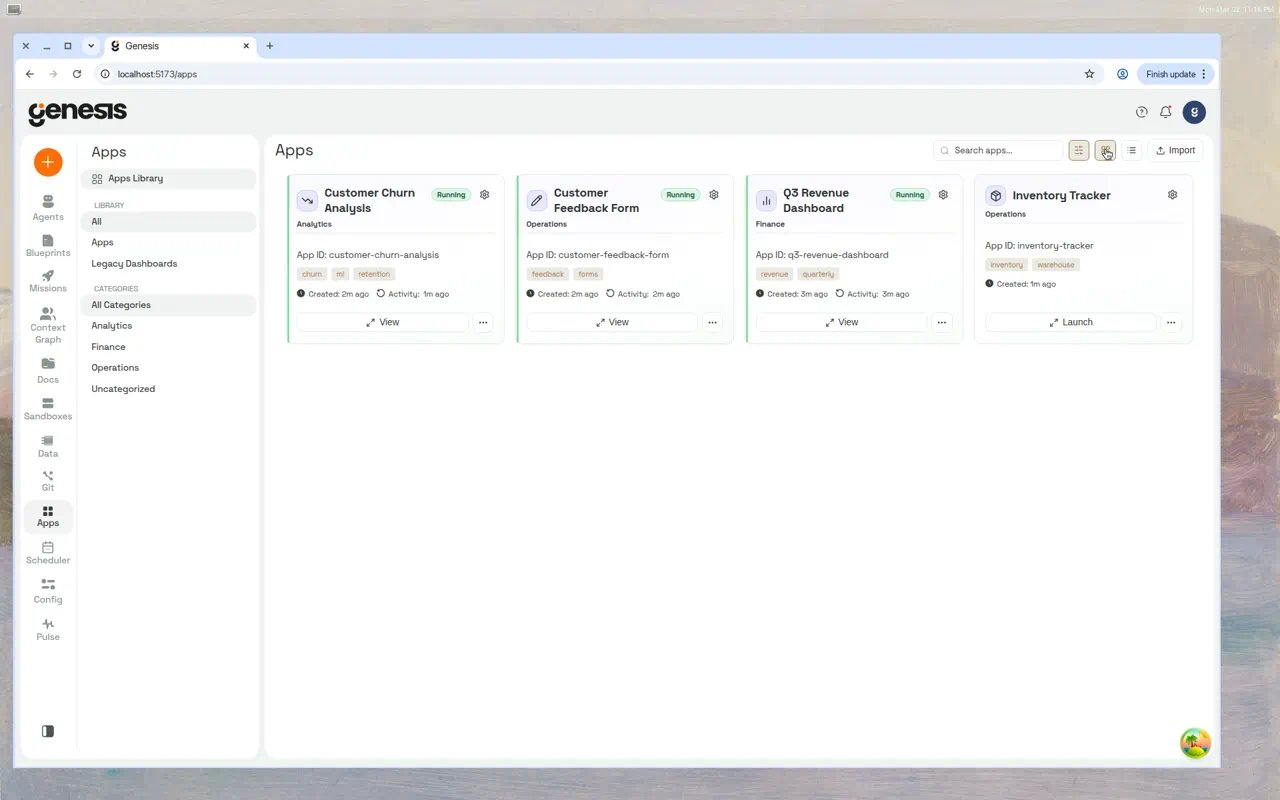
Library sidebar
The inner sidebar on the Apps page provides quick filters:
Below the filters, the Categories section lists user-defined groupings such as
“Finance” or “Operations.” Click a category to narrow the grid. The default category
for new apps is Uncategorized.
Toolbar
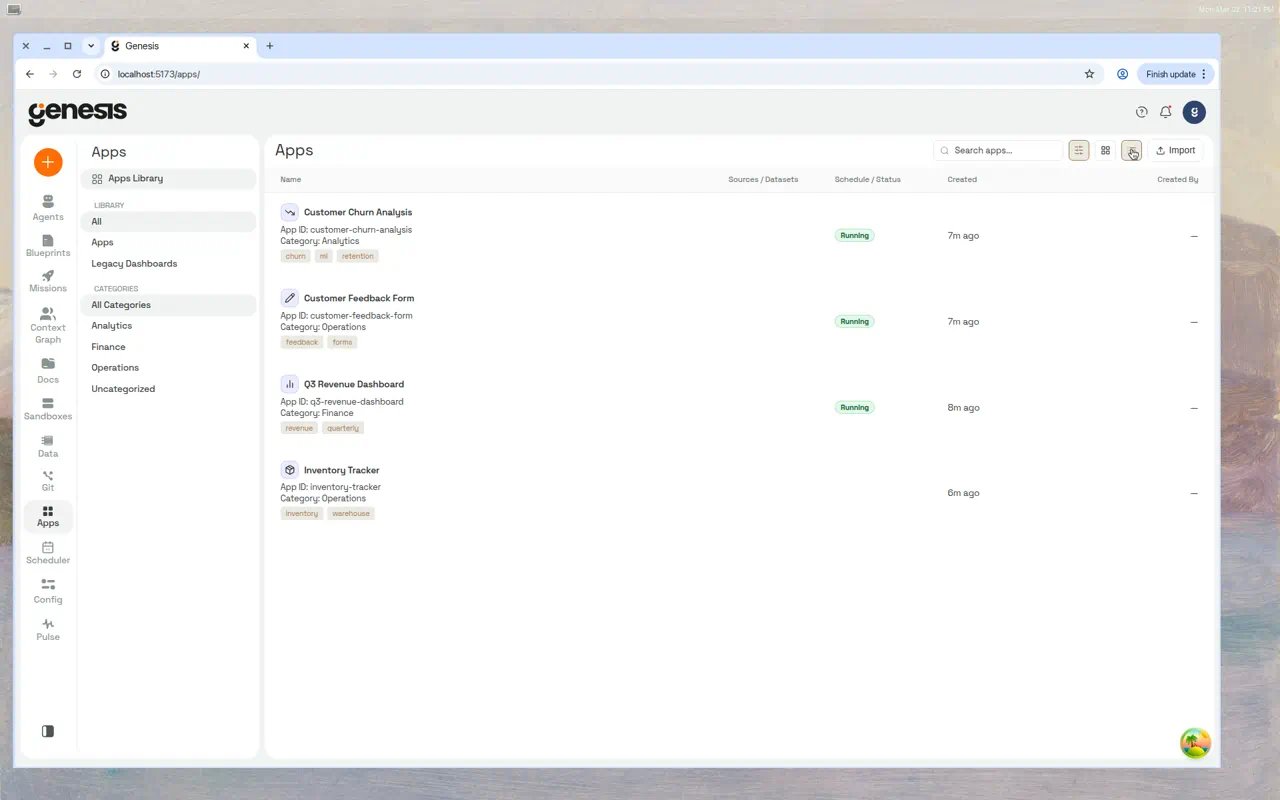
The toolbar across the top of the content area provides:- Search — filter apps by name, category, or tag.
- View toggle — switch between compact table view, card grid view, and list view.
- Import — upload a ZIP archive exported from another Genesis instance.
- Manage Sources — open a modal (branch icon in the toolbar when the Apps filter is active) to register Git repositories that supply Apps to this instance (requires
manage_apps). Hidden whenVITE_ENABLE_REMOTE_ARTIFACT_REGISTRY=false.
Category filtering
Click any category in the sidebar to filter the library. For example, filtering to Operations shows only the Customer Feedback Form and Inventory Tracker: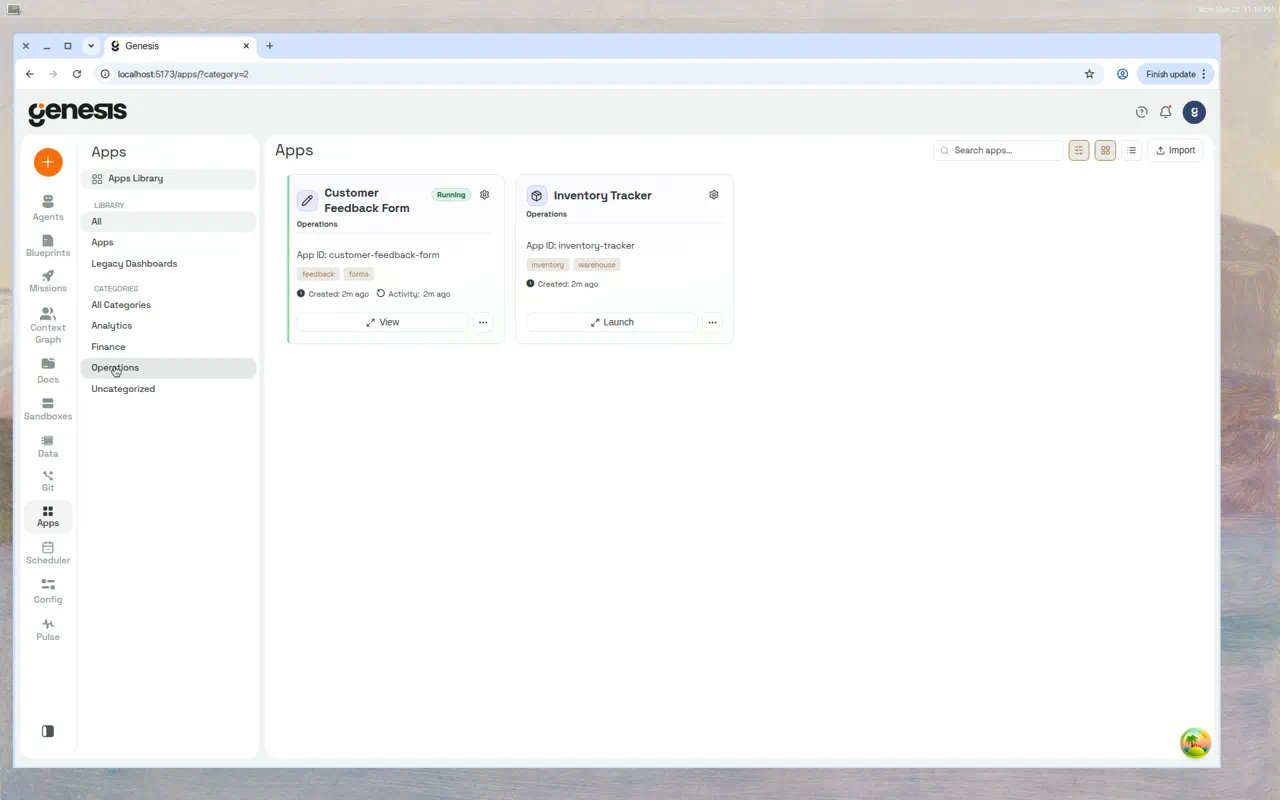
Sorting and grouping
In table and list views you can sort by name, created date, last activity, category, or tags. You can also sort or group by Project, filter by All Projects or No Project, and filter to show only Running or Not Running apps. Projects are organizational groupings shared with Flows, Missions, and chats; see Projects.Launch targets
An app can expose both a local runtime and a remote deployment at the same time. Cards and table rows show separate local and remote status summaries when both targets exist. The primary Launch / View action opens the most relevant target for the current state. Use the ▾ chevron to choose explicitly between the local app, the Working Draft for versioned apps, and any deployed Remote target available to you.Creating an app
From chat
The most natural way to create an app is through conversation. Open a chat with an agent — for example, Eve — and describe what you need.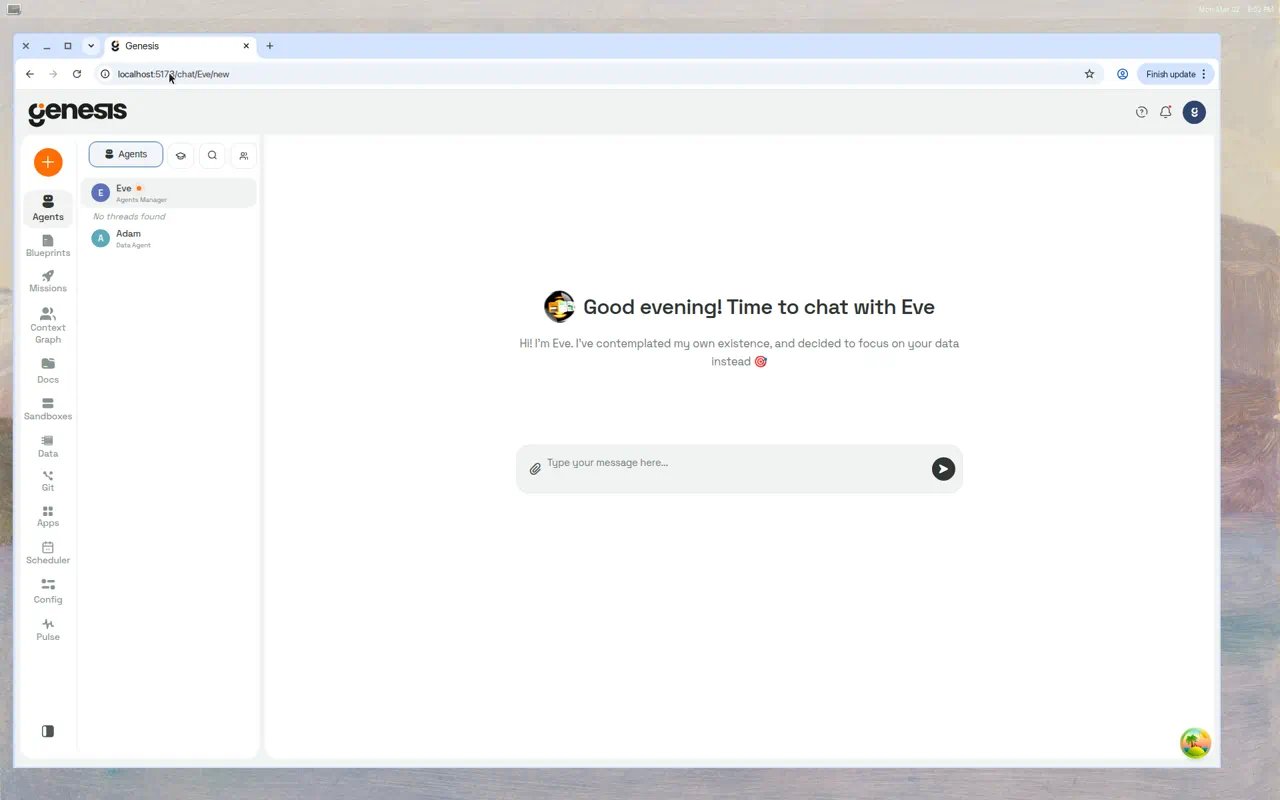
- “Build me a Dash dashboard showing monthly revenue by region from ANALYTICS_DB.PUBLIC.SALES_SUMMARY.”
- “Create a presentation deck summarizing our Q4 results with charts.”
- “I need a simple Flask form to collect feedback from the team.”
- Choose the right template based on your description.
- Scaffold the app — writing
app.py,requirements.txt, and any supporting files. - Register and start the app.
- Embed it directly in the chat thread as an interactive iframe.
For dashboard-style apps, the agent should not stop at the first working render.
Run
REVIEW with include_visual_description=true and verify_data=true,
compare the rendered KPIs, grid columns, filters, chart labels, units, and time
range against your request or REQUIREMENTS.md, then fix any gaps and repeat the
audit. Limit this loop to 3 audit cycles. The final handoff should include the
deployed URL, screenshot artifact, verification evidence, the runtime env vars
used (at minimum GENESIS_API_BASE_URL and GENESIS_REFRESH_SECONDS), and any
remaining known gaps.For data-backed dashboards, the first meaningful
START / RESTART stays
gated until the agent records a valid ATTEST_CHECKLIST submission and one
clean REVIEW. Demo/sample dashboards can use sample mode, but
source_choice, grain, and dataset_strategy still require typed
evidence. For additive KPI dashboards, grain proof must come from either a
fresh exact structural profile (grain_check / raw_vs_dedup) or inline
query_result evidence with total_rows and distinct_entities aligned to
the grain decision.From the API
Create an app programmatically:Create request fields
When an existing app belongs to another thread or has saved versions, tool-based
replace_existing=true requires explicit confirmation. Prefer editing the existing
app with WRITE_FILE/RESTART; only replace when the user has asked to wipe and
recreate that app ID.
Agents can unregister scratch apps with apps_action(action="DELETE", app_id="...")
or DELETE_APP. This soft-deletes by default: the app disappears from the Apps
Library, but source files remain on disk for recovery and audit. Use
delete_workspace=true only when the user explicitly wants those files removed.
App templates
When creating an app, Genesis selects a template that provides the right scaffolding. Five built-in templates are available:Dash Dashboard
Runtime type:dash_dashboard
Uses Plotly Dash with AG Grid. The scaffolded app includes
KPI cards, date and category filters, interactive charts, and a data grid — all wired to
fetch data through the Genesis API.
KPI cards are data-driven: when a dataset is bound, labels and values are derived from
the dataset itself (row count plus up to three numeric totals or distinct counts from
real column names) instead of hardcoded demo metrics such as “Total Customers” or
“Total Revenue”. Currency-style formatting applies when column names suggest money
(for example, columns containing revenue, amount, or sales). Before data loads,
the UI shows neutral “Metric 1”–“Metric 4” placeholders.
Dependencies: dash==2.18.2, plotly==5.24.1, pandas==2.2.3, requests==2.32.3,
dash-ag-grid==31.2.0
Default display modes: embed_mode: scaled, fullscreen_mode: contain
Dash apps can keep using supported jsDelivr Bootstrap and Bootswatch URLs in
external_stylesheets. Genesis rewrites those supported remote stylesheets to
local app-served assets at start time, so shipped dashboards continue to render
in network-restricted deployments. Other custom remote stylesheet URLs are left
unchanged and still load from their original source./static/... links because they can escape
/api/apps/<app_id>/proxy/; prefer ./static/file.js, Flask url_for, or a
server-injected MICROAPP_BASE_PATH URL. Capture diagnostics report failed
CSS/JS/image/font subresources when a page body renders but assets fail to load.
Flask Basic
Runtime type:python_template (template name: flask_basic)
A minimal Flask app with proxy-safe routing, a health check at /healthz, and
server-side genesis_llm_call(...) / genesis_llm_direct(...) helpers for
app-scoped LLM calls (same contract as Dash). Organizational branding support
is included.
Dependencies: flask
Flask CRUD Inbox
Runtime type:python_template (template name: flask_scaffold)
A full-featured Flask app with local SQLite storage, status tracking (new → triaged →
in progress → done → archived), JSON import/export, and a connectivity check endpoint.
Designed for ops management workflows.
Dependencies: flask
Presentation Deck
Runtime type:presentation_deck
Renders narrated slide decks from a presentation_deck.json file. Features an animated
splash screen, slide-by-slide navigation, and optional text-to-speech narration via
OpenAI TTS. Supports live mode where the agent can update slides in real time.
Dependencies: Standard library only (optional OpenAI TTS)
In
presentation_deck.json, use t for visible slide title, s for visible
subtitle/body HTML, and n for narration. Export and publish validation reject
slides that keep visible text only in alias fields such as title, subtitle,
body, body_text, bullets, left_content, right_content, or
two_column. A slide without text still needs visible img, plotly, py, or
staged label/sub content.Dataset Benchmark
Runtime type:python_template (template name: dash_benchmark_query_vs_datasets)
A diagnostic tool that compares latency between direct /api/query calls and the
Datasets SSRM API. Useful for optimizing data access patterns in production apps.
Dependencies: dash, requests
App lifecycle
States
Every app progresses through these states:Starting
When you start an app (or an agent starts it for you), the system:- Assigns a free port on
127.0.0.1. - Creates a Python virtual environment in the workspace (if one doesn’t exist).
- Installs dependencies from
requirements.txt. - Launches
app.pyas an isolated process. - Waits up to 6 seconds for the process to bind to its port.
- Sets the status to
runningif the port is open, orcrashedif the process exited.
GET /api/apps/{app_id}/status and versioned runtime status checks keep running
records honest: for running, Genesis verifies both that the stored PID still
exists and that the recorded internal port is reachable on 127.0.0.1 (0.25 s
timeout). PID alone is not sufficient — after a server or container restart,
recycled PIDs can make a dead runtime look alive while the port is gone. The
starting state still checks PID only because the runtime may not have bound
its port yet.
If the Apps Library refuses a Start or Restart, the toast includes both the
refusal reason and any actionable guidance returned by the server. Follow that
guidance before retrying; depending on the blocker, it can identify the file or
setup that needs repair, such as repairing or recreating a missing dataset.
Stopping
Stopping sendsSIGTERM to the process group. If the process doesn’t exit within
2 seconds, SIGKILL is sent. The app’s status becomes stopped.
Restarting
Restart stops the app, then starts it again. This reloads all code changes and reinstalls any modified dependencies. After a successful restart, Genesis invalidates the Apps Library list cache so the app’s status and metadata are refreshed on the next library load.Starting after a Genesis restart
By default, Genesis starts apps that were running when the server stopped again in the background, up to three at a time, once the server is back up. Control this withapps.autostart_after_restart (bool, default: true). Set it to
false to leave every app stopped after a restart until someone starts it.
Apps stopped by a user, their inactivity timeout or maximum lifetime, or a crash
stay stopped; a versioned app whose running runtime crashed is started again.
If an automatic start fails, Genesis leaves the app stopped and shows why in its
status; it does not retry that failed start after the next restart. For the
Databricks App’s environment-variable override, see Genesis on Databricks.
Inactivity timeout
Apps automatically stop after a period of inactivity (no HTTP requests through the proxy). The default timeout is 60 minutes (ttl_seconds: 3600). The timer resets
every time the app receives a request.
Set ttl_seconds to null to disable auto-stop for always-on apps.
Embedding apps in chat
Agents embed running apps in chat messages using a fenced code block:Production · v2)
and Working Draft.
If the app is not running when the message is viewed, a placeholder appears with a
Start button.
To embed the working draft directly (instead of production), the agent can include the
--working-copy flag in the fenced block:
Display modes
Full-screen view
Clicking the expand icon (or clicking the app card in the library) opens the app in a full-screen view: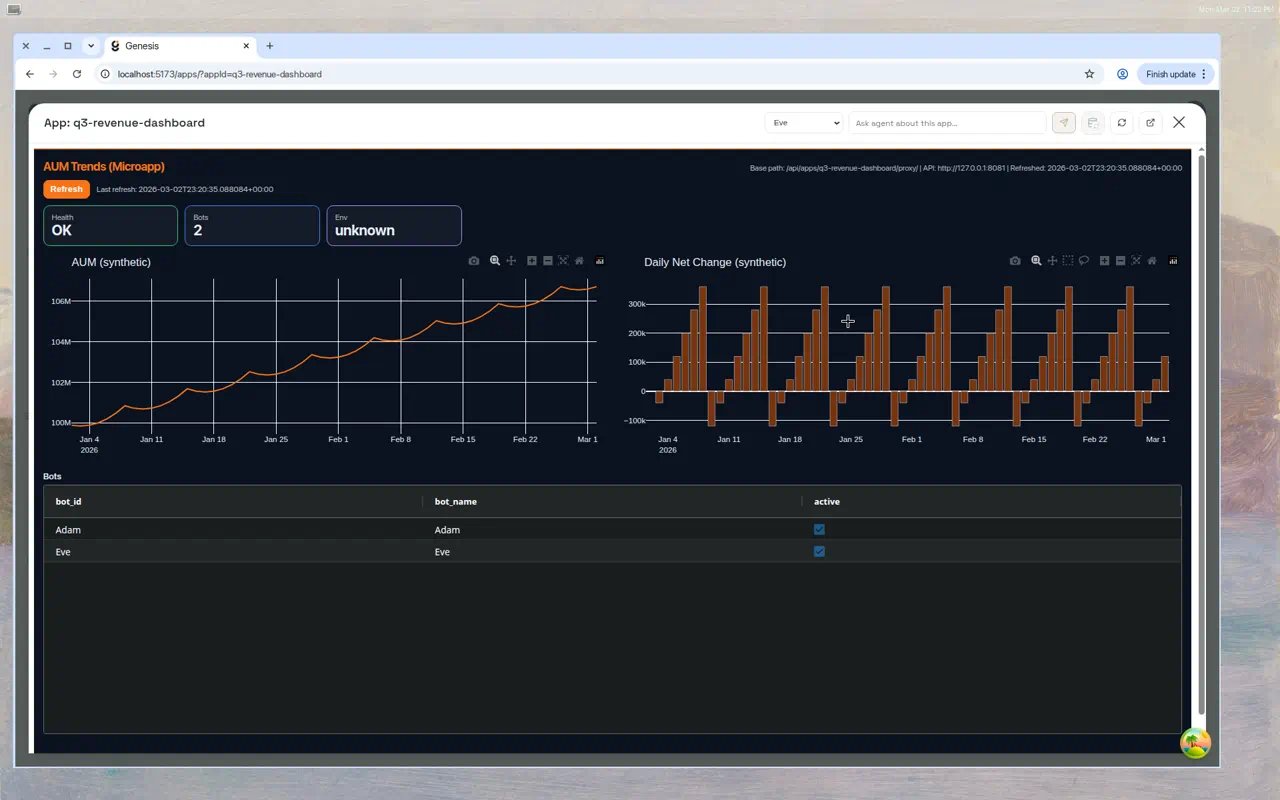
- The same App version source dropdown as inline chat embeds (for versioned apps when you have edit or manage permission).
- Action buttons: reload, dataset refresh, schedule, open in new tab, open in Git.
- A Chat toggle that opens a resizable side panel with the conversation thread — you can ask the agent to make changes while viewing the app.
Dataset bindings
Apps can query Snowflake data through the Datasets API, a fast cached layer that serves pre-materialized SQLite snapshots. This avoids hitting Snowflake on every page load and is the recommended approach for data-heavy dashboards.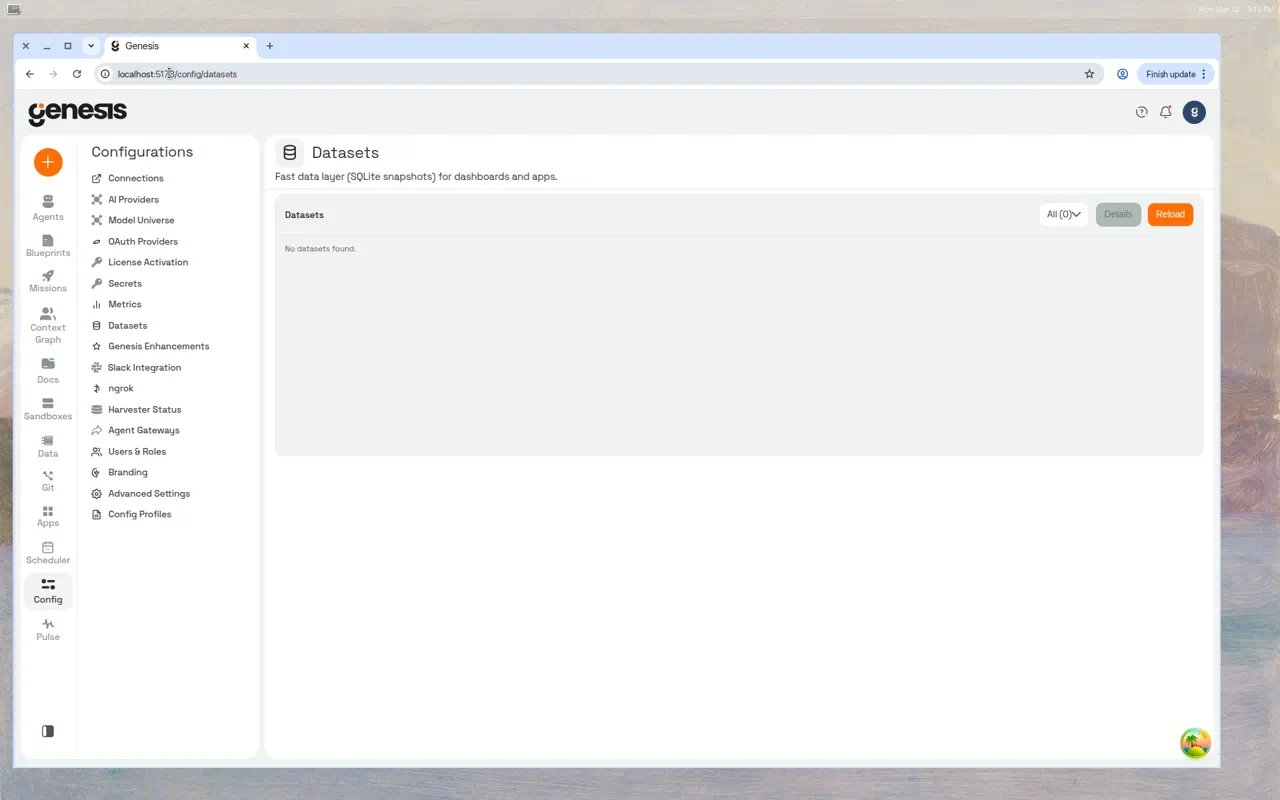
Binding a dataset to an app
- Create a dataset using the Datasets page under Config → Datasets, or ask the agent: “Create a dataset from ANALYTICS_DB.PUBLIC.SALES_SUMMARY.”
-
Add a
genesis_datasets.jsonfile to the app’s workspace:Supported actions:read(fetch rows),ssrm(AG Grid Server-Side Row Model).connection_idsis optional. When provided as an array of connection IDs ingenesis_datasets.json,/api/queryrequests made withGENESIS_APP_TOKENare limited to those connections. Ifconnection_idsis omitted or empty, Genesis falls back to the delegated user’s normal connection permissions. -
Restart the app so it picks up the binding and receives a fresh
GENESIS_APP_TOKEN.
Genesis preflights
genesis_datasets.json on START and RESTART. If the
bindings file is invalid, a bound dataset has been deleted, or the app’s
startup identity can no longer read one of the bound datasets, startup is
blocked until you repair the binding. API responses surface this as
validation.missing_dataset_ids and validation.forbidden_dataset_ids when
available.Querying data from app code
On startup, Genesis injects credentials into the app’s environment. Use them to call the Datasets API:limit and offset.
When an app has dataset bindings, proxied browser requests can also reach the
app with an incoming
X-Genesis-App-Token header that Genesis minted for the
current viewer. Use that request header when a request handler needs the
active viewer’s dataset or /api/query scope. Keep using
GENESIS_APP_TOKEN for startup work, background jobs, or other app-originated
API calls outside a viewer request.App token lifetime and refresh
Two different tokens travel under theX-Genesis-App-Token header, and they
have very different lifetimes:
The environment token is reissued on every process start — an explicit
START, a RESTART, and an autostart after an idle-TTL stop all mint a fresh one.
Nothing reissues it while a process keeps running, so an app that stays up
longer than six hours will see
401 on Genesis API calls unless it refreshes.
Two ways to refresh without a restart:
- Automatic. Genesis patches
requestsandurllibinside the app process so calls toGENESIS_API_BASE_URLswap in a fresh token roughly ten minutes before the current one expires. This needs no app code, applies to every app regardless of runtime type or versioning mode, and reaches already-deployed apps on their next restart. SetGENESIS_RUNTIME_APP_TOKEN_AUTO_ROTATE_ENABLED=falseto turn it off. - Explicit.
POST /api/apps/{app_id}/app-token/rotate, sending the current token, returns a fresh one. The endpoint accepts a token that has been expired for less than 48 hours — exactly 48 hours is already outside the window — so a worker that has already started failing can still recover. The new token lasts 6 hours by default; passttl_secondsto choose another value between 300 and 86400.
Diagnosing a data-layer auth failure
An app whose token has been refused does not crash — it catches the401,
renders empty, and still answers its viewer with HTTP 200. Two signals separate
that from a genuine data problem:
STATUSreportshealth: "degraded"while a refusal is recent, alongside alast_api_errorobject naming the method, path, status code and how many times it happened.statusstaysrunning, because the process really is.LOGScarries a[GENESIS_APP_API]line for each refused outbound call — method, path, status code and elapsed time — written by the app process itself. Successful calls are logged at INFO, so they appear only when the app configures logging of its own.
Refreshing dataset snapshots
Dataset snapshots are point-in-time copies. To pick up new data:- Click the refresh icon on the app card or full-screen header.
- Call
POST /api/apps/{app_id}/datasets/refreshto refresh all bound datasets. - Call
POST /api/apps/{app_id}/datasets/{dataset_id}/refreshfor a single dataset. - Schedule automatic refreshes from the full-screen view.
Environment variables
Every running app receives these environment variables:
Official Genesis scaffolds may also read a small set of documented helper vars such as
GENESIS_CONNECTION_ID, GENESIS_LLM_BOT_ID, GENESIS_LLM_MODEL_TIER,
GENESIS_LLM_PROVIDER, GENESIS_DATASET_TARGET_TYPE, GENESIS_DATASET_TARGET_NAME,
GENESIS_DEBUG_DATA_PREVIEW, and GENESIS_DEBUG_DATA_PREVIEW_ROWS. Apps should treat
those as optional build/runtime helpers, not as a way to reach platform secrets or
undocumented host configuration.
The app server token reaches only a fixed set of platform API routes. At
authoring or start-up time, call GET /api/apps/{app_id}/capabilities (with
X-Genesis-App-Token or any authenticated session) to fetch the current
manifest instead of guessing paths. The response includes version (bump when
entries change), capabilities (route, advisory methods, and
description for each allowed path), and uncovered_route_guidance for APIs
outside the list. Path-level enforcement ignores methods; anything not in the
manifest is refused on server-side calls.
When an app needs model output, call the app-scoped Genesis routes with
X-Genesis-App-Token: POST /api/apps/{app_id}/llm/call for orchestrated chat
turns or POST /api/apps/{app_id}/llm/direct for one-shot base completions.
Official Dash and Flask Basic scaffolds expose genesis_llm_call(...) and
genesis_llm_direct(...); omit model_tier and provider to inherit the app
authoring-thread defaults when available.
Forward vs side-channel model output
Use forward LLM calls when structured model output is the next input — classification labels, extracted fields, or JSON that a later route, query, or UI state must parse. Return that output in the HTTP response body or persist it where the product path reads it back. Use side-channel calls when the model text is enrichment only — summaries, rationale blurbs, or optional columns that no branch requires. Keep navigation, security, and core control flow in ordinary code so the pipeline still succeeds if enrichment is missing. Never call Genesis LLM routes from browser JavaScript; proxy through your app server withGENESIS_APP_TOKEN. For /llm/direct, put JSON instructions in
prompt and parse the response string — this route has no response_format
body field. A 422 response usually means request validation failed (empty
prompt, invalid model_tier, or timeout_seconds outside 5–600).
Security isolation
Apps run with a sanitized environment. The following categories of parent environment variables are stripped before the app process starts:OPENAI_*, ANTHROPIC_*,
AWS_SECRET*, AZURE_*, LITELLM_*, SNOWFLAKE_*, and others.
GENESIS_APP_TOKEN is app-scoped rather than a browser session token. For remote app
deployments, Genesis mints it with the delegated runtime user identity so supported
app API calls continue to work when platform auth is enabled. Apps should use
GENESIS_APP_TOKEN for all API access rather than attempting direct database
connections.
When the Genesis server runs as root, each app is launched under a dedicated Linux user
(microapp_<suffix>) with ulimit constraints (1024 open files, 256 processes) and
umask 077 for workspace isolation.
Metadata and organization
Each app has metadata that controls how it appears in the library.
Update metadata via
PATCH /api/apps/{app_id}/metadata or through the Edit Metadata
modal. The endpoint accepts title (or display_name), emoji, thumbnail_hidden,
category_id, category_name (or the deprecated category), tags, embed_mode,
fullscreen_mode, published and ttl_seconds. Any other field returns 422 naming
it and listing the accepted ones, and nothing in that request is changed. Click the three-dot menu (⋮) on any app card to access all management actions:
Users with App manage permission can assign or clear the organizational Project from
the Edit Metadata modal. Use PATCH /api/apps/{app_id}/project for the API form of
that action; see Projects for the shared grouping model.
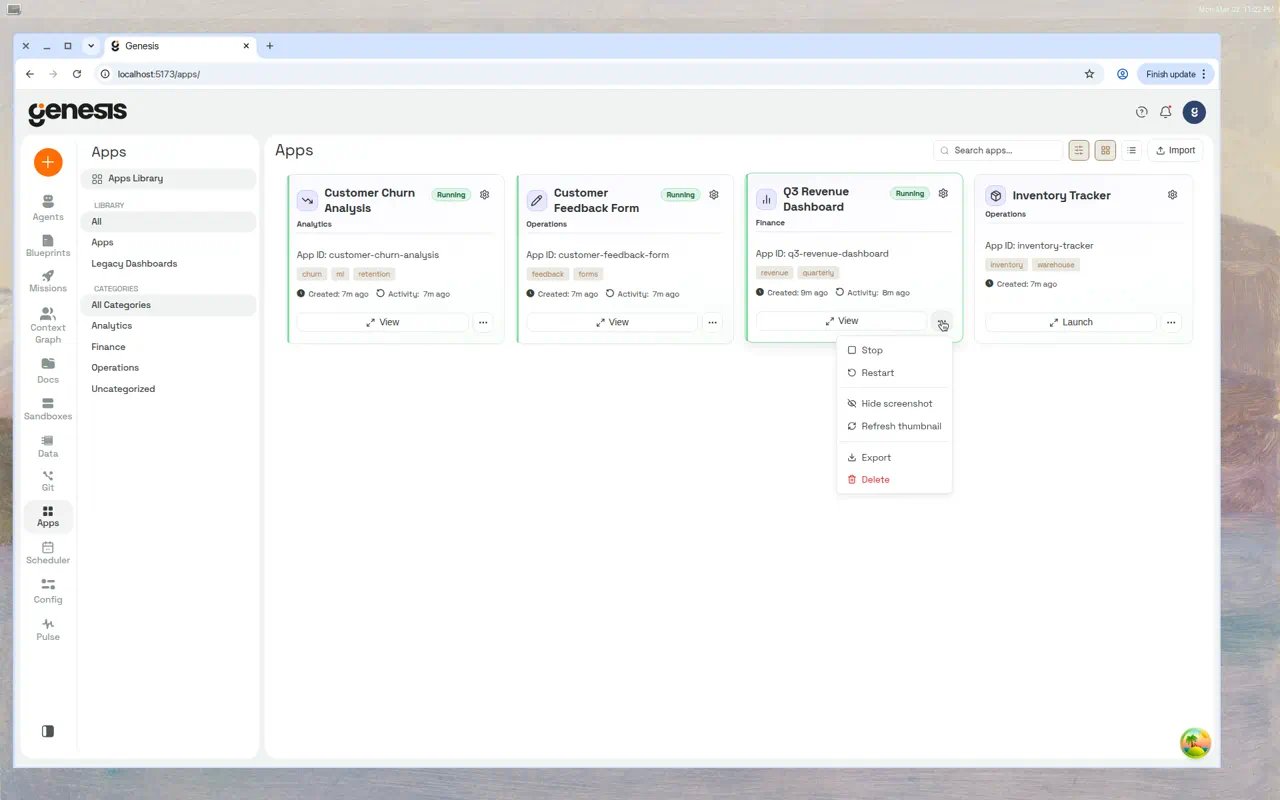
Published vs. draft
When someone opens a direct HTML link to an app they cannot
view, Genesis
returns a friendly access-denied page instead of the app content. Non-HTML
requests and API clients still receive the underlying 401 or 403 response.
Import and export
Importing
Click Import in the Apps Library toolbar to open the import dialog: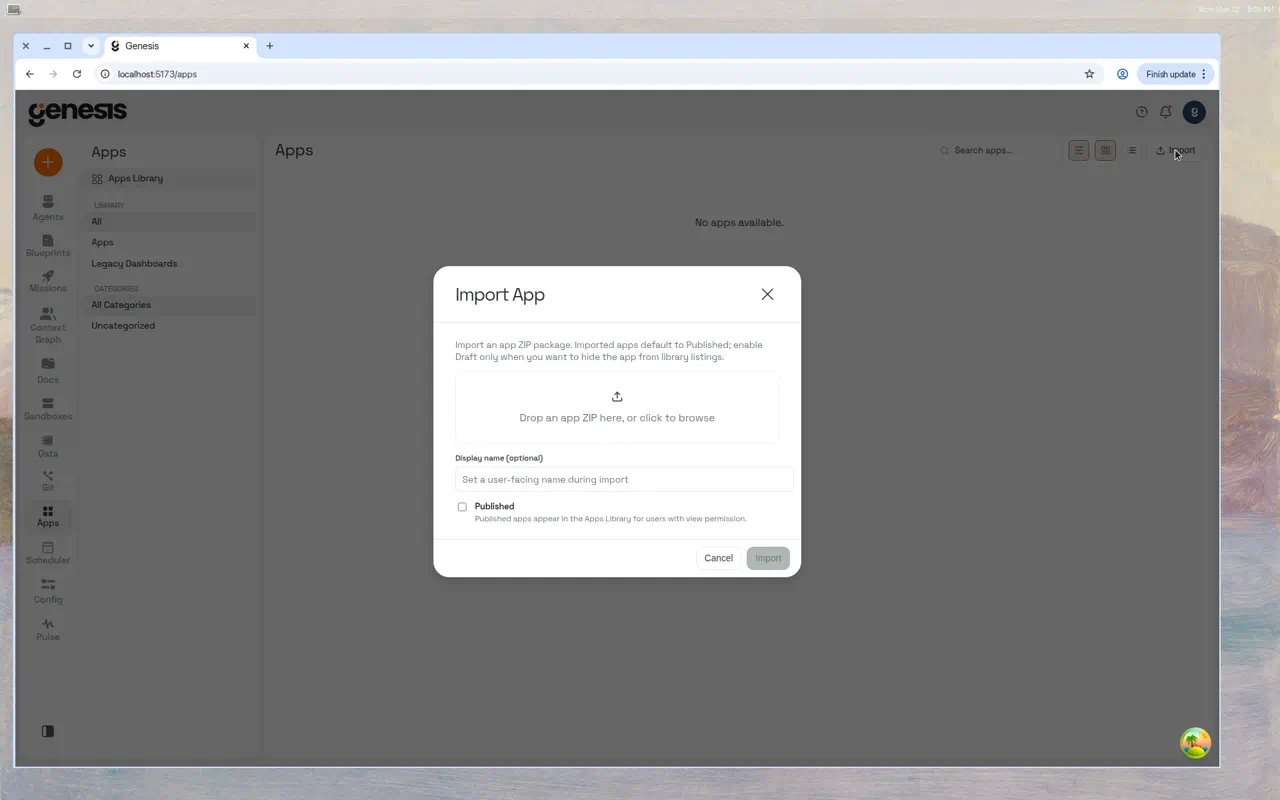
- Drag and drop a
.zipfile (or click to browse). - Optionally set a Display name.
- Choose Published (visible in library) or leave unchecked for Draft.
- Click Import.
POST /api/apps/import/validate requires the
manage_skills permission.
Validation and import responses can include
unresolved_dependencies (per-slot
status, kind, slot_id, fallback_name) and, on validate only, available_connections
(local bind candidates with target, name, type, kind, is_default).
Exporting
From the app card’s action menu, click Export. This downloads a ZIP containing the full workspace —app.py, requirements.txt, configuration files, and any other assets.
For safety, the export includes only files that resolve under the real workspace root;
symlinked workspace roots are rejected and symlinked children are skipped.
Access control
When authentication is enabled, apps use role-based access control (RBAC).
The creator is automatically assigned all privileges. New apps created with auth enabled
are owner-only by default (
rbac_initialized: true).
Manage access from the app card’s three-dot menu → Manage Access, or via API:
Git-backed vs Genesis-versioned apps
Managed apps synced from a Git repository are git-backed: Genesis treats the remote repo as the source of truth. The Apps Library shows a green git-backed badge on those cards. Genesis-versioned apps (badge in gray) use the in-product versioning workflow below.
Click the badge on a card to open a short explainer. For git-backed apps, choose
Fork to standalone from the ⋯ menu or the badge explainer (Fork to standalone →).
Genesis opens a modal to confirm the new standalone app ID (defaults to
<app_id>-standalone).
The same flow is available via POST /api/apps/{app_id}/fork with body
{"new_name":"<new_app_id>"}. Requires manage on the source app, the create_app
permission (or admin), and CREATE_APP on the API. new_name must not collide with an
existing app or a git-backed registry name.
When a git-backed or degraded import still has unbound connection slots, the library
card shows Missing dependencies with Bind to local (same binding ledger as
Multi-Instance Skill, Flow & App Sync).
Editing a git-backed app in the managed workspace shows a one-time per-app session
warning that local edits diverge from Git until you export or discard.
For agent Git constraints in this deployment, see
Git Action Tools.
Versioned publishing
Versioned publishing gives genesis-versioned apps a safe edit → preview → approve → promote workflow. Production users always see a stable, pinned version while editors iterate on a shared working draft. All versioning operations are available from both the dashboard UI and agent tooling (apps_action). Git-backed apps must be forked to standalone before
enabling this workflow.
Concepts
How it works
- Viewers always see the production version.
- Editors can preview the working draft without affecting production.
- Managers can promote versions and manage access.
Enabling versioning
1
From the dashboard UI
Open the Apps page, click the ⋯ menu on an app card, and select
Use versioned publishing. The current app files are snapshotted as
Version 1 and automatically promoted to production.
2
From agent tooling
note (description for v1), assign_production (default true).The versioning lifecycle
Edit and preview (you or an agent):1
Edit the working draft
Use any file-writing action — the working draft is the default target:
2
Preview without affecting production
Start the working draft runtime (separate from production):The draft runs at
/api/apps/<id>/working-copy/proxy/ and does not affect
the production version at /api/apps/<id>/proxy/.apps_action when you direct the agent):
1
Save a version
Snapshot the current working draft from App History (Save as new version)
or ask the agent:
2
Promote to production
Promote from App History or ask the agent:
3
Roll back (if needed)
Promote an older saved version to instantly restore a previous state (UI or agent,
when you explicitly request rollback):
Dashboard UI
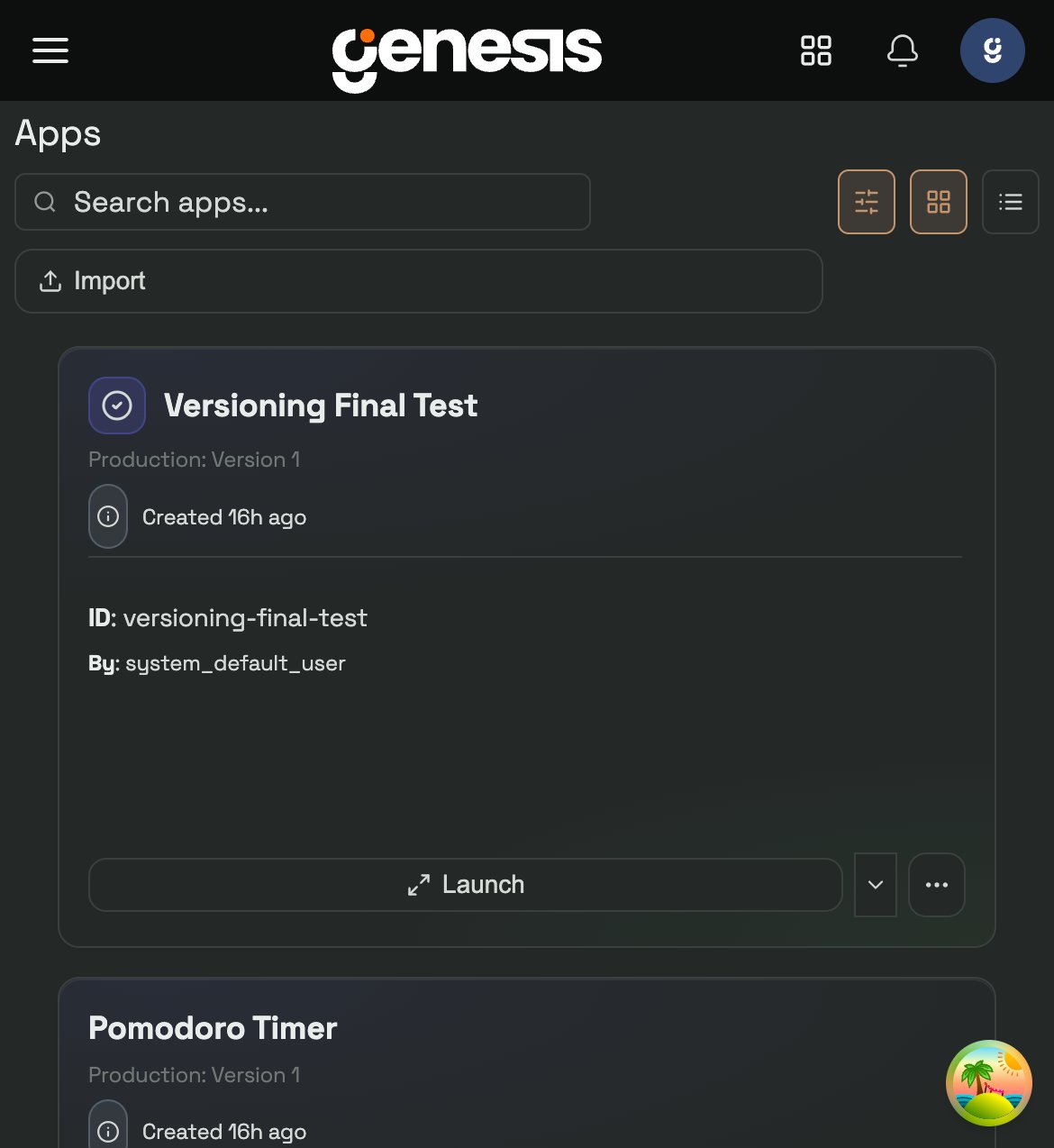
Apps page
Context menu
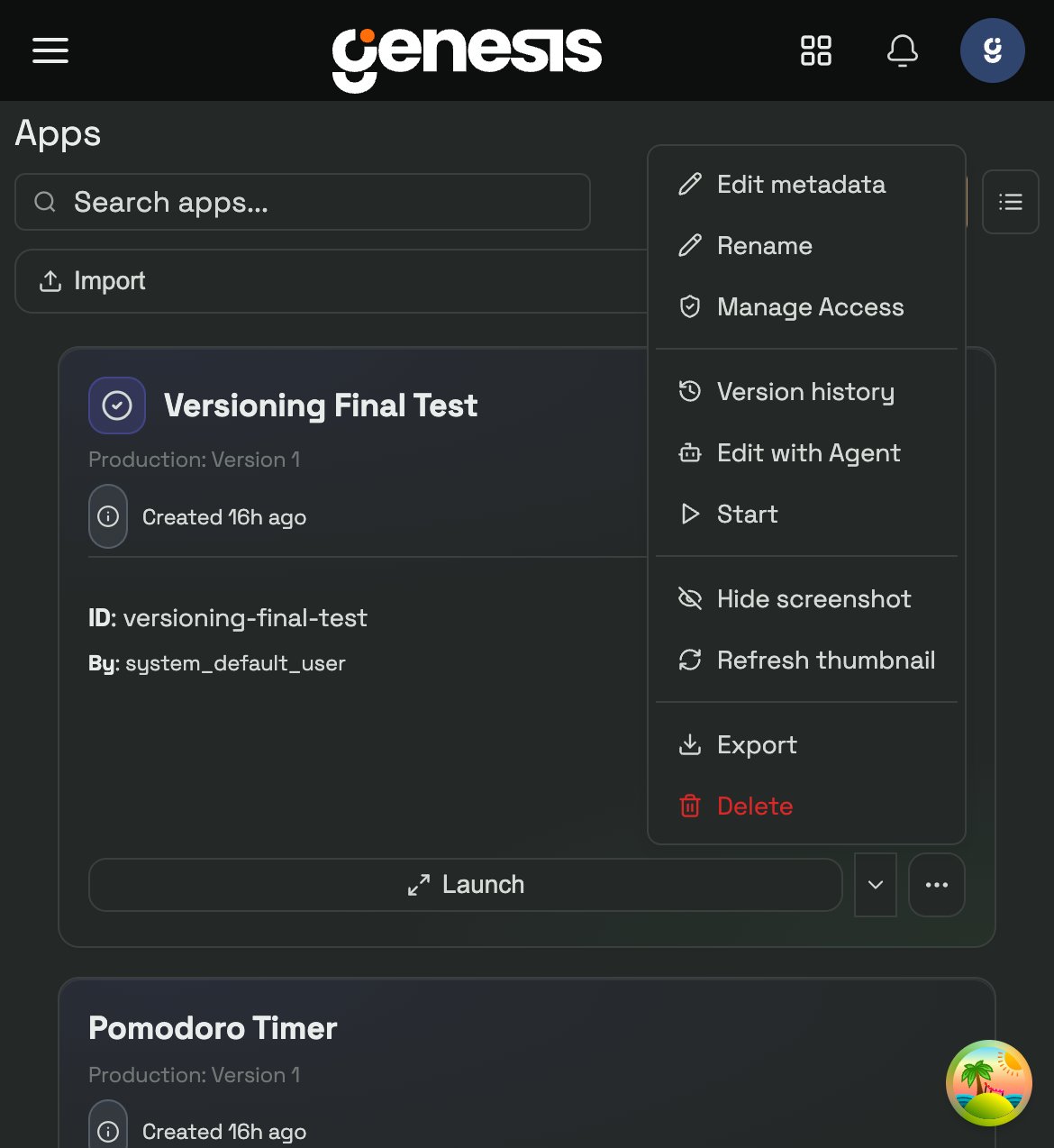
- App History — opens the unified history modal for saved versions and checkpoints.
- Edit with Agent — opens a chat with an agent, pre-seeded with app context. On versioned apps, agent file edits always apply to the Working Draft.
- Start / Stop — control the production runtime.
- Standard actions (Export, Delete, etc.).
App History modal
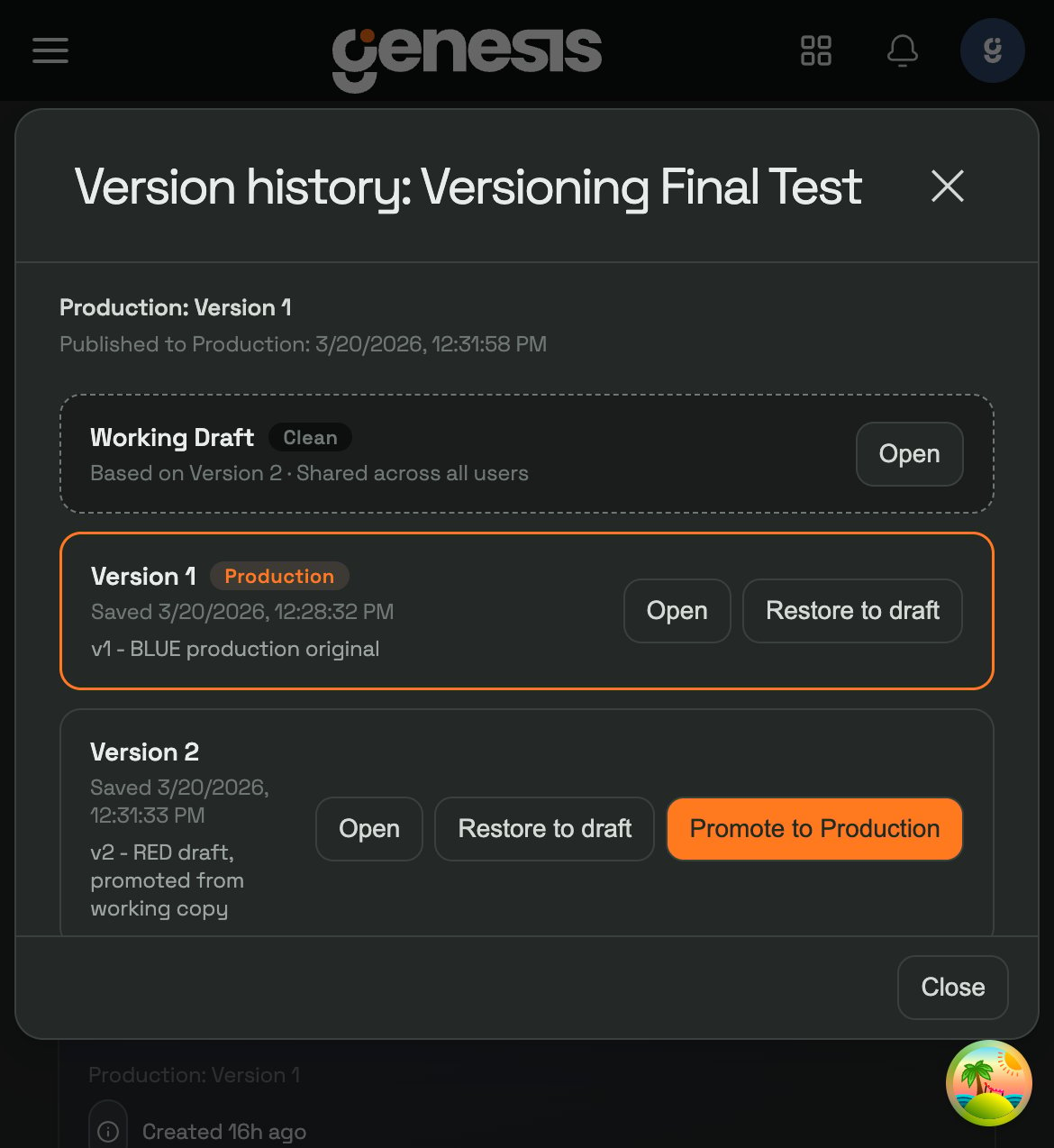
- Working Draft — with Clean/Dirty status plus Discard changes and Save as new version when the draft has unsaved edits.
- Saved versions — each with Open and Promote actions, plus Restore to draft for the current production version. The live version is marked with a Production badge.
- Per-version checkpoints — file-change checkpoints are grouped beneath their parent saved version as dot releases such as
v2.1, making it easier to restore a specific checkpoint without promoting a full saved version.
App viewer
When you open a versioned app from the Apps Library in full-screen, a version selector dropdown appears in the header. Switch between Production, Working Draft, and any saved version without leaving the viewer. Only visible to users with edit or manage permission. Chat embeds (inline and expanded from a thread) use a simplified App version source control with Production (for exampleProduction · v2) and
Working Draft only. See
Embedding apps in chat for reload behavior and the
--working-copy embed syntax.
If the app also has a deployed Remote target, a separate target switcher lets
you jump between local and remote destinations without leaving the viewer. When
the remote backend publishes a public URL, Open in new tab can offer both
Open via Proxy and Open Direct URL; internal-only cluster URLs stay
proxy-only.
For versioned apps, Reload in any embed or viewer refreshes the target you
are currently viewing. If you are pinned to Production or a deployed
Remote target, unpublished Working Draft edits remain invisible until you
switch the view back to Working Draft. After you confirm those draft changes,
publish them by promoting a saved version to production or redeploying the remote
target.
Versioning and access control
Versioning actions are gated by the same RBAC privileges:Remote deployment targets
Genesis Apps can keep a local runtime and a remote deployment side by side. The Apps Library shows separate local and remote summaries on cards and table rows so you can see where the app is currently running.Deploying from the Apps Library
Open the ⋯ menu on an app card and choose Deploy Remote. The deploy dialog lets you:- choose a backend: Docker, EKS, or Railway,
- reuse saved
target_envandsecurity_profileprofiles, - deploy Production or a specific saved version for versioned apps,
- supply backend-specific overrides as JSON when you need to go beyond the saved profile defaults.
service_type to LoadBalancer so
the remote app gets a browser-reachable URL. Set service_type: "ClusterIP"
only when you intentionally want an internal-only cluster address.
After a remote deployment exists, the same menu adds View Deployment
Details, Restart Remote, Redeploy Remote, and Remove Remote. The
details modal shows the backend, deployed target, health, URL, and persisted
deployment config.
Every remote target also gets a stable Genesis proxy URL at
/api/apps/<id>/remote/proxy/, even when the backend also exposes a direct
public URL.
Workspace and files
Each app has an isolated workspace directory containing its source code and dependencies.Typical workspace structure
File API
Text files use the supported source extensions
.py, .json, .txt, .md, .css,
.html, .js, .yml, and .yaml. The apps_action tool also supports binary .png
and .pdf writes using base64 content; PDFs must start with %PDF- and be no larger
than 2 MiB. Path traversal is blocked.
Text writes are scanned before they are persisted, and START / RESTART
rescans the full workspace. Genesis blocks code that tries to probe host
filesystem roots, read undocumented environment variables, launch subprocesses,
load native libraries, or dynamically execute other local source files.
After editing files, restart the app to pick up code changes.
Thumbnails
The platform captures screenshots of running apps to display as thumbnail previews in the library grid.
At most 2 thumbnails are captured concurrently. Results are cached for 5 minutes.
For versioned apps, a thumbnail capture is allowed when either the production
runtime or a working-copy runtime slot is running. The app does not need its main
MicroappRecord status to be running for the capture to proceed.
Thumbnails can be hidden per-app (thumbnail_hidden: true). The feature can be disabled
globally via the apps.thumbnails_enabled configuration key.
Thumbnail capture also requires Chromium. In a Databricks App deployment that
does not include a browser, the apps list reports thumbnails_enabled: false
and capture requests return the reason instead of queuing a background job.
The apps.thumbnails_enabled setting remains enabled by default elsewhere;
turning it off returns thumbnails disabled regardless of browser availability.
Configuration
Dependency management
Control how Python packages are installed for app virtual environments. Set these viaConfig → Advanced Settings or the app_config table.
Environment variables
Debugging
Logs
Retrieve logs viaGET /api/apps/{app_id}/logs or ask the agent: “Show me the logs for
my dashboard.”
Logs capture both stdout and stderr from the app process, including startup output,
request logs, and error tracebacks. They remain available after the app stops or crashes.
Runtime info
GET /api/apps/{app_id}/runtime-info returns the Python version, installed packages,
workspace paths, and injected environment variables (secrets are redacted).
Verify
POST /api/apps/{app_id}/verify checks whether the app is reachable through the proxy
and returns pass/fail for each check.
When verify_data=true, VERIFY now requires positive data-readiness evidence before it
reports success. A Dash callback 200 without an app marker, bound dataset readiness,
or other populated runtime evidence is treated as inconclusive, not as proof that the
dashboard is populated.
For presentation decks, capture and REVIEW similarly treat the app as populated only
after it reaches a real content slide. Splash/loading/replay states, empty slides, and
render errors are reported separately so blank captures are easier to diagnose.
Common issues
Full API reference
Core operations
POST /api/apps/{app_id}/start and POST /api/apps/{app_id}/restart can
return success: false with a validation payload when dataset-binding
preflight blocks launch. That payload can include missing_dataset_ids,
forbidden_dataset_ids, and per-dataset validation errors.
If you omit
delete_workspace=true, Genesis preserves the workspace files but
treats that workspace as intentionally deleted. This prevents background
repair from silently re-registering the app after a restart. Creating a new
app in the same workspace clears that deleted marker so the files can be
reused.status: stopped and
stop_reason: server_restart until they start again. For automatic restart
behavior and its setting, see Starting after a Genesis restart.
Remote deployment
For versioned apps, remote deployments can target
production or one saved
version. When target_kind is version, version_id is required. Working
Drafts stay local-only.
GET /api/apps, GET /api/apps/{app_id}, and GET /api/apps/{app_id}/status
can now include remote_deployment plus a targets object with local and
remote summaries. Each target summary can include proxy_url, target_kind,
target_identifier, target_label, backend and URL metadata, and version
details when available.
Metadata
Access control
App server token
Datasets
Import and export
Files, logs, and runtime
Thumbnails
Proxy
For HTML browser navigations to a stopped app — or to a stale
running record
whose local port is unreachable after a server restart — Genesis may first
return a lightweight activation page. That page calls
POST /api/apps/{app_id}/start and polls GET /api/apps/{app_id}/status
until the runtime reports running, then reloads the original proxy URL.
Non-HTML proxy requests to a dead local port return 503 with detail
GenesisApp runtime is restarting after a server restart. Reload the app to continue. A slow but healthy upstream returns 504 with detail
GenesisApp timed out while responding. Please retry.
When authentication is enabled, the browser uses the same authenticated
session for the proxy, start, and status requests. Genesis automatically
retries brief authentication propagation delays before surfacing 401 or
403. The same activation pattern applies to
/api/apps/{app_id}/versions/{version_id}/proxy/ and
/api/apps/{app_id}/working-copy/proxy/.
Remote deployments are always available through
/api/apps/{app_id}/remote/proxy/. That route forwards to the deployed remote
target and does not auto-start a local runtime. If the backend only exposes a
cluster-internal URL, keep using the Genesis proxy rather than the direct URL.
PDF responses served through the app proxy are downloaded as attachments rather
than rendered inline. Genesis applies this to successful PDF responses labeled
application/pdf, and to .pdf paths with no content type or a generic binary
content type.
Sharing apps across instances
Apps can be sourced from a shared Git repository so they propagate to every Genesis instance through normal pull-request review. The Apps Library page exposes Edit and Push to GitLab actions on managed-source apps — clicking Edit opens an isolated per-user worktree on a feature branch; clicking Push opens an MR/PR againstmain without ever touching the
release branch directly.
For genesis-versioned standalone apps (not already git-backed), operators with
manage_git and app-level manage can use ⋯ → Push to managed repo. The wizard
lists Apps managed sources (scan_types_enabled includes apps), previews the bundle
files that will land in the repo, then collects PR title, PR body, and commit message
(default: Add app '<app_id>' to managed repo) before opening the MR/PR. If no Apps
sources are registered, the modal directs you to Remote Repos to add one. The UI
calls POST /api/apps/{app_id}/export-to-managed/preview and
POST /api/apps/{app_id}/export-to-managed/commit (same semantics as agent
EXPORT_PREVIEW / EXPORT_COMMIT; agents use app_management, which requires
manage_apps).
App metadata.json can declare connection and flow dependencies via the
optional requires: block; the per-instance dependency ledger flips the app
from degraded to ready once an admin binds each logical ref to a local
connection or flow.
Agents can also drive the same workflows with app_management
(REGISTER_MANAGED_SOURCE, SYNC_FROM_REPO, PUSH_TO_REPO, EXPORT_PREVIEW,
EXPORT_COMMIT; requires manage_apps) and dependency_action for binding
requires: logical refs (requires manage_git).
For the operator guide, file format, dependency / binding model, and known
limitations, see
Multi-Instance Skill, Flow & App Sync.