

Overview
Settings → Configuration → Storage is where an administrator looks after the disk Genesis keeps its data on. It is one page with five tabs, plus a few pieces on other pages. This guide is organised by what you want to do. For every setting and limit, see the reference page, Storage Management.Everything here needs the Access config panel permission, which the
built-in
admin role holds. Listing or deleting other people’s chats also
needs See every user’s chat threads. People without the permission don’t
see the page.Where everything is
Three questions decide everything
Every delete on the Storage page works the same way: choose a kind of content or a rule, Review exactly what would go, then confirm. You never pick a file by hand. Before deleting, three things decide what happens:- Is it Genesis’s own file or something a person made? Genesis’s own files (temporary files, old logs, environments) are cleaned on the System tab. Genesis makes temporary files and environments again when it needs them; removed old logs are gone for good. What people made is deleted on Retention or Cleanup.
- Can it come back? A chat or mission can be restored, but only if a state snapshot holds it. Apps, repositories, datasets and document indexes are deleted for good, and the review makes you tick a box saying so.
- Is it protected? Agent memory, wiki, Context Graph, skills and blueprints are never deleted by a rule or a cleanup. Neither is anything someone chose to keep.
See what fills the disk
Open Storage → Overview.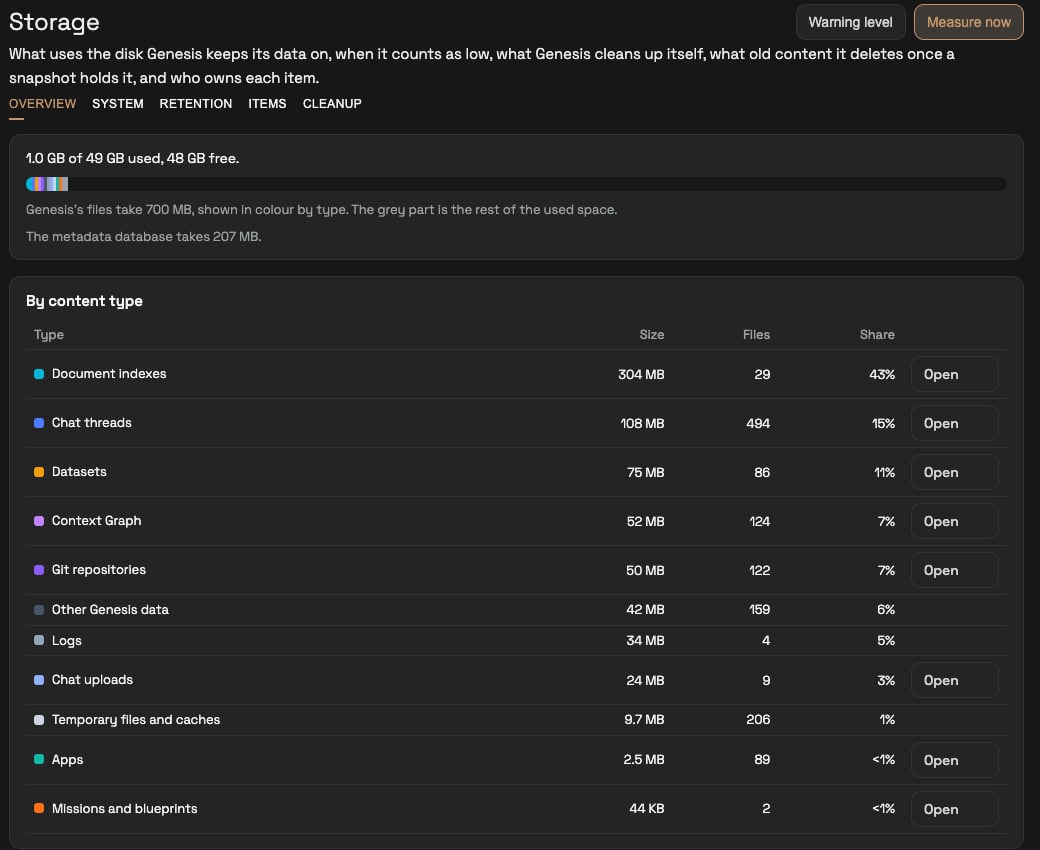
- The bar shows used and free space. The coloured part is Genesis’s files, by type. The grey part is everything else on the disk.
- By content type lists each type’s size, file count and share. Open goes to the page that owns that content, for example Chat, Git or Apps.
- By person and By role, below it, show who made what. A person counts in each of their roles.
- Genesis measures every six hours. Press Measure now for a fresh reading; the footer says when the last one ran.
Get warned before the disk fills up
- On Storage → Overview, press Warning level.
- Set the free space below which the disk counts as low, the percentage used at which it does, or both.
- Save.
- The Storage page shows “The disk is past its warning level.”
- Every administrator gets one bell notification, “Disk space is running low”. It links to the Storage page.
- You get another notification only after the disk recovers and then crosses the level again.
Free space now
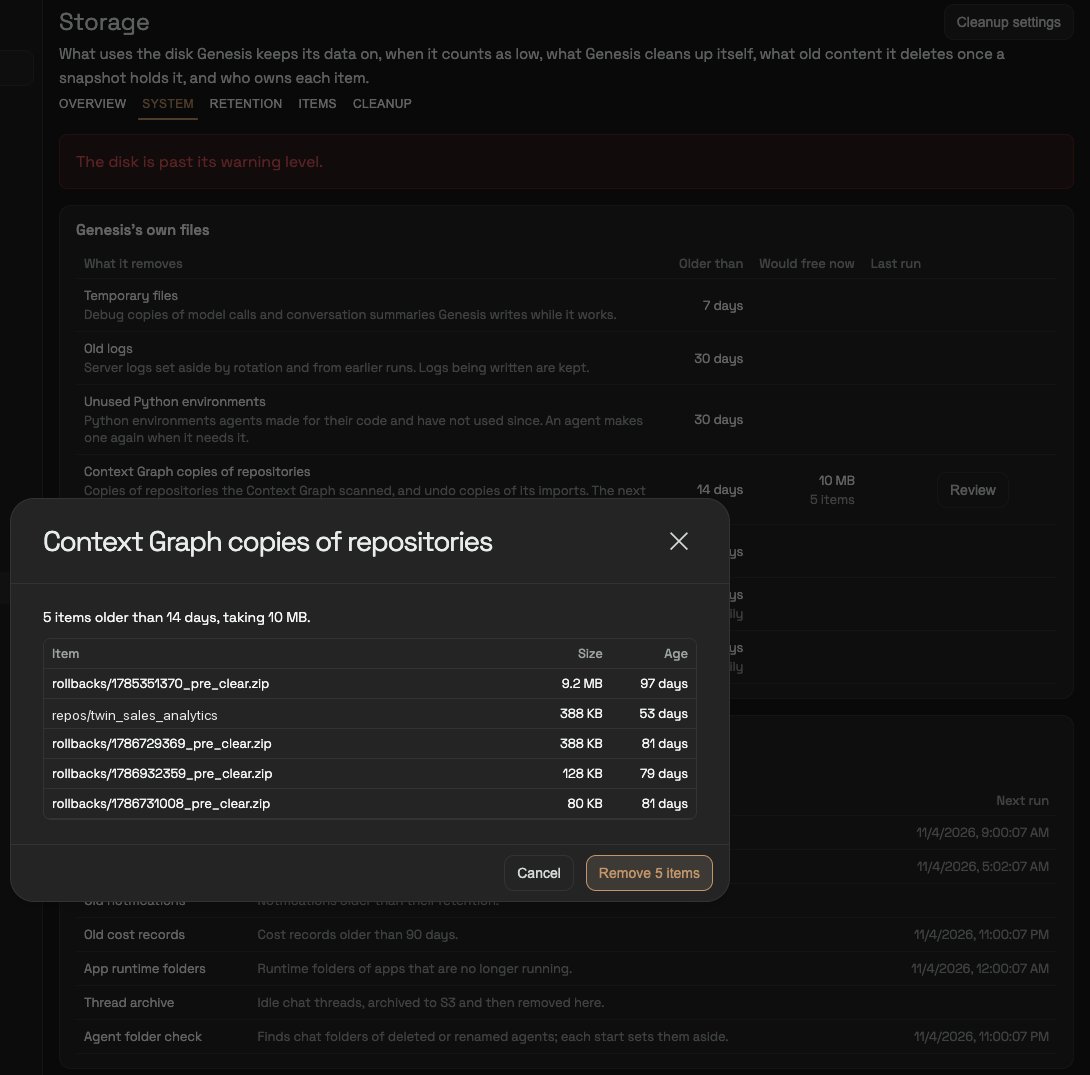
Start with Genesis’s own files. Temporary files, environments and copies are safe to remove: Genesis makes them again when it needs them. Old logs are removed for good, so keep them if you still need their history.- Open Storage → System. Genesis’s own files lists each kind with its age limit and how much it would free now.
- Press Review on a row. The dialog lists exactly what would be removed, with each item’s size and age.
- Press Remove N items.
Remove old content automatically
Retention rules delete content nobody has used for longer than an age you set. There are rules for chats, missions, apps and dataset versions.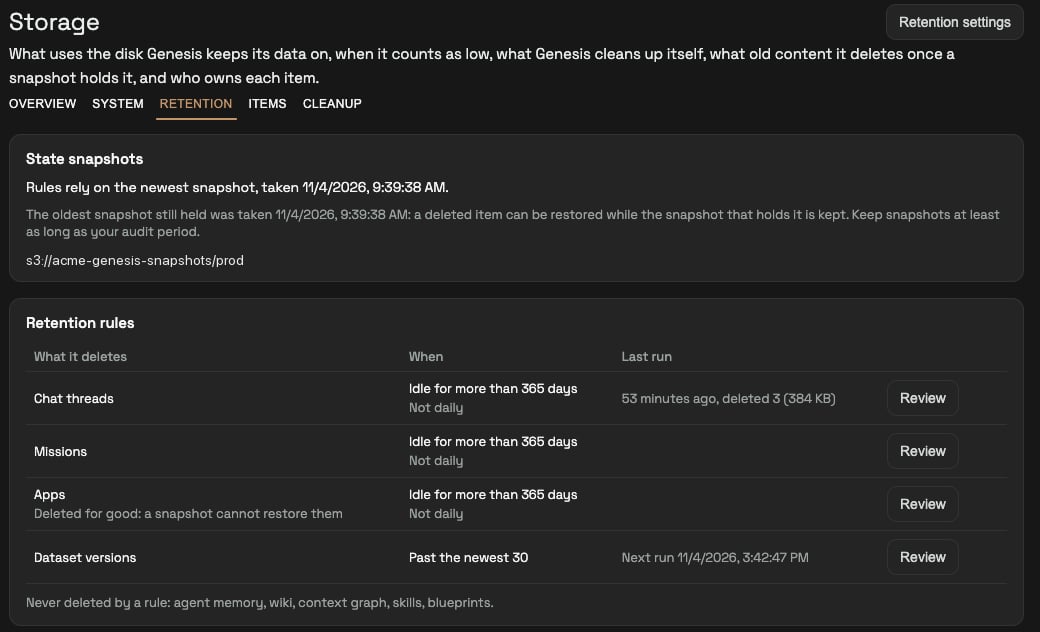
Before you start: snapshots
Chats and missions are deleted only once a state snapshot holds them, so they can be restored. Without a snapshot location, the chat and mission rules delete nothing.- Press Retention settings and set Snapshot location, for example
s3://bucket/prefix/instance, and its region. - Take snapshots regularly. See State Snapshots and Migration.
- The State snapshots card shows the newest snapshot, which the rules rely on. It also shows the oldest one still held, which is how far back you can restore.
Set a rule
- Press Retention settings.
- For each rule, set the age, for example 365 days.
- Turn on Daily for the rules that should run by themselves. A rule that is off still lets you review it and delete by hand.
- Save.
Review and delete now
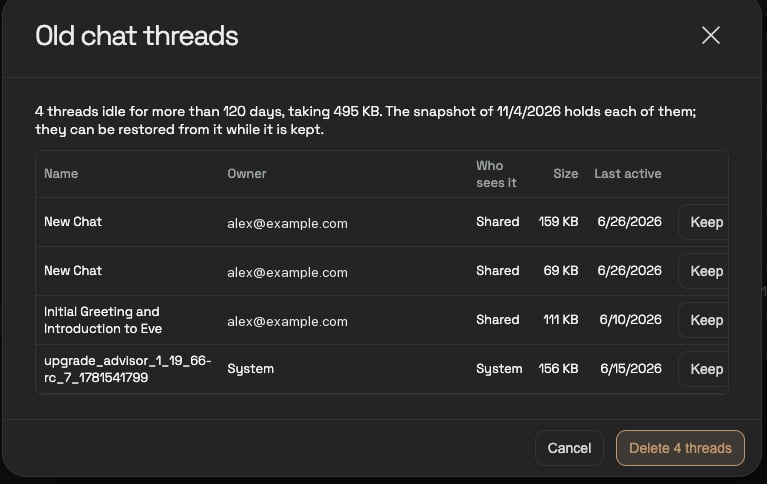
- Press Review on a rule. The dialog lists every item the rule would delete, with its owner, who can see it, its size and when it was last active.
- Press Keep on any item that must stay. It moves to the Kept list and no rule deletes it.
- Press Delete N.
Get something back
Only a chat or mission deleted by a retention rule or a cleanup can be restored, and only while the snapshot that holds it is kept.- Open Storage → Retention and scroll to Deleted, recoverable. Each row names the snapshot that holds the item.
- Press Restore. The item comes back with its files, its owner and who could see it.
- A restored chat comes back without its skill-use history, room subscriptions or mailbox.
- Apps, repositories, datasets and document indexes can’t be restored at all.
Keep something from being deleted
- Keep one item: press Keep on it in any retention review. To undo, go to Retention → Kept and press Stop keeping.
- Keep a whole type: add it to
retention.protected_typesin Advanced Settings → Retention. Agent memory, wiki, Context Graph, skills and blueprints are protected by default. - Always kept: pinned chats, chats a mission is running in, unfinished missions and apps that ship with Genesis.
PUT /api/storage/holds/{type}/{id}). There is no Keep button on the Chat, Missions or Apps pages yet.
Remove everything a person or group made
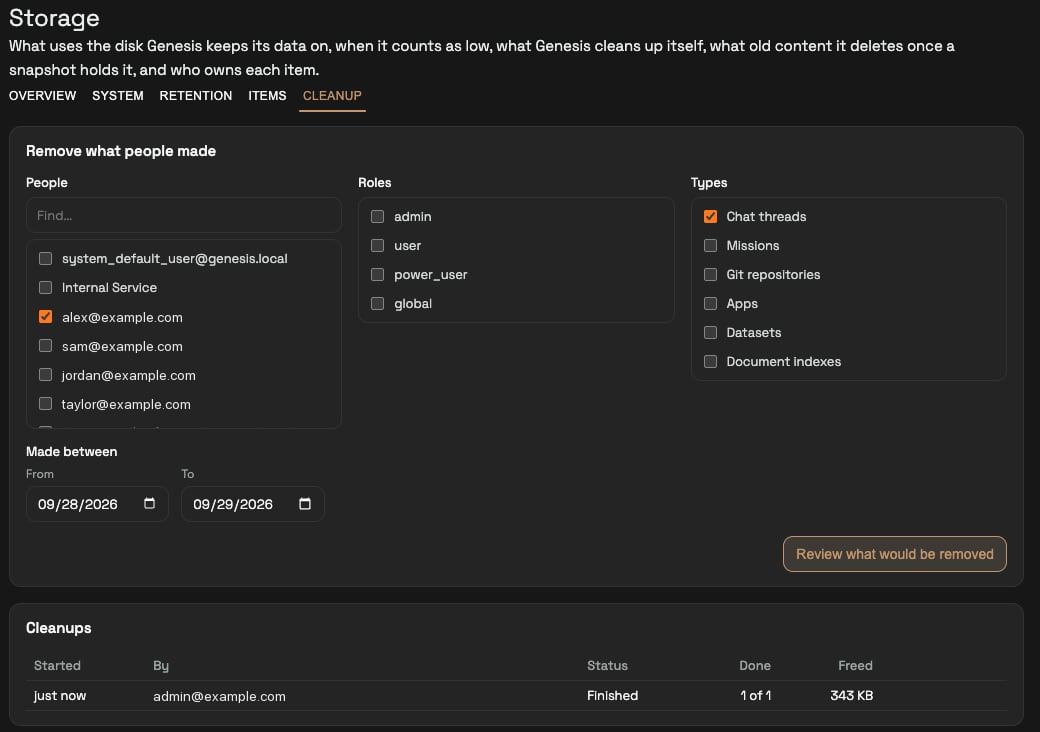
Use this after a training week, a pilot, or when someone leaves.- Open Storage → Cleanup.
- Pick People, Roles, or both. Pick the Types to remove and the Made between dates. Both days are included, and the dates are in UTC.
- Press Review what would be removed.
- Type
deletein the box and press Delete N items.
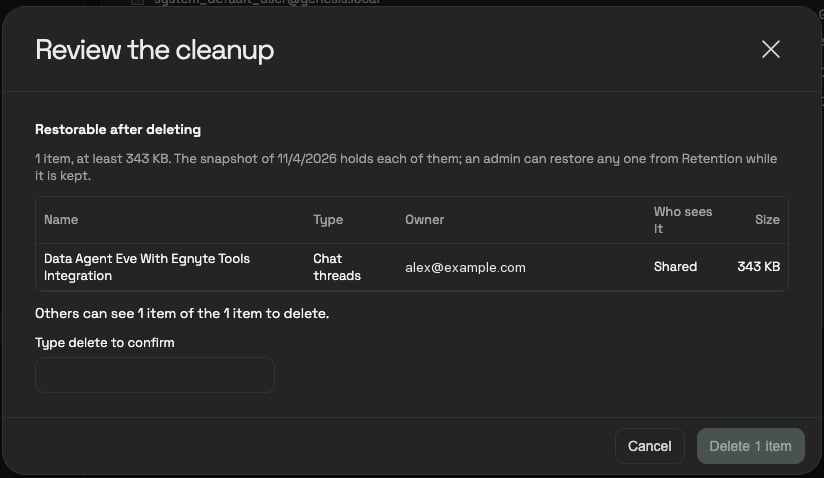
A cleanup matches items on their owner only, and only items with a known
creation date. Content the system owns is never selected.
Check who deleted what
Open Settings → Configuration → Admin Audit Log and set Target type tostorage. Every measurement, settings change, removal, deletion, keep and restore is listed there. Each row has the person, or system for a scheduled run, the item’s type and owner, and the space freed. Titles and file paths are never recorded.
What runs by itself, and where to change it
On/off switches take effect at the next run. An interval change takes effect after the next restart.
The System tab also lists Other cleanup jobs, which existed before the Storage page and have their own settings:
- orphaned uploads
- expired datasets
- old notifications
- old cost records
- app runtime folders
- the agent folder check
- the thread archive