> ## Documentation Index
> Fetch the complete documentation index at: https://docs.genesiscomputing.com/llms.txt
> Use this file to discover all available pages before exploring further.
# Scheduler
> Create recurring prompt jobs, run work on demand, and monitor job history from the Scheduler workspace.
## Overview
The **Scheduler** page is the control plane for recurring prompt-driven work. It combines job configuration, summary metrics, pause and resume controls, manual run-now actions, and historical run tracking.
 In auth-enabled deployments, Genesis shows the Scheduler workspace only when
your role has at least one of `access_config_panel`, `view_scheduler`, or
`manage_scheduler`. The dedicated `view_scheduler` permission is enough to
open the **Jobs** and **History** tabs without broader Config access.
## Jobs and history
| Tab | What it is for |
| - | - |
| **Jobs** | Create and manage prompt jobs. |
| **History** | Review prior executions and outcomes, then open a specific run for more detail. |
The page also surfaces summary cards such as total jobs, active runs, success rate, and failed runs.
Genesis can also display cron jobs created programmatically from partial trigger objects. When a cron trigger omits `minute`, `hour`, `day`, `month`, or `day_of_week`, the Scheduler page treats the missing field as the wildcard `*` in its human-readable schedule summary. For example, `{"type":"cron","minute":0}` appears as an hourly schedule instead of requiring every cron field to be present.
Platform background jobs such as cleanup workers, metrics uploads, and the Twin
harvest master switch are managed from **Pulse -> Jobs** rather than this page.
## Create a job
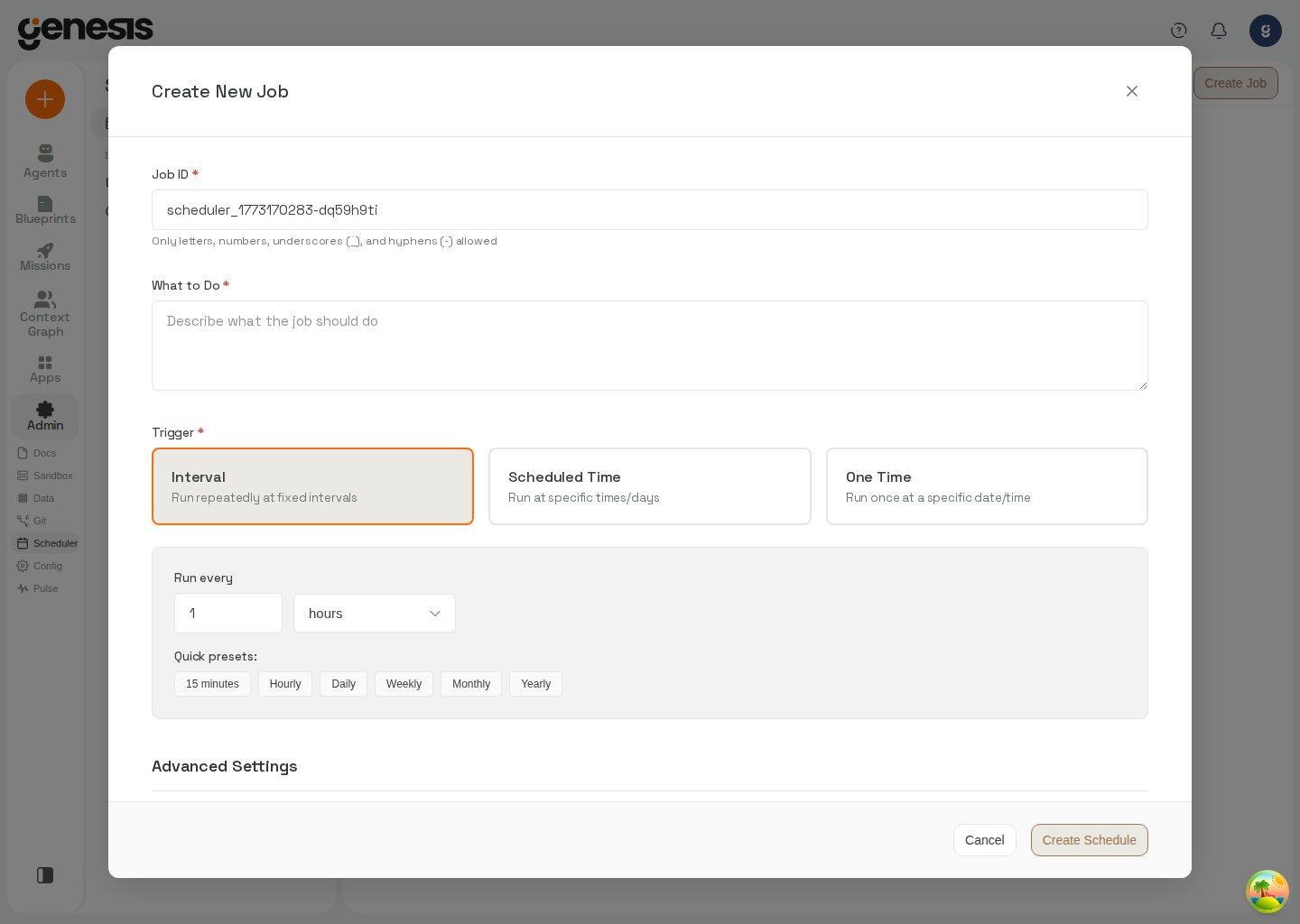
The job modal captures a job ID, the prompt to run, trigger type, agent, optional thread target, max instances, and misfire grace settings. Quick interval presets and a cron builder help users define schedules without leaving the UI.
## Schedule expiration
Recurring jobs expose an **End date** in the create and edit modal. Enter the
date and time in your local timezone; Genesis stores and sends the expiration
as an ISO timestamp. The Scheduler table shows the resulting **Expires at**
time next to the trigger. A job stops recurring after its end date, although a
run that is already in progress can finish.
For an intentionally ongoing cron or interval job, select **Run indefinitely**
and enter a non-empty reason describing who or what owns stopping it. This
records the reason with the job and displays it in the jobs table. The two
options are mutually exclusive: selecting **Run indefinitely** clears the end
date. One-time date jobs do not show these expiration controls.
Frequent schedules still follow the scheduler's cadence limits: runs less than
5 minutes apart require an end date within 7 days, and runs at least 5 minutes
but less than 1 hour apart require one within 30 days. See
[Expiration and intentional perpetual schedules](/docs/Genbot-Toolkit/Process-Scheduler-Tools#expiration-and-intentional-perpetual-schedules)
for the complete policy and managed refresh behavior.
## Job names
Each prompt job has a stable **job ID** (set at creation) and an optional **display name**. The **Jobs** table shows the display name when it differs from the job ID; otherwise it shows the job ID. When a custom display name is set, the job ID appears as a secondary line under the name in the list and in the job modal header.
Rename a job from either place:
* **Jobs table** — click the pencil icon next to the job name in the row.
* **Job modal** — click the pencil icon next to the job name in the modal header.
In the rename field, edit the name and confirm with the checkmark button or **Enter**. Press **Escape** or the cancel button to discard changes. Clear the field and save to reset the display name back to the job ID. Names are limited to 200 characters.
Renaming saves immediately and updates the jobs list without closing the job modal or losing unsaved edits to other fields. System jobs such as `scheduler_periodic_backup` do not expose rename controls.
## Daily operations
Scheduled work runs as a system scheduler user, not as the user who created
the job. If a scheduled job or flow uses a saved Connection, bind a role the
scheduler user holds to that connection's **Roles with Access** first, or the
run cannot resolve the connection's secret. See
[Scheduled flows that use Connections](/docs/User-Guide/Flows#scheduled-flows-that-use-connections).
From the jobs table you can pause, resume, run now, rename, or delete a prompt job. In the history tab, click any run row to open run details. Failed entries also show a **View failed run** link that opens the matching history record directly, and the run detail header includes a **Thread** link when Genesis can trace that execution back to a chat thread. You can still clean up old history records when needed.
When the scheduler runs a scheduled Flow (`flow_` job), a terminal
failure can also surface through the in-app notification bell — see
[Unattended failure notifications](/docs/User-Guide/Flows#unattended-failure-notifications).
The scheduler subprocess stands down its generic job-failure alert when the
Flow runner reports that the operator is already covered for this failure
streak — either because Genesis created a notification on this run
(`operator_notified`) or because the runner deliberately stayed quiet because
an earlier run in the same streak already notified the operator
(`operator_notification_coverage` is `suppressed`). If the Flow never reached
the runner (for example the Flow was deleted while its schedule still exists),
or coverage is `not_covered`, the generic scheduler alert remains the only
signal.
## Automation surface
| Endpoint family | Use |
| - | - |
| `/api/scheduler/prompt-jobs` | Create, list, update, run, pause, resume, and delete prompt jobs. |
| `/api/scheduler/prompt-jobs/history` | Review historical runs. |
| `/api/scheduler/jobs` | Inspect platform background jobs shown in Pulse, including merged FastAPI app-scheduler jobs such as cleanup, metrics-upload, and runtime-monitor workers. |
## Related pages
* [Pulse Monitoring](/docs/User-Guide/Pulse-Monitoring)
* [Missions and Tasks](/docs/Missions/Missions-And-Tasks)
In auth-enabled deployments, Genesis shows the Scheduler workspace only when
your role has at least one of `access_config_panel`, `view_scheduler`, or
`manage_scheduler`. The dedicated `view_scheduler` permission is enough to
open the **Jobs** and **History** tabs without broader Config access.
## Jobs and history
| Tab | What it is for |
| - | - |
| **Jobs** | Create and manage prompt jobs. |
| **History** | Review prior executions and outcomes, then open a specific run for more detail. |
The page also surfaces summary cards such as total jobs, active runs, success rate, and failed runs.
Genesis can also display cron jobs created programmatically from partial trigger objects. When a cron trigger omits `minute`, `hour`, `day`, `month`, or `day_of_week`, the Scheduler page treats the missing field as the wildcard `*` in its human-readable schedule summary. For example, `{"type":"cron","minute":0}` appears as an hourly schedule instead of requiring every cron field to be present.
Platform background jobs such as cleanup workers, metrics uploads, and the Twin
harvest master switch are managed from **Pulse -> Jobs** rather than this page.
## Create a job
The job modal captures a job ID, the prompt to run, trigger type, agent, optional thread target, max instances, and misfire grace settings. Quick interval presets and a cron builder help users define schedules without leaving the UI.
## Schedule expiration
Recurring jobs expose an **End date** in the create and edit modal. Enter the
date and time in your local timezone; Genesis stores and sends the expiration
as an ISO timestamp. The Scheduler table shows the resulting **Expires at**
time next to the trigger. A job stops recurring after its end date, although a
run that is already in progress can finish.
For an intentionally ongoing cron or interval job, select **Run indefinitely**
and enter a non-empty reason describing who or what owns stopping it. This
records the reason with the job and displays it in the jobs table. The two
options are mutually exclusive: selecting **Run indefinitely** clears the end
date. One-time date jobs do not show these expiration controls.
Frequent schedules still follow the scheduler's cadence limits: runs less than
5 minutes apart require an end date within 7 days, and runs at least 5 minutes
but less than 1 hour apart require one within 30 days. See
[Expiration and intentional perpetual schedules](/docs/Genbot-Toolkit/Process-Scheduler-Tools#expiration-and-intentional-perpetual-schedules)
for the complete policy and managed refresh behavior.
## Job names
Each prompt job has a stable **job ID** (set at creation) and an optional **display name**. The **Jobs** table shows the display name when it differs from the job ID; otherwise it shows the job ID. When a custom display name is set, the job ID appears as a secondary line under the name in the list and in the job modal header.
Rename a job from either place:
* **Jobs table** — click the pencil icon next to the job name in the row.
* **Job modal** — click the pencil icon next to the job name in the modal header.
In the rename field, edit the name and confirm with the checkmark button or **Enter**. Press **Escape** or the cancel button to discard changes. Clear the field and save to reset the display name back to the job ID. Names are limited to 200 characters.
Renaming saves immediately and updates the jobs list without closing the job modal or losing unsaved edits to other fields. System jobs such as `scheduler_periodic_backup` do not expose rename controls.
## Daily operations
Scheduled work runs as a system scheduler user, not as the user who created
the job. If a scheduled job or flow uses a saved Connection, bind a role the
scheduler user holds to that connection's **Roles with Access** first, or the
run cannot resolve the connection's secret. See
[Scheduled flows that use Connections](/docs/User-Guide/Flows#scheduled-flows-that-use-connections).
From the jobs table you can pause, resume, run now, rename, or delete a prompt job. In the history tab, click any run row to open run details. Failed entries also show a **View failed run** link that opens the matching history record directly, and the run detail header includes a **Thread** link when Genesis can trace that execution back to a chat thread. You can still clean up old history records when needed.
When the scheduler runs a scheduled Flow (`flow_` job), a terminal
failure can also surface through the in-app notification bell — see
[Unattended failure notifications](/docs/User-Guide/Flows#unattended-failure-notifications).
The scheduler subprocess stands down its generic job-failure alert when the
Flow runner reports that the operator is already covered for this failure
streak — either because Genesis created a notification on this run
(`operator_notified`) or because the runner deliberately stayed quiet because
an earlier run in the same streak already notified the operator
(`operator_notification_coverage` is `suppressed`). If the Flow never reached
the runner (for example the Flow was deleted while its schedule still exists),
or coverage is `not_covered`, the generic scheduler alert remains the only
signal.
## Automation surface
| Endpoint family | Use |
| - | - |
| `/api/scheduler/prompt-jobs` | Create, list, update, run, pause, resume, and delete prompt jobs. |
| `/api/scheduler/prompt-jobs/history` | Review historical runs. |
| `/api/scheduler/jobs` | Inspect platform background jobs shown in Pulse, including merged FastAPI app-scheduler jobs such as cleanup, metrics-upload, and runtime-monitor workers. |
## Related pages
* [Pulse Monitoring](/docs/User-Guide/Pulse-Monitoring)
* [Missions and Tasks](/docs/Missions/Missions-And-Tasks)