> ## Documentation Index
> Fetch the complete documentation index at: https://docs.genesiscomputing.com/llms.txt
> Use this file to discover all available pages before exploring further.
# Use personal credentials with a shared connection
> Set up one shared connection while each user authenticates to the provider with their own credentials.
## How it works
An administrator creates one **Shared connection** and grants a Genesis role access to it. Each user who needs to work under their own provider identity binds a personal credential to that same connection. Users select the same logical connection, but supported user-attributed operations use the current user's bound credential. One user's secret is not exposed to other users or included in the chat message.
Set **Personal credentials** to **Required** when interactive users must never fall back to the connection's shared/service credential. With **Optional**, a user who has not bound a credential can still use that service credential. Background operations, including flows, datasets, harvesting, and scans, use the service credential regardless of who started them.
## Before you begin
* An administrator needs permission to create and manage shared connections.
* The connection needs a service credential for connection testing and background operations.
* Each user needs their own provider credential and access through a Genesis role assigned to the connection.
The personal fields depend on the provider and authentication type. Examples for this workflow include:
| Provider | Authentication type | Fields each user binds |
| - | - | - |
| GitHub | Personal Access Token | Username and Personal Access Token |
| Azure DevOps | Personal Access Token | PAT. Organization, Server URL, and Default Project remain shared connection settings. |
| Snowflake | Programmatic Access Token | Username and Access Token |
| Snowflake | Key Pair | Username, Private Key, and Passphrase if the key requires one |
User OAuth has a separate authorization flow; it does not use the **Personal credentials** selector described here.
## 1. Create the shared connection
As an administrator:
1. Open **Config -> Connections** and click **+ New Connection**.
2. Select the provider and a supported **Authentication Type**.
3. Enter one **Connection Name** for the team. Fill in settings shared by all users, such as the organization, endpoint, or account, and provide the connection's service credential.
4. Under **Who can use this connection?**, select **Shared — my team**.
5. Under **Genesis Roles with Access**, add a role containing the users and agents that need this connection. If needed, create a custom role, add its members, and then assign it to the connection.
6. Under **Personal credentials**, select **Required**.
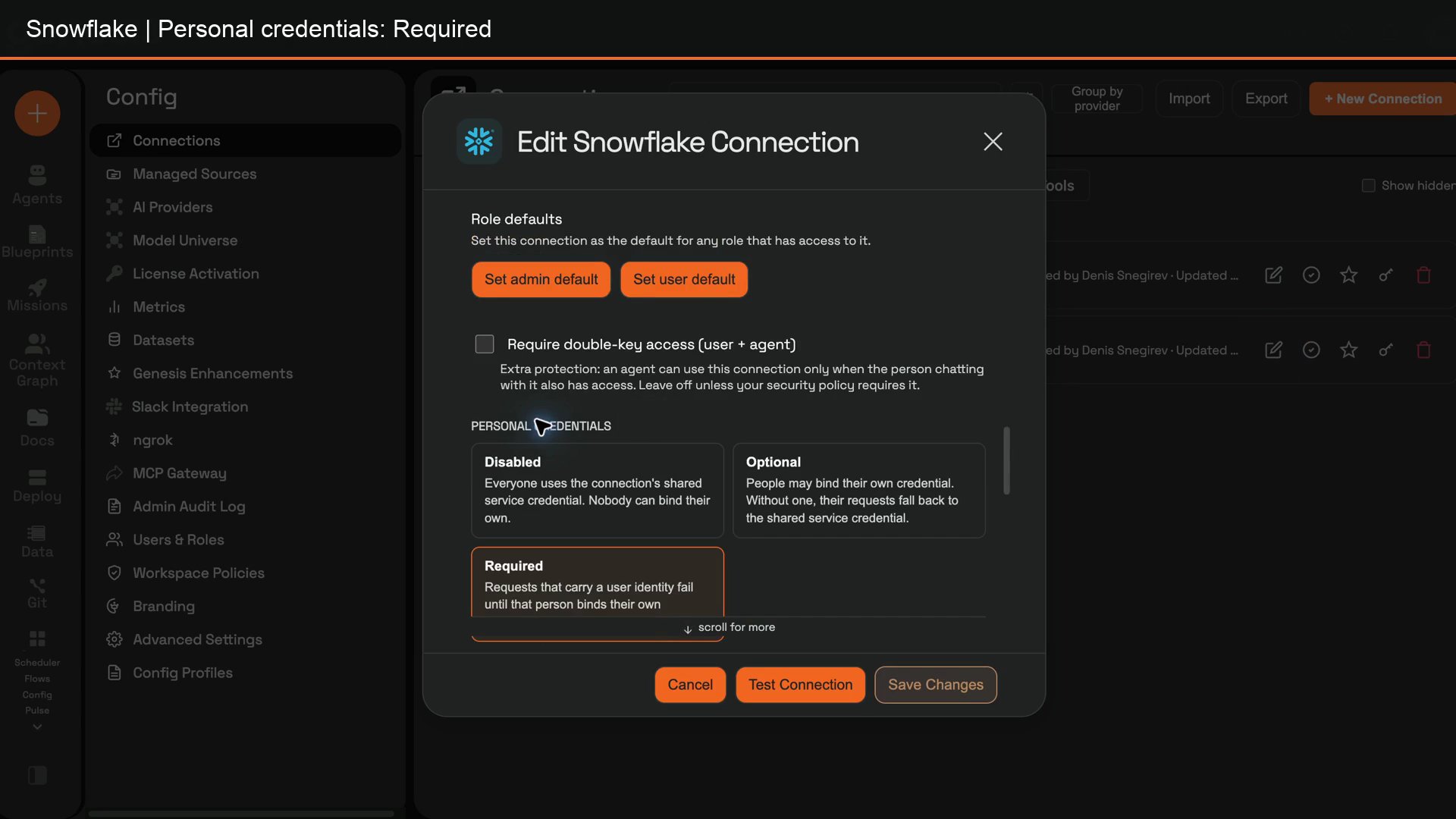 This example shows the policy in a saved connection's edit form.
7. If Genesis asks you to confirm **I understand this token may be used by other users or bots**, select the checkbox. This warning refers to the connection's service credential; **Required** still requires each interactive user to bind their own credential.
8. Save the connection. If the deployment uses Snowflake Native App / SPCS and the provider requires external access, complete the egress preflight and approve the external access integration before **Test Connection**.
The connection row should now have a key action labeled `My credentials for .`.
## 2. Bind your own credential
Each user completes these steps while signed in to their own Genesis account:
1. Open **Config -> Connections** and find the shared connection.
2. Click the key action on its row.
This example shows the policy in a saved connection's edit form.
7. If Genesis asks you to confirm **I understand this token may be used by other users or bots**, select the checkbox. This warning refers to the connection's service credential; **Required** still requires each interactive user to bind their own credential.
8. Save the connection. If the deployment uses Snowflake Native App / SPCS and the provider requires external access, complete the egress preflight and approve the external access integration before **Test Connection**.
The connection row should now have a key action labeled `My credentials for .`.
## 2. Bind your own credential
Each user completes these steps while signed in to their own Genesis account:
1. Open **Config -> Connections** and find the shared connection.
2. Click the key action on its row.
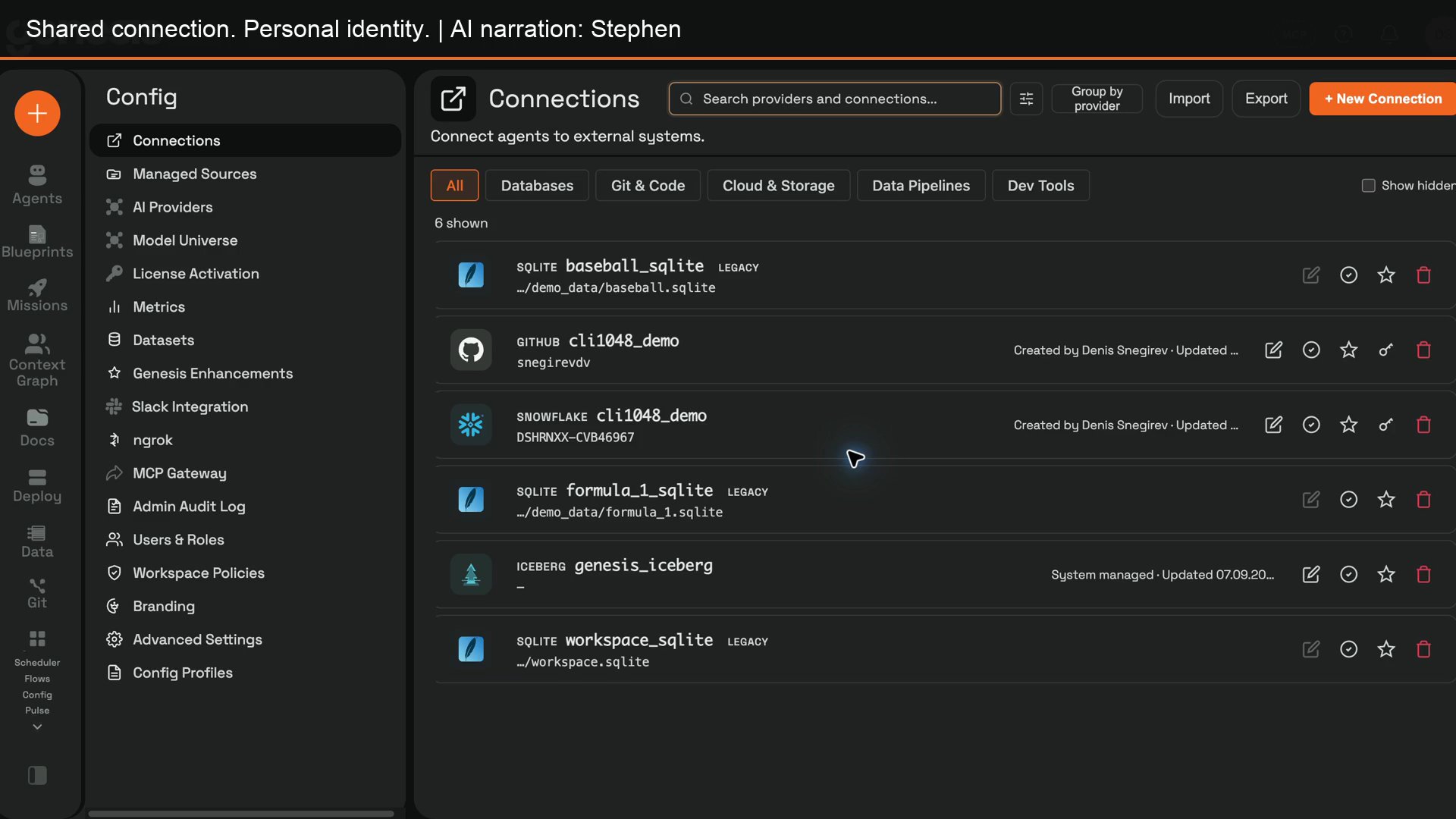 3. In **My credentials**, enter the fields shown for the provider and authentication type. Click **Bind**.
4. Confirm that Genesis reports **Credentials bound**. The dialog shows the binding status, principal identifier, and binding time, but does not show the saved secret again.
To replace the credential, fill in all fields again and click **Rebind**. To remove it, click **Unbind**. With a **Required** policy, the next applicable user-attributed operation will require a new binding.
### Bind when Chat asks
Users can also wait until the first request that needs the connection. With **Required**, Chat pauses that request and opens **My credentials**. Enter the credential and click **Bind**; Genesis then resumes the original request once, without requiring the user to send the message again.
3. In **My credentials**, enter the fields shown for the provider and authentication type. Click **Bind**.
4. Confirm that Genesis reports **Credentials bound**. The dialog shows the binding status, principal identifier, and binding time, but does not show the saved secret again.
To replace the credential, fill in all fields again and click **Rebind**. To remove it, click **Unbind**. With a **Required** policy, the next applicable user-attributed operation will require a new binding.
### Bind when Chat asks
Users can also wait until the first request that needs the connection. With **Required**, Chat pauses that request and opens **My credentials**. Enter the credential and click **Bind**; Genesis then resumes the original request once, without requiring the user to send the message again.
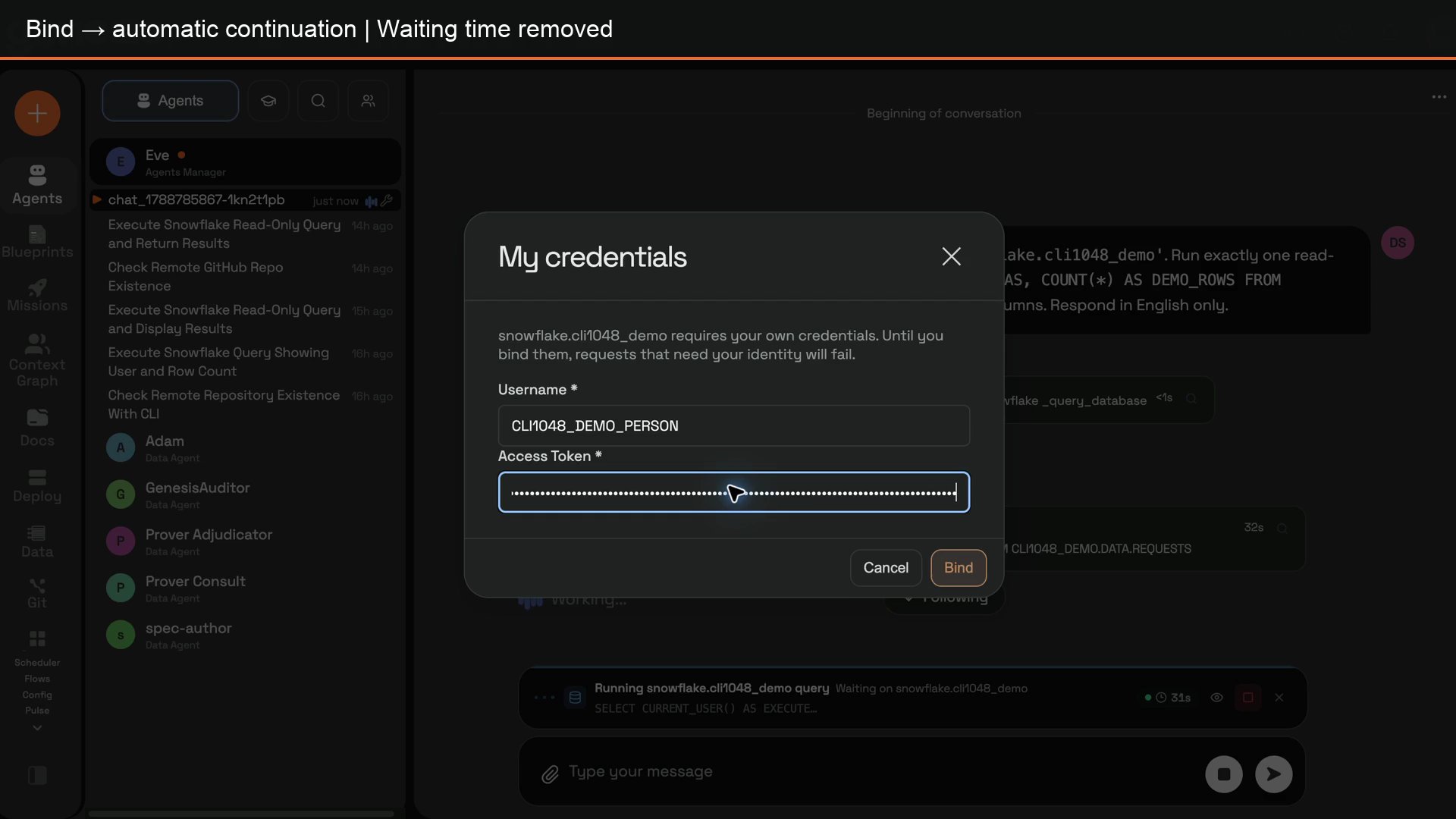 Enter credentials only in the **My credentials** dialog, never in a chat message. The binding is sent through the Connections API, not as chat content. Outside this interactive Chat flow, an operation that requires a personal credential cannot proceed until the user binds one.
## Verify the provider identity
To check the setup, have two users bind different credentials to the same shared connection. Each should run a read-only request that exposes their provider identity or permissions. For Snowflake, for example, query `CURRENT_USER()` through the connection. The first result should identify the first user, and the second result should identify the second user—not the connection's service account.
Enter credentials only in the **My credentials** dialog, never in a chat message. The binding is sent through the Connections API, not as chat content. Outside this interactive Chat flow, an operation that requires a personal credential cannot proceed until the user binds one.
## Verify the provider identity
To check the setup, have two users bind different credentials to the same shared connection. Each should run a read-only request that exposes their provider identity or permissions. For Snowflake, for example, query `CURRENT_USER()` through the connection. The first result should identify the first user, and the second result should identify the second user—not the connection's service account.
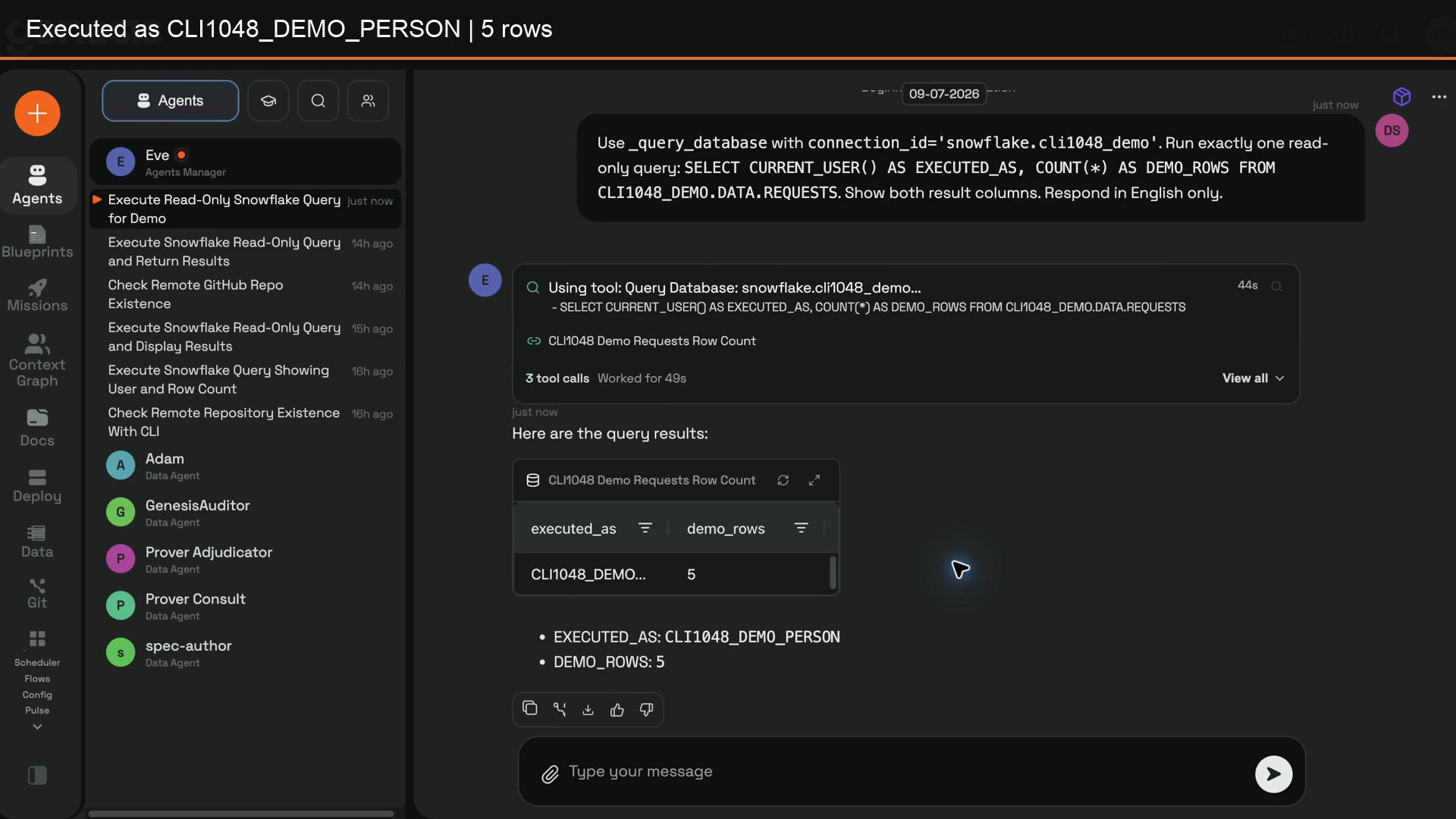 The screenshot is an example of a personal-identity check, not a result from your environment.
## Manage bindings and troubleshoot
* A user can **Rebind** or **Unbind** their own credential. An administrator can review binding metadata and **Revoke** a user's binding, but cannot view the stored secret.
* If the key action is missing, check that the connection is **Shared**, its personal-credential policy is not **Disabled**, its authentication type supports personal credentials, and the user has the required Genesis role and authentication-type permission.
* If a user-attributed operation still runs as the service account, check whether the policy is **Optional** instead of **Required**, and confirm that the user has bound a credential.
* If **Test Connection** is blocked in SPCS, finish the connection's egress preflight and external-access approval first.
For policy details and API behavior, see [Connections](/docs/Setup/Connections#personal-credentials-on-shared-connections) and [Personal credential endpoints](/docs/Genesis-API/API-Reference#personal-credential-endpoints).
The screenshot is an example of a personal-identity check, not a result from your environment.
## Manage bindings and troubleshoot
* A user can **Rebind** or **Unbind** their own credential. An administrator can review binding metadata and **Revoke** a user's binding, but cannot view the stored secret.
* If the key action is missing, check that the connection is **Shared**, its personal-credential policy is not **Disabled**, its authentication type supports personal credentials, and the user has the required Genesis role and authentication-type permission.
* If a user-attributed operation still runs as the service account, check whether the policy is **Optional** instead of **Required**, and confirm that the user has bound a credential.
* If **Test Connection** is blocked in SPCS, finish the connection's egress preflight and external-access approval first.
For policy details and API behavior, see [Connections](/docs/Setup/Connections#personal-credentials-on-shared-connections) and [Personal credential endpoints](/docs/Genesis-API/API-Reference#personal-credential-endpoints).