> ## Documentation Index
> Fetch the complete documentation index at: https://docs.genesiscomputing.com/llms.txt
> Use this file to discover all available pages before exploring further.
# GitHub Repository Integration
> Connect a GitHub repository to your mission, enable AI indexing and search, and understand how credentials and IDs are used.
When you connect a repository, it is cloned into a dedicated space using your project ID as the repository identifier (repo\_id). This makes code accessible to AI data agents working on your mission.
## Easy repository connection
Go to the Streamlit GUI to set configurations
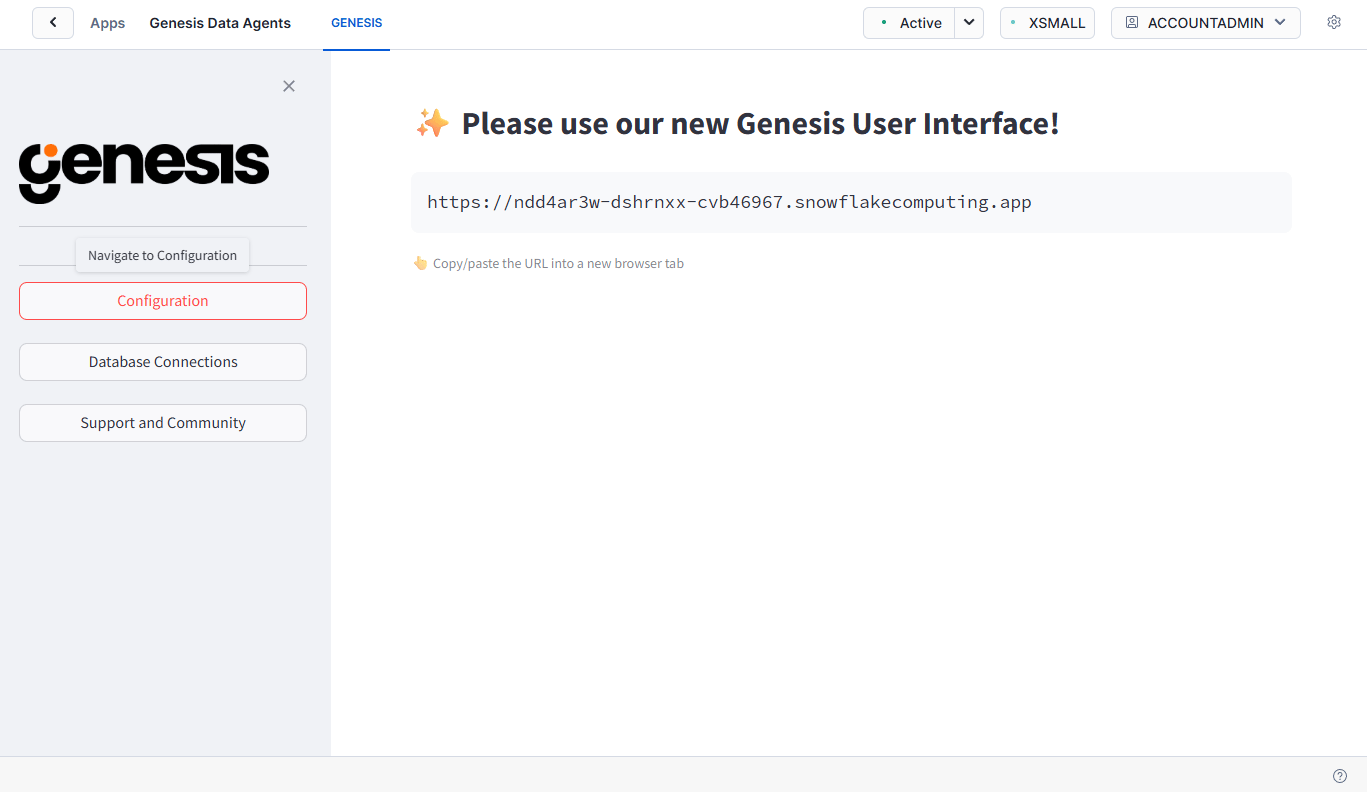 Scroll down until you see
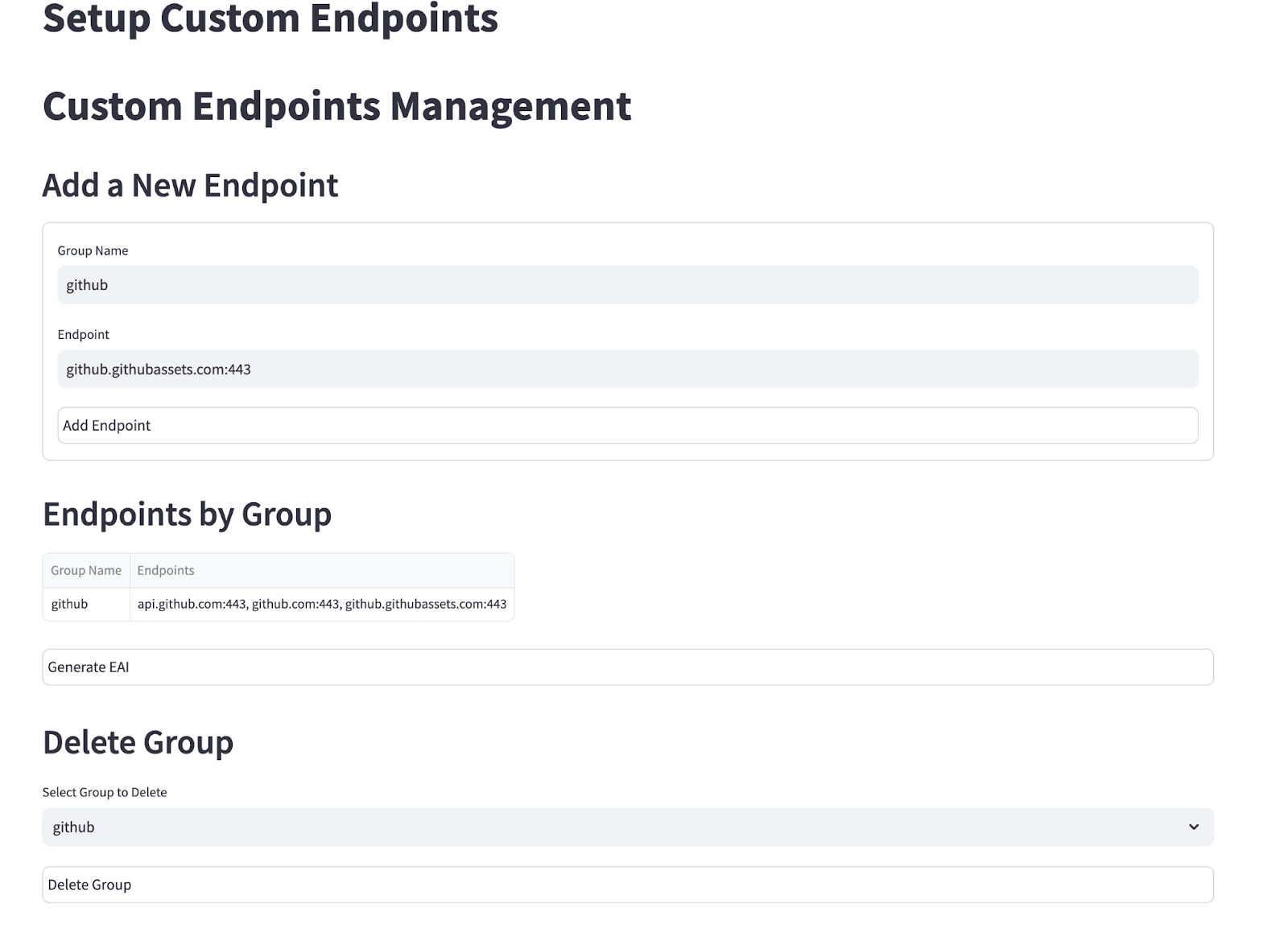
 Custom Endpoints
Click on Custom Endpoints
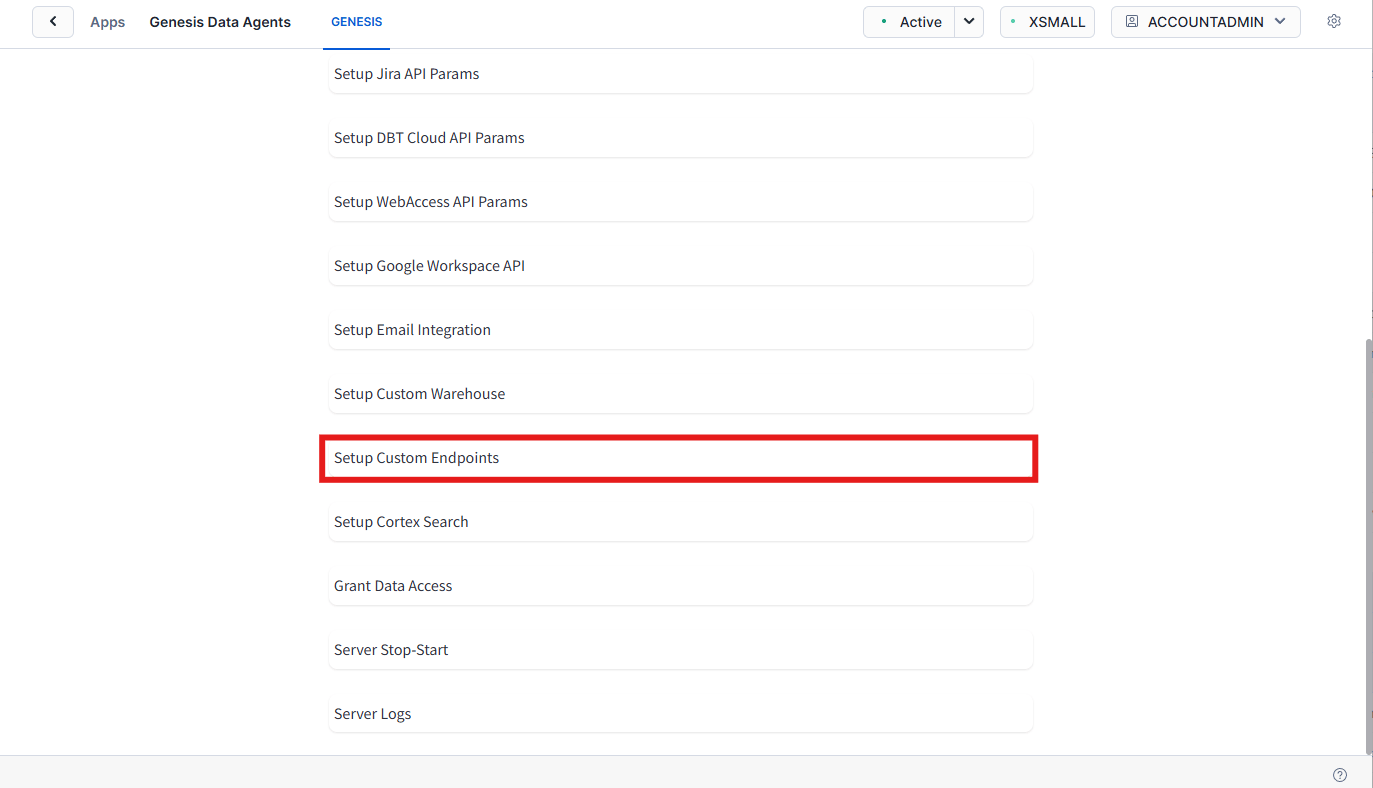 * github.com:443
* api.github.com:443
* github.githubassets.com:443
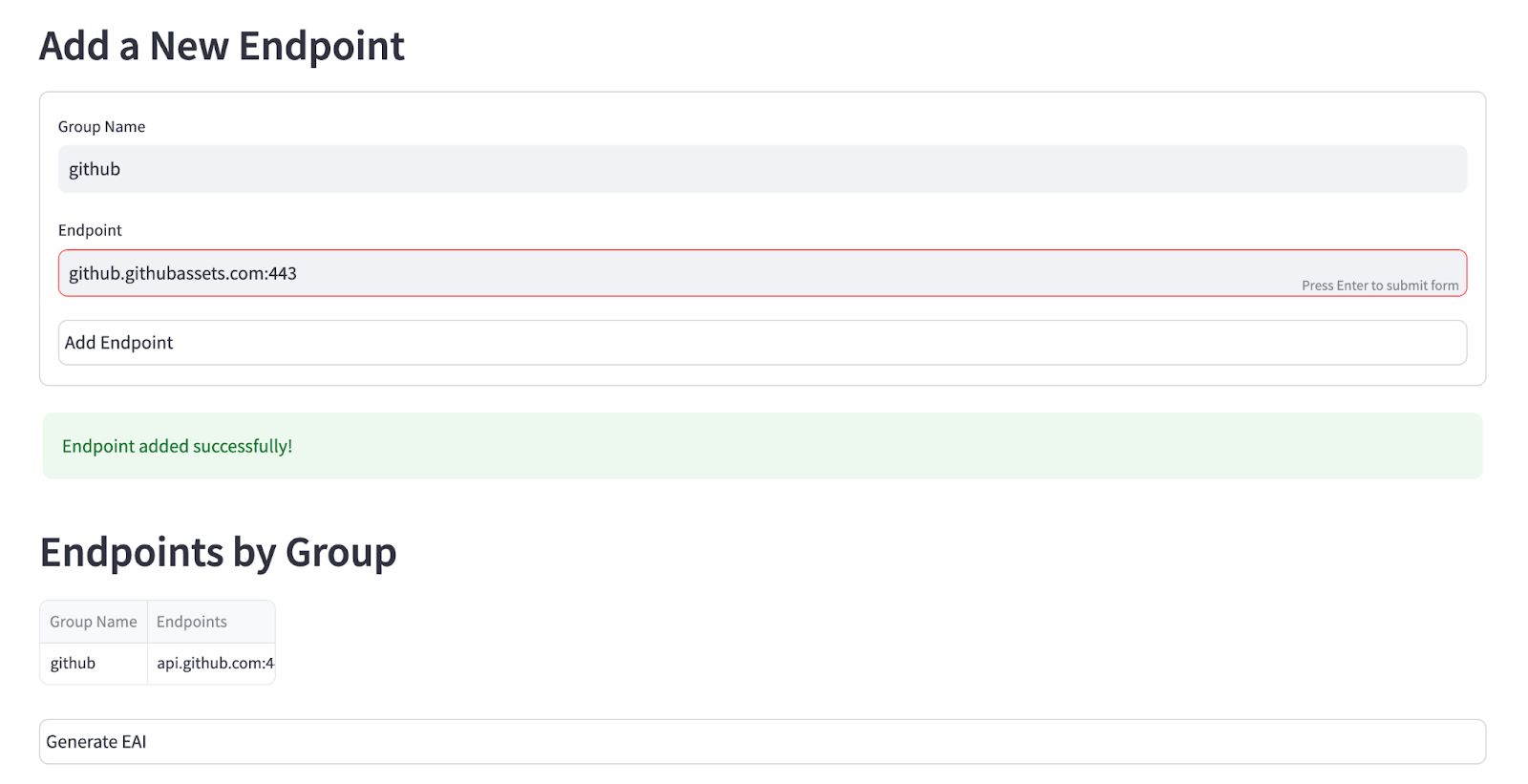
Add all endpoints one at a time:
* github.com:443
* api.github.com:443
* github.githubassets.com:443
Add all endpoints one at a time:
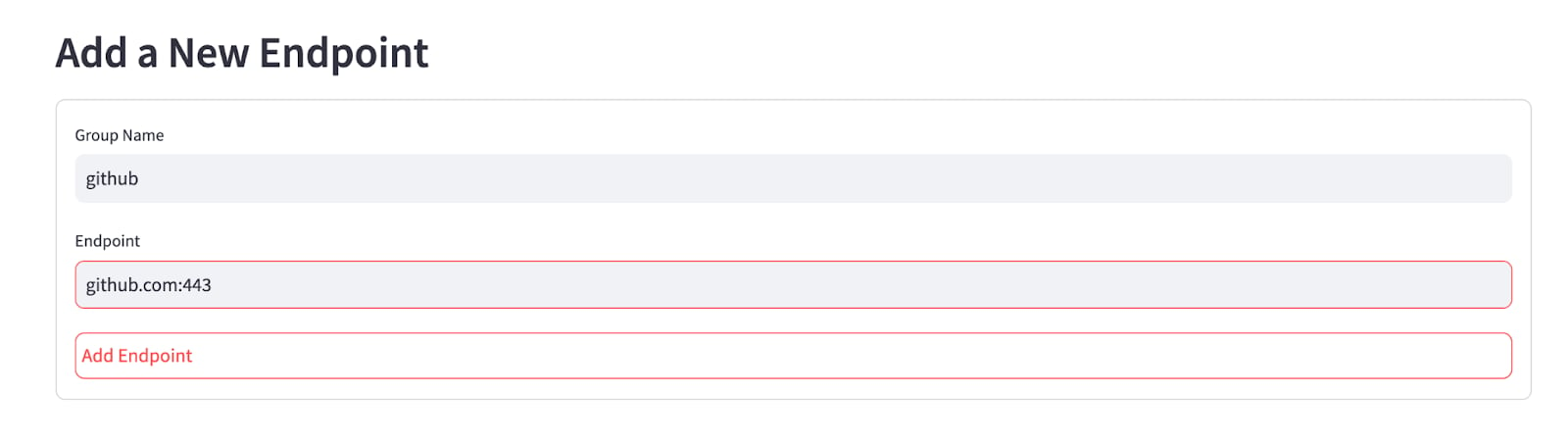
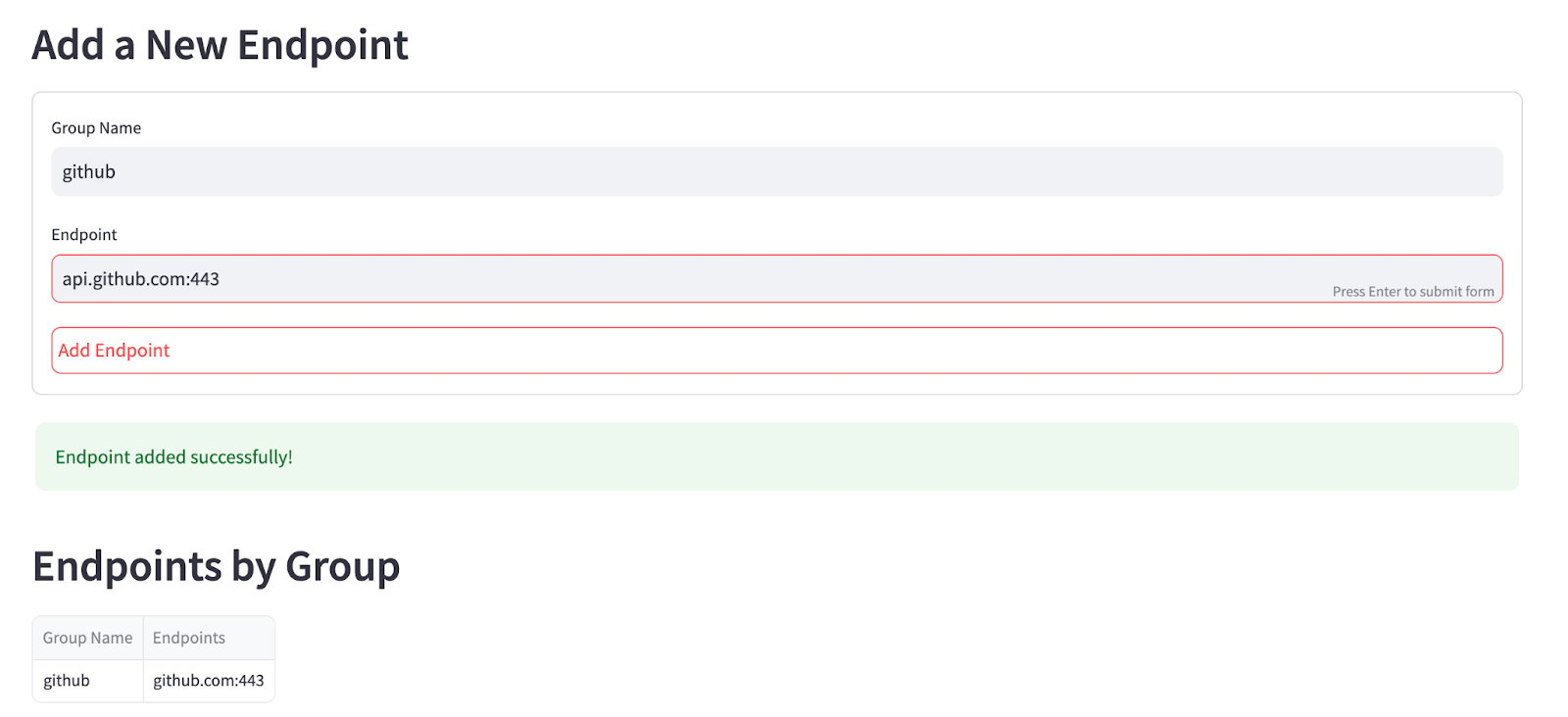
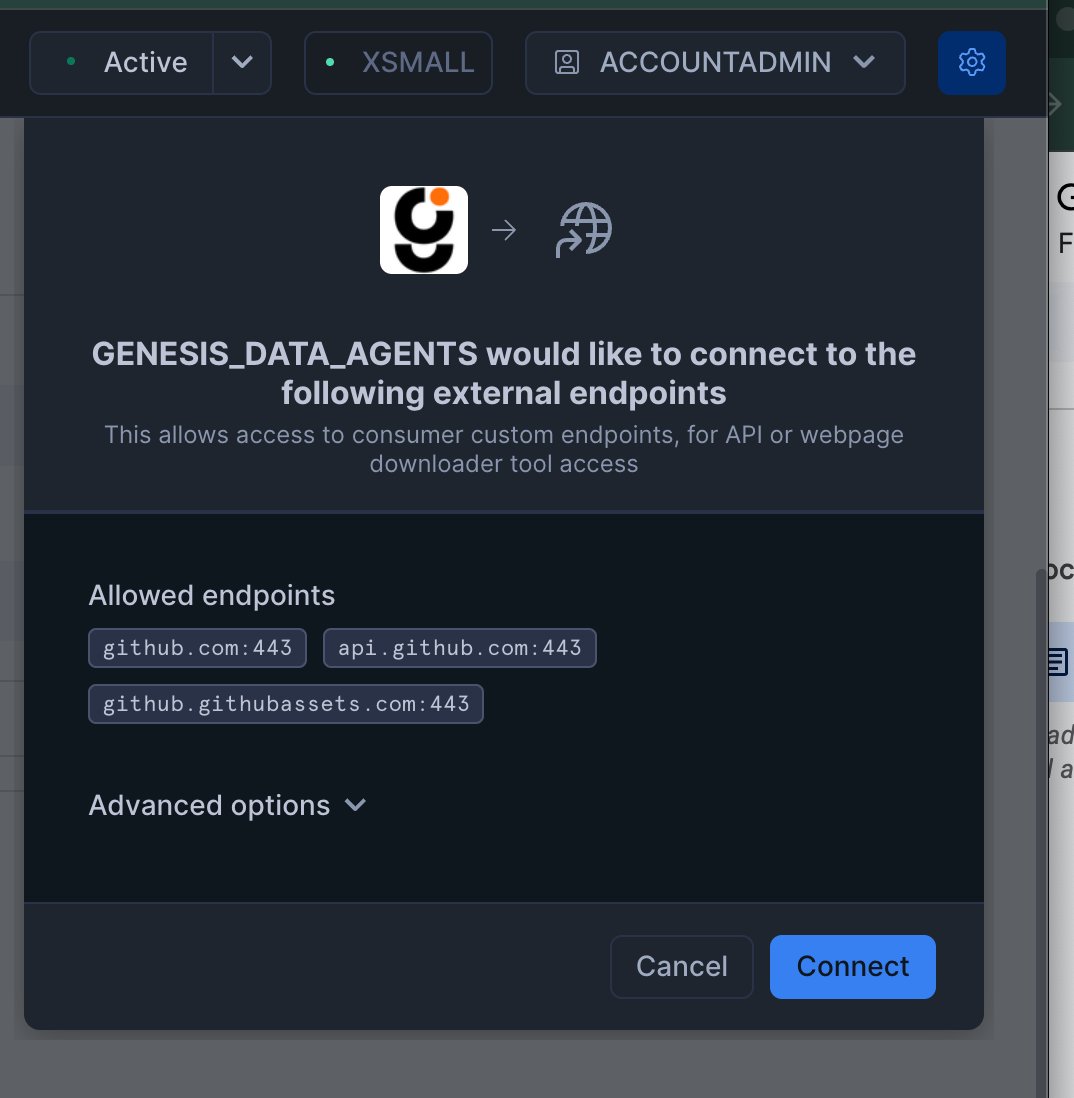
 Once all are added, **Click** Connect.
 Click `Assign to Genesis`.
Genesis rechecks the GitHub external-access assignment immediately after you
trigger it, so the setup screen should move to the completed state as soon
as Snowflake confirms the change.
Click `Assign to Genesis`.
Genesis rechecks the GitHub external-access assignment immediately after you
trigger it, so the setup screen should move to the completed state as soon
as Snowflake confirms the change.

 ## GitHub Actions logs on Snowflake
The endpoints above cover the GitHub API, which is enough to start, follow, cancel and
retry GitHub Actions runs. The **log** of an Actions job is served from somewhere else:
the API redirects to Azure Blob Storage, at a host such as
`productionresultssa9.blob.core.windows.net`. The number changes between runs.
Without egress to that host, `ci_get_pipeline_logs` cannot return the log text. It
returns the failed steps and the job's check-run annotations instead (the `::error`
lines each step emitted), which usually say why the job failed. The annotations need
**Checks: read** on the GitHub App installation or fine-grained token.
To let agents read full logs, an administrator can add `*.blob.core.windows.net:443`
on the **Custom Endpoints** screen, as in the steps above. Snowflake matches one
subdomain level, which covers every log host. That rule allows egress to **every** Azure
Blob Storage account, not only GitHub's, so decide it with your security team.
## Purpose
When creating a new project, you can connect a GitHub repository to enhance your mission’s capabilities. You have three options:
* Leave it unconnected
* Attach an existing repository from GitHub
* Create a brand new repository specifically for your project
When you connect a repository, the system will clone it into a dedicated space using your project ID as the repository identifier (
## GitHub Actions logs on Snowflake
The endpoints above cover the GitHub API, which is enough to start, follow, cancel and
retry GitHub Actions runs. The **log** of an Actions job is served from somewhere else:
the API redirects to Azure Blob Storage, at a host such as
`productionresultssa9.blob.core.windows.net`. The number changes between runs.
Without egress to that host, `ci_get_pipeline_logs` cannot return the log text. It
returns the failed steps and the job's check-run annotations instead (the `::error`
lines each step emitted), which usually say why the job failed. The annotations need
**Checks: read** on the GitHub App installation or fine-grained token.
To let agents read full logs, an administrator can add `*.blob.core.windows.net:443`
on the **Custom Endpoints** screen, as in the steps above. Snowflake matches one
subdomain level, which covers every log host. That rule allows egress to **every** Azure
Blob Storage account, not only GitHub's, so decide it with your security team.
## Purpose
When creating a new project, you can connect a GitHub repository to enhance your mission’s capabilities. You have three options:
* Leave it unconnected
* Attach an existing repository from GitHub
* Create a brand new repository specifically for your project
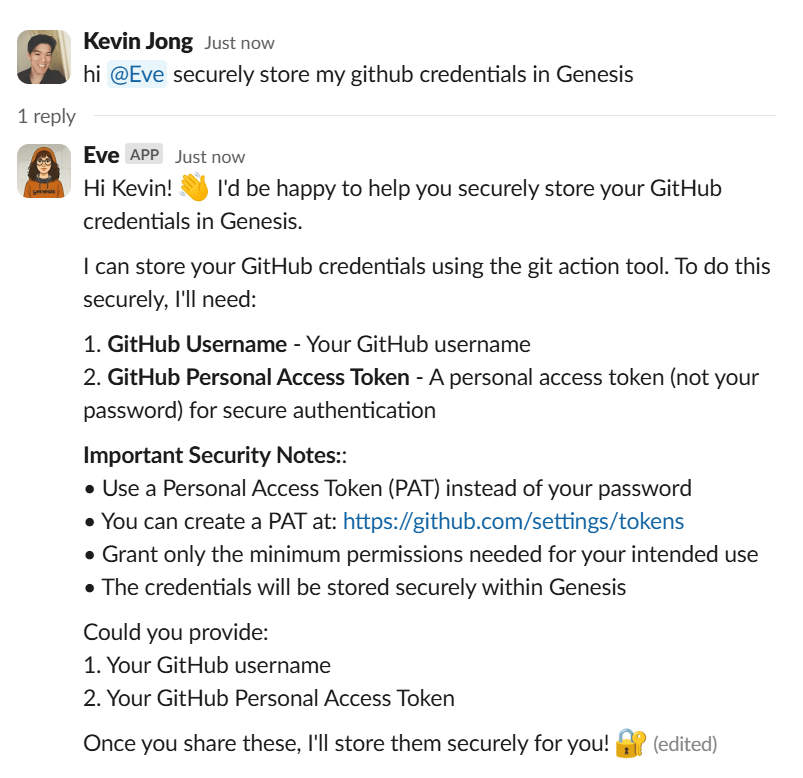
When you connect a repository, the system will clone it into a dedicated space using your project ID as the repository identifier (repo\_id), making the code accessible to your AI data agents. For private repositories, provide your GitHub credentials (username and personal access token) either by configuring them beforehand through agent chat conversations, or directly in the Create mission modal during project setup. The cloning process requires these credentials to be available at mission creation time.
The following example shows that this can also be done directly in Slack
 ## Clone repository and enable indexing
Once your GitHub credentials are configured, you can clone repositories and enable AI-powered indexing.
### Clone a repository
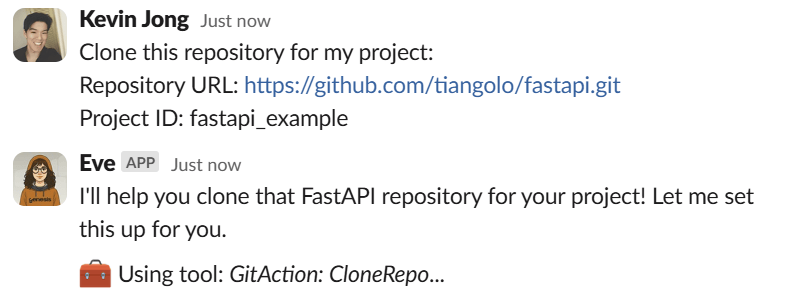
Ask your Genesis data agent to clone a repository
## Clone repository and enable indexing
Once your GitHub credentials are configured, you can clone repositories and enable AI-powered indexing.
### Clone a repository
Ask your Genesis data agent to clone a repository
Clone this repository for my project
Repository URL: [https://github.com/tiangolo/fastapi.git](https://github.com/tiangolo/fastapi.git)
 Project ID: fastapi\_example
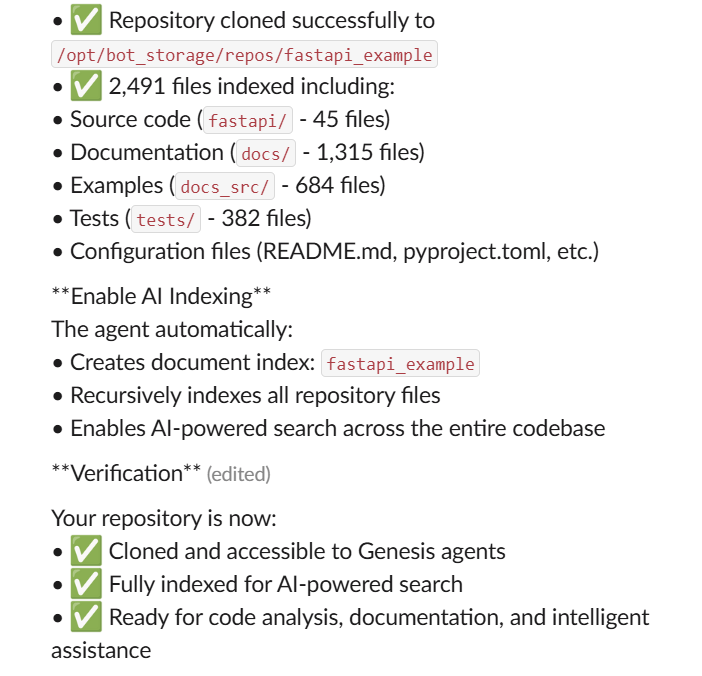
**Example result**
 ### AI indexing
The agent automatically:
* Creates document index:
### AI indexing
The agent automatically:
* Creates document index: fastapi\_example
* Recursively indexes repository files, excluding `.git` metadata
* Enables AI-powered search across the entire codebase
Repository indexing creates a document index named after the project ID. If you want an agent to use that indexed repository as reusable agent knowledge, create a knowledge base that references that index name, then assign that knowledge base to the agent.
## Search your indexed repository
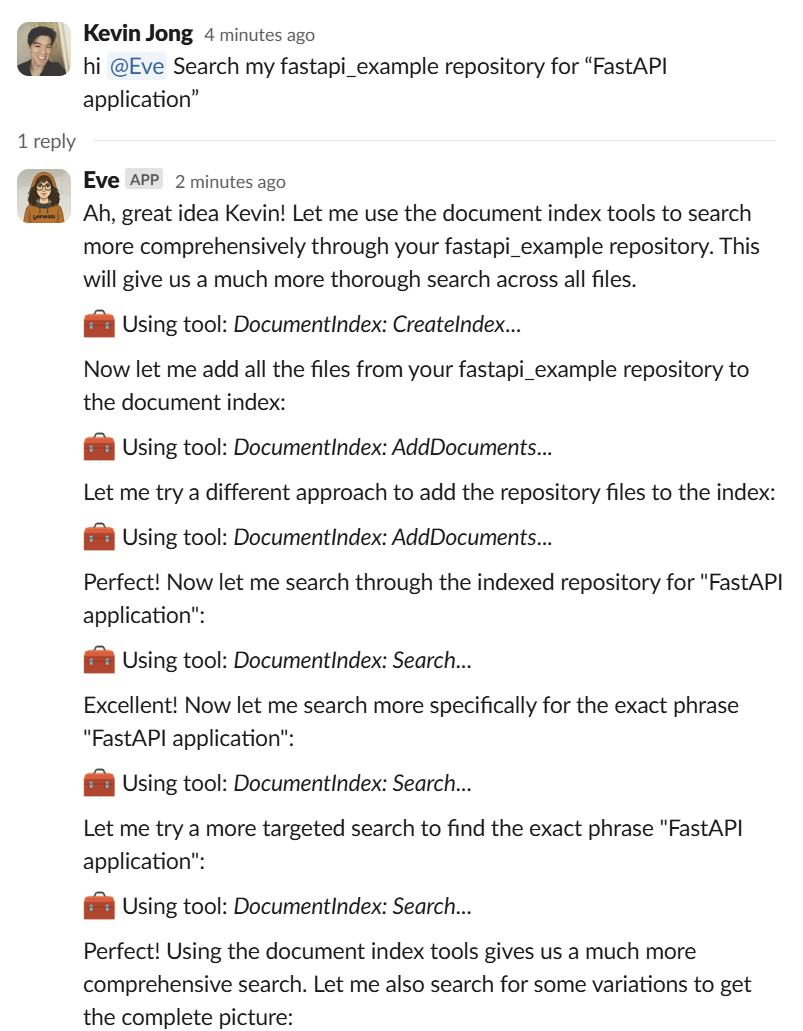
Once your repository is indexed, you can perform intelligent searches across indexed files and documentation.
### Basic search queries
Ask your Genesis data agent to search your repository
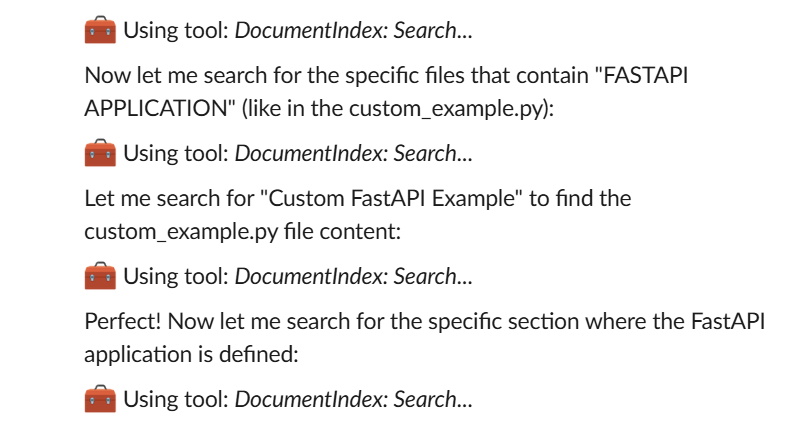
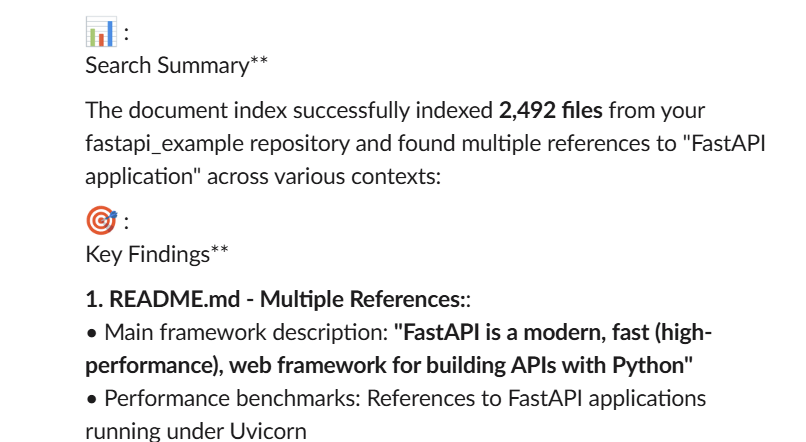
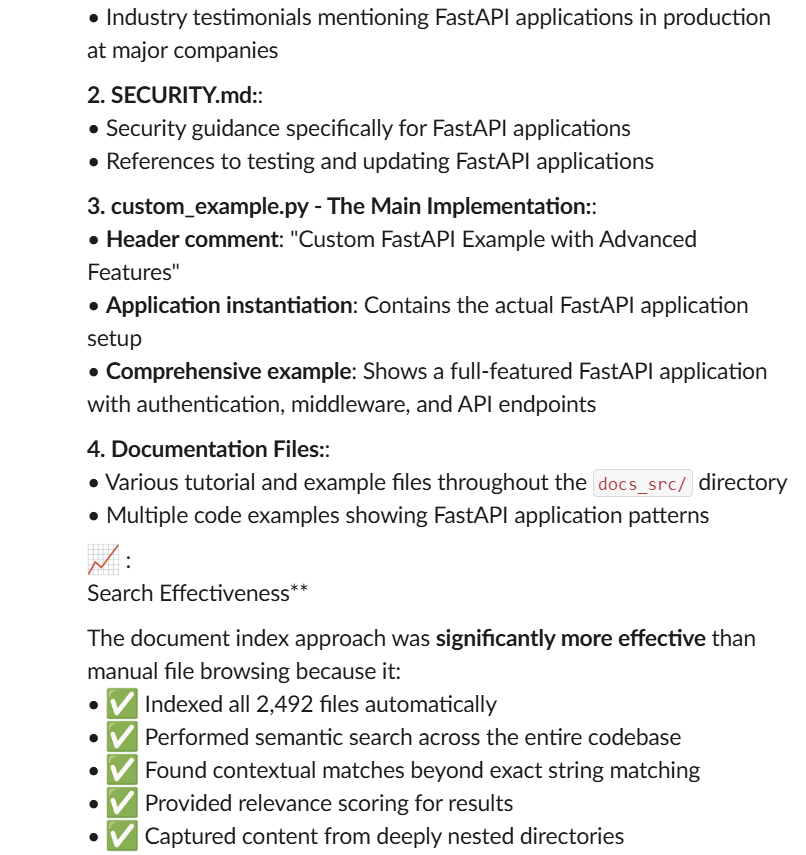
Search my fastapi\_example repository for “FastAPI application”
**Example Result**
 ### Code-specific searches
Ask your Genesis data agent to search for specific programming patterns
### Code-specific searches
Ask your Genesis data agent to search for specific programming patterns
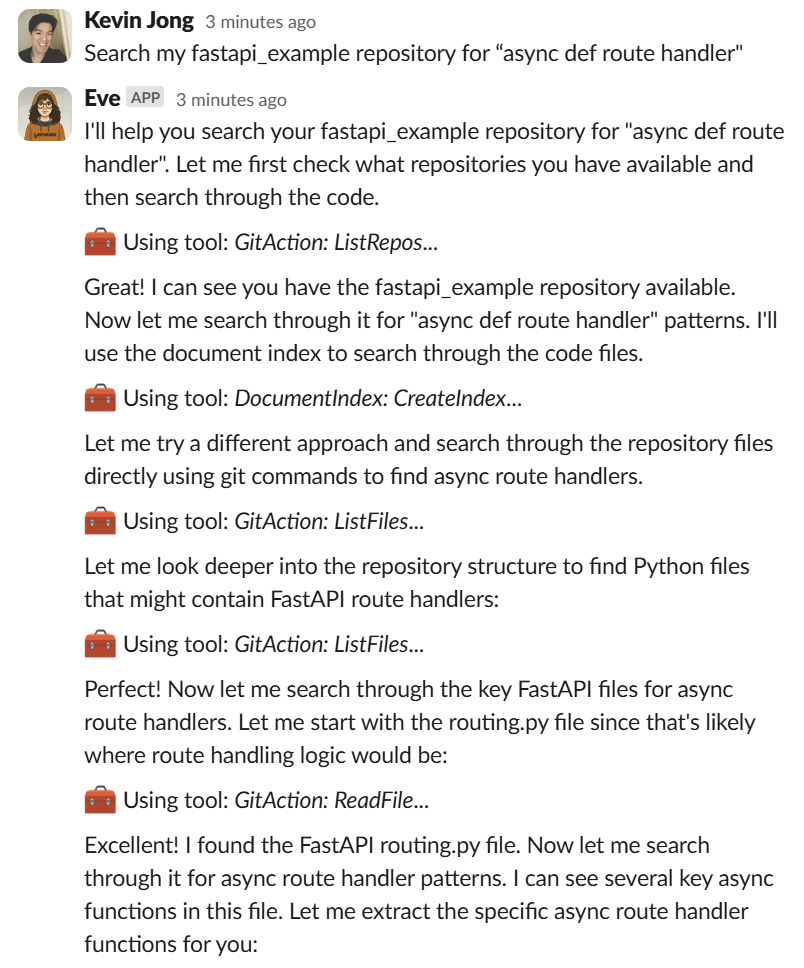
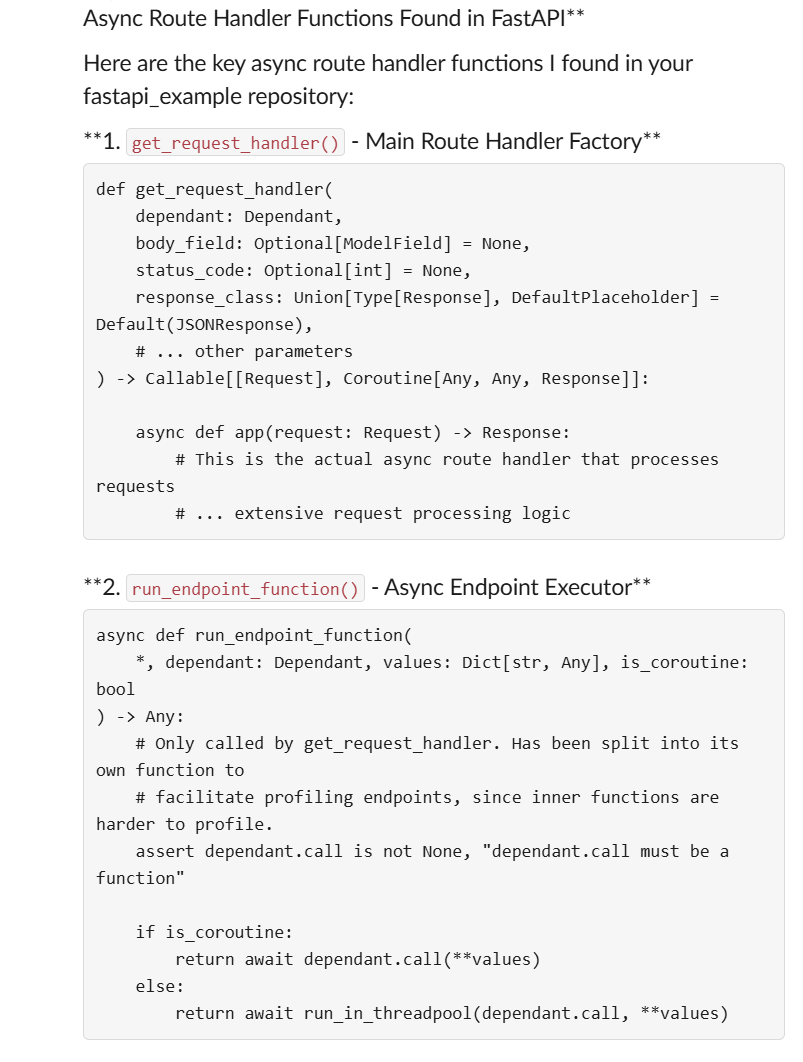
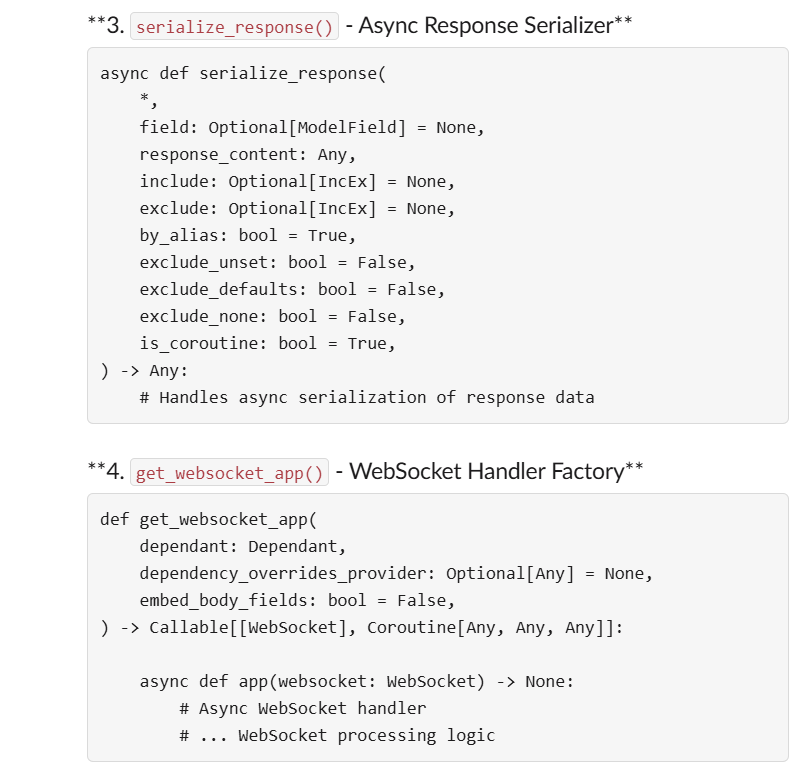
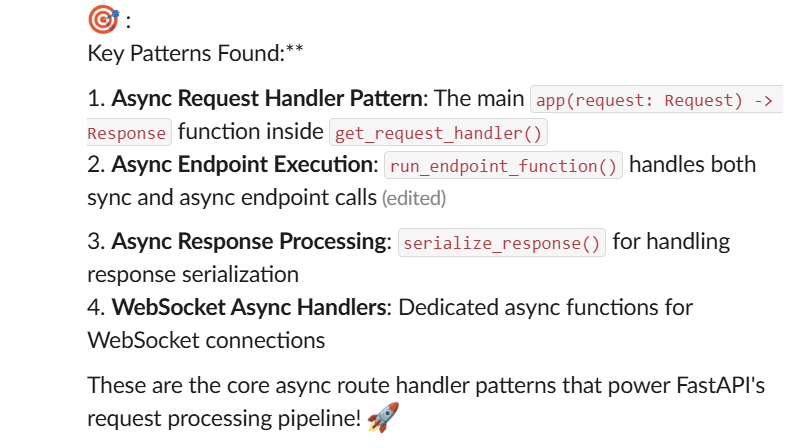
Search my fastapi\_example repository for “async def route handler”
**Example results**
 ### Search capabilities
* Natural language queries
* Relevance scoring to find the most relevant content
* Multi-file search spanning code, docs, tests, and configuration
* Context-aware results with file paths and metadata
### Search tips
* Use specific terms: “dependency injection”, “authentication”, “database models”
* Ask conceptual questions: “how to handle errors”, “API documentation setup”
* Search by file types: “test examples”, “configuration files”
## Read and edit cloned files
Once your repository is cloned, you can read existing files and create new ones directly through Genesis agents.
### Reading existing files
Ask your Genesis data agent to read any file from your repository
### Search capabilities
* Natural language queries
* Relevance scoring to find the most relevant content
* Multi-file search spanning code, docs, tests, and configuration
* Context-aware results with file paths and metadata
### Search tips
* Use specific terms: “dependency injection”, “authentication”, “database models”
* Ask conceptual questions: “how to handle errors”, “API documentation setup”
* Search by file types: “test examples”, “configuration files”
## Read and edit cloned files
Once your repository is cloned, you can read existing files and create new ones directly through Genesis agents.
### Reading existing files
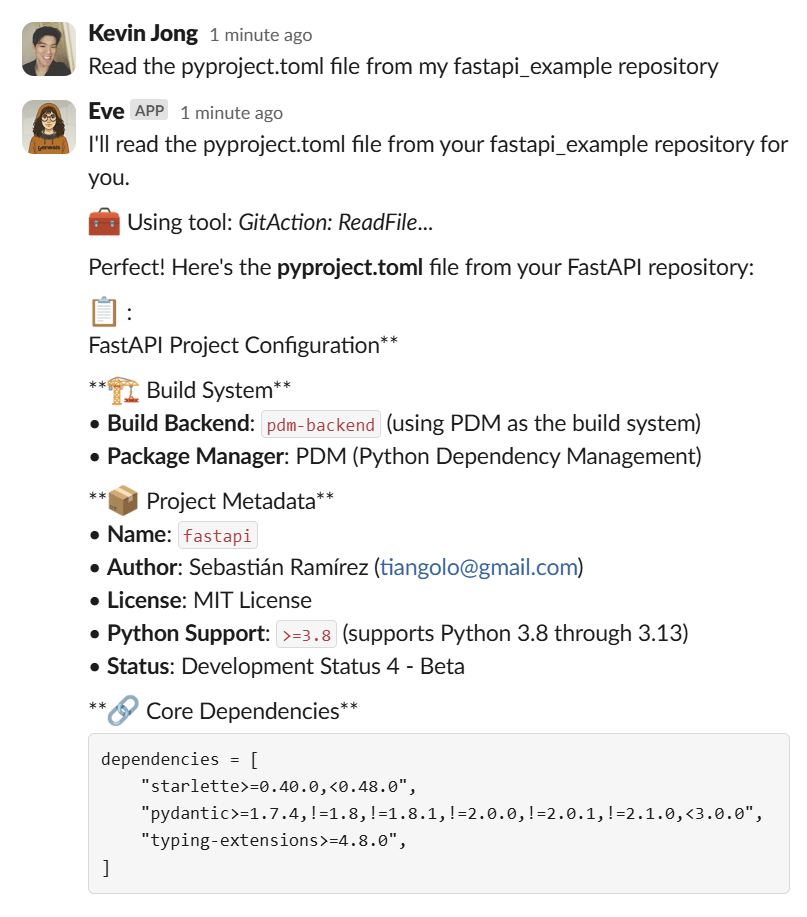
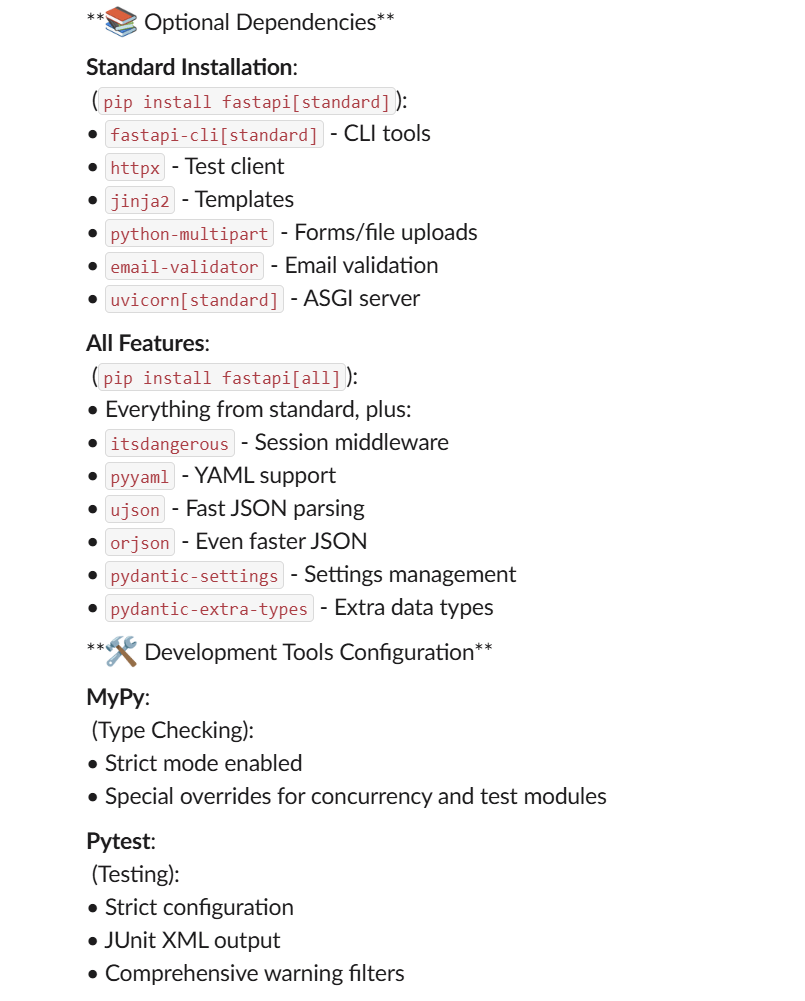
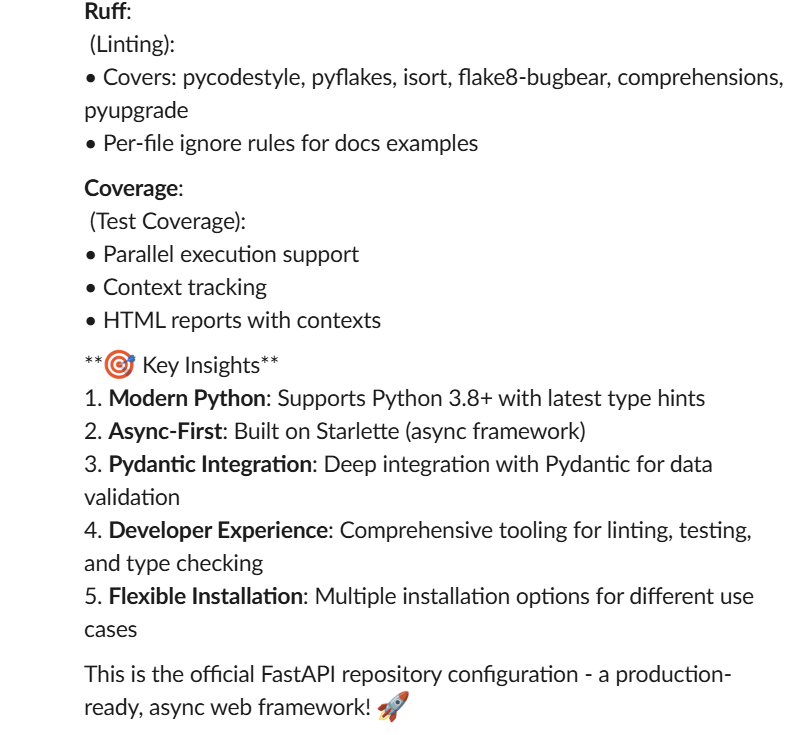
Ask your Genesis data agent to read any file from your repository Read the pyproject.toml file from my fastapi\_example repository
**Example result**
 ### Creating new files
Create custom files in your repository
### Creating new files
Create custom files in your repository
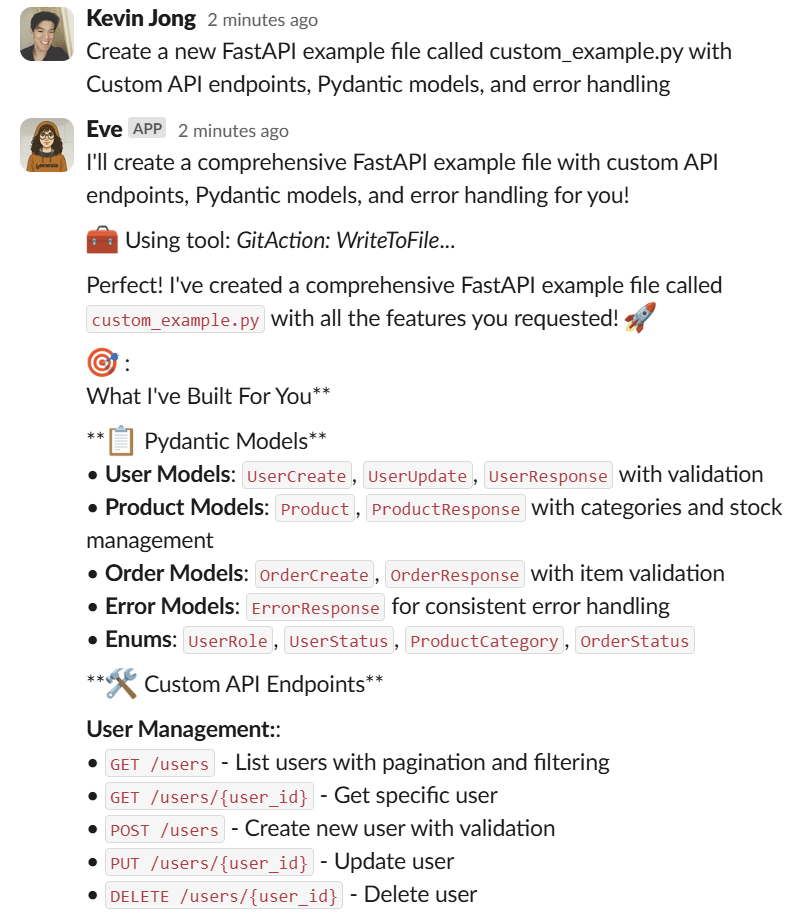
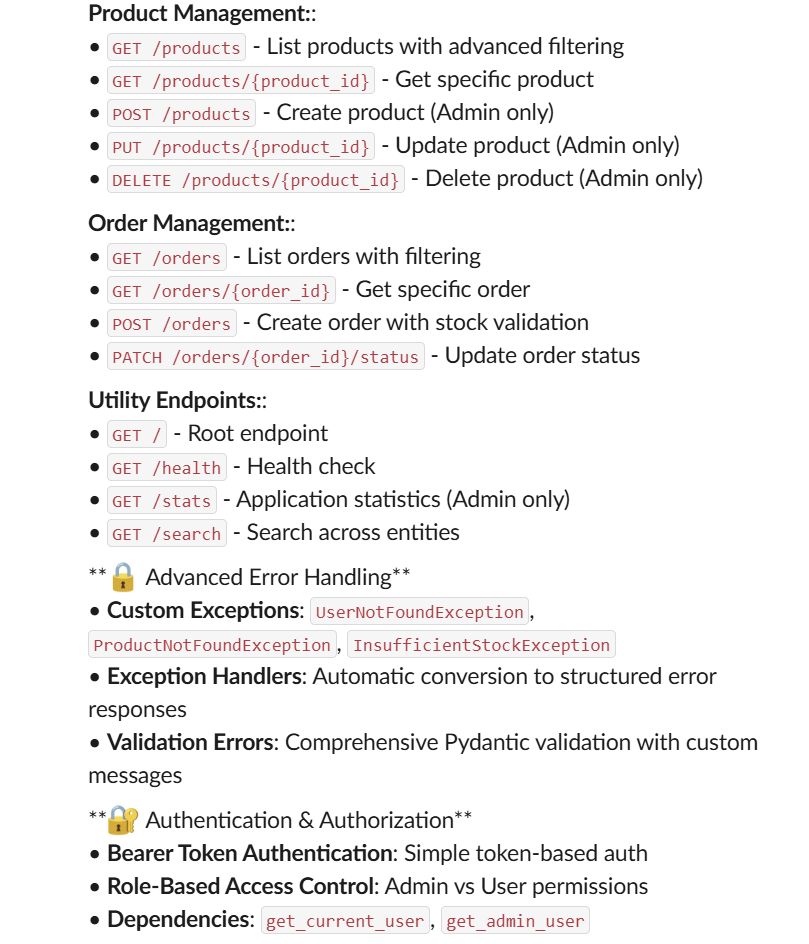
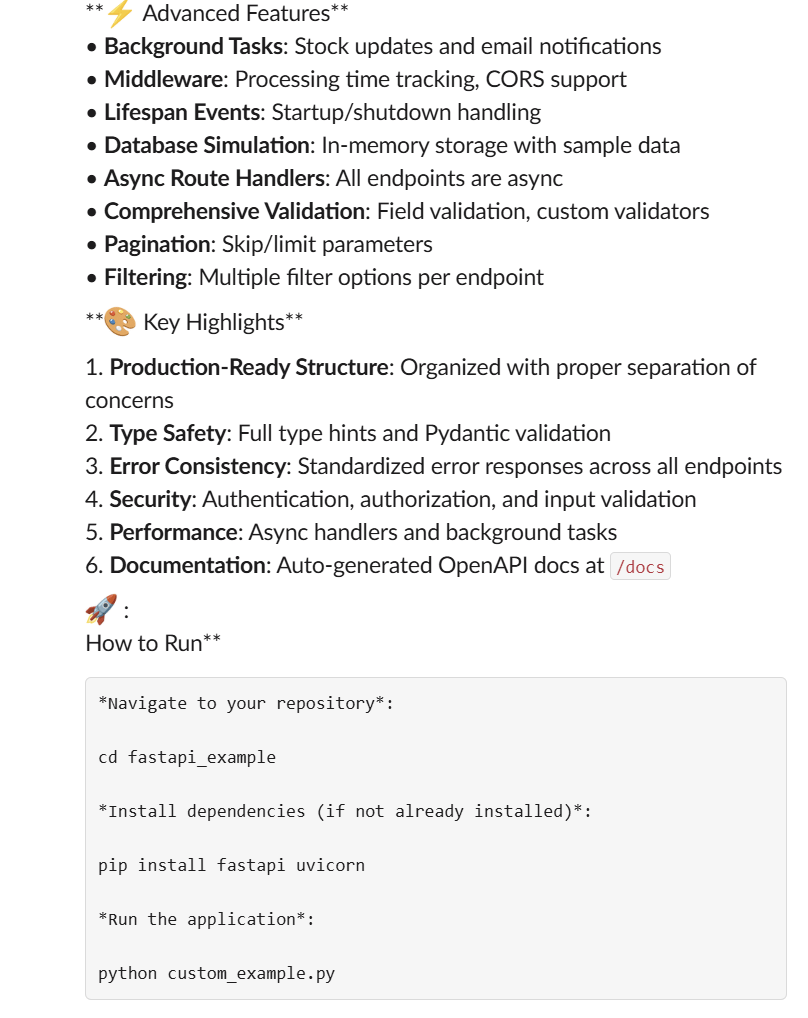
Create a new FastAPI example file called custom\_example.py with Custom API endpoints, Pydantic models, and error handling
**Example result**
 ### Editing and version control
Commit your changes to maintain version history
### Editing and version control
Commit your changes to maintain version history
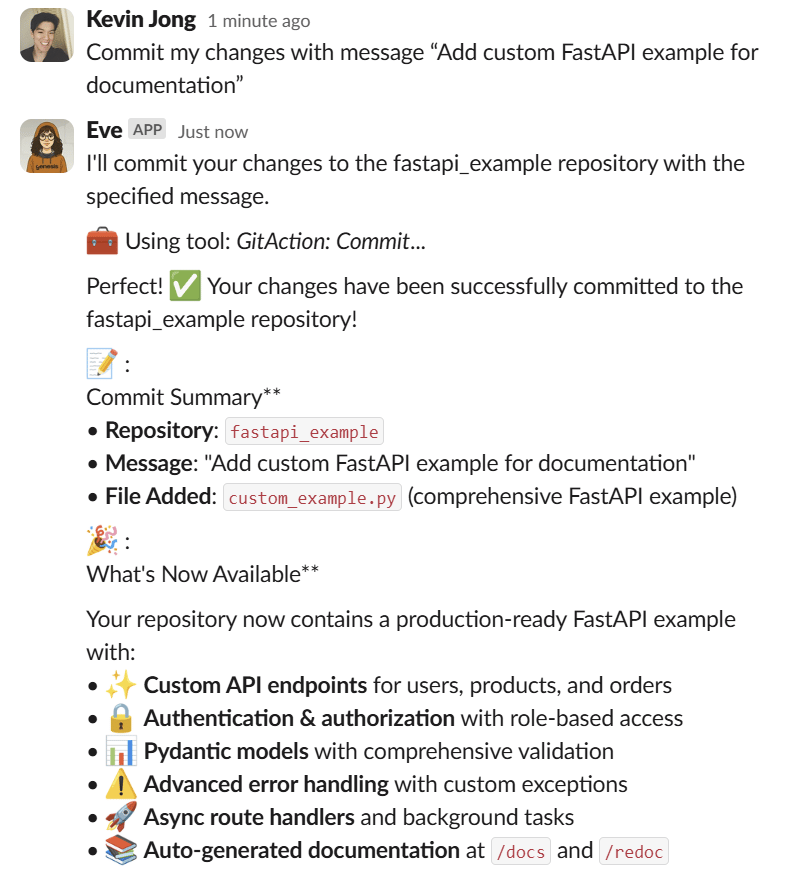
Commit my changes with message “Add custom FastAPI example for documentation”
**Example result**
 ### File operations available
* Read any file: configuration, source code, documentation, tests
* Create new files: add custom implementations, examples, configurations
* Edit existing files: modify code, update documentation, fix bugs
* Commit changes: maintain version history with meaningful messages
* Branch management: create feature branches, switch contexts
* View file status: see what’s changed, staged, or committed
## Automatic content indexing and search
When indexing is enabled, the system builds a searchable document index using your project ID as
### File operations available
* Read any file: configuration, source code, documentation, tests
* Create new files: add custom implementations, examples, configurations
* Edit existing files: modify code, update documentation, fix bugs
* Commit changes: maintain version history with meaningful messages
* Branch management: create feature branches, switch contexts
* View file status: see what’s changed, staged, or committed
## Automatic content indexing and search
When indexing is enabled, the system builds a searchable document index using your project ID as index\_id. Your code, docs, and other repo files become discoverable to Genesis’s AI data agents. Beyond cloning, enabling indexing lets you:
* Ask data agents questions about your code
* Search for specific functions or files
* Get intelligent insights without manually uploading files
Data agents can analyze code patterns, explain functionality, help with debugging, and provide context-aware assistance based on your actual repository contents — useful for code reviews, documentation tasks, or any project that needs deep understanding of your codebase.