> ## Documentation Index
> Fetch the complete documentation index at: https://docs.genesiscomputing.com/llms.txt
> Use this file to discover all available pages before exploring further.
# Setting Up A Custom Warehouse
> Genesis needs rights to use a Snowflake compute engine, known as a Virtual Warehouse, to run queries on Snowflake. By default, Genesis created a Virtual Warehouse for use by the application.
## (OPTIONAL) – Configure Warehouse
**Best Practice:** We recommend a dedicated, X-Small virtual warehouse to be created specifically for the operation of the Genesis Data Agents application.
Whether the virtual warehouse exists or is newly created, the Genesis Data Agents application must be granted usage privileges on the virtual warehouse.
**Note:** the Genesis application has already created an X-Small virtual warehouse, APP\_XSMALL, which can be suspended in the case that a custom warehouse is assigned to Genesis.
## **Configuring A Custom Warehouse**
The user configuring the Genesis application can easily select all SQL commands in the code box and copy & paste them into a Snowflake Snowsight worksheet, where the entire set of commands for each individual statement can be executed.
Each of the following configuration steps will follow the same process of copying & then pasting the scripts to Snowsight for execution.
**Refer to the Warehouse configuration script & copy the script below to paste into Snowsight**
```
-- Set the name of the installed application
set APP_DATABASE = 'GENESIS_DATA_AGENTS';
-- Set warehouse name to use
set APP_WAREHOUSE = 'XSMALL';
-- Create the warehouse if needed
CREATE WAREHOUSE IF NOT EXISTS IDENTIFIER($APP_WAREHOUSE)
MIN_CLUSTER_COUNT=1 MAX_CLUSTER_COUNT=1
WAREHOUSE_SIZE=XSMALL
AUTO_RESUME = TRUE
AUTO_SUSPEND = 60;
-- Allow Genesis to use the warehouse
GRANT USAGE ON WAREHOUSE IDENTIFIER($APP_WAREHOUSE) TO APPLICATION IDENTIFIER($APP_DATABASE);
```
**Result:** Below is what it should look like after copying & then pasting the scripts into Snowsight for execution.
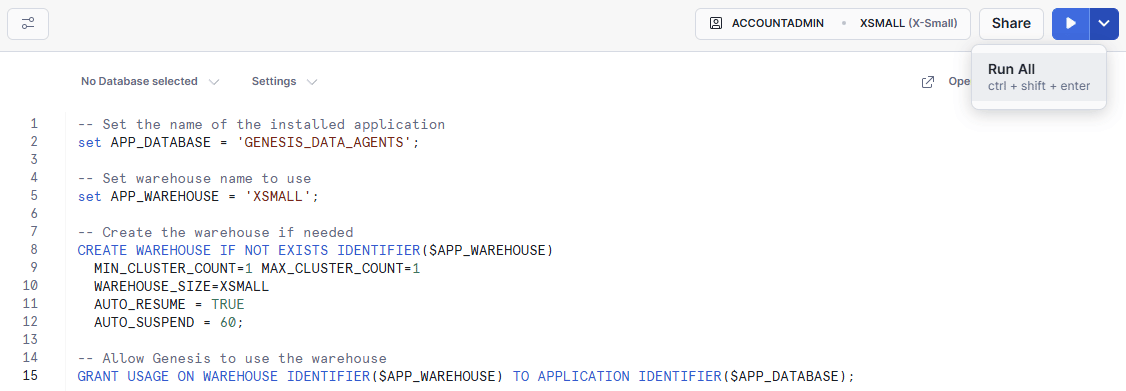 Once that is done, click the ***“Test Warehouse Access“*** button to ensure that the SQL commands were completed successfully.
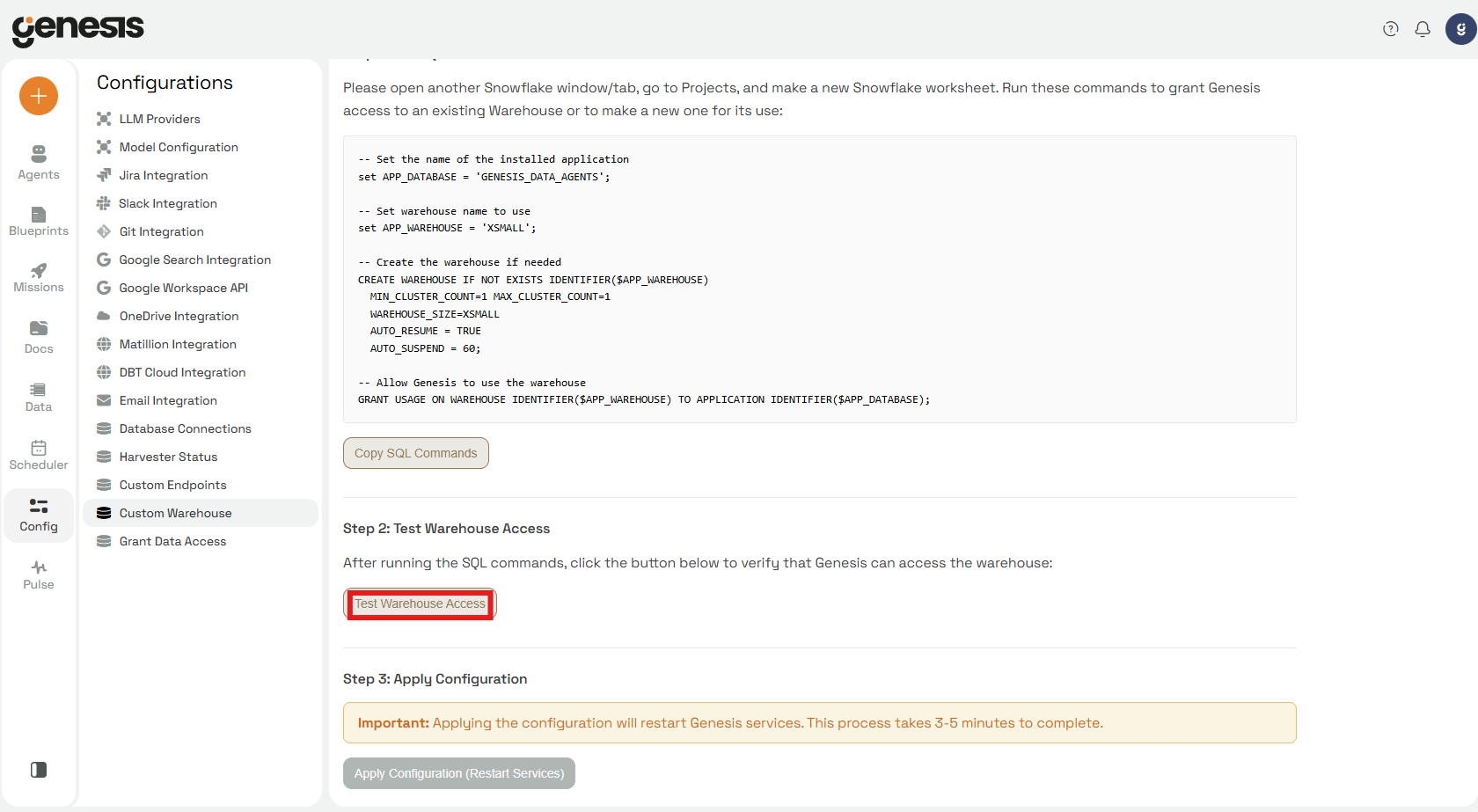 If the test fails, go back to the warehouse configuration script and ensure that the correct warehouse has been granted to the Genesis Bots application.
 Once you see that it was a success, please Click ***“Apply Configuration (Restart Services)”***
Expect 3-5 minutes while the Genesis services restart as the virtual warehouse is updated.
Once you see that it was a success, please Click ***“Apply Configuration (Restart Services)”***
Expect 3-5 minutes while the Genesis services restart as the virtual warehouse is updated.