> ## Documentation Index
> Fetch the complete documentation index at: https://docs.genesiscomputing.com/llms.txt
> Use this file to discover all available pages before exploring further.
# Secrets
> Store and manage encrypted secrets used by Genesis connections, integrations, and workflows.
## Overview
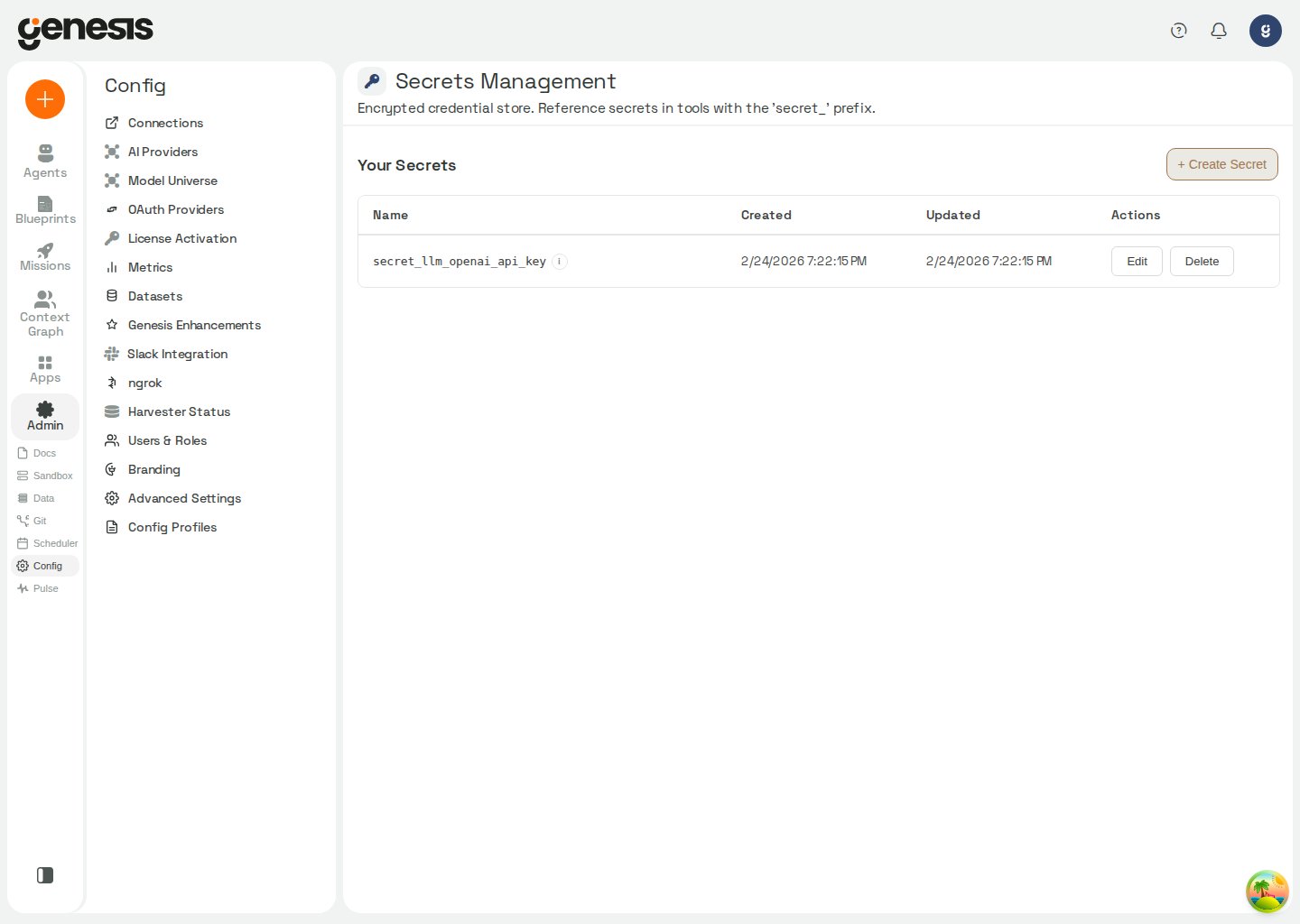
The **Secrets Management** page is the customer-facing encrypted store for credentials and sensitive tokens used by Genesis integrations and workflows.
 ## What the page supports
* viewing the current secret inventory,
* creating a new secret,
* editing or rotating an existing secret,
* deleting a secret,
* understanding whether encryption setup is complete.
When you edit or rotate an existing secret, Genesis verifies that the update
changed the stored row. If the secret was deleted or changed by another request
while the save was in progress, Genesis rejects the update instead of reporting
success, leaving the other request's credential untouched. Confirm the current
secret value, then retry the update.
## Encryption setup and status
On Snowflake Native App (SPCS) deployments, **Config → Secrets** shows an
**Encryption Key Configuration** card. Genesis reports one of three states:
The card and its status check are shown only to admins or users with
`manage_secrets`. `view_secrets` alone can grant access to the Secrets page but
does not grant access to encryption status.
| Status | Meaning |
| - | - |
| **Active** (`configured`) | A master encryption key is available. The card shows where it came from: environment variable, external secret reference (`GENESIS_MASTER_KEY_REF`), or Snowflake secret. A cached key is reported by its original source. |
| **Not Configured** (`missing`) | Genesis confirmed no master key is set up. Follow the in-product setup wizard before storing production secrets or saving connection credentials (except modes that carry no stored secrets, such as Restricted Caller's Rights). |
| **Temporarily Unavailable** (`unavailable`) | Genesis could not confirm the key right now (for example Snowflake warehouse suspension, connector outage, or external-secret resolution failure). Existing encrypted connections stay usable; Genesis does **not** block connection saves or secret actions based on this state. Click **Retry Status Check** when Snowflake is reachable again. |
To configure a missing key in a Snowflake Native App deployment, open **Config → Secrets** and follow the encryption setup instructions. Run the displayed SQL in a Snowflake worksheet using a role that can create a database, secret, network rule, and external access integration (ACCOUNTADMIN by default). The SQL generates the key inside Snowflake and stores it directly in `GENESIS_SECRETS.PUBLIC.GENESIS_ENCRYPTION_KEY`; it never displays or sends the key to Genesis. Step 2 runs a Python procedure, so use a warehouse (run `USE WAREHOUSE ;` first if your role has no default warehouse). The SQL uses plain `CREATE` statements: on a rerun, skip objects that already exist. In particular, replacing the key secret would make credentials encrypted with the existing key unreadable. After creating the objects, bind the secret and external access integration to the app in Snowsight, then enable encryption in Genesis.
**Backing up the key (Snowflake Native App deployments only).** The key cannot
be recovered if it is lost, so keep a copy. When the key is your own Snowflake
secret, an admin opens Genesis → Config → Secrets → **Back up key** on the
**Encryption Key Configuration** card. Genesis never shows or returns the key:
the dialog shows SQL, pre-filled with the secret and integration bound to the
app, that you run in a Snowsight worksheet as a role with `READ` on the secret
and `USAGE` on the integration (typically the admin who set up encryption). The
result is your key; save it in your password manager and don't paste it
anywhere. Snowflake keeps query results for 24 hours, and Snowsight caches a
worksheet's latest results for up to 90 days, so use a worksheet you don't share
and delete it afterwards. Snowflake itself refuses the SQL to a role without
those privileges.
On other deployments the key is supplied by your platform configuration
(environment variable or secret manager), so Genesis offers no backup action:
back the key up where it is stored.
Other deployments surface encryption guidance only when relevant. Customers
should follow the in-product instructions before storing production secrets.
The master encryption key that protects stored secrets is resolved at startup.
Production Kubernetes installs must supply it via `secrets.genesisMasterKey`,
`secrets.existingSecretGenesisMasterKey`, or
`config.extraEnv.GENESIS_MASTER_KEY_REF` (an `aws_*` / `gcp_*` reference
resolved via IRSA/ADC). See [External Secrets — Master encryption key](/docs/Setup/External-Secrets#master-encryption-key)
for resolution priority and Helm examples.
If a state snapshot requires a key from an in-progress rotation, configure
that key as the active or previous master key before restoring it. See [State
Snapshots and Migration](/docs/deployments/State-Snapshots-And-Migration#restore-onto-kubernetes)
for the restore requirements.
## Embedded Tailscale (Snowflake Native App)
On Snowflake Native App (SPCS) deployments, **Config → Secrets** has a
**Tailscale** tab (`/config/secrets?tab=tailscale`) next to the default
**Secrets** tab. It holds the **Embedded Tailscale** card, the egress
allow-list and the ACL tags. This is **optional** —
enable it only when Genesis must reach a private LLM gateway on your tailnet
(for example Tailscale Aperture). Genesis never generates or receives your
Tailscale auth key through the API; you paste your own `tskey-auth-...` value
into operator-run SQL.
When you click **Set up embedded Tailscale**, Genesis walks you through:
1. Run the generated `CREATE SECRET` SQL as `ACCOUNTADMIN` (creates
`GENESIS_TSNET.SECRETS.TSNET_AUTH_KEY`).
2. In Snowsight → your Genesis app → **Configurations**, bind **Tailscale Auth
Key Secret** to that secret and connect **Tailscale Control Plane External
Access**.
Binding this reference is independent of other external access integrations
(such as `genesis_external_access` for general outbound access). Assigning or
approving one reference does not replace bindings for the others.
3. Click **Enable Tailscale** in Genesis (calls `CORE.ENABLE_TSNET_ACCESS()`).
4. **Suspend** then **resume** the Genesis service so the container reads the
key at boot.
The card shows **Embedded Tailscale active** when configured; after restart,
it reports online status and backend state. If it stays offline, re-check the
auth key and both bound references. Confirm runtime health with `GET /api/health`
— a `tsnet` object with `"online": true` when embedded Tailscale is running,
and `"status": "healthy"` when there is no impairment.
### Troubleshooting degraded embedded Tailscale
On SPCS, Genesis boots **degraded-ready** (reachable UI, no tailnet egress)
instead of crash-looping when embedded Tailscale was previously configured but
cannot connect at container start. `GET /api/health` and
`GET /api/health/startup` then return `"status": "degraded"` (or
`"status": "ready"` with `"degraded": true` on the startup route) plus a
`degraded_reason` that names the fault. HTTP stays `200` so Snowflake keeps
routing to the service while you recover.
At boot, `container/launch.sh` reads `CORE.GET_TSNET_BOOT_CONFIG()` (auth key,
advertise tags, and whether tsnet was previously enabled). If tsnet was expected
but the auth key is empty, the boot helper calls `CORE.ENABLE_TSNET_ACCESS()`
once to self-heal when the Native App references are still associated (for
example after an upgrade reverted the auth-key UDF). When references are
unassociated, self-heal cannot recover the key — follow the recovery path below.
| Symptom | Likely cause | Recovery |
| - | - | - |
| `degraded_reason` mentions no auth key at boot / unassociated references | **Tailscale Auth Key Secret** or **Tailscale Control Plane External Access** is not bound in Snowsight | Re-associate `tsnet_auth_key_secret` and `tailscale_external_access` in Snowsight → Configurations, then `CALL CORE.ENABLE_TSNET_ACCESS()` and `CALL CORE.RESTART_APP_INSTANCE('APP1')`. |
| `degraded_reason` mentions expired, revoked, or invalid auth key | Auth key no longer accepted by Tailscale | Re-key via **Config → Secrets → Tailscale → Embedded Tailscale** (or update `GENESIS_TSNET.SECRETS.TSNET_AUTH_KEY`), then `CALL CORE.RESTART_APP_INSTANCE('APP1')`. |
| Card offline but health is not degraded | Key present but node not online yet | Suspend/resume the service so `launch.sh` re-runs; confirm both references are bound and egress allow-list includes required control-plane hosts. |
### Tailscale egress allow-list
On the **Tailscale** tab, below the status card, expand **Tailscale egress allow-list** to edit the
`host:port` destinations the embedded-Tailscale External Access Integration may
reach (stored in `APP1.TSNET_EGRESS` and emitted by
`CORE.GET_CONFIG_FOR_TAILSCALE_EAI`).
* **Broad default `0.0.0.0:443`** (recommended) — permits outbound HTTPS to any
host and never goes stale when Tailscale rotates DERP servers.
* **Enumerated control-plane and DERP hosts** (tighter Snowflake-layer egress) —
run the DERP-map refresh script from the in-repo Tailscale setup guide, paste
the output into **Paste a host:port list**, click **Apply pasted list**, then
**Save**. An enumerated list must include Tailscale's four control-plane hosts
(`controlplane.tailscale.com:443`, `login.tailscale.com:443`,
`log.tailscale.com:443`, `console.tailscale.com:443`) plus at least one
reachable DERP relay (`derp*.tailscale.com:443`).
Saving updates the stored list immediately, but an already-connected reference
keeps its old hosts until you re-connect **Tailscale Control Plane External
Access** in Snowsight (Configurations → Review → Connect), then **suspend/resume**
the Genesis service.
### Tailscale ACL tags
On the **Tailscale** tab, below the egress section, expand **Tailscale ACL tags** to edit the ACL tag(s)
the embedded-Tailscale device asserts at `tailscale up` (stored in
`APP1.TSNET_ADVERTISE_TAGS` and read at container boot together with the auth
key in one Snowflake call via `CORE.GET_TSNET_BOOT_CONFIG()`).
* **Required for the OAuth-client auth path** — when the auth key is an OAuth
client secret or OAuth-client auth key (instead of a standard pre-tagged
reusable key), Tailscale requires `--advertise-tags` at connect time.
* Enter one or more tags as a comma-separated list (for example
`tag:genesis-spcs` or `tag:genesis-spcs,tag:prod`). Leave empty to omit
`--advertise-tags` (pre-tagged auth keys keep working unchanged).
* Each tag must look like `tag:` where `` is letters, digits, or
hyphens (starting alphanumeric).
* The tag must be authorized for your auth key in the tailnet ACL (`tagOwners`);
otherwise `tailscale up` is rejected at boot.
Saving updates the stored value immediately, but the device only asserts the new
tag after you **suspend/resume** the Genesis service (the tag is read at
container boot).
### Disable embedded Tailscale
When Tailscale is configured, click **Disable embedded Tailscale** on the card.
Genesis calls `CORE.DISABLE_TSNET_ACCESS()` (reverts the auth-key UDF, removes
Tailscale external access from the running service, and unbinds the Native App
references). Your saved egress allow-list is kept for a later re-enable.
The modal then shows operator-run teardown SQL for consumer-owned objects the
app cannot drop (the `TSNET_AUTH_KEY` secret and orphan reference EAIs/network
rules). Run that SQL as `ACCOUNTADMIN`, then **suspend/resume** the service so
the container drops the tunnel (auth is read at boot).
For deployment-level context (including `GENESIS_TSNET_ADVERTISE_TAGS`), see
[Installation & Configuration](/docs/deployments/Snowflake-Native-App/Installation-And-Configuration).
## Ownership and access
Connection credentials saved through **Config → Connections** are stored as
Genesis Secrets. For **personal** connections, secret ownership matches the
connection owner — including after cross-instance bundle import or when an
administrator reassigns ownership. Genesis reassigns secret ownership when
deferred ownership resolves on the owner's first login, without changing secret
values. For **shared** connections, secrets stay with the user who saved the
connection; other users access them through **Roles with Access** and RBAC role
grants on the connection, not individual secret ownership.
Depending on your deployment, standalone secrets created in **Config → Secrets**
may also be personal or shared, and some workspaces support role-based access
assignment so the right users or agents can use them.
The same ownership and RBAC checks apply when Genesis reads managed secrets from
the server, CLI, or worker process; no separate per-process grant is required.
For LLM provider runtime propagation after a secret mutation, see
[LLM provider save validation and rollback](/docs/Genesis-API/API-Reference#llm-provider-save-validation-and-rollback).
## Platform-managed secrets
Genesis also uses the encrypted secret backend for certain internal values. For
example, the HMAC signing key used for GenesisApp `GENESIS_APP_TOKEN` /
`X-Genesis-App-Token` credentials is stored in the Genesis secret store instead
of a local file. No manual setup is required for this key, but it now follows
the same encrypted-storage model as other Genesis-managed secrets.
Existing deployments migrate the legacy file-based key into the secret store
automatically during startup.
On main-server startup, Genesis may also create managed secrets for unset secret
config fields whose schema declares `default_env_var` and whose env var is set
(for example `OPENAI_API_KEY` seeded from Helm `extraEnv`). Each capture stores
the value at the field's default `secret_` name with a description noting
the config field. These secrets appear in your inventory like any other
platform-managed secret and can be rotated through this page. Capture never
overwrites an existing secret; if capture is skipped (for example the encryption
key is not yet available), Genesis retries on the next startup.
Report signing uses a platform-managed shared secret for the install's Ed25519
private key. An authorized operator can set it up through the
[`POST /api/estate/attestation/signing-key` API](/docs/Genesis-API/API-Reference#post-api-estate-attestation-signing-key);
the private key stays on the server and is never returned. Setup is create-only:
it will not replace a key or an operator-configured signing reference. The public
verification key and setup availability are available from the
[`GET /api/estate/attestation/public-key` API](/docs/Genesis-API/API-Reference#get-api-estate-attestation-public-key).
## Customer-safe guidance
Documentation should focus on how to store and manage secrets, never on the secret values themselves.
## Related pages
* [External Secrets (AWS / GCP)](/docs/Setup/External-Secrets)
* [Connections](/docs/Setup/Connections)
* [Slack Integration](/docs/Workspaces/Slack/Activate-Genbots-On-Slack)
## What the page supports
* viewing the current secret inventory,
* creating a new secret,
* editing or rotating an existing secret,
* deleting a secret,
* understanding whether encryption setup is complete.
When you edit or rotate an existing secret, Genesis verifies that the update
changed the stored row. If the secret was deleted or changed by another request
while the save was in progress, Genesis rejects the update instead of reporting
success, leaving the other request's credential untouched. Confirm the current
secret value, then retry the update.
## Encryption setup and status
On Snowflake Native App (SPCS) deployments, **Config → Secrets** shows an
**Encryption Key Configuration** card. Genesis reports one of three states:
The card and its status check are shown only to admins or users with
`manage_secrets`. `view_secrets` alone can grant access to the Secrets page but
does not grant access to encryption status.
| Status | Meaning |
| - | - |
| **Active** (`configured`) | A master encryption key is available. The card shows where it came from: environment variable, external secret reference (`GENESIS_MASTER_KEY_REF`), or Snowflake secret. A cached key is reported by its original source. |
| **Not Configured** (`missing`) | Genesis confirmed no master key is set up. Follow the in-product setup wizard before storing production secrets or saving connection credentials (except modes that carry no stored secrets, such as Restricted Caller's Rights). |
| **Temporarily Unavailable** (`unavailable`) | Genesis could not confirm the key right now (for example Snowflake warehouse suspension, connector outage, or external-secret resolution failure). Existing encrypted connections stay usable; Genesis does **not** block connection saves or secret actions based on this state. Click **Retry Status Check** when Snowflake is reachable again. |
To configure a missing key in a Snowflake Native App deployment, open **Config → Secrets** and follow the encryption setup instructions. Run the displayed SQL in a Snowflake worksheet using a role that can create a database, secret, network rule, and external access integration (ACCOUNTADMIN by default). The SQL generates the key inside Snowflake and stores it directly in `GENESIS_SECRETS.PUBLIC.GENESIS_ENCRYPTION_KEY`; it never displays or sends the key to Genesis. Step 2 runs a Python procedure, so use a warehouse (run `USE WAREHOUSE ;` first if your role has no default warehouse). The SQL uses plain `CREATE` statements: on a rerun, skip objects that already exist. In particular, replacing the key secret would make credentials encrypted with the existing key unreadable. After creating the objects, bind the secret and external access integration to the app in Snowsight, then enable encryption in Genesis.
**Backing up the key (Snowflake Native App deployments only).** The key cannot
be recovered if it is lost, so keep a copy. When the key is your own Snowflake
secret, an admin opens Genesis → Config → Secrets → **Back up key** on the
**Encryption Key Configuration** card. Genesis never shows or returns the key:
the dialog shows SQL, pre-filled with the secret and integration bound to the
app, that you run in a Snowsight worksheet as a role with `READ` on the secret
and `USAGE` on the integration (typically the admin who set up encryption). The
result is your key; save it in your password manager and don't paste it
anywhere. Snowflake keeps query results for 24 hours, and Snowsight caches a
worksheet's latest results for up to 90 days, so use a worksheet you don't share
and delete it afterwards. Snowflake itself refuses the SQL to a role without
those privileges.
On other deployments the key is supplied by your platform configuration
(environment variable or secret manager), so Genesis offers no backup action:
back the key up where it is stored.
Other deployments surface encryption guidance only when relevant. Customers
should follow the in-product instructions before storing production secrets.
The master encryption key that protects stored secrets is resolved at startup.
Production Kubernetes installs must supply it via `secrets.genesisMasterKey`,
`secrets.existingSecretGenesisMasterKey`, or
`config.extraEnv.GENESIS_MASTER_KEY_REF` (an `aws_*` / `gcp_*` reference
resolved via IRSA/ADC). See [External Secrets — Master encryption key](/docs/Setup/External-Secrets#master-encryption-key)
for resolution priority and Helm examples.
If a state snapshot requires a key from an in-progress rotation, configure
that key as the active or previous master key before restoring it. See [State
Snapshots and Migration](/docs/deployments/State-Snapshots-And-Migration#restore-onto-kubernetes)
for the restore requirements.
## Embedded Tailscale (Snowflake Native App)
On Snowflake Native App (SPCS) deployments, **Config → Secrets** has a
**Tailscale** tab (`/config/secrets?tab=tailscale`) next to the default
**Secrets** tab. It holds the **Embedded Tailscale** card, the egress
allow-list and the ACL tags. This is **optional** —
enable it only when Genesis must reach a private LLM gateway on your tailnet
(for example Tailscale Aperture). Genesis never generates or receives your
Tailscale auth key through the API; you paste your own `tskey-auth-...` value
into operator-run SQL.
When you click **Set up embedded Tailscale**, Genesis walks you through:
1. Run the generated `CREATE SECRET` SQL as `ACCOUNTADMIN` (creates
`GENESIS_TSNET.SECRETS.TSNET_AUTH_KEY`).
2. In Snowsight → your Genesis app → **Configurations**, bind **Tailscale Auth
Key Secret** to that secret and connect **Tailscale Control Plane External
Access**.
Binding this reference is independent of other external access integrations
(such as `genesis_external_access` for general outbound access). Assigning or
approving one reference does not replace bindings for the others.
3. Click **Enable Tailscale** in Genesis (calls `CORE.ENABLE_TSNET_ACCESS()`).
4. **Suspend** then **resume** the Genesis service so the container reads the
key at boot.
The card shows **Embedded Tailscale active** when configured; after restart,
it reports online status and backend state. If it stays offline, re-check the
auth key and both bound references. Confirm runtime health with `GET /api/health`
— a `tsnet` object with `"online": true` when embedded Tailscale is running,
and `"status": "healthy"` when there is no impairment.
### Troubleshooting degraded embedded Tailscale
On SPCS, Genesis boots **degraded-ready** (reachable UI, no tailnet egress)
instead of crash-looping when embedded Tailscale was previously configured but
cannot connect at container start. `GET /api/health` and
`GET /api/health/startup` then return `"status": "degraded"` (or
`"status": "ready"` with `"degraded": true` on the startup route) plus a
`degraded_reason` that names the fault. HTTP stays `200` so Snowflake keeps
routing to the service while you recover.
At boot, `container/launch.sh` reads `CORE.GET_TSNET_BOOT_CONFIG()` (auth key,
advertise tags, and whether tsnet was previously enabled). If tsnet was expected
but the auth key is empty, the boot helper calls `CORE.ENABLE_TSNET_ACCESS()`
once to self-heal when the Native App references are still associated (for
example after an upgrade reverted the auth-key UDF). When references are
unassociated, self-heal cannot recover the key — follow the recovery path below.
| Symptom | Likely cause | Recovery |
| - | - | - |
| `degraded_reason` mentions no auth key at boot / unassociated references | **Tailscale Auth Key Secret** or **Tailscale Control Plane External Access** is not bound in Snowsight | Re-associate `tsnet_auth_key_secret` and `tailscale_external_access` in Snowsight → Configurations, then `CALL CORE.ENABLE_TSNET_ACCESS()` and `CALL CORE.RESTART_APP_INSTANCE('APP1')`. |
| `degraded_reason` mentions expired, revoked, or invalid auth key | Auth key no longer accepted by Tailscale | Re-key via **Config → Secrets → Tailscale → Embedded Tailscale** (or update `GENESIS_TSNET.SECRETS.TSNET_AUTH_KEY`), then `CALL CORE.RESTART_APP_INSTANCE('APP1')`. |
| Card offline but health is not degraded | Key present but node not online yet | Suspend/resume the service so `launch.sh` re-runs; confirm both references are bound and egress allow-list includes required control-plane hosts. |
### Tailscale egress allow-list
On the **Tailscale** tab, below the status card, expand **Tailscale egress allow-list** to edit the
`host:port` destinations the embedded-Tailscale External Access Integration may
reach (stored in `APP1.TSNET_EGRESS` and emitted by
`CORE.GET_CONFIG_FOR_TAILSCALE_EAI`).
* **Broad default `0.0.0.0:443`** (recommended) — permits outbound HTTPS to any
host and never goes stale when Tailscale rotates DERP servers.
* **Enumerated control-plane and DERP hosts** (tighter Snowflake-layer egress) —
run the DERP-map refresh script from the in-repo Tailscale setup guide, paste
the output into **Paste a host:port list**, click **Apply pasted list**, then
**Save**. An enumerated list must include Tailscale's four control-plane hosts
(`controlplane.tailscale.com:443`, `login.tailscale.com:443`,
`log.tailscale.com:443`, `console.tailscale.com:443`) plus at least one
reachable DERP relay (`derp*.tailscale.com:443`).
Saving updates the stored list immediately, but an already-connected reference
keeps its old hosts until you re-connect **Tailscale Control Plane External
Access** in Snowsight (Configurations → Review → Connect), then **suspend/resume**
the Genesis service.
### Tailscale ACL tags
On the **Tailscale** tab, below the egress section, expand **Tailscale ACL tags** to edit the ACL tag(s)
the embedded-Tailscale device asserts at `tailscale up` (stored in
`APP1.TSNET_ADVERTISE_TAGS` and read at container boot together with the auth
key in one Snowflake call via `CORE.GET_TSNET_BOOT_CONFIG()`).
* **Required for the OAuth-client auth path** — when the auth key is an OAuth
client secret or OAuth-client auth key (instead of a standard pre-tagged
reusable key), Tailscale requires `--advertise-tags` at connect time.
* Enter one or more tags as a comma-separated list (for example
`tag:genesis-spcs` or `tag:genesis-spcs,tag:prod`). Leave empty to omit
`--advertise-tags` (pre-tagged auth keys keep working unchanged).
* Each tag must look like `tag:` where `` is letters, digits, or
hyphens (starting alphanumeric).
* The tag must be authorized for your auth key in the tailnet ACL (`tagOwners`);
otherwise `tailscale up` is rejected at boot.
Saving updates the stored value immediately, but the device only asserts the new
tag after you **suspend/resume** the Genesis service (the tag is read at
container boot).
### Disable embedded Tailscale
When Tailscale is configured, click **Disable embedded Tailscale** on the card.
Genesis calls `CORE.DISABLE_TSNET_ACCESS()` (reverts the auth-key UDF, removes
Tailscale external access from the running service, and unbinds the Native App
references). Your saved egress allow-list is kept for a later re-enable.
The modal then shows operator-run teardown SQL for consumer-owned objects the
app cannot drop (the `TSNET_AUTH_KEY` secret and orphan reference EAIs/network
rules). Run that SQL as `ACCOUNTADMIN`, then **suspend/resume** the service so
the container drops the tunnel (auth is read at boot).
For deployment-level context (including `GENESIS_TSNET_ADVERTISE_TAGS`), see
[Installation & Configuration](/docs/deployments/Snowflake-Native-App/Installation-And-Configuration).
## Ownership and access
Connection credentials saved through **Config → Connections** are stored as
Genesis Secrets. For **personal** connections, secret ownership matches the
connection owner — including after cross-instance bundle import or when an
administrator reassigns ownership. Genesis reassigns secret ownership when
deferred ownership resolves on the owner's first login, without changing secret
values. For **shared** connections, secrets stay with the user who saved the
connection; other users access them through **Roles with Access** and RBAC role
grants on the connection, not individual secret ownership.
Depending on your deployment, standalone secrets created in **Config → Secrets**
may also be personal or shared, and some workspaces support role-based access
assignment so the right users or agents can use them.
The same ownership and RBAC checks apply when Genesis reads managed secrets from
the server, CLI, or worker process; no separate per-process grant is required.
For LLM provider runtime propagation after a secret mutation, see
[LLM provider save validation and rollback](/docs/Genesis-API/API-Reference#llm-provider-save-validation-and-rollback).
## Platform-managed secrets
Genesis also uses the encrypted secret backend for certain internal values. For
example, the HMAC signing key used for GenesisApp `GENESIS_APP_TOKEN` /
`X-Genesis-App-Token` credentials is stored in the Genesis secret store instead
of a local file. No manual setup is required for this key, but it now follows
the same encrypted-storage model as other Genesis-managed secrets.
Existing deployments migrate the legacy file-based key into the secret store
automatically during startup.
On main-server startup, Genesis may also create managed secrets for unset secret
config fields whose schema declares `default_env_var` and whose env var is set
(for example `OPENAI_API_KEY` seeded from Helm `extraEnv`). Each capture stores
the value at the field's default `secret_` name with a description noting
the config field. These secrets appear in your inventory like any other
platform-managed secret and can be rotated through this page. Capture never
overwrites an existing secret; if capture is skipped (for example the encryption
key is not yet available), Genesis retries on the next startup.
Report signing uses a platform-managed shared secret for the install's Ed25519
private key. An authorized operator can set it up through the
[`POST /api/estate/attestation/signing-key` API](/docs/Genesis-API/API-Reference#post-api-estate-attestation-signing-key);
the private key stays on the server and is never returned. Setup is create-only:
it will not replace a key or an operator-configured signing reference. The public
verification key and setup availability are available from the
[`GET /api/estate/attestation/public-key` API](/docs/Genesis-API/API-Reference#get-api-estate-attestation-public-key).
## Customer-safe guidance
Documentation should focus on how to store and manage secrets, never on the secret values themselves.
## Related pages
* [External Secrets (AWS / GCP)](/docs/Setup/External-Secrets)
* [Connections](/docs/Setup/Connections)
* [Slack Integration](/docs/Workspaces/Slack/Activate-Genbots-On-Slack)