> ## Documentation Index
> Fetch the complete documentation index at: https://docs.genesiscomputing.com/llms.txt
> Use this file to discover all available pages before exploring further.
# Missions and Tasks
> Create missions, monitor progress, review tasks, inspect results, and manage long-running work in Genesis.
## Overview
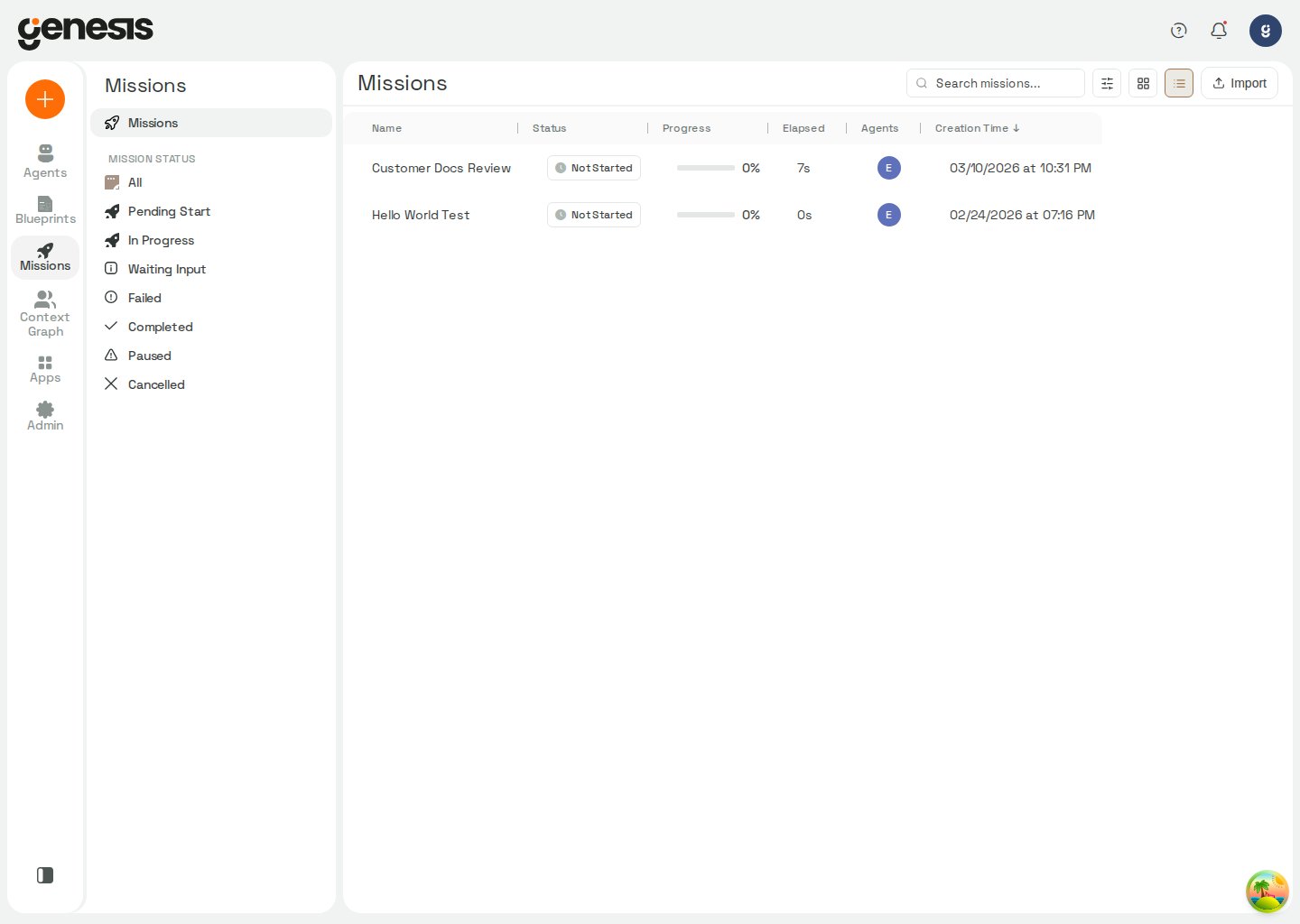
The **Missions** workspace is the main home for long-running, multi-step work in Genesis. Customers use it to launch or import missions, monitor progress, inspect task state, switch between board and list task layouts, review outputs, and return to the mission thread that powers the workflow.
 ## Mission Center
Mission Center supports the core mission-management workflow:
* open the guided **Create Mission** page to describe a goal and get blueprint recommendations,
* search missions by name,
* filter by status, one or more tags, or one or more creators,
* sort list view by name, creation time, or creator,
* switch between list and grid views,
* load older missions with **Load more** when the list spans more than one page,
* rename a mission from the mission actions menu in either list or grid view,
* import a mission package,
* open a mission detail page.
Mission details include **Project** assignment controls for authorized users; see
[Projects](/docs/User-Guide/Projects) for the shared grouping model.
In **demo mode**, Mission Center adds a **Today** / **History** toggle in the
header. **Today** shows missions created since local midnight; **History**
shows missions created before today. A banner describes the date scope currently
shown. Genesis remembers your last choice in browser `localStorage`. If **Today**
is selected on arrival and the loaded list has missions but none created today,
Mission Center opens **History** instead; when **Today** is empty, you can also
select **View history** in the empty state. On first visit with no active filters,
Genesis also applies the `demo:gold` tag so gold-path Sales Engineering vignettes
(migration suites, `client_file_onboarding`, `demo_dashboard_root_cause`, and
related demos) appear by default. Clear or change tag filters any time from
**Filter missions**.
When tag or creator filters are active, Mission Center keeps the selected
values visible as chips beside the filter control so you can confirm the
current filter set at a glance and clear all selected tags or creators from the
header without reopening the filter menu.
In list view, the **Creator** column shows who started each mission. When both a
display name and email are available, the name appears on the first line and the
email on the second. Missions created by the built-in system identity are
labeled **System User**. Click the **Creator** or **Creation Time** column
header to sort; each click cycles through descending, ascending, and default
name order.
Within the same browser session, Mission Center also remembers the current
search text, sort order, status filter, selected tags, and selected creators
when you leave the list and return through normal navigation.
Mission Center loads missions in pages of up to 1,000 rows. When more missions
match your current filters, a **Load more** button appears at the bottom of
grid and list views. Select it to append the next page; the button hides once
every matching mission is visible. Changing search, filters, or sort order
returns to the first page.
In the header, open **Filter missions** and use the **Status** dropdown to narrow
the mission list. Use the **Creator** section to filter by one or more mission
creators; the dropdown is searchable and lists each creator by display name,
email, or user id. **All statuses** is the default and shows every mission.
**All Not Completed** shows missions that have not reached a terminal outcome:
not started, in progress, awaiting input, stuck, and paused missions are
included; completed, failed, cancelled, and retired missions are excluded. Use
the **Retired** status when you need to find missions that were stopped early and
are permanently closed. Retired missions remain visible in the full list and have
a terminal status distinct from **Completed**.
Use **All Not Completed** when you want a single view of open work without picking
a narrower status such as **In Progress** or **Awaiting Input**.
## Create a mission from a goal
From **Mission Center**, select the **Create Mission** button in the page header to open the full-page guided mission-creation flow.
1. Describe the data goal in plain language, or start from one of the suggested prompts.
2. If Genesis needs more context, it asks up to two clarifying questions, one at a time.
3. Genesis returns up to three ranked blueprint recommendations with fit rationale, match strength, and blueprint details.
4. Select **Start Mission with this Blueprint** to open the standard blueprint mission setup flow.
If you already have visible saved connections, Genesis can use them as soft
environment hints while ranking blueprint matches. When you choose a
recommendation, the mission setup flow opens with the goal, any answered
questions, and the recommendation rationale prefilled in kickoff notes.
Genesis uses only one follow-up round in this flow. After you answer the
clarifying questions, it returns recommendations instead of asking another
round of questions.
Recommendation cards label each result as **Strong match**, **Possible match**, or **Weak match** to help you compare fit quickly.
If no recommendation fits, revise the goal description and run the search again.
## Mission detail tabs
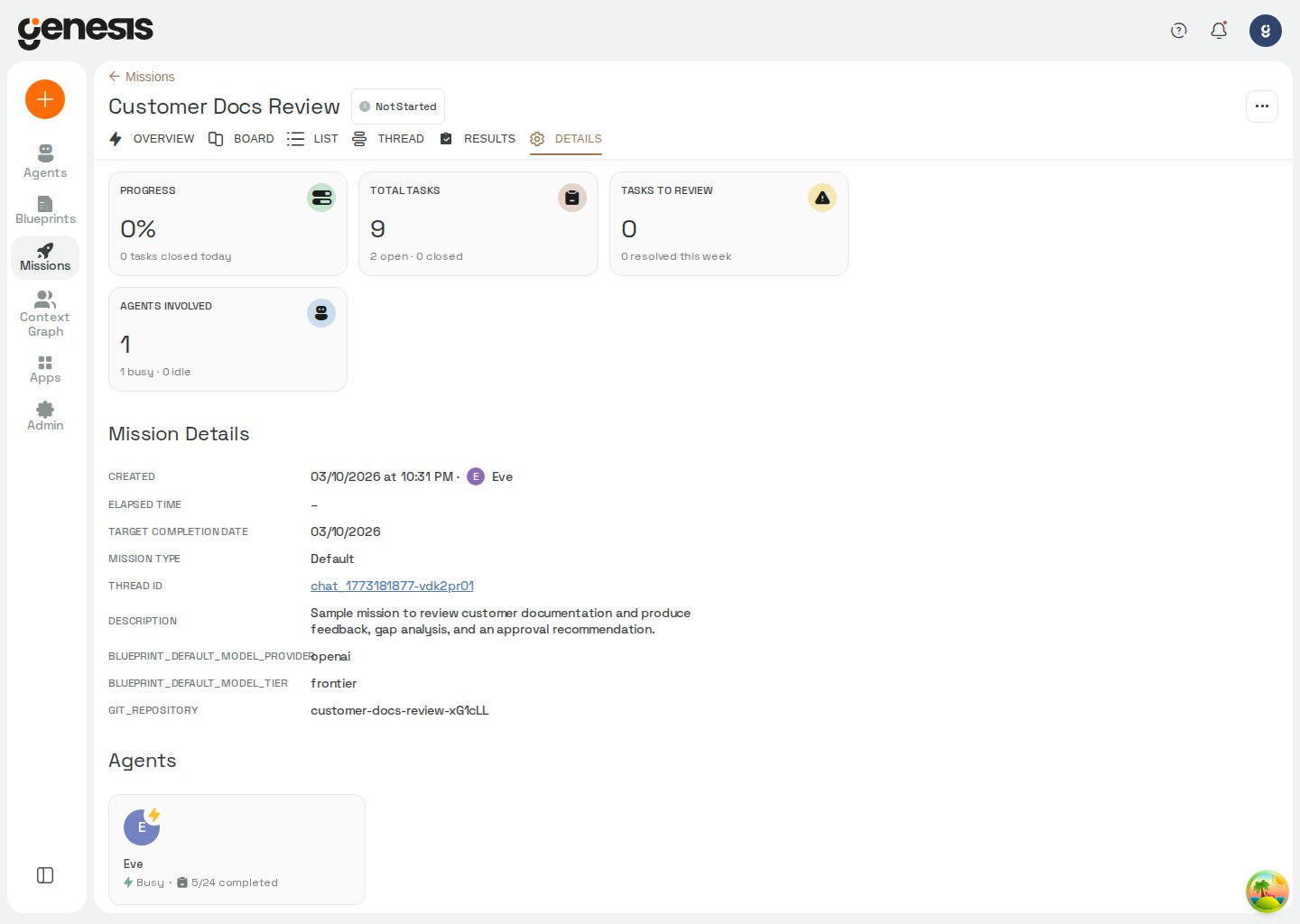
A mission detail page is organized into multiple customer-facing tabs:
| Tab | Purpose |
| - | - |
| **Overview** | High-level mission progress, live work log, and **Document Flow** — a phase graph with documents and per-connection database read/write activity. |
| **Board** | Mission task workspace with a built-in toggle between Kanban and list layouts. |
| **Thread** | The mission conversation driving the work. |
| **Outputs** | Generated outputs, files, and deliverables. |
| **Debrief** | Journey-wide aggregate debrief when the mission is part of a multi-stage Blueprint chain (see below). |
| **Details** | Metadata, ownership, related thread, and summary information. |
The **Thread** tab also shows a background-work card above the composer when the
mission thread is waiting on a run the agent started. The card keeps the run visible
while the thread is idle; dismissing it hides the card but does not stop the run or
prevent its completion from waking the thread.
When a mission is part of a multi-blueprint journey or has spawned blueprint
handoff threads, a **Blueprint chain** strip appears above the tabs. Select a
stage pill to open that blueprint's thread on the **Thread** tab. Stages that
have not started yet appear as dashed pills labeled **Expected**; plan-only
missions may show later runner or validator stages as **Skipped**. Optional
stages (such as incremental CDC testing) are labeled **Optional** when they are
still expected. Validator-delegated runner re-fires show a green
**Remediation** badge; when the validator re-fires the runner more than once,
those rounds collapse into one expandable group (for example **×2**) so you can
open each corrective mission individually.
A pulsing green dot on a stage pill marks the mission that is **running now** —
independent of which stage you are viewing. This stays accurate when work moves
back to an earlier runner during remediation (for example validator → runner
re-fire) while you remain on the validator thread.
When the chain hands work to a **newly spawned** mission thread while you are
viewing another stage — a forward runner → validator handoff or a remediation
re-fire — Genesis shows a clickable toast (for example **Mission handed off to
… — click to follow**). The toast stays visible until you click it (to open
that stage on the **Thread** tab), dismiss it, or leave the mission screen — it
does not auto-dismiss. Each new handoff appears only once; Genesis does not
re-show toasts for chain stages you have already seen.
When the mission carries a presenter-selected `coding_agent` blueprint input,
the chain strip also shows a compact badge (for example **Claude Code**) beside
the chain label.
See [Blueprint journeys and chain navigation](/docs/Blueprint/Blueprint-Library-And-Missions#mission-center-blueprint-chain)
for how journey recipes, structured inputs, and handoff metadata drive the
strip.
Use the view toggle in the **Board** tab to switch between the two task layouts without leaving the mission detail page.
You can rename a mission from the mission detail header in two ways:
* select **Rename mission** from the header actions menu,
* click the mission title directly, update it inline, then press **Enter** or click away to save. Press **Escape** to cancel.
## Mission Center
Mission Center supports the core mission-management workflow:
* open the guided **Create Mission** page to describe a goal and get blueprint recommendations,
* search missions by name,
* filter by status, one or more tags, or one or more creators,
* sort list view by name, creation time, or creator,
* switch between list and grid views,
* load older missions with **Load more** when the list spans more than one page,
* rename a mission from the mission actions menu in either list or grid view,
* import a mission package,
* open a mission detail page.
Mission details include **Project** assignment controls for authorized users; see
[Projects](/docs/User-Guide/Projects) for the shared grouping model.
In **demo mode**, Mission Center adds a **Today** / **History** toggle in the
header. **Today** shows missions created since local midnight; **History**
shows missions created before today. A banner describes the date scope currently
shown. Genesis remembers your last choice in browser `localStorage`. If **Today**
is selected on arrival and the loaded list has missions but none created today,
Mission Center opens **History** instead; when **Today** is empty, you can also
select **View history** in the empty state. On first visit with no active filters,
Genesis also applies the `demo:gold` tag so gold-path Sales Engineering vignettes
(migration suites, `client_file_onboarding`, `demo_dashboard_root_cause`, and
related demos) appear by default. Clear or change tag filters any time from
**Filter missions**.
When tag or creator filters are active, Mission Center keeps the selected
values visible as chips beside the filter control so you can confirm the
current filter set at a glance and clear all selected tags or creators from the
header without reopening the filter menu.
In list view, the **Creator** column shows who started each mission. When both a
display name and email are available, the name appears on the first line and the
email on the second. Missions created by the built-in system identity are
labeled **System User**. Click the **Creator** or **Creation Time** column
header to sort; each click cycles through descending, ascending, and default
name order.
Within the same browser session, Mission Center also remembers the current
search text, sort order, status filter, selected tags, and selected creators
when you leave the list and return through normal navigation.
Mission Center loads missions in pages of up to 1,000 rows. When more missions
match your current filters, a **Load more** button appears at the bottom of
grid and list views. Select it to append the next page; the button hides once
every matching mission is visible. Changing search, filters, or sort order
returns to the first page.
In the header, open **Filter missions** and use the **Status** dropdown to narrow
the mission list. Use the **Creator** section to filter by one or more mission
creators; the dropdown is searchable and lists each creator by display name,
email, or user id. **All statuses** is the default and shows every mission.
**All Not Completed** shows missions that have not reached a terminal outcome:
not started, in progress, awaiting input, stuck, and paused missions are
included; completed, failed, cancelled, and retired missions are excluded. Use
the **Retired** status when you need to find missions that were stopped early and
are permanently closed. Retired missions remain visible in the full list and have
a terminal status distinct from **Completed**.
Use **All Not Completed** when you want a single view of open work without picking
a narrower status such as **In Progress** or **Awaiting Input**.
## Create a mission from a goal
From **Mission Center**, select the **Create Mission** button in the page header to open the full-page guided mission-creation flow.
1. Describe the data goal in plain language, or start from one of the suggested prompts.
2. If Genesis needs more context, it asks up to two clarifying questions, one at a time.
3. Genesis returns up to three ranked blueprint recommendations with fit rationale, match strength, and blueprint details.
4. Select **Start Mission with this Blueprint** to open the standard blueprint mission setup flow.
If you already have visible saved connections, Genesis can use them as soft
environment hints while ranking blueprint matches. When you choose a
recommendation, the mission setup flow opens with the goal, any answered
questions, and the recommendation rationale prefilled in kickoff notes.
Genesis uses only one follow-up round in this flow. After you answer the
clarifying questions, it returns recommendations instead of asking another
round of questions.
Recommendation cards label each result as **Strong match**, **Possible match**, or **Weak match** to help you compare fit quickly.
If no recommendation fits, revise the goal description and run the search again.
## Mission detail tabs
A mission detail page is organized into multiple customer-facing tabs:
| Tab | Purpose |
| - | - |
| **Overview** | High-level mission progress, live work log, and **Document Flow** — a phase graph with documents and per-connection database read/write activity. |
| **Board** | Mission task workspace with a built-in toggle between Kanban and list layouts. |
| **Thread** | The mission conversation driving the work. |
| **Outputs** | Generated outputs, files, and deliverables. |
| **Debrief** | Journey-wide aggregate debrief when the mission is part of a multi-stage Blueprint chain (see below). |
| **Details** | Metadata, ownership, related thread, and summary information. |
The **Thread** tab also shows a background-work card above the composer when the
mission thread is waiting on a run the agent started. The card keeps the run visible
while the thread is idle; dismissing it hides the card but does not stop the run or
prevent its completion from waking the thread.
When a mission is part of a multi-blueprint journey or has spawned blueprint
handoff threads, a **Blueprint chain** strip appears above the tabs. Select a
stage pill to open that blueprint's thread on the **Thread** tab. Stages that
have not started yet appear as dashed pills labeled **Expected**; plan-only
missions may show later runner or validator stages as **Skipped**. Optional
stages (such as incremental CDC testing) are labeled **Optional** when they are
still expected. Validator-delegated runner re-fires show a green
**Remediation** badge; when the validator re-fires the runner more than once,
those rounds collapse into one expandable group (for example **×2**) so you can
open each corrective mission individually.
A pulsing green dot on a stage pill marks the mission that is **running now** —
independent of which stage you are viewing. This stays accurate when work moves
back to an earlier runner during remediation (for example validator → runner
re-fire) while you remain on the validator thread.
When the chain hands work to a **newly spawned** mission thread while you are
viewing another stage — a forward runner → validator handoff or a remediation
re-fire — Genesis shows a clickable toast (for example **Mission handed off to
… — click to follow**). The toast stays visible until you click it (to open
that stage on the **Thread** tab), dismiss it, or leave the mission screen — it
does not auto-dismiss. Each new handoff appears only once; Genesis does not
re-show toasts for chain stages you have already seen.
When the mission carries a presenter-selected `coding_agent` blueprint input,
the chain strip also shows a compact badge (for example **Claude Code**) beside
the chain label.
See [Blueprint journeys and chain navigation](/docs/Blueprint/Blueprint-Library-And-Missions#mission-center-blueprint-chain)
for how journey recipes, structured inputs, and handoff metadata drive the
strip.
Use the view toggle in the **Board** tab to switch between the two task layouts without leaving the mission detail page.
You can rename a mission from the mission detail header in two ways:
* select **Rename mission** from the header actions menu,
* click the mission title directly, update it inline, then press **Enter** or click away to save. Press **Escape** to cancel.
 ## Overview tab: Document Flow and database activity
The **Overview** tab hosts the live mission panel, including **Document Flow** —
a graph of blueprint phases, input and output documents, and per-phase database
activity on saved connections.
For how missions select the source for phase details and files, see
[Blueprint Library and Missions](/docs/Blueprint/Blueprint-Library-And-Missions).
For each blueprint phase, Genesis can attach one or more **database connection**
nodes per saved connection:
* **READ** nodes (purple) appear upstream of the phase. They represent
read-classified SQL — such as `SELECT`, `SHOW`, and `DESCRIBE` — against that
connection during the phase.
* **WRITE** nodes (amber) appear downstream of the phase. They represent
write-classified SQL — such as `INSERT`, `UPDATE`, `MERGE`, `CREATE`, and
`DROP` — against that connection during the phase.
Select a database connection node to expand or collapse an inline detail list
for that phase's reads or writes on that connection. When an activity produced
a stored tabular result you are allowed to view, select it to open the
query-result viewer. Activities without a tabular result (for example DDL that
does not return rows) appear as non-clickable rows labeled **No tabular
result**. For **READ** activity, the expanded list can also show **Related
tables** linked from phase artifacts. Activity labels use the recorded title
when present; otherwise Genesis derives a short summary from the SQL statement
(for example **Created table X**). A computed-result preview shows its
description under **Computed result** instead of formatting it as SQL; see
[Data Explorer](/docs/User-Guide/Data-Explorer) for how computed query results
appear in the result viewer.
Open **Document Flow settings** from the live panel to toggle **Show Documents**
and **Show Database Activity**. These preferences are saved on the mission
project.
### Mission replay
When replay event data is available for a mission, the **Overview** live panel
includes media-style controls at the bottom of the panel:
* scrub the timeline, play or pause, skip ±10 seconds, and jump between
checkpoints,
* switch between **Live** (follow the mission in real time) and **Replay** by
dragging the scrubber to the end or away from it,
* adjust playback speed when not in live mode.
Playback continues across event timestamps on high-refresh displays, including
when each frame advances the playback clock by less than 10 milliseconds.
The elapsed time shown (`current / total`) is the **replay** duration, not the
mission's wall-clock runtime. Genesis compresses idle gaps — for example, long
waits while the assistant awaits your input, or stretches with only status
updates and no active work — so replays stay watchable. Brief pauses remain
before user messages and when the mission is **Awaiting Input**. Any remaining
idle gaps longer than one minute are capped so the total replay length stays
close to active work time. Replays longer than one hour show time as `H:MM:SS`;
shorter replays use `M:SS`.
When replaying a mission, Document Flow filters database activity through the
replay cutoff timestamp so only SQL that had run at that point in the replay
appears.
### Prover progress in missions
When a migration validation or system-diff run emits Prover progress, the
Overview live panel adds a **Prover** tab. A newly observed live run selects the
tab and opens its panel automatically; Prover runs already present when the
mission loads remain available without taking focus. Select the tab to watch the
run while it is executing, or move the mission replay timeline through the same
events to review a recording later. A Prover-only recording can be replayed even
when the mission thread has no assistant output at that point.
Use the panel's expand control to enlarge the Prover view. Select the control
again, press **Escape**, or click outside the expanded panel to return to the
mission flow views.
The live panel also offers a fullscreen **Mission Data Flow** view for
transformation-oriented lineage across phases. Use Document Flow when you want
phase-scoped document and connection context; use Mission Data Flow for
transformation graphs.
When a phase ran a Prover proof, Document Flow places a **Proof** card on that
phase. Re-runs stay grouped on one card: it shows the latest proof and a count
of the proofs the phase ran. Select the card to open the full comparison. In
Live, an in-progress proof card settles when the run does; in Replay, it does
not fetch a newer result from the live run.
### Context Graph traversal
When a live mission produces a new context-graph traversal, the live panel
selects **Context Graph** automatically and opens the traversal view. The first
walk state loaded for the mission is treated as the baseline, so opening an
existing mission does not replay an earlier traversal or switch views
unexpectedly. Each traversal is activated only once.
The **Context Graph** tab appears while a traversal is available. To return to
the other flow views, select **Collapse** in the upper-right corner, press
**Escape**, or click outside the expanded graph. Switching flow views preserves
the current mission context without replaying the previous traversal.
### Overview panel layout
On desktop, the **Overview** live panel uses resizable horizontal and vertical
dividers so you can balance the work log, artifacts tree, and **Document Flow**
graph. Drag either divider to resize; hover a divider or the corner handle at
their intersection to highlight both splits. Drag the corner handle to resize
both panels at once. With the corner handle focused, use the arrow keys (hold
**Shift** for larger steps) to adjust layout from the keyboard. Corner resize is
not shown on narrow mobile layouts.
## What users can do
* start or import a mission, including from the guided **Create Mission** recommendation flow,
* pause, resume, or cancel a mission when those actions are available,
* rename a mission from **Mission Center** or directly from the mission detail title,
* open the current mission debrief from the mission header,
* export a mission package,
* review tasks from the **Board** tab and switch between board and list layouts,
* generate or refresh a debrief for the linked mission thread,
* answer follow-up questions when a mission needs input,
* open the thread or results without leaving the mission context.
## BlueprintRun external gates
Missions started through [Programmatic BlueprintRun](/docs/Blueprint/Programmatic-BlueprintRun)
can pause on **external input gates** that only a host application (or operator
with API access) can clear. While a gate is open:
* Mission Center lists the mission as **Awaiting Input** (distinct from generic
in-progress work).
* A mission-wide **external gate ribbon** appears above the mission tabs with
phase, purpose, auto-continue countdown when configured, **API details**
(run id, `input_id`, example `POST /api/runs/{run_id}/input/{input_id}`), and
**Apply default & continue now** when exactly one gate has a `default_after`
policy.
* The **Thread** tab shows that chat messages do not satisfy the gate; use the
ribbon or your host integration to post `commit` or `details`.
When the host passes a catalog bot-git repo in BlueprintRun `inputs` (for
example `catalog_repo_id`), Genesis shows a **Host catalog** strip on the mission
with that repo id so operators know which read-only catalog the external app wired.
## Mission results and follow-up work
The mission thread and mission **Outputs** tab are designed to work together: the
thread explains what happened, while the **Outputs** tab exposes the generated
files, repositories, and deliverables.
On the **Details** tab, Genesis links to the Blueprint when it can resolve a
name from `blueprint_name`, the active `blueprint_phase`, or a `Blueprint:`
marker in the mission description. When a stable `blueprint_id` is stored on
the mission, the link preserves that identity in the Blueprint detail URL.
## Mission and thread debriefs
Genesis supports three debrief scopes:
| Scope | Where to open it | What it summarizes |
| - | - | - |
| **Thread** | Debrief control on the **Thread** tab | The linked mission conversation. |
| **Mission** | **Debrief** in the mission header actions menu | One mission project — phases, artifacts, migration outputs, and related sections. |
| **Journey** | **Debrief** tab on the root mission of a multi-stage Blueprint chain | The full chain — per-stage outcomes, child mission debriefs, connection context, database activity, decisions, and next steps. |
### Single-mission debrief (header action)
From a mission detail page that is **not** part of a multi-stage Journey,
select **Debrief** in the page header to open the current mission debrief. If
Genesis has not generated one yet, it creates the debrief first and then opens
it in a fullscreen modal without leaving the mission view.
Mission debriefs are section-based summaries. Depending on what the mission
produced, Genesis can show an overview, the original ask, a phase walkthrough,
lineage and downstream consumers, a conversion diff, migration code, migration
run details, a reconciliation verdict, open decisions, lessons captured to the
Context Graph wiki, the audit trail, repository layout, and recommended next
steps.
When a mission is part of a Journey (two or more spawned chain nodes or two or
more planned journey stages), Genesis hides the header **Debrief** action and
shows a **Debrief** tab on the root mission instead. Child missions in the
chain still expose per-mission debriefs from within the Journey debrief view.
### Journey debrief tab
The **Debrief** tab appears on the root mission when Genesis detects a
multi-stage Blueprint chain. Genesis opens the tab on the root project even
when you navigate from a child mission in the chain (`?tab=debrief`).
On first open, Genesis generates or refreshes a Journey aggregate debrief via
`POST /api/debriefs` with `source.kind="journey"` and the root `project_id`.
The tab shows:
* Journey title, variant label, overall status, headline, and narrative (LLM
synthesis when available, with deterministic fallback when the Journey is
incomplete or synthesis fails),
* Per-stage outcomes aligned to the Blueprint chain stepper — expand a stage for
phase summaries, checklist rollups, and validation verdicts when recorded,
* Source and target connection context,
* Database activity (reads and writes grouped by phase and connection), decisions needing attention, and recommended next steps,
* Links to open each spawned stage's mission workspace or drill into its child
mission debrief (`?debrief_id=` on the Journey tab).
Use **Back to Journey** (or the browser back button when you opened a child
debrief from the Journey view) to return to the aggregate debrief. Leaving the
**Debrief** tab clears `debrief_id` from the URL.
If the Blueprint chain cannot be loaded while you are on the **Debrief** tab,
Genesis shows a retry prompt so you can restore Journey context before viewing
the debrief.
### Thread debrief
The **Thread** tab also exposes a debrief action for the linked mission
conversation. Use that action when you want a thread-scoped debrief of the
mission chat itself. If a thread debrief already exists for that mission
thread, Genesis regenerates it and reopens the updated result in the same
mission view.
## Related pages
* [Blueprint Library and Missions](/docs/Blueprint/Blueprint-Library-And-Missions)
* [Programmatic BlueprintRun](/docs/Blueprint/Programmatic-BlueprintRun)
* [Chat and Threads](/docs/User-Guide/Chat-And-Threads)
## Overview tab: Document Flow and database activity
The **Overview** tab hosts the live mission panel, including **Document Flow** —
a graph of blueprint phases, input and output documents, and per-phase database
activity on saved connections.
For how missions select the source for phase details and files, see
[Blueprint Library and Missions](/docs/Blueprint/Blueprint-Library-And-Missions).
For each blueprint phase, Genesis can attach one or more **database connection**
nodes per saved connection:
* **READ** nodes (purple) appear upstream of the phase. They represent
read-classified SQL — such as `SELECT`, `SHOW`, and `DESCRIBE` — against that
connection during the phase.
* **WRITE** nodes (amber) appear downstream of the phase. They represent
write-classified SQL — such as `INSERT`, `UPDATE`, `MERGE`, `CREATE`, and
`DROP` — against that connection during the phase.
Select a database connection node to expand or collapse an inline detail list
for that phase's reads or writes on that connection. When an activity produced
a stored tabular result you are allowed to view, select it to open the
query-result viewer. Activities without a tabular result (for example DDL that
does not return rows) appear as non-clickable rows labeled **No tabular
result**. For **READ** activity, the expanded list can also show **Related
tables** linked from phase artifacts. Activity labels use the recorded title
when present; otherwise Genesis derives a short summary from the SQL statement
(for example **Created table X**). A computed-result preview shows its
description under **Computed result** instead of formatting it as SQL; see
[Data Explorer](/docs/User-Guide/Data-Explorer) for how computed query results
appear in the result viewer.
Open **Document Flow settings** from the live panel to toggle **Show Documents**
and **Show Database Activity**. These preferences are saved on the mission
project.
### Mission replay
When replay event data is available for a mission, the **Overview** live panel
includes media-style controls at the bottom of the panel:
* scrub the timeline, play or pause, skip ±10 seconds, and jump between
checkpoints,
* switch between **Live** (follow the mission in real time) and **Replay** by
dragging the scrubber to the end or away from it,
* adjust playback speed when not in live mode.
Playback continues across event timestamps on high-refresh displays, including
when each frame advances the playback clock by less than 10 milliseconds.
The elapsed time shown (`current / total`) is the **replay** duration, not the
mission's wall-clock runtime. Genesis compresses idle gaps — for example, long
waits while the assistant awaits your input, or stretches with only status
updates and no active work — so replays stay watchable. Brief pauses remain
before user messages and when the mission is **Awaiting Input**. Any remaining
idle gaps longer than one minute are capped so the total replay length stays
close to active work time. Replays longer than one hour show time as `H:MM:SS`;
shorter replays use `M:SS`.
When replaying a mission, Document Flow filters database activity through the
replay cutoff timestamp so only SQL that had run at that point in the replay
appears.
### Prover progress in missions
When a migration validation or system-diff run emits Prover progress, the
Overview live panel adds a **Prover** tab. A newly observed live run selects the
tab and opens its panel automatically; Prover runs already present when the
mission loads remain available without taking focus. Select the tab to watch the
run while it is executing, or move the mission replay timeline through the same
events to review a recording later. A Prover-only recording can be replayed even
when the mission thread has no assistant output at that point.
Use the panel's expand control to enlarge the Prover view. Select the control
again, press **Escape**, or click outside the expanded panel to return to the
mission flow views.
The live panel also offers a fullscreen **Mission Data Flow** view for
transformation-oriented lineage across phases. Use Document Flow when you want
phase-scoped document and connection context; use Mission Data Flow for
transformation graphs.
When a phase ran a Prover proof, Document Flow places a **Proof** card on that
phase. Re-runs stay grouped on one card: it shows the latest proof and a count
of the proofs the phase ran. Select the card to open the full comparison. In
Live, an in-progress proof card settles when the run does; in Replay, it does
not fetch a newer result from the live run.
### Context Graph traversal
When a live mission produces a new context-graph traversal, the live panel
selects **Context Graph** automatically and opens the traversal view. The first
walk state loaded for the mission is treated as the baseline, so opening an
existing mission does not replay an earlier traversal or switch views
unexpectedly. Each traversal is activated only once.
The **Context Graph** tab appears while a traversal is available. To return to
the other flow views, select **Collapse** in the upper-right corner, press
**Escape**, or click outside the expanded graph. Switching flow views preserves
the current mission context without replaying the previous traversal.
### Overview panel layout
On desktop, the **Overview** live panel uses resizable horizontal and vertical
dividers so you can balance the work log, artifacts tree, and **Document Flow**
graph. Drag either divider to resize; hover a divider or the corner handle at
their intersection to highlight both splits. Drag the corner handle to resize
both panels at once. With the corner handle focused, use the arrow keys (hold
**Shift** for larger steps) to adjust layout from the keyboard. Corner resize is
not shown on narrow mobile layouts.
## What users can do
* start or import a mission, including from the guided **Create Mission** recommendation flow,
* pause, resume, or cancel a mission when those actions are available,
* rename a mission from **Mission Center** or directly from the mission detail title,
* open the current mission debrief from the mission header,
* export a mission package,
* review tasks from the **Board** tab and switch between board and list layouts,
* generate or refresh a debrief for the linked mission thread,
* answer follow-up questions when a mission needs input,
* open the thread or results without leaving the mission context.
## BlueprintRun external gates
Missions started through [Programmatic BlueprintRun](/docs/Blueprint/Programmatic-BlueprintRun)
can pause on **external input gates** that only a host application (or operator
with API access) can clear. While a gate is open:
* Mission Center lists the mission as **Awaiting Input** (distinct from generic
in-progress work).
* A mission-wide **external gate ribbon** appears above the mission tabs with
phase, purpose, auto-continue countdown when configured, **API details**
(run id, `input_id`, example `POST /api/runs/{run_id}/input/{input_id}`), and
**Apply default & continue now** when exactly one gate has a `default_after`
policy.
* The **Thread** tab shows that chat messages do not satisfy the gate; use the
ribbon or your host integration to post `commit` or `details`.
When the host passes a catalog bot-git repo in BlueprintRun `inputs` (for
example `catalog_repo_id`), Genesis shows a **Host catalog** strip on the mission
with that repo id so operators know which read-only catalog the external app wired.
## Mission results and follow-up work
The mission thread and mission **Outputs** tab are designed to work together: the
thread explains what happened, while the **Outputs** tab exposes the generated
files, repositories, and deliverables.
On the **Details** tab, Genesis links to the Blueprint when it can resolve a
name from `blueprint_name`, the active `blueprint_phase`, or a `Blueprint:`
marker in the mission description. When a stable `blueprint_id` is stored on
the mission, the link preserves that identity in the Blueprint detail URL.
## Mission and thread debriefs
Genesis supports three debrief scopes:
| Scope | Where to open it | What it summarizes |
| - | - | - |
| **Thread** | Debrief control on the **Thread** tab | The linked mission conversation. |
| **Mission** | **Debrief** in the mission header actions menu | One mission project — phases, artifacts, migration outputs, and related sections. |
| **Journey** | **Debrief** tab on the root mission of a multi-stage Blueprint chain | The full chain — per-stage outcomes, child mission debriefs, connection context, database activity, decisions, and next steps. |
### Single-mission debrief (header action)
From a mission detail page that is **not** part of a multi-stage Journey,
select **Debrief** in the page header to open the current mission debrief. If
Genesis has not generated one yet, it creates the debrief first and then opens
it in a fullscreen modal without leaving the mission view.
Mission debriefs are section-based summaries. Depending on what the mission
produced, Genesis can show an overview, the original ask, a phase walkthrough,
lineage and downstream consumers, a conversion diff, migration code, migration
run details, a reconciliation verdict, open decisions, lessons captured to the
Context Graph wiki, the audit trail, repository layout, and recommended next
steps.
When a mission is part of a Journey (two or more spawned chain nodes or two or
more planned journey stages), Genesis hides the header **Debrief** action and
shows a **Debrief** tab on the root mission instead. Child missions in the
chain still expose per-mission debriefs from within the Journey debrief view.
### Journey debrief tab
The **Debrief** tab appears on the root mission when Genesis detects a
multi-stage Blueprint chain. Genesis opens the tab on the root project even
when you navigate from a child mission in the chain (`?tab=debrief`).
On first open, Genesis generates or refreshes a Journey aggregate debrief via
`POST /api/debriefs` with `source.kind="journey"` and the root `project_id`.
The tab shows:
* Journey title, variant label, overall status, headline, and narrative (LLM
synthesis when available, with deterministic fallback when the Journey is
incomplete or synthesis fails),
* Per-stage outcomes aligned to the Blueprint chain stepper — expand a stage for
phase summaries, checklist rollups, and validation verdicts when recorded,
* Source and target connection context,
* Database activity (reads and writes grouped by phase and connection), decisions needing attention, and recommended next steps,
* Links to open each spawned stage's mission workspace or drill into its child
mission debrief (`?debrief_id=` on the Journey tab).
Use **Back to Journey** (or the browser back button when you opened a child
debrief from the Journey view) to return to the aggregate debrief. Leaving the
**Debrief** tab clears `debrief_id` from the URL.
If the Blueprint chain cannot be loaded while you are on the **Debrief** tab,
Genesis shows a retry prompt so you can restore Journey context before viewing
the debrief.
### Thread debrief
The **Thread** tab also exposes a debrief action for the linked mission
conversation. Use that action when you want a thread-scoped debrief of the
mission chat itself. If a thread debrief already exists for that mission
thread, Genesis regenerates it and reopens the updated result in the same
mission view.
## Related pages
* [Blueprint Library and Missions](/docs/Blueprint/Blueprint-Library-And-Missions)
* [Programmatic BlueprintRun](/docs/Blueprint/Programmatic-BlueprintRun)
* [Chat and Threads](/docs/User-Guide/Chat-And-Threads)